Asset Management Trackit
Asset Management Trackit
Preparing for Asset Management
Preparing for Asset Management
There are a few setups that are required before working with the assets
Training Video 202402 - Asset_Intro.mp4
The main system needs to be setup for the following
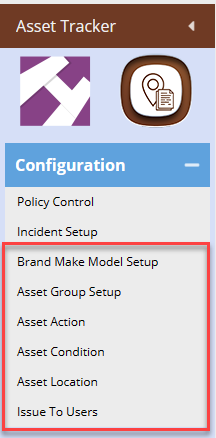
| Brand Make Model setup | Brand make and model to allow easy searches and categories |
| Asset Group Setup | Setup an Asset group for depreciation journal grouping |
| Action Actions | Setup various actions for assets |
| Asset Condition | Setup the condition of assets |
| Asset Location | Setup the various locations for assets |
| Issue To Users | Setup Isse to users where assets are assigned to |
Have the list of assets ready for importing into the system as a first-time setup.
Ask your consultant for assistance
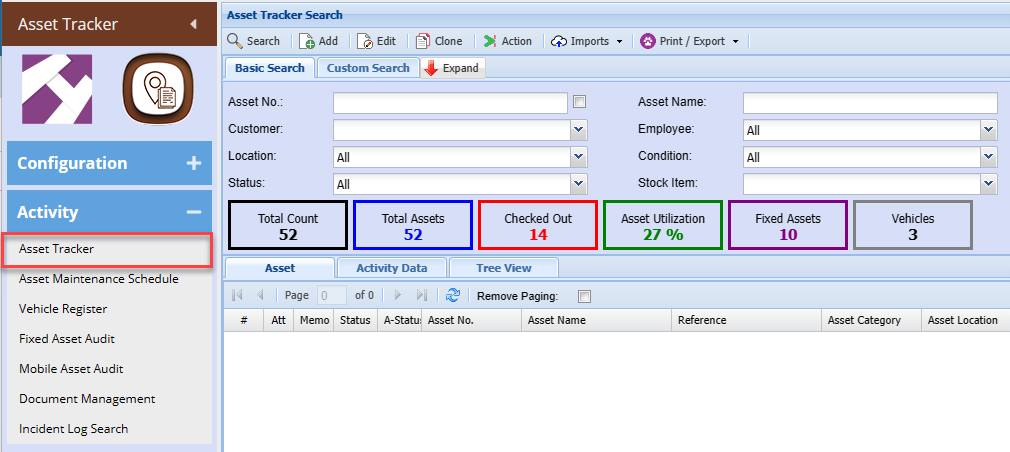
Asset Management App
Asset Modules defined
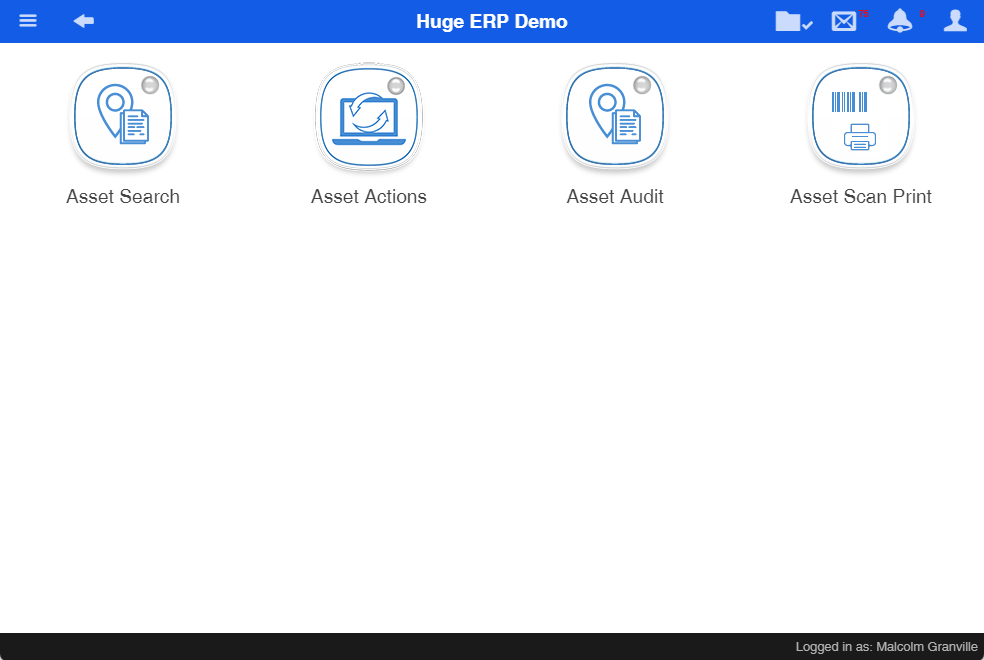
The Asset Tracker has four modules
| Asset Search | Search for Assets and view information on the asset |
| Asset Actions | Create an action on multiple assets |
| Asset Audit | Action a standard audit or blind audit on location |
| Asset Scan Print |
Create an action on an asset by scanning the barcode. The system will automatically print the label of information of that asset Used in a manufacturing process |
Asset Search
Search for Assets and view information on the asset
Asset Search video (2023 October) - Asset_Search.mp4
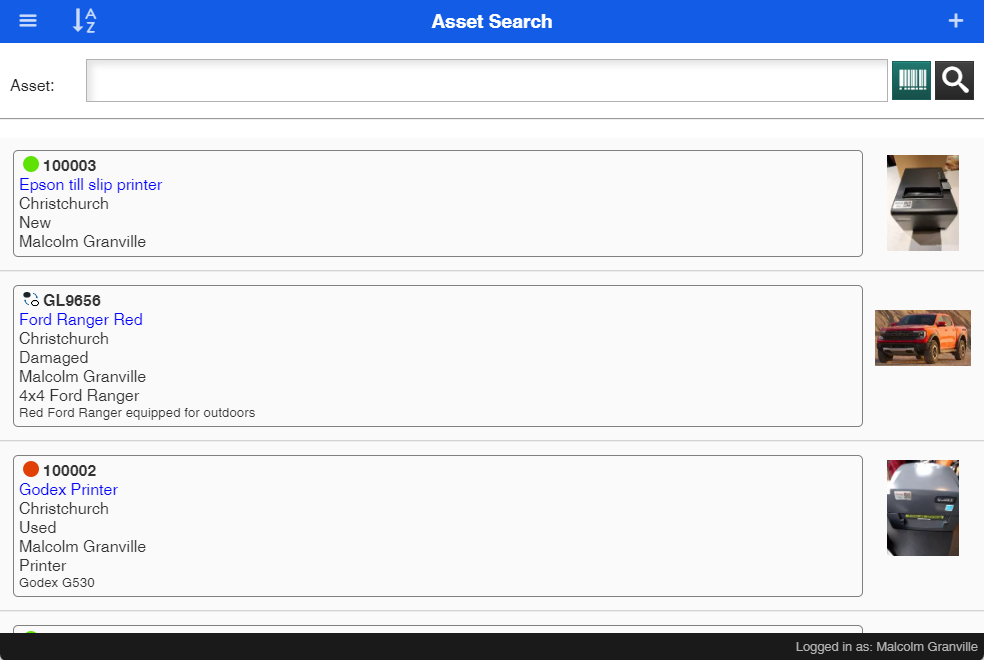
Search on an asset by
- Scanning the asset tag
- Searching for the product
|
|
A-Z |
Sort the asset list by A-Z or Z-A |
|
|
+ (Add new asset) | Add a new Asset |
|
|
Asset Barcode scan area |
Scan a barcode to find an asset Great with a scanner |
|
|
Barcode |
Scan a barcode using the camera Best used with a phone |
|
|
Search |
Search by Brand, make and model Search by description or code |


View the asset
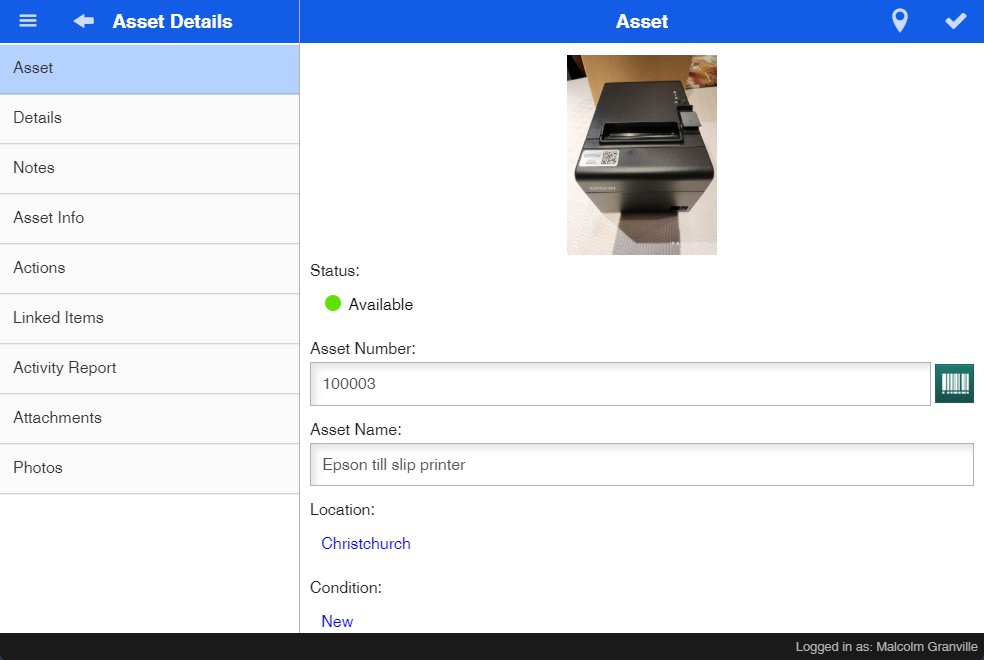
Tap on the asset to view the details
Asset Menus
| Asset | View Basic information on the asset |
| Details | View Additional information like warranty, Next Service Date, Additional fields |
| Notes | View notes on the asset |
| Asset Info | View financial information on the asset eg. Cost price, supplier, when purchased |
| Actions |
View all the actions done against the asset Create a new action on this asset by clicking on the Plus |
| Linked Items |
View all linked items against the asset Click on the Plus icon to linked multiple assets to this asset |
| Activity Report | View all activities done on this asset |
| Attachments | See all attachments eg. photos, pdf documents etc |
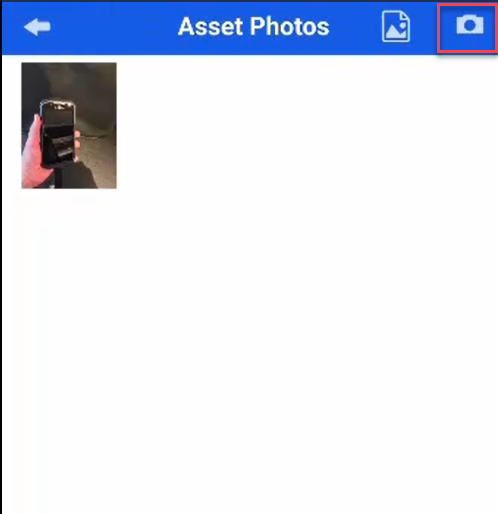
| Photos | Add new photos or upload from gallery |
Asset Information
View Basic information on the asset
|
|
Save updated information on the asset |
|
|
GPS tag the asset If you don't see this icon, contact your administrator to add to your security profile |


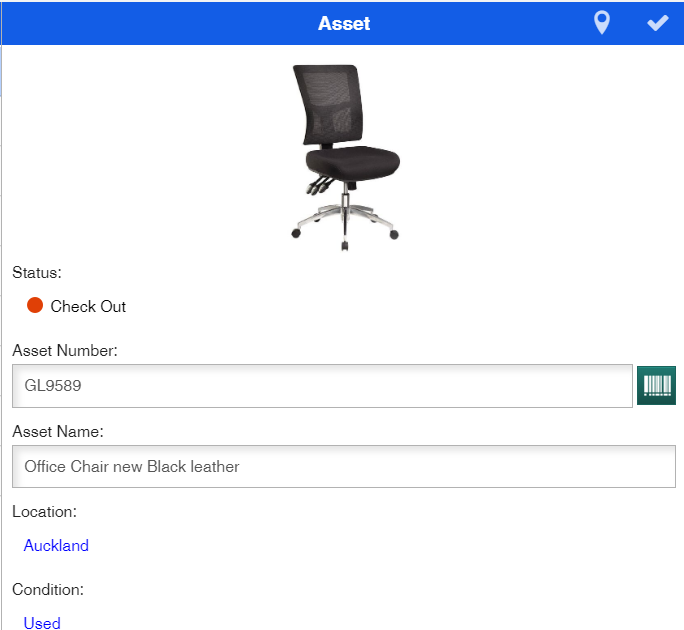
| Picture | Default image of Asset |
| Status | Current Action status of Asset |
| Asset Number | Asset number, Asset barcode |
| Asset Name | Description and name of asset |
| Location |
Current Location To update this field one is required to create an action against the asset |
| Condition |
Current Condition To update this field one is required to create an action against the asset |
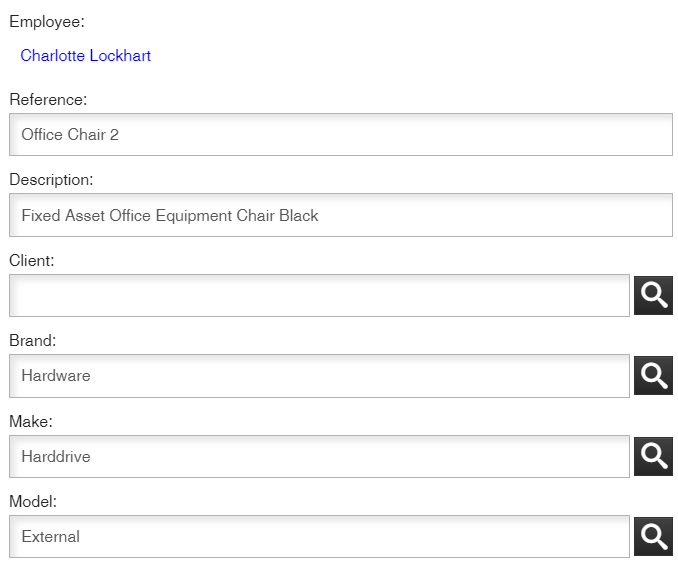
| Employee |
Current Employee To update this field one is required to create an action against the asset |
| Reference | More information on this asset |
| Description | Long description describing this asset |
| Client | A client linked to this item |
| Brand | The Brand category of this asset |
| Make | The Make category of this asset |
| Model | The Model category of this asset |
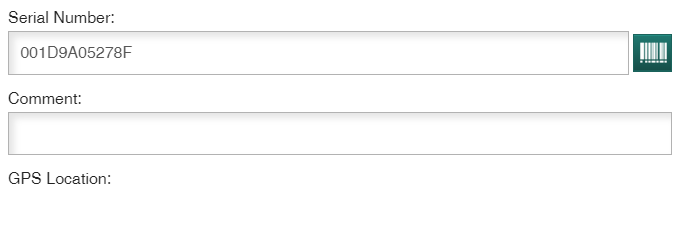
| Serial Number | Serial number of asset |
| Comment | Comment on asset |
| GPS Location | The GPS coordinates |
Asset Actions
Create an action on multiple assets
Asset Actions video (2023 October) - Asset_Actions.mp4
Actions logged against an asset are as follows:
- Location
- Condition
- Issued to
Icons defined
|
|
Full item details on grid |
|
|
Compact grid view |
|
|
Multiple item scanning |
|
|
Single item scanning Allows only one scan per asset |
|
Send to Server Button |
Updates the assets with the action |


| Issued By |
The person who is issuing the action This can be a fixed field or activated for multiple users Multiple user is activated on security |
| Action | Select the action on the actions eg Check in or Check out etc |
| Issued To | Who are you issuing the assets to |
| Location | Where are the assets going to be located |
| Condition | What condition are the assets in |
| Return Date | An estimated return date |
| Description | Small description of the action on the assets |
| Batch No | Enter a batch number |
Note: If you don't put anything into the Issue To, Location or Condition (eg they are left as Not selected) then the asset will retain its original log
Asset Audit
Create a Standard audit or blind audit
Asset Blind audit video (202401) - Asset_Audit.mp4
Asset Results (202401) - Asset_Audit_Results.mp4
| Standard Audit |
Standard audit is green Standard Audit allows one to view items in location Once scanned the list is reduced |
| Blind Audit |
Blind audit is blue Does not show assets at location Only shows items that are scanned in audit |
Note: to limit the user from seeing the standard Audit, setup in security
Icons defined
|
|
Full item details on grid |
|
|
Compact grid view |
|
|
Fetch information on the current asset which is not part of the current audit location. Information updated on which location it is from, assigned to and condition. It checks whether this asset exists in the system |
|
|
Scanned items are hidden |
|
|
Scanned items can be viewed in list Scanned items are marked with a green dot to show it is valid |
|
|
Blue icon - item in audit, but not scanned |
|
|
Green icon - Item scanned in audit and is found and valid |


Activating an Audit
Once all basic information has been filled in
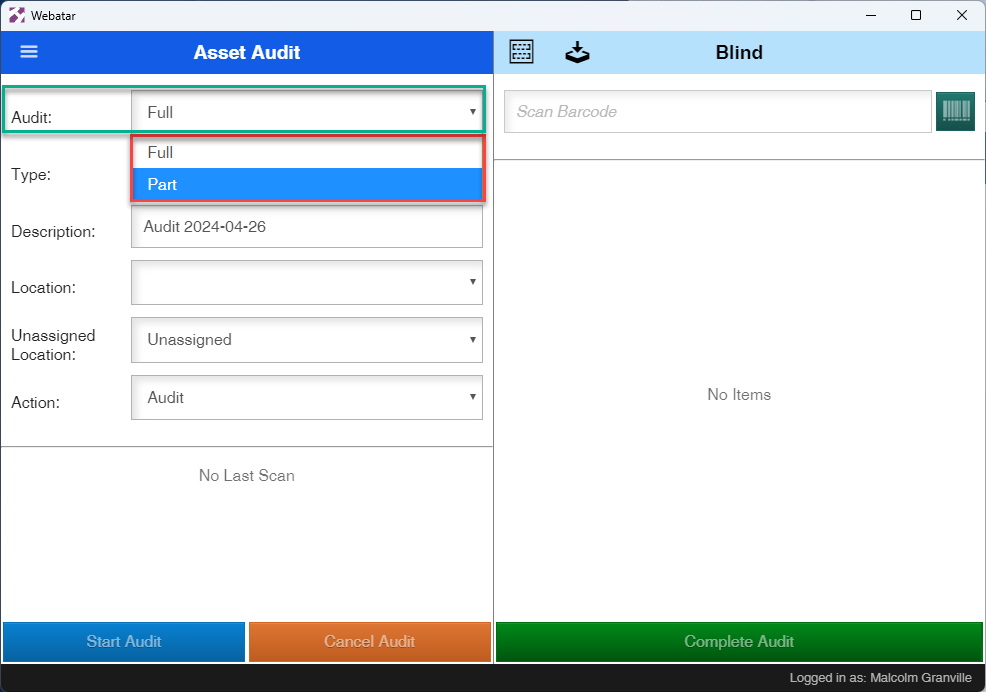
| Audit | Full (Default) or Part audit |
| Type | Standard or Blind audit |
| Description | Default description which can be overridden |
| Location | The location of the audit |
| Unassigned Location | The location that assets will be moved to that have not been audited |
| Action | The action assigned to the audit |
In order to start the audit, the basic information must be filled in.
Then click on the blue start button to activate the audit
| Start Audit | Start the audit |
| Cancel Audit | Cancel the current |
| Complete Audit | Complete the audit and update the assets that an audit was done |
Note: A new audit cannot be created until the audit is complete or Canceled
Full and Part Audit
| Full Audit | Full Audit will audit all items within the location, any items that are not audited will be moved to the Unassigned location |
| Part Audit |
Part Audit allows one to add assets found after an audit is done. This will still show all assets within the location audit, but only add the additional assets to the Audit Location. All other assets not counted will remain in the Location. |
Standard Audit

Blind Audit
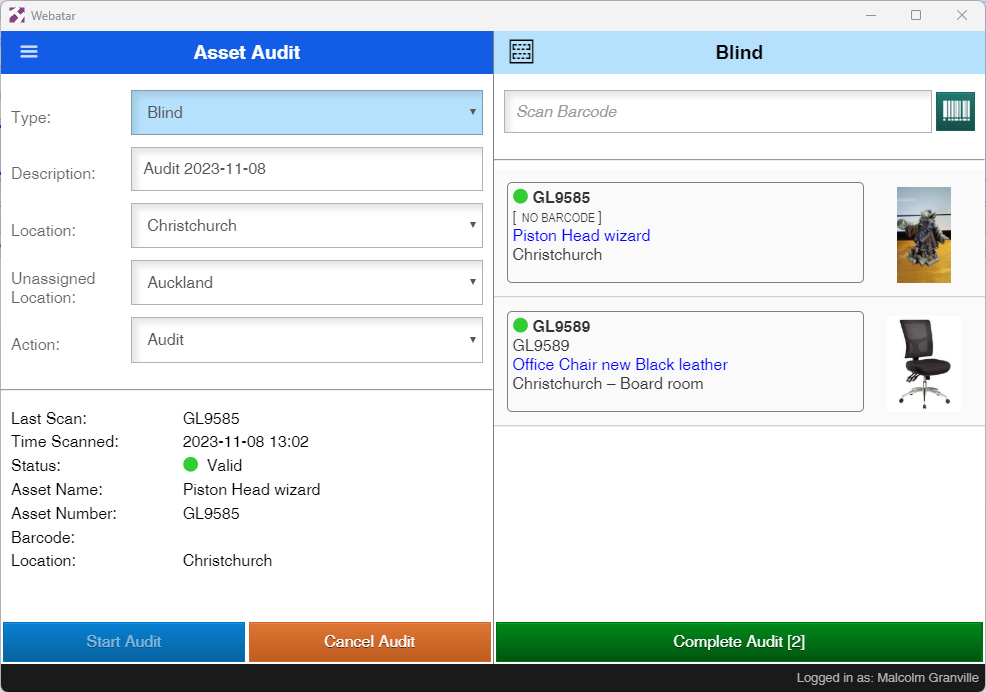
A blind audit is marked as blue
Only items scanned are shown
The system will not show what assets exist against the location
An unassigned location must be specified so that assets that are outside of the audit will be moved to the Location specified
Asset Scan Print
Create an action on an asset by scanning the barcode.
The system will automatically print the label of information of that asset
Used in a manufacturing process
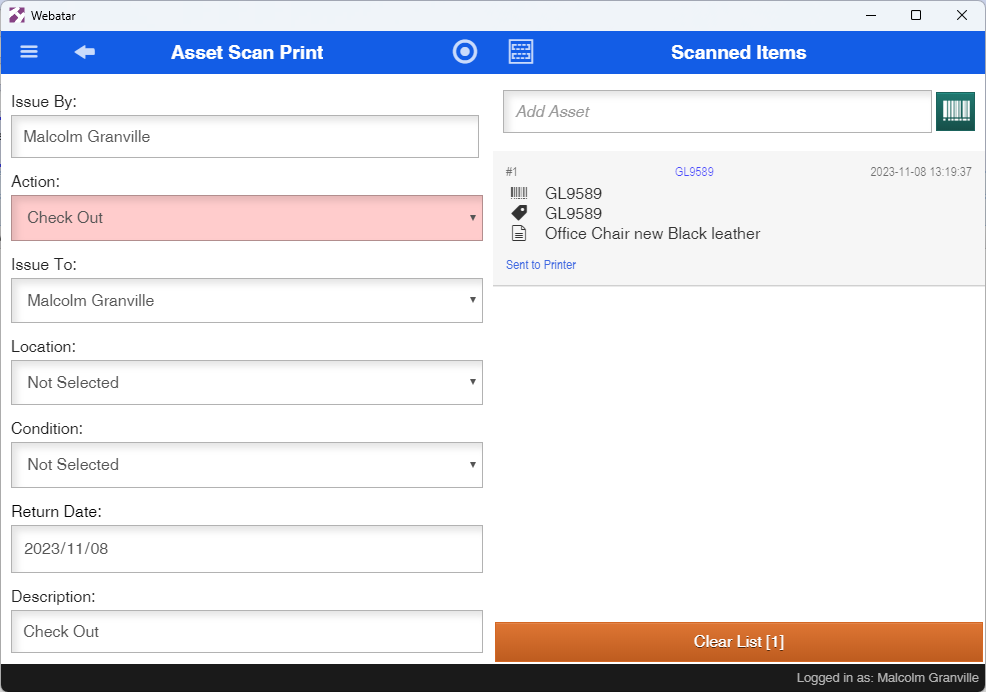
Automatic printing is setup in the main system
Asset Tag and Add
Tagging an asset with a label and adding this asset as new.
Video training 202402 - Asset_Tag_Add.mp4
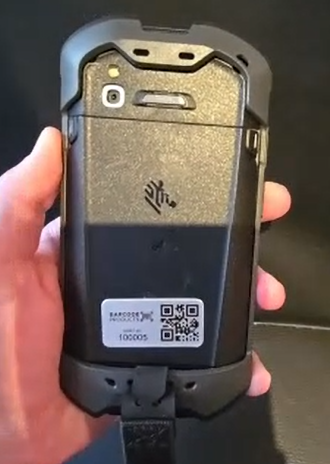
Tag the asset
Clean the area that the tag or asset label needs to be applied.
Apply the label to the asset.
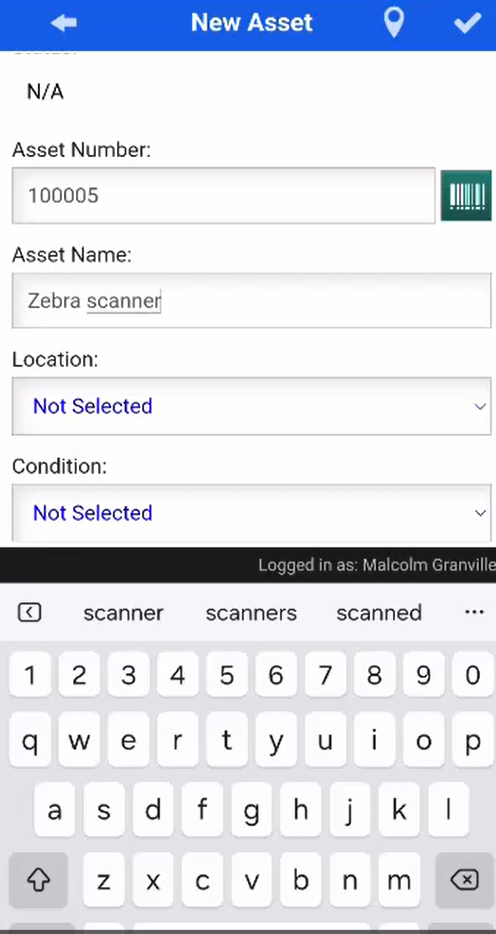
Add the asset
Adding the asset by clicking on the + button in Asset search
Taking a photo
Take a photo of the asset