# Debtors Aging Letters

####  Setup of Debtor Aging Letters

Allows for sending out emails to customers based on their aging. Included in the image below is a sample of what a letter could look like with the necessary tags and formats.

[![image.png](https://hugeerp10.co.za/hsofmanual/uploads/images/gallery/2024-11/scaled-1680-/iIBimage.png)](https://hugeerp10.co.za/hsofmanual/uploads/images/gallery/2024-11/iIBimage.png)

The setup makes allowance for seven different letters to be prepared.

[![image.png](https://hugeerp10.co.za/hsofmanual/uploads/images/gallery/2024-11/scaled-1680-/4woimage.png)](https://hugeerp10.co.za/hsofmanual/uploads/images/gallery/2024-11/4woimage.png)

When preparing the various letters the **Printing Enhancements** can be included into the body of the letter to emphasise pertinent points in the letter.

[![image.png](https://hugeerp10.co.za/hsofmanual/uploads/images/gallery/2024-11/scaled-1680-/zKQimage.png)](https://hugeerp10.co.za/hsofmanual/uploads/images/gallery/2024-11/zKQimage.png)

<p class="callout warning">**Please remember to save the changes before leaving this window.**</p>

To include a header and footer to the emailed document, it will be necessary to create an image (.jpg file) of the Letter Head header and the Letter Head footer.

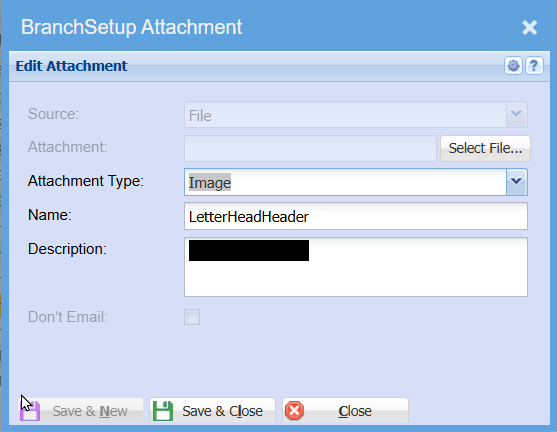
Next step is to go to the System Config Module, open the Company Profile and upload these two jpg files as Attachments. The two images **must** be uploaded as **LetterHeadHeader** and **LetterHeadFooter**. When creating the Email and Preview Email the system will search the company profile attachment table for these two files. If the naming convention is not as indicated above the images will not be retrieved and the Email and Preview Email will not have the desired letter head appearance.

[![image.png](https://hugeerp10.co.za/hsofmanual/uploads/images/gallery/2024-11/scaled-1680-/b3Uimage.png)](https://hugeerp10.co.za/hsofmanual/uploads/images/gallery/2024-11/b3Uimage.png)
####  Preparing the data and sending out the Debtor Aging Letters email

Go to Debtors module then click on Reports followed by Debtor Aging Letter

To Create a new dataset click on Add

[![image.png](https://hugeerp10.co.za/hsofmanual/uploads/images/gallery/2024-11/scaled-1680-/F5mimage.png)](https://hugeerp10.co.za/hsofmanual/uploads/images/gallery/2024-11/F5mimage.png)
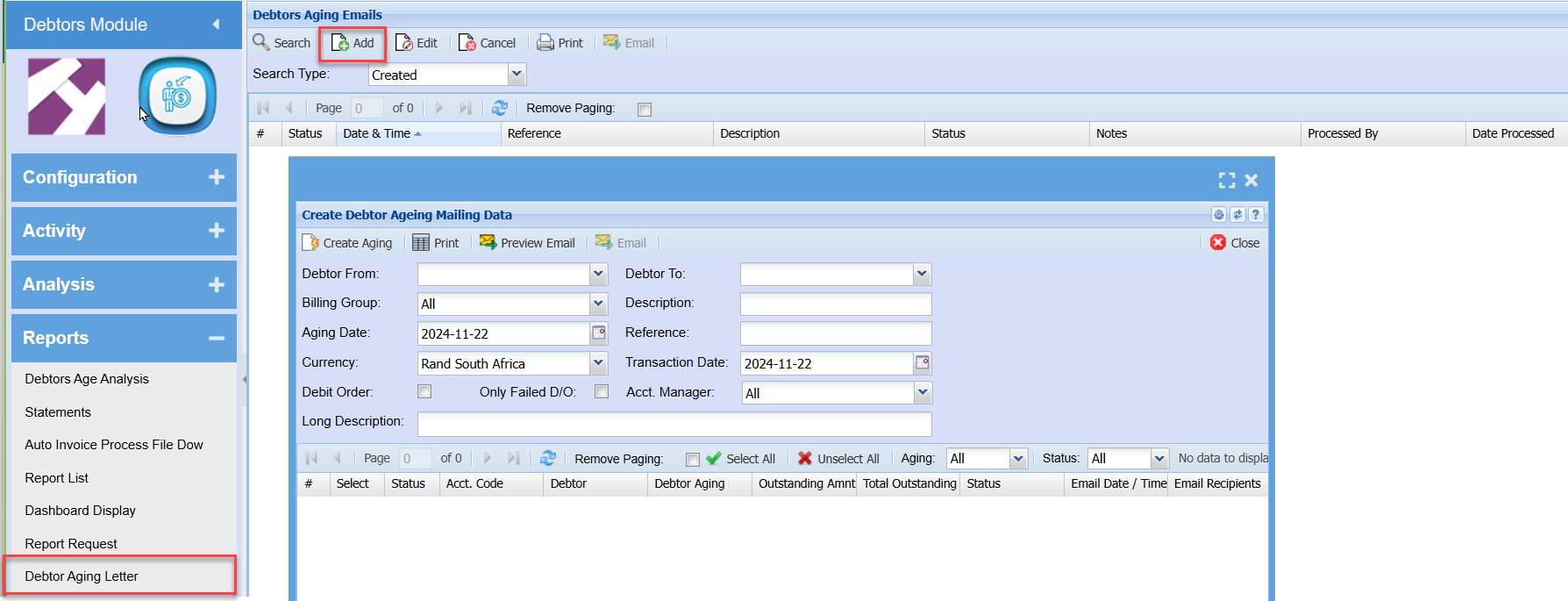
Enter the necessary requirements for this dataset.

Please note that if this is a dataset for Failed Debit Orders the **Debit Order** and **Only Failed D/O** tick boxes need to be ticked.

Once the required parameters have been entered click on the Create Aging button. Take note of the warning message. On <span style="font-size: 11.0pt; line-height: 107%; font-family: 'Calibri',sans-serif; mso-ascii-theme-font: minor-latin; mso-fareast-font-family: Calibri; mso-fareast-theme-font: minor-latin; mso-hansi-theme-font: minor-latin; mso-bidi-font-family: 'Times New Roman'; mso-bidi-theme-font: minor-bidi; mso-ansi-language: EN-ZA; mso-fareast-language: EN-US; mso-bidi-language: AR-SA;">completion of the create process the window will close and the grid will be updated with the new entry.</span>

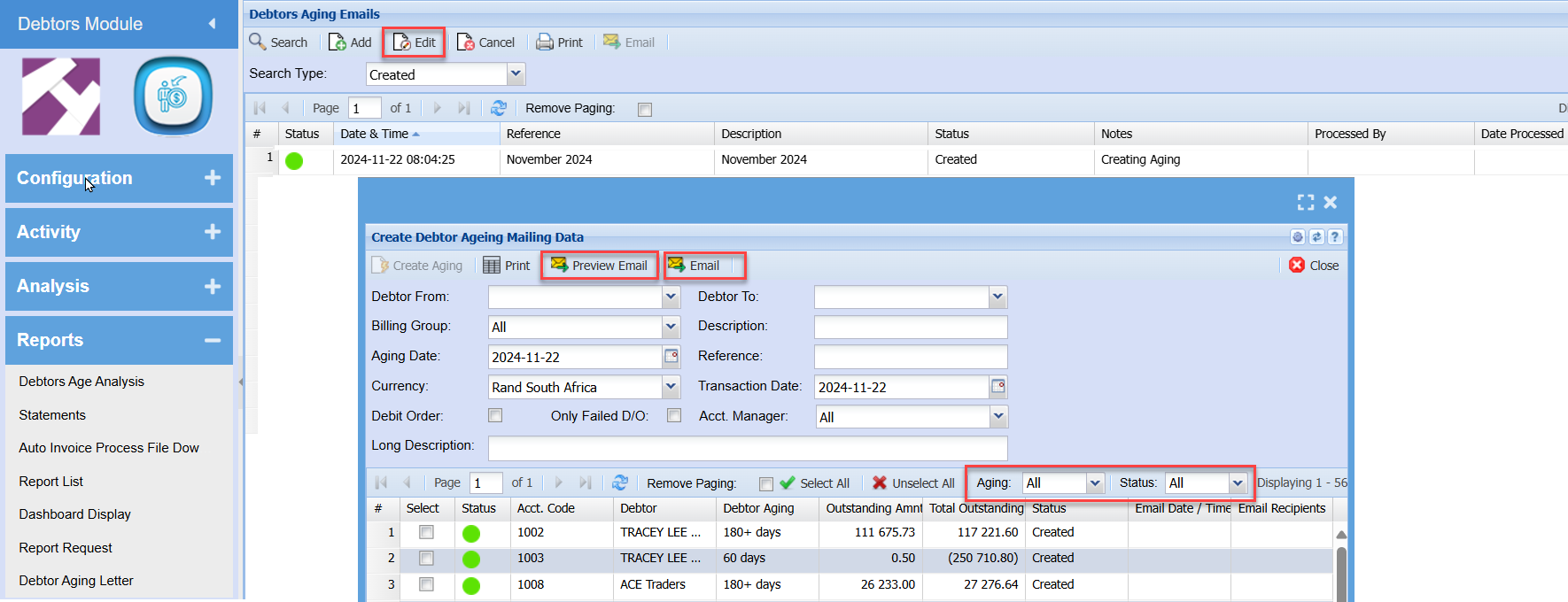
<span style="font-size: 11.0pt; line-height: 107%; font-family: 'Calibri',sans-serif; mso-ascii-theme-font: minor-latin; mso-fareast-font-family: Calibri; mso-fareast-theme-font: minor-latin; mso-hansi-theme-font: minor-latin; mso-bidi-font-family: 'Times New Roman'; mso-bidi-theme-font: minor-bidi; mso-ansi-language: EN-ZA; mso-fareast-language: EN-US; mso-bidi-language: AR-SA;">Select the newly created entry and then click on the Edit button. A window will appear displaying all the Debtor Aging Entries</span>

[![image.png](https://hugeerp10.co.za/hsofmanual/uploads/images/gallery/2024-11/scaled-1680-/4n7image.png)](https://hugeerp10.co.za/hsofmanual/uploads/images/gallery/2024-11/4n7image.png)

<span style="font-size: 11.0pt; line-height: 107%; font-family: 'Calibri',sans-serif; mso-ascii-theme-font: minor-latin; mso-fareast-font-family: Calibri; mso-fareast-theme-font: minor-latin; mso-hansi-theme-font: minor-latin; mso-bidi-font-family: 'Times New Roman'; mso-bidi-theme-font: minor-bidi; mso-ansi-language: EN-ZA; mso-fareast-language: EN-US; mso-bidi-language: AR-SA;">Once this window has opened we have a variety of options available.</span>

1. <span style="font-size: 11.0pt; line-height: 107%; font-family: 'Calibri',sans-serif; mso-ascii-theme-font: minor-latin; mso-fareast-font-family: Calibri; mso-fareast-theme-font: minor-latin; mso-hansi-theme-font: minor-latin; mso-bidi-font-family: 'Times New Roman'; mso-bidi-theme-font: minor-bidi; mso-ansi-language: EN-ZA; mso-fareast-language: EN-US; mso-bidi-language: AR-SA;">We can select a paticular record and click on Preview Email to see what the letter will look like that the debtor receives. If the letter is not satisfactory then we can go back to the setup to make the necessary changes to the letter.</span>
2. <span style="font-size: 11.0pt; line-height: 107%; font-family: 'Calibri',sans-serif; mso-ascii-theme-font: minor-latin; mso-fareast-font-family: Calibri; mso-fareast-theme-font: minor-latin; mso-hansi-theme-font: minor-latin; mso-bidi-font-family: 'Times New Roman'; mso-bidi-theme-font: minor-bidi; mso-ansi-language: EN-ZA; mso-fareast-language: EN-US; mso-bidi-language: AR-SA;">Filtering the entries in the grid can be managed by means of the Aging drop down and the Status drop down. Once the desired selection has been made, clicking Select All will select all the lines in the grid and place a tick in the Select tick box column.</span>
3. <span style="font-size: 11.0pt; line-height: 107%; font-family: 'Calibri',sans-serif; mso-ascii-theme-font: minor-latin; mso-fareast-font-family: Calibri; mso-fareast-theme-font: minor-latin; mso-hansi-theme-font: minor-latin; mso-bidi-font-family: 'Times New Roman'; mso-bidi-theme-font: minor-bidi; mso-ansi-language: EN-ZA; mso-fareast-language: EN-US; mso-bidi-language: AR-SA;">Selecting for example 180+ days will filter the grid to display only the applicable debtors and if the Preview Email was satisfactory then the **Email** button can be clicked. </span>
4. <span style="font-size: 11.0pt; line-height: 107%; font-family: 'Calibri',sans-serif; mso-ascii-theme-font: minor-latin; mso-fareast-font-family: Calibri; mso-fareast-theme-font: minor-latin; mso-hansi-theme-font: minor-latin; mso-bidi-font-family: 'Times New Roman'; mso-bidi-theme-font: minor-bidi; mso-ansi-language: EN-ZA; mso-fareast-language: EN-US; mso-bidi-language: AR-SA;">Only lines in the grid that have a tick in the Select column tick box and Debtor Contact Persons who are selected by means of a tick in the **Statement Email** tick box will be sent a Debtor Aging Letter. </span>
5. <span style="font-size: 11.0pt; line-height: 107%; font-family: 'Calibri',sans-serif; mso-ascii-theme-font: minor-latin; mso-fareast-font-family: Calibri; mso-fareast-theme-font: minor-latin; mso-hansi-theme-font: minor-latin; mso-bidi-font-family: 'Times New Roman'; mso-bidi-theme-font: minor-bidi; mso-ansi-language: EN-ZA; mso-fareast-language: EN-US; mso-bidi-language: AR-SA;">The emailing process is done on the serve and does not hold up the computer while the email processing is done. As each email is processed that debtor Status on the grid is changed from Created to Emailed and the date and time of the email as well as the recipients are recorded on the grid. **Please Note** : debtors marked as Emailed cannot be emailed again.</span>
6. <span style="font-size: 11.0pt; line-height: 107%; font-family: 'Calibri',sans-serif; mso-ascii-theme-font: minor-latin; mso-fareast-font-family: Calibri; mso-fareast-theme-font: minor-latin; mso-hansi-theme-font: minor-latin; mso-bidi-font-family: 'Times New Roman'; mso-bidi-theme-font: minor-bidi; mso-ansi-language: EN-ZA; mso-fareast-language: EN-US; mso-bidi-language: AR-SA;">The widow will close and will require that the record be selected again and the Edit button be clicked if additional emails are to be sent</span>
7. <span style="font-size: 11.0pt; line-height: 107%; font-family: 'Calibri',sans-serif; mso-ascii-theme-font: minor-latin; mso-fareast-font-family: Calibri; mso-fareast-theme-font: minor-latin; mso-hansi-theme-font: minor-latin; mso-bidi-font-family: 'Times New Roman'; mso-bidi-theme-font: minor-bidi; mso-ansi-language: EN-ZA; mso-fareast-language: EN-US; mso-bidi-language: AR-SA;">If no filtering seletions are made except for **Select All** and the **Email** button is clicked the system will automatically send the correct Debtor Aging letter to the Debtor Contact person who has a Tick in the Statement Email tick box. and who's **Status** on the grid is Created. </span>