# Creating and Restoring Backup

##### **Creating a Backup**

To Create a backup manually, go to:

**<span style="color: rgb(45, 194, 107);">System configuration&gt;Administration&gt;Backups</span>**

Click Create

[![image.png](https://hugeerp10.co.za/hsofmanual/uploads/images/gallery/2026-02/scaled-1680-/9I1image.png)](https://hugeerp10.co.za/hsofmanual/uploads/images/gallery/2026-02/9I1image.png)

Leave the file path as is and only enter your initials or preferred description at the end of the file name

[![image.png](https://hugeerp10.co.za/hsofmanual/uploads/images/gallery/2026-02/scaled-1680-/583image.png)](https://hugeerp10.co.za/hsofmanual/uploads/images/gallery/2026-02/583image.png)

Ensure both tick boxes are ticked

Click Save

Click Search after a minute or 2 and notice the file size

Click Search again

If the file size stops increasing, the backup is complete.

[![image.png](https://hugeerp10.co.za/hsofmanual/uploads/images/gallery/2026-02/scaled-1680-/cgEimage.png)](https://hugeerp10.co.za/hsofmanual/uploads/images/gallery/2026-02/cgEimage.png)

---

##### **Restoring a Backup**

**To Restore a backup, ensure all users are logged off the system.**

<p class="callout info">**Important: Restoring a backup will erase any transactions or setups and information added on the database subsequent to the date the backup being restored was taken.**</p>

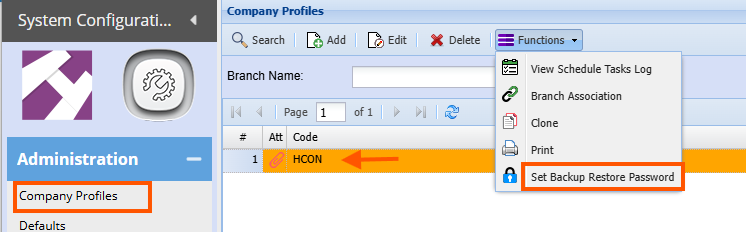
Go to : **<span style="color: rgb(45, 194, 107);">System configuration&gt;Administration&gt;Company Profiles</span>**

Search

Select the company name (Click once on the name)

Click the function Drop down

Select Set Backup restore password

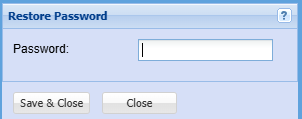
Enter a password

[![image.png](https://hugeerp10.co.za/hsofmanual/uploads/images/gallery/2026-02/scaled-1680-/xq5image.png)](https://hugeerp10.co.za/hsofmanual/uploads/images/gallery/2026-02/xq5image.png)
Save and Close

[![image.png](https://hugeerp10.co.za/hsofmanual/uploads/images/gallery/2026-02/scaled-1680-/HeJimage.png)](https://hugeerp10.co.za/hsofmanual/uploads/images/gallery/2026-02/HeJimage.png)
Go to: **<span style="color: rgb(45, 194, 107);">Administration&gt;Backups</span>**

Click Search

Click once on the backup required

Click the Functions drop down and select Extract Backup [![image.png](https://hugeerp10.co.za/hsofmanual/uploads/images/gallery/2026-02/scaled-1680-/VtFimage.png)](https://hugeerp10.co.za/hsofmanual/uploads/images/gallery/2026-02/VtFimage.png)

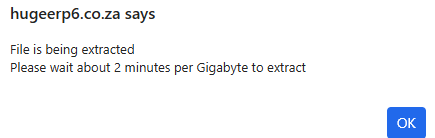
Below message will appear

Wait for a minute or 2 depending on the size of your database

[![image.png](https://hugeerp10.co.za/hsofmanual/uploads/images/gallery/2026-02/scaled-1680-/6S9image.png)](https://hugeerp10.co.za/hsofmanual/uploads/images/gallery/2026-02/6S9image.png)
Click Search

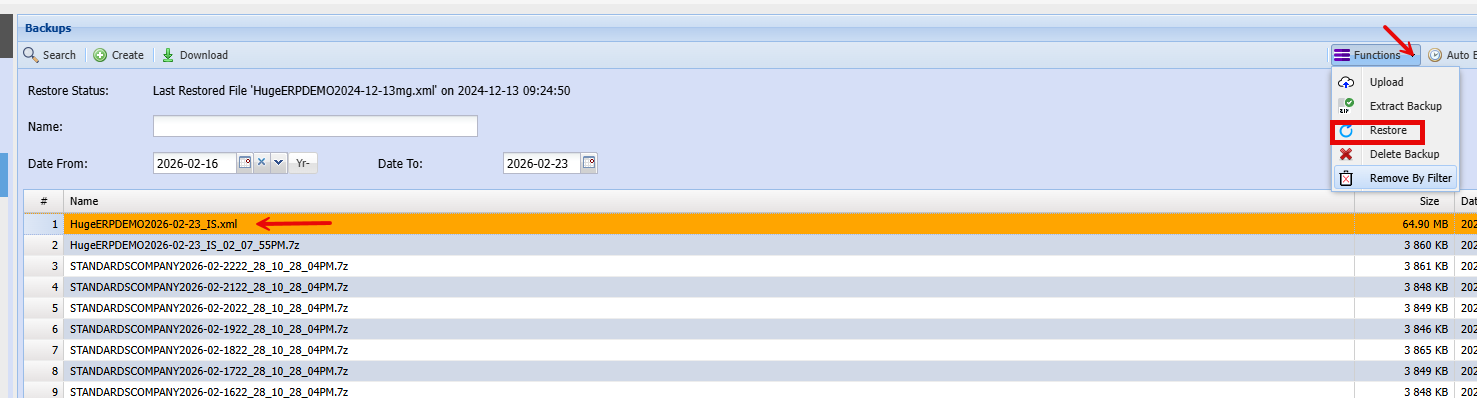
Ensure you have selected the .xml backup file (this is the unzipped file you extracted in above step)

Click functions drop down

Select Restore

[![image.png](https://hugeerp10.co.za/hsofmanual/uploads/images/gallery/2026-02/scaled-1680-/zilimage.png)](https://hugeerp10.co.za/hsofmanual/uploads/images/gallery/2026-02/zilimage.png)
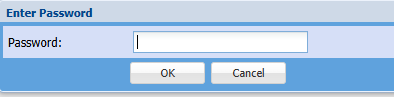
Enter the password you created earlier

Click Ok

[![image.png](https://hugeerp10.co.za/hsofmanual/uploads/images/gallery/2026-02/scaled-1680-/Kc3image.png)](https://hugeerp10.co.za/hsofmanual/uploads/images/gallery/2026-02/Kc3image.png)
The backup will now begin restoring

Click ok to the pop-up message

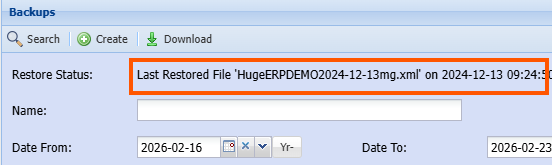
Once the backup has been restored, you will note the last restore details will be populated with the current date &amp; time

[![image.png](https://hugeerp10.co.za/hsofmanual/uploads/images/gallery/2026-02/scaled-1680-/YtBimage.png)](https://hugeerp10.co.za/hsofmanual/uploads/images/gallery/2026-02/YtBimage.png)

This then completes the backup restore procedure