Multi-currency
Multi-currency
Multicurrency
Video training manual 2016 - Click Here
This menu allows you to Setup additional currency codes, description, symbols and rate.
This is where the default exchange rate of a particular currency will be set.
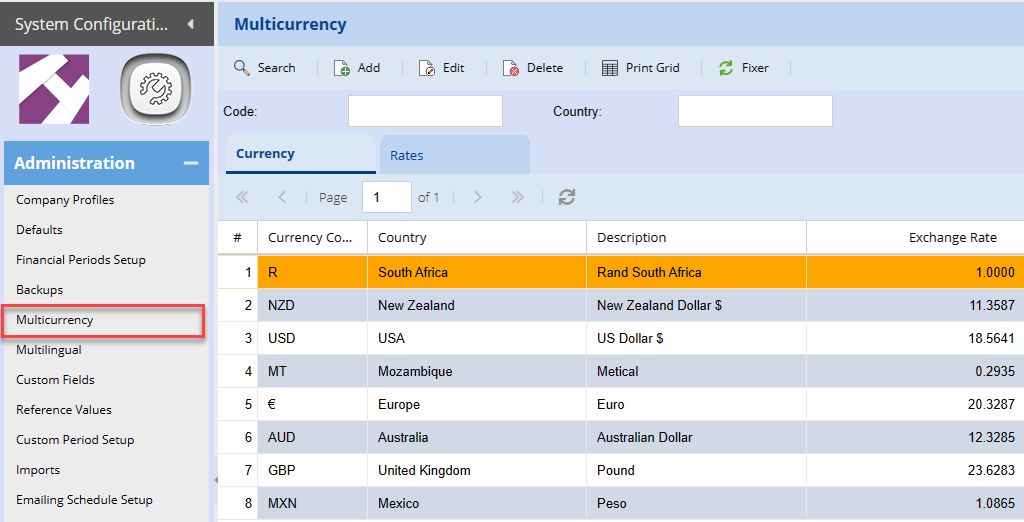
The rate is used at the time of creating a document, one can then override the exchange rate on the document. Otherwise, this default exchange rate will apply.
| Search button | allows the user to search existing multicurrency by code or description |
| Add button | insert a new Multicurrency Item |
| Edit button | view/edit the currently selected Multicurrency Item |
| Delete button | delete the currently selected Multicurrency Item |
| Print Grid button | allows you to print the information displayed on the search grid |
| Fixer | An external website that keeps track of currency rates. |
Adding a new currency
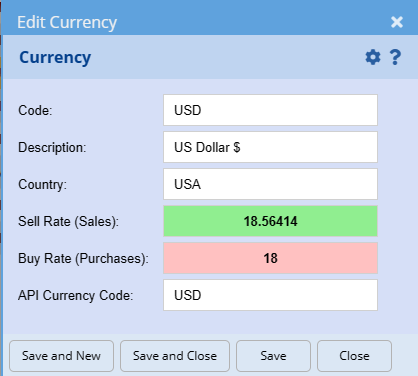
| Code | The symbol for the currency |
| Description | Add a short description of the Currency. Usually it's short name. |
| Country | A description of the country of the Currency. |
| Sell rate | |
| Buy rate | |
| API Currency Code | The international currency code used in the API to Currencies. |
Note: The system uses the cell rate for both debtors and creditors in order for it to work out the rate on the documents.
The buy rate is only an indicator here and is not used in the system.
Setting Up Multi-Currency for Debtor
Video training manual 2016 - Click Here
Debtors module> Configuration> Debtors Setup
.png)
.png)
Add the debtor Information
Under accounts details you will be able to select the preferred currency for the debtor
and select it
.png)
Once an invoice is raised against this debtor the chosen currency is locked to it you will not have an option to change it.
.png)
Setting Up Multi- Currency for Supplier
Creditors Module>Configuration>Creditors Setup
Add supplier details.
.png)
Go to account details and select the preferred currency for the supplier.