# Financial Periods

Financial Periods

# Create a new financial Year

<span class="ts0">Video Training Manual 2016 - </span>[Click Here](https://vimeo.com/356999854)

<span class="ts0">The creation of a new financial year occurs at the end of a financial year, and there are no new years and periods in the system.</span>

<p class="callout info">If your financial year is not created, you will not be able to process any transactions </p>

<span style="color: rgb(0, 0, 0);"><span class="ts0">To create a new financial year, Follow the steps below:</span></span>

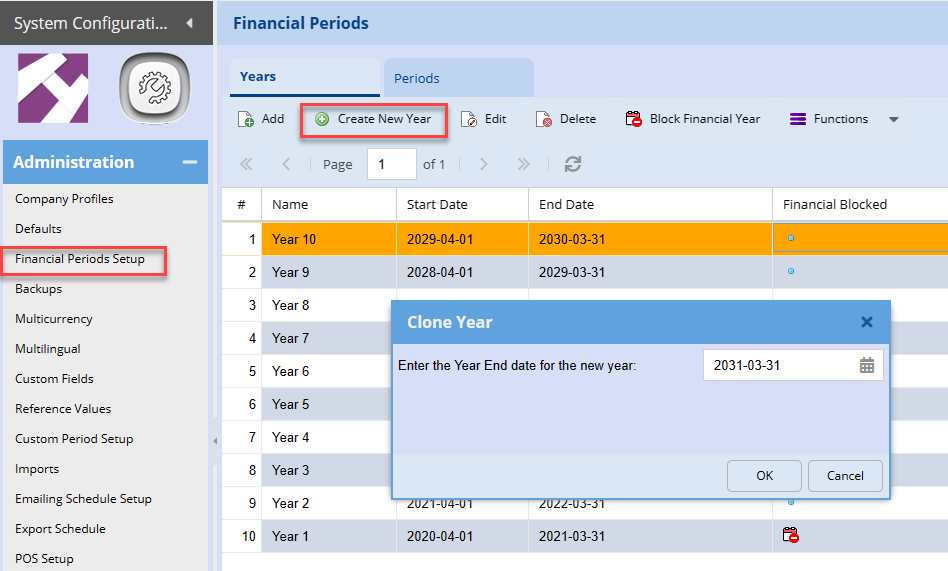
<span style="color: rgb(45, 194, 107);">**<span class="ts0">Go to System Configuration Module &gt; Administration &gt; Financial Periods setup</span>**</span>

1. <span style="color: rgb(0, 0, 0);"><span class="ts0">Highlight your last year - See example below</span></span>
2. <span style="color: rgb(0, 0, 0);"><span class="ts0">Click create new</span></span>
3. <span style="color: rgb(0, 0, 0);"><span class="ts0">Then the window for the clone year will appear as shown below. </span></span>
4. <span style="color: rgb(0, 0, 0);"><span class="ts0">Add your next financial year-end</span></span>

[![image.png](https://hugeerp10.co.za/hsofmanual/uploads/images/gallery/2024-02/scaled-1680-/lW2image.png)](https://hugeerp10.co.za/hsofmanual/uploads/images/gallery/2024-02/lW2image.png)

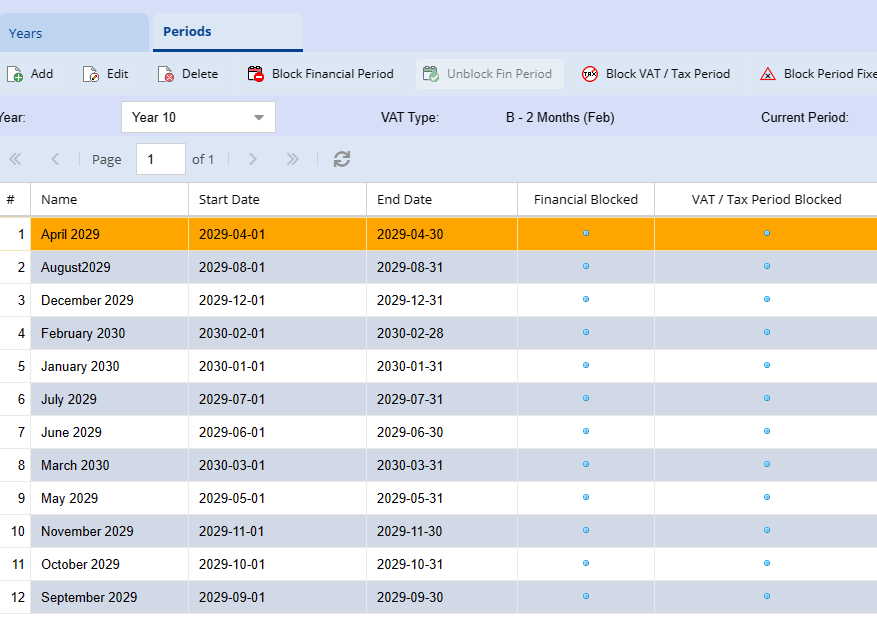
<span class="ts0">Once the year is created you can click on periods to double-check if they are created correctly. </span>

[![image.png](https://hugeerp10.co.za/hsofmanual/uploads/images/gallery/2024-02/scaled-1680-/0pYimage.png)](https://hugeerp10.co.za/hsofmanual/uploads/images/gallery/2024-02/0pYimage.png)

<span class="ts0">When you are done, log out of the system then log back in</span>

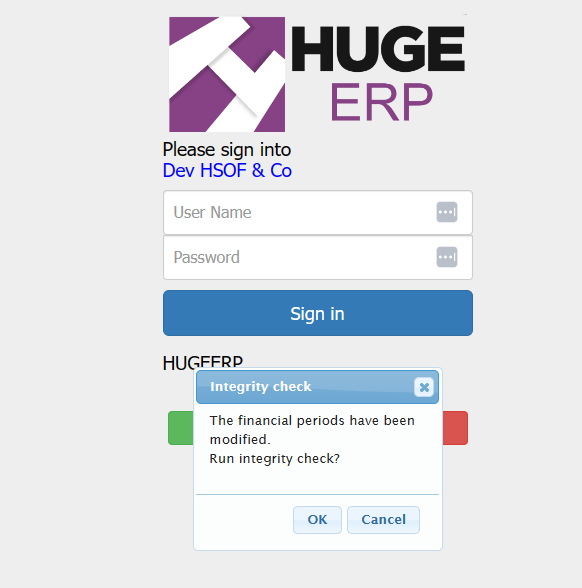
<span class="ts0">When logging back into your company this window will appear to indicate that, there are changes to the financial years or periods within the system. Click on the OK button to run the Integrity Check.</span>

[![image.png](https://hugeerp10.co.za/hsofmanual/uploads/images/gallery/2024-02/scaled-1680-/WE7image.png)](https://hugeerp10.co.za/hsofmanual/uploads/images/gallery/2024-02/WE7image.png)

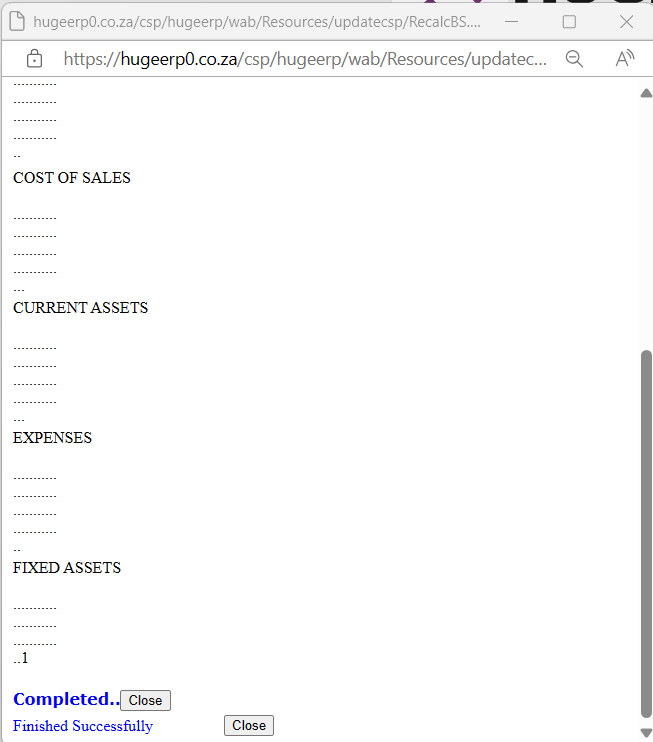
<span class="ts0">This will recalculate and integrity check all the ledger accounts in the system. Once complete click on the close button and log into the system.</span>

[![image.png](https://hugeerp10.co.za/hsofmanual/uploads/images/gallery/2024-02/scaled-1680-/vBDimage.png)](https://hugeerp10.co.za/hsofmanual/uploads/images/gallery/2024-02/vBDimage.png)

<span class="ts0"> </span>

<span class="ts0"></span>

# Financial Periods Setup

<span class="ts0">Video training manual 2016 - Click Here</span><span class="ts0"> </span>

<span class="ts15">Systems Configuration &gt; Administration&gt; Financial Periods Setup</span>

<span class="ts0">Highlight the current year</span>

<span class="ts0">Click On Extras tab and select from the drop down</span>

<span class="ts0">Select “create New year” Function</span>

<span class="ts0"> </span>![](https://hugeerp0.co.za/csp/webhelp/topics/images/image(3169).png)

<span class="ts0">This will take the selected year and Create the next financial year period.</span>

<span class="ts0">Click yes to continue</span>

<span class="ts0"> </span>![](https://hugeerp0.co.za/csp/webhelp/topics/images/image(3170).png)

<span class="ts0">Enter the End date of the next financial year</span>

<span class="ts0"> </span><span class="ts0"> </span>![](https://hugeerp0.co.za/csp/webhelp/topics/images/image(3171).png)

<span class="ts0">Amend The Name Of the created new year to reflect the changes.</span>

<span class="ts0">Rename the description</span>

<span class="ts0">Next Select the Periods Tab</span>

<span class="ts0">And amend the Name column to match the dates.</span>

<span class="ts0">When that process is done save and close and you are ready to post to the new financial year and months.</span>

# Add Financial Year

<span class="ts15" style="color: rgb(45, 194, 107);">Systems Configuration &gt; Administration&gt; Financial Periods Setup</span>

<span class="ts15" style="color: rgb(0, 0, 0);">Click Add and fill in the information</span>

<table border="1" id="bkmrk-description-fill-in-" style="border-collapse: collapse; width: 100%;"><colgroup><col style="width: 12.284%;"></col><col style="width: 87.8396%;"></col></colgroup><tbody><tr><td>**Description**</td><td>Fill in the description (Example: Year 1)</td></tr><tr><td>**Date From**</td><td>Fill in the date from you wish to start</td></tr><tr><td>**Date To**</td><td>Fill in the date to you wish to end</td></tr></tbody></table>

[![image.png](https://hugeerp10.co.za/hsofmanual/uploads/images/gallery/2024-05/scaled-1680-/S59image.png)](https://hugeerp10.co.za/hsofmanual/uploads/images/gallery/2024-05/S59image.png)

# Financial Periods Block

<span class="ts0">Blocking Financial periods will prevent users from processing in closed off periods.</span>

<span class="ts15">To block financial periods go to:</span>

<span class="ts15">S</span><span class="ts15">ystems Configuration &gt; Administration&gt; Financial Periods Setup</span>

<span class="ts0">Click On Periods Tab</span>

[![image.png](https://hugeerp10.co.za/hsofmanual/uploads/images/gallery/2023-12/scaled-1680-/ZpZimage.png)](https://hugeerp10.co.za/hsofmanual/uploads/images/gallery/2023-12/ZpZimage.png)

<span class="ts0">Select the required Financial Year</span>

<span class="ts0">This will display the 12 periods within the financial year selected.</span>

<span class="ts0">Click once on the Period you wish to Block.</span>

<span class="ts0">Click the Block Financial Period Button.</span>

[![image.png](https://hugeerp10.co.za/hsofmanual/uploads/images/gallery/2023-12/scaled-1680-/tBaimage.png)](https://hugeerp10.co.za/hsofmanual/uploads/images/gallery/2023-12/tBaimage.png)

# Recreate Financial Periods Setup

<span class="ts15">Systems Configuration &gt; Administration&gt; Financial Periods Setup</span>

<span class="ts0">Before you run this utility, ensure that you are a financial supervisor right activated.</span>

<span class="ts0">otherwise, you will not be allowed to continue.</span><span class="ts0"> </span>

<span class="ts0">Click On Extras tab and select from the drop down.</span>

<span class="ts0">Select “Recreate Periods” Function</span>

<span class="ts0">This function is usually done before you start your company.</span>

![](https://hugeerp0.co.za/csp/webhelp/topics/images/image(3172).png)

<span class="ts0"> </span><span class="ts0">Message will come up to ask if you are going to recreate new financial years.</span>

<span class="ts0"> </span>![](https://hugeerp0.co.za/csp/webhelp/topics/images/image(3173).png)

<span class="ts0"> </span><span class="ts0">Select the first date of the new financial year.</span>

<span class="ts0">New financial years has been created.</span> <span class="ts0"> </span>

<span class="ts0">For the periods to take effect, log out of system and then back in</span><span class="ts0"> </span>

<span class="ts0">Click OK to run Utility to recalculate.</span>

<span class="ts0"></span>

# Financial Periods – VAT / GST Category

<span class="ts0">A VAT / GST Category drop-down criterion have been added to allow the user to select the financial Tax period for his company.</span><span class="ts0"> </span>

<span class="ts0">This integrates into the system by allowing the user to capture VAT / GST in the current vat period for backdated invoices useful for Financial Reporting.</span><span class="ts0"> </span>

<span class="ts0">The tax periods and in which category the company falls under is determined by SARS or IRD.</span><span class="ts0"> </span>

<span class="ts0">What tax periods are available for VAT / GST?</span><span class="ts0"> </span>

<span class="ts0">The available tax periods are classified into five categories namely:</span><span class="ts0"> </span>

<table border="1" id="bkmrk-category-a-under-thi" style="border-collapse: collapse; width: 100%;"><colgroup><col style="width: 16.3231%;"></col><col style="width: 83.6906%;"></col></colgroup><tbody><tr><td>**<span class="ts0">Category A</span>**</td><td><span class="ts0">Under this category a vendor is required to submit one return for every two calendar months, ending on the last day of January, March, May, July, September and November</span></td></tr><tr><td>**<span class="ts0">Category B</span>**</td><td><span class="ts0">Under this category a vendor is required to submit one return for every two calendar months, ending on the last day of February, April, June, August, October and December</span><span class="ts0"> </span></td></tr><tr><td>**<span class="ts0">Category C</span>**</td><td><span class="ts0">A vendor is required to submit one return for each calendar month. A vendor will fall within this category if the turnover exceeds or is likely to exceed R30 million in any consecutive period of 12 months, the vendor has applied in writing to be placed in this category or repeatedly failed to perform any obligations as a vendor</span></td></tr><tr><td>**<span class="ts0">Category D</span>**</td><td><span class="ts0">Under this category, a vendor submits one return for every six-calendar month, ending on the last day of February and August. This category applies mainly to a vendor who carries on farming activities with a total turnover of less than R1.5 million for 12 months</span></td></tr><tr><td>**<span class="ts0">Category E</span>**</td><td><span class="ts0">This is commonly referred to as the annual tax period because a vendor is required to submit one return for 12 calendar months. The vendor must, amongst other things, be a company or trust fund to fall within this category.</span><span class="ts0"> </span>

</td></tr></tbody></table>

# VAT / GST period closes

<span class="ts0">Video training manual 2019 - Click Here</span><span class="ts0"> </span>

<span class="ts15">System Configuration &gt; Administration &gt; Financial periods setup</span>

<span class="ts0">VAT and GST. Closes allows 1 to report on backdated documents that have VAT or GST in them.</span>

<span class="ts0">The report will check for processed documents that have been posted in a closed GST period.</span>

<span class="ts0">When you run the report the back dated transactions will be highlighted in blue.</span>

<span class="ts0">There are three reports, select the report for the VAT / GST period Report.</span><span class="ts0"> </span>

![](https://hugeerp0.co.za/csp/webhelp/topics/images/image(3175).png)

# Archive Past Financial Years

Huge ERP supports an unlimited number of financial years and can store an unlimited volume of data. When system performance begins to slow due to the amount of stored information, older financial years can be archived to improve speed and efficiency.

A financial year cannot be archived unless the preceding year has already been archived, and you will not be able to archive any year that has not been fully closed off and blocked.

<span style="color: rgb(45, 194, 107);">**Configuration &gt; Administration &gt;Financial Year Setup**</span>

[![image.png](https://hugeerp10.co.za/hsofmanual/uploads/images/gallery/2026-01/scaled-1680-/YeLimage.png)](https://hugeerp10.co.za/hsofmanual/uploads/images/gallery/2026-01/YeLimage.png)

##### <span style="color: rgb(0, 0, 0);">**To archive a financial year:**</span>

<div id="bkmrk-configuration-%3E-admi-1">1. <span style="color: rgb(0, 0, 0);">**Configuration &gt; Administration &gt;Financial Year Setup**</span>
2. <span style="color: rgb(0, 0, 0);">**Highlight the financial year**</span> you want to archive.
3. At the top of the grid, <span style="color: rgb(0, 0, 0);">**click *Functions***.</span>
4. Select <span style="color: rgb(0, 0, 0);">**Archive Year**.</span>

</div>[![image.png](https://hugeerp10.co.za/hsofmanual/uploads/images/gallery/2026-01/scaled-1680-/Ogsimage.png)](https://hugeerp10.co.za/hsofmanual/uploads/images/gallery/2026-01/Ogsimage.png)

When you click on archive year you can run an Unallocated Report before processing the Archive.

[![image.png](https://hugeerp10.co.za/hsofmanual/uploads/images/gallery/2026-01/scaled-1680-/ybximage.png)](https://hugeerp10.co.za/hsofmanual/uploads/images/gallery/2026-01/ybximage.png)