APROT - Configuration
Production Tracking Configuration
- Production Tracking
- Reference Values
- Production Tracking Group setup
- Production Tracking Action Setup
- Production Tracking Location Setup
- Production Tracking Location Planning Setup
- Production Tracking Quality Control Setup
- Production Tracking Issued By
Production Tracking
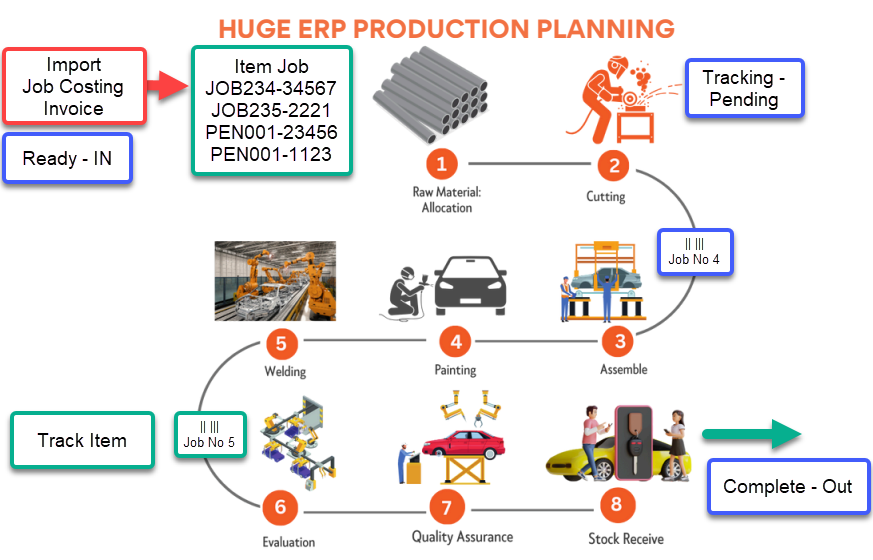
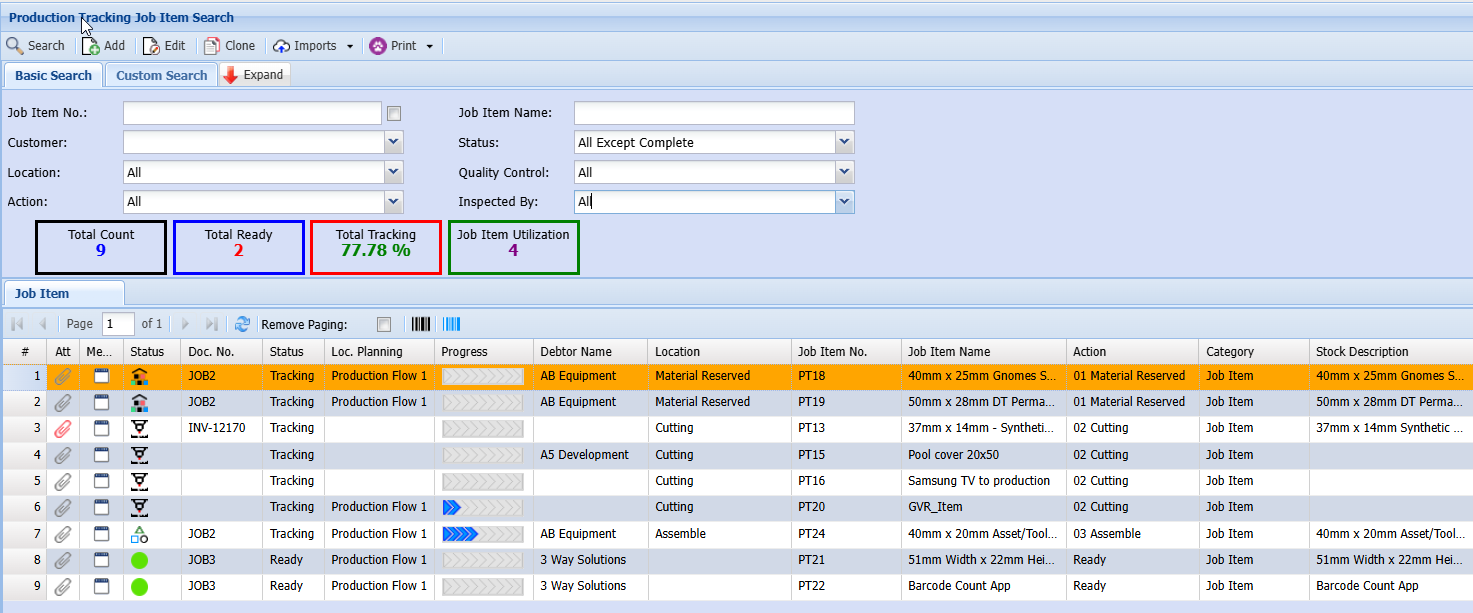
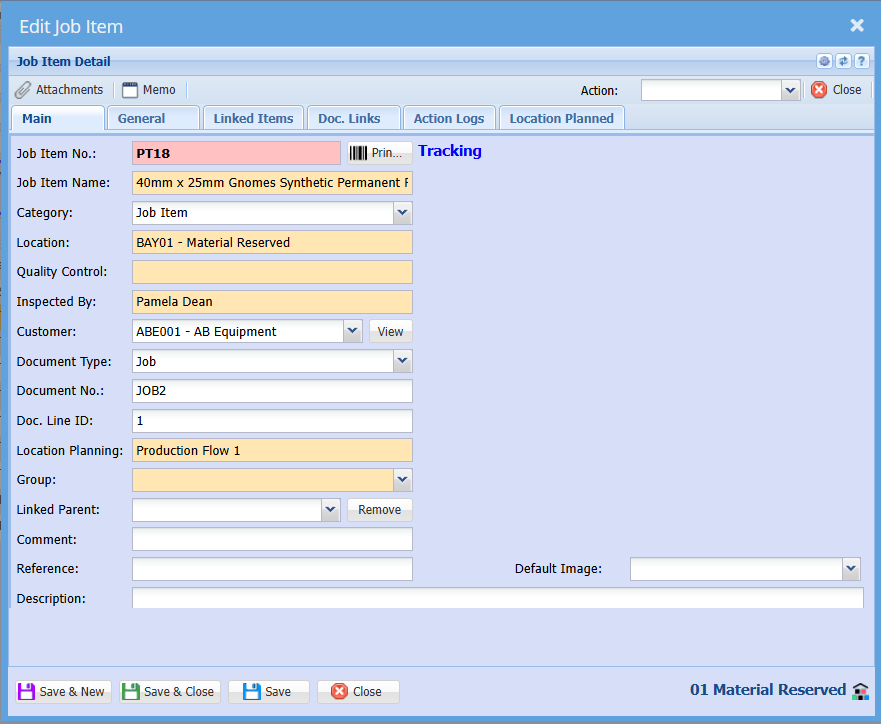
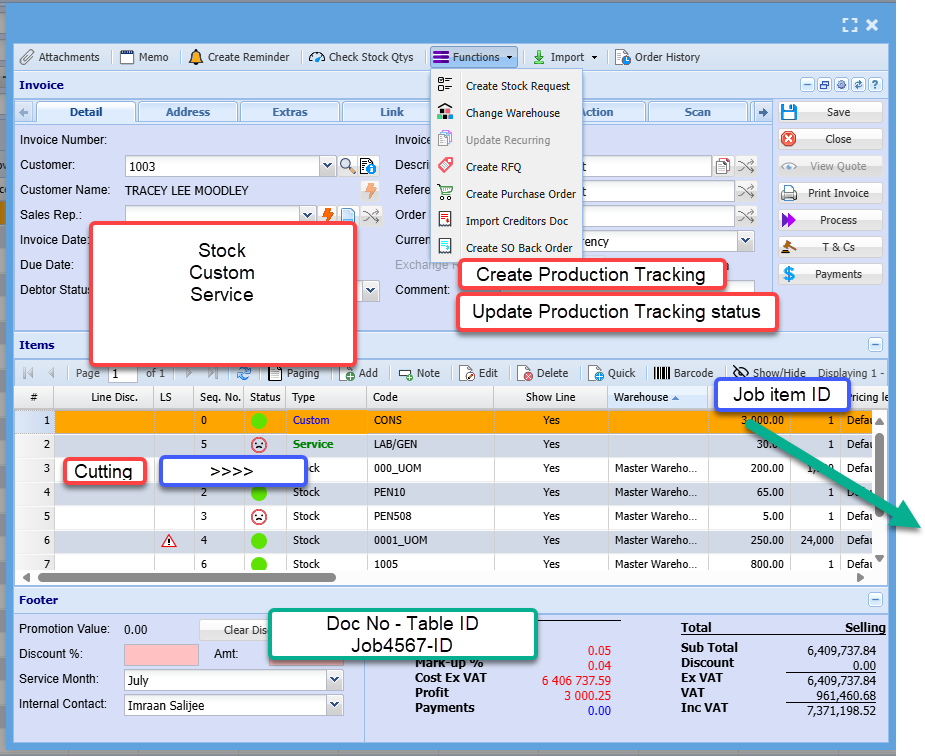
Items are tracked on the document lines
Reference Values
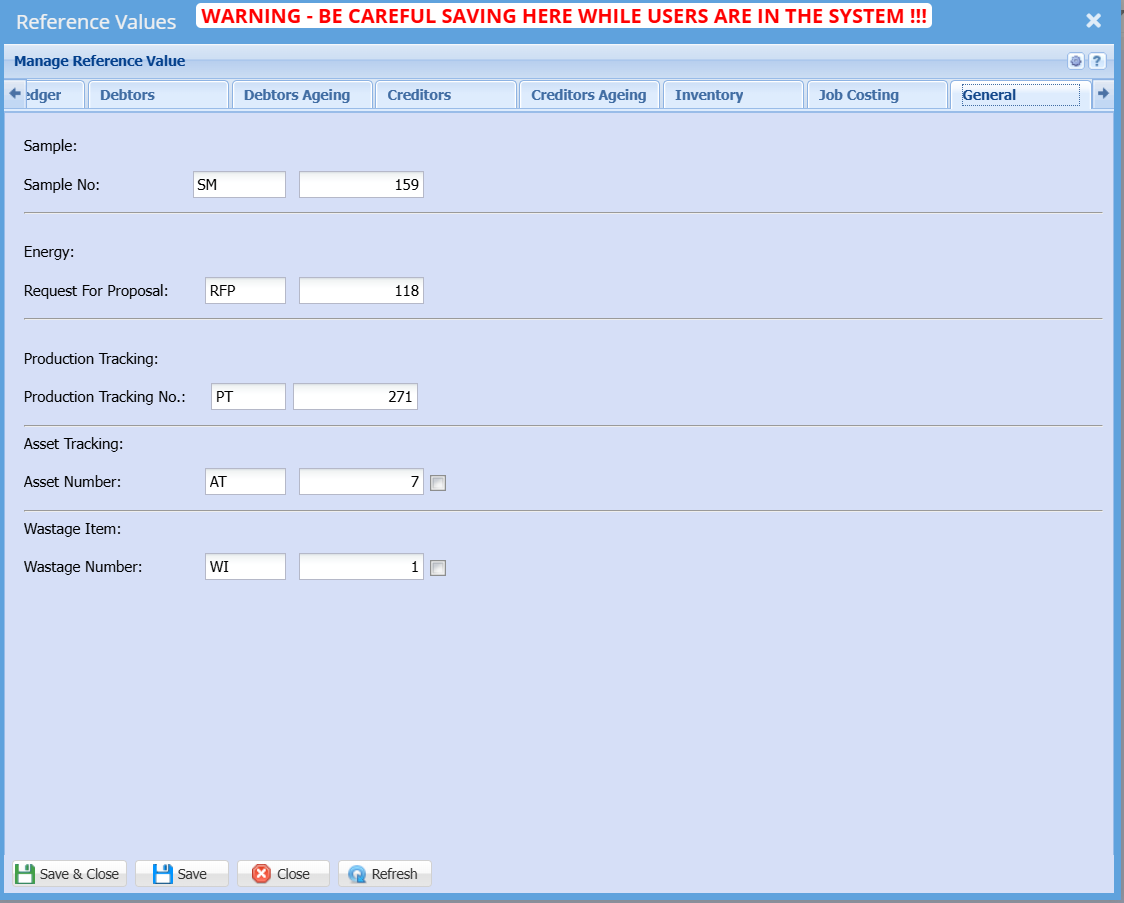
Reference Values and Production Tracking
System Configuration> Administration> Reference Values
Reference Values are only used when new items are created or imported manually and are not created from a document that already has a document number.
Documents such as Sales Orders and Jobs already have document numbers, so reference values are not used for items created from these documents.
For Invoices in Preparation and manually created Job item tracking, the Production Tracking number is used instead.
Unique tracking codes are generated using:
- the production tracking code, and
- the line ID from the production tracking table.
Examples:
- Manually created production item:
PROT100-354 - Item created from a document (e.g. Job):
JOB1200-354
These codes ensure each tracked item can be uniquely identified and traced back to its source.
Production Tracking Group setup
Production Tracking Group Setup
Setting up Groups for production items
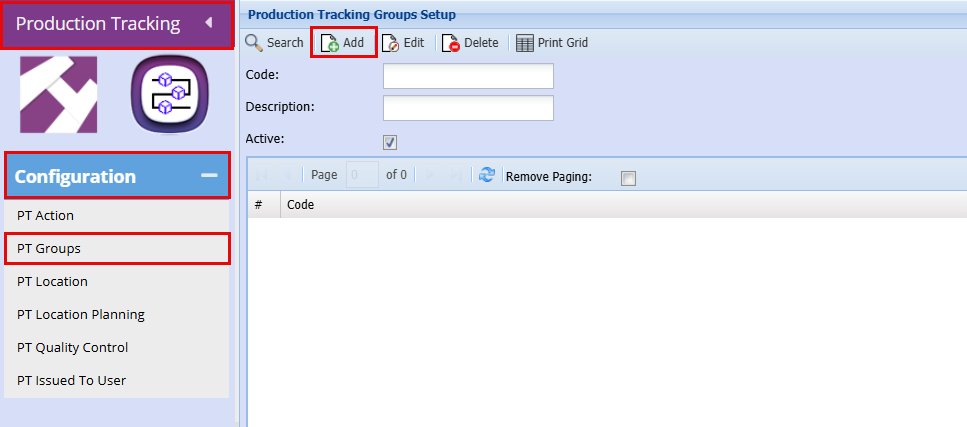
Production Tracking > Configuration > PT Groups
- Click "Add"
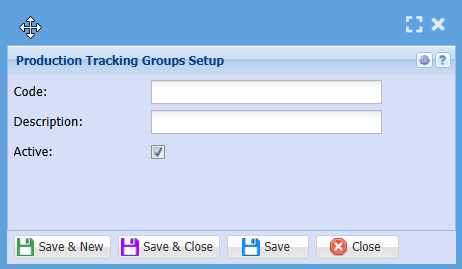
Group code setup and maintenance
- Add a "Code"
- Add A "Description"
- Tick "Active"
- Click "Save and Close"
Production Tracking Action Setup
Production Tracking Action Setup
Set up actions for products to be logged
Production tracking > Configuration > PT Action
- Click "Add"
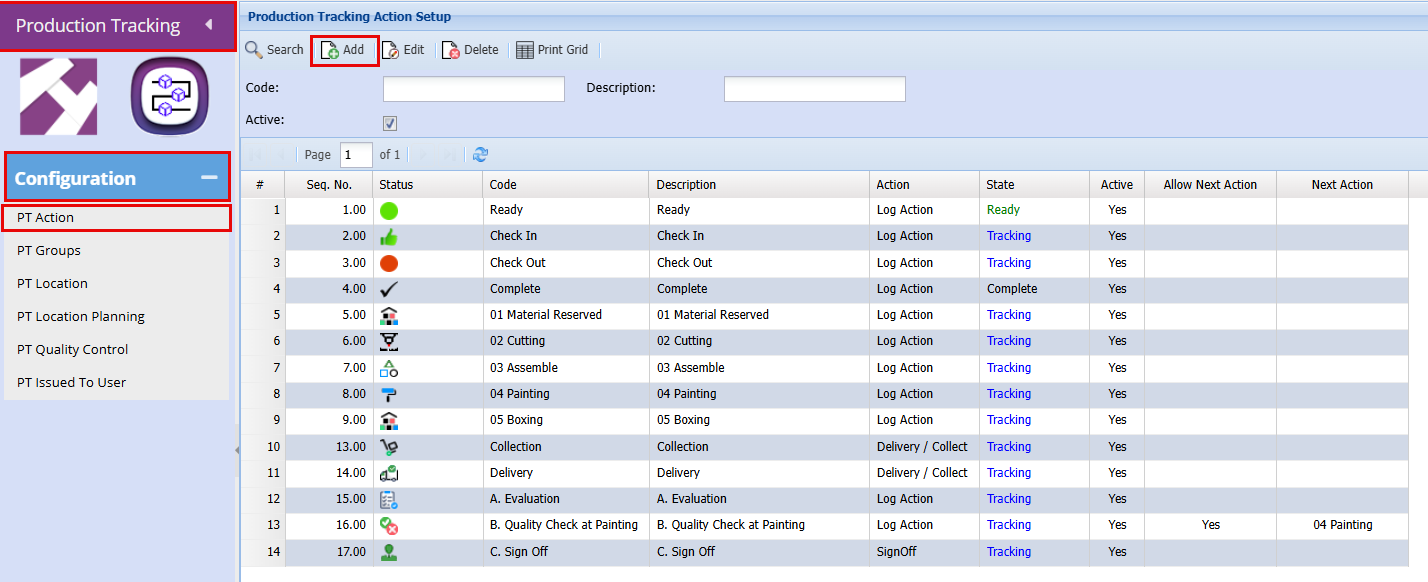
Actions with email
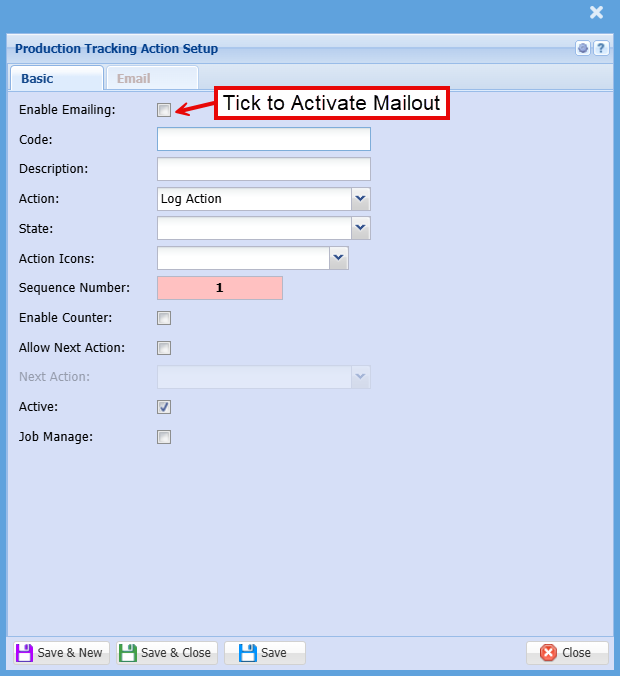
Actions
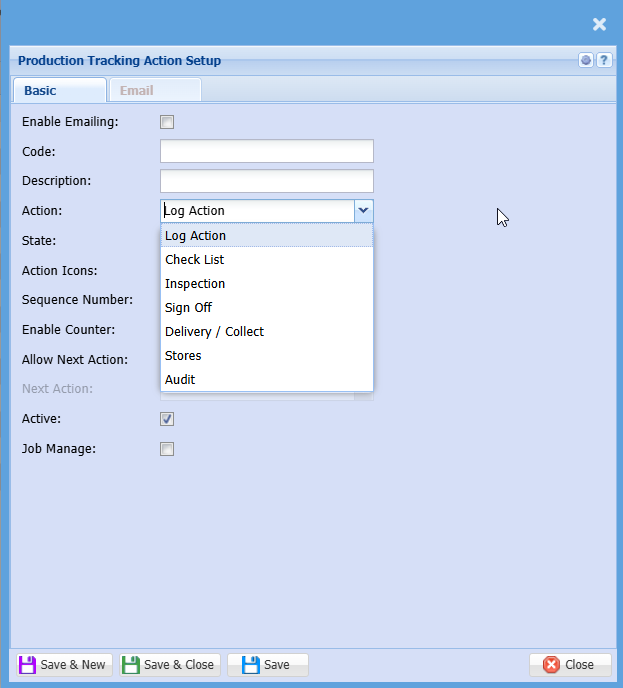
| Log Action | Standard actions logged |
| Check List | Check List action |
| Inspection | Action relating to inspections of items |
| Sign off | Action relating to sign off |
| Delivery / Collect | Track items to be delivered or collected |
| Stores | Monitor items put back in a specific bin location |
| Audit | Audit location |
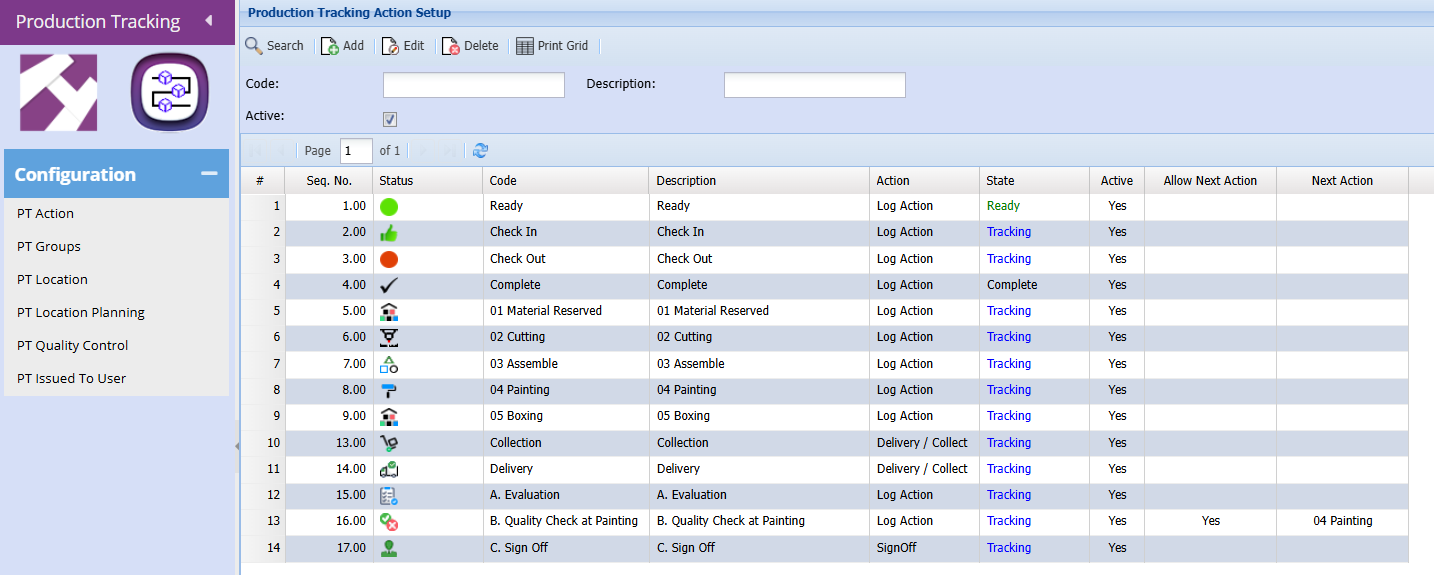
Action codes
|
Action |
Info | Action State |
|
Ready (System) |
Replaces the Available action | Log Action - In |
|
Check In (System) |
Same as before | Log Action - In |
|
Check Out (System) |
Same as before | Log Action - Out |
|
Complete (System) |
New - but sets the Job item as Complete | Log Action - Out |
|
Material reserved |
Production Tracking Location Setup
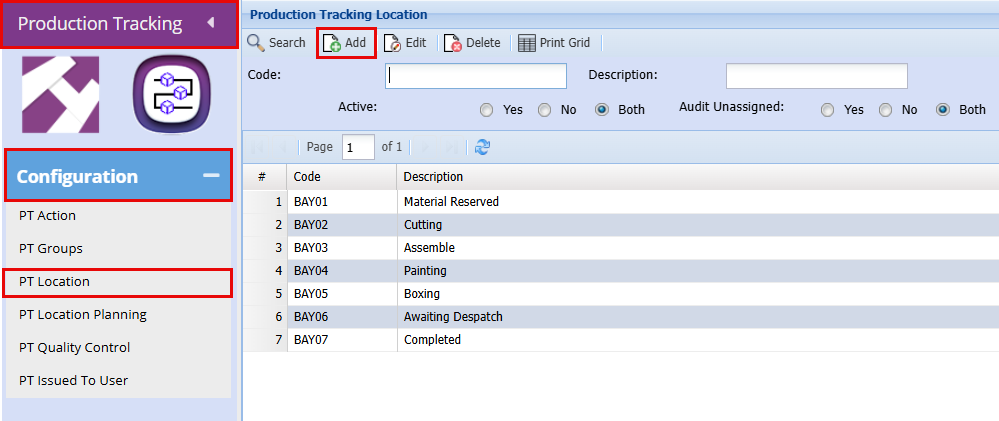
Production Tracking Location
Setting up various production locations
Production Tracking will have an audit as we can do an audit on a location to see if items are still in that location.
Production tracking > Configuration > PT Location
- Click "Add"
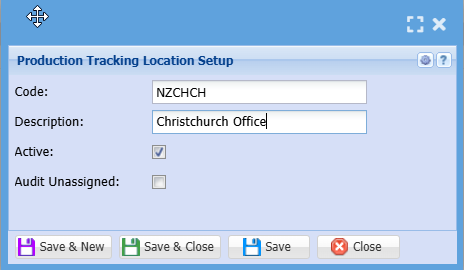
- Add a "Code"
- Add a "Description"
- "Tick" the Activate Box
- Click "Save and Close"
Production Tracking Location Planning Setup
Production Tracking Location Planning
Setup a planning sequence for locations
Production Tracking > Configuration > PT Location Planning
Allow for a group to be a default
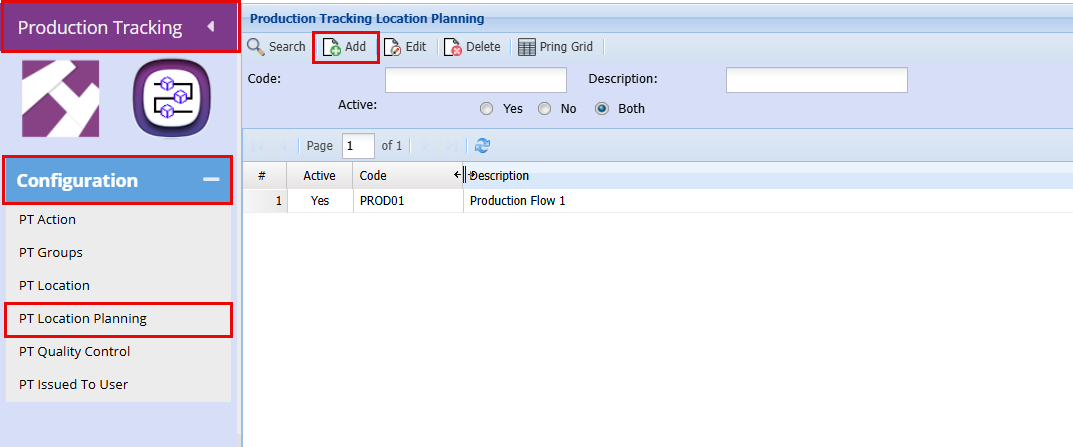
- To create a Production Plan click "Add"
- Add a "Code"
- Add a "Description"
- Click "Save"
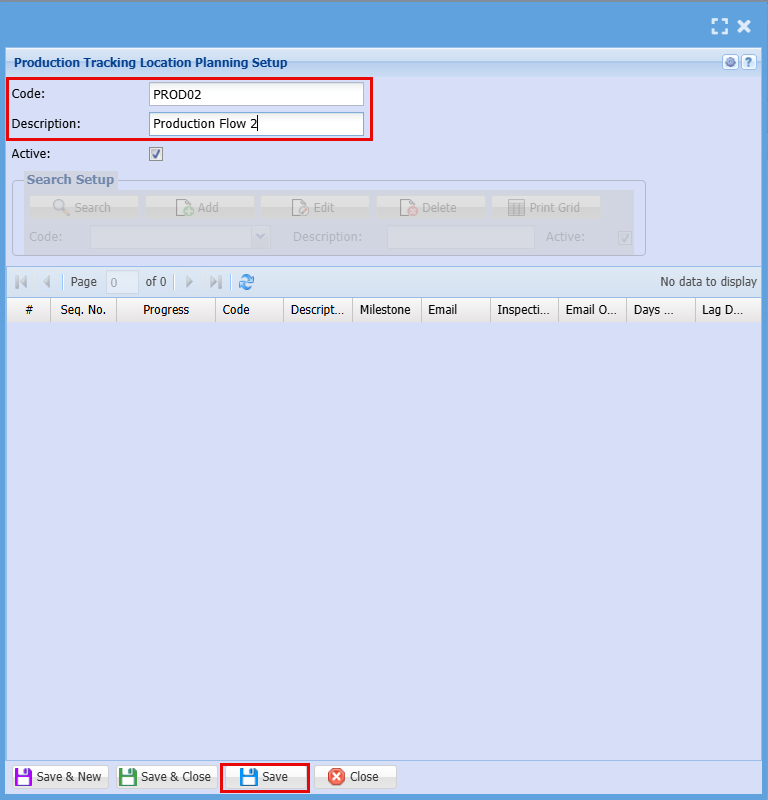
By clicking "Save" the "Search Setup" Grid will become active
- Click the "Add" button to start compiling your production flow.
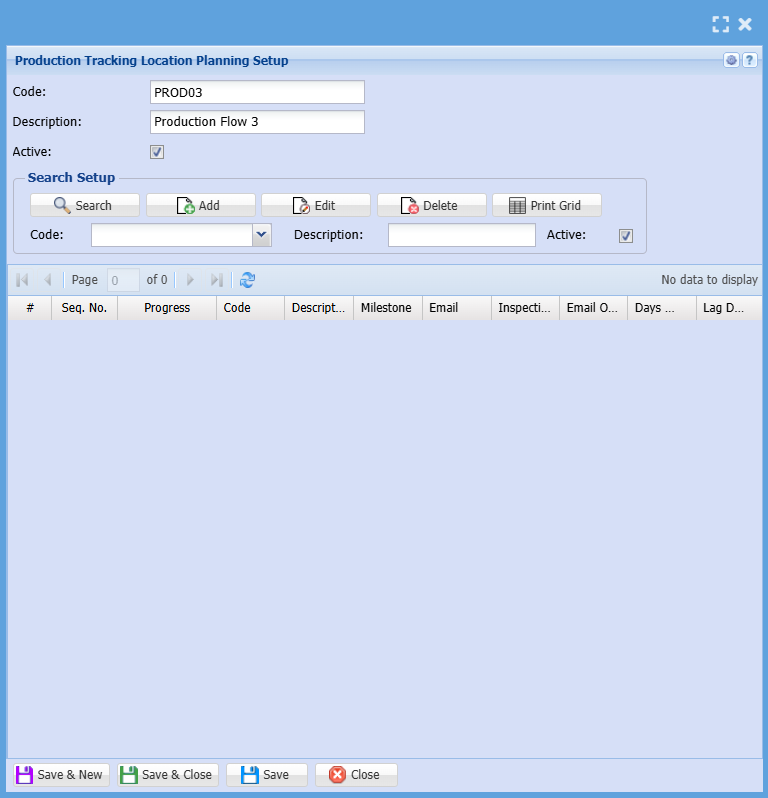
The below window will pop up, here you will set up each step of the production flow.
- Complete the fields required
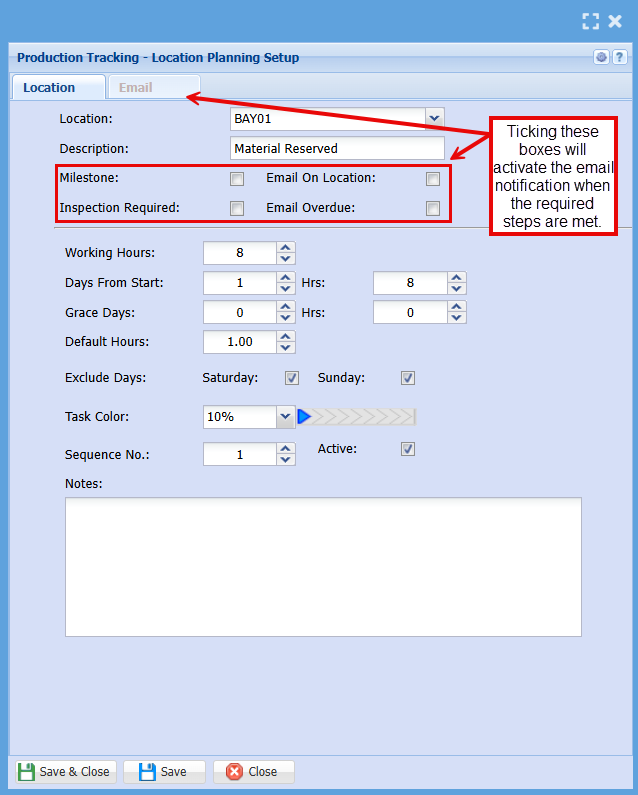
|
Working Hours |
How Many hours work are there in a day |
|
Days From Start |
In how many days do you plan on starting this job |
| Grace Days | Are you allowing any grace days for this job |
| Default Hours | How many hours are you allowing for this job |
| Exclude Days |
Do you work on weekends? If not, tick the boxes to exclude them from the day count.
|
| Task Colour |
This will display as a progress bar to visually show how far along you are with the specific job.
|
| Sequence Number |
Sequence planning allows one to estimate when certain tasks will take place.
|
| Notes | Add notes (Optional) |
The estimated planning times will only become active when the first location is scanned
- Click "Save"
- Repeat the above steps for the full production flow
Email Setup for Production Tracking
Production Tracking > Configuration > PT Location Planning
- Double click on the Production Flow you want to add an email notification to
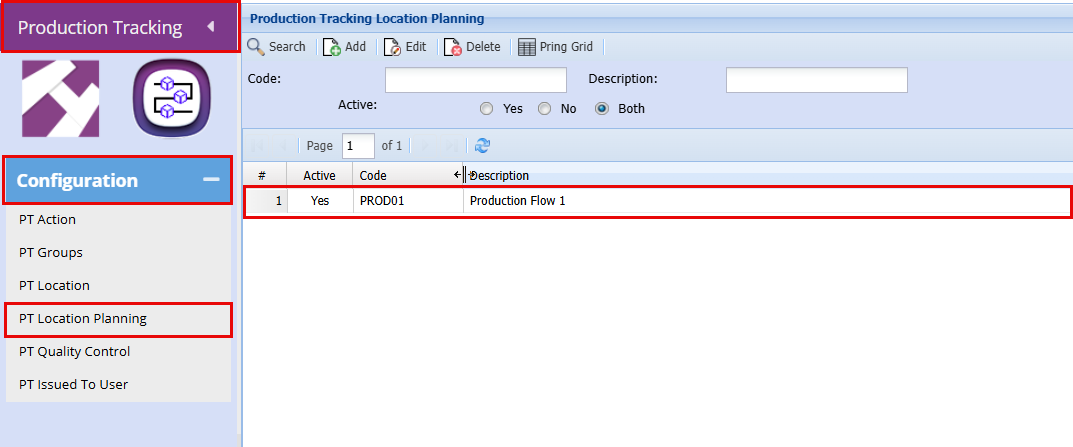
- Double click on the Process or click Edit to open up the line for the process you want to activate email notifications for
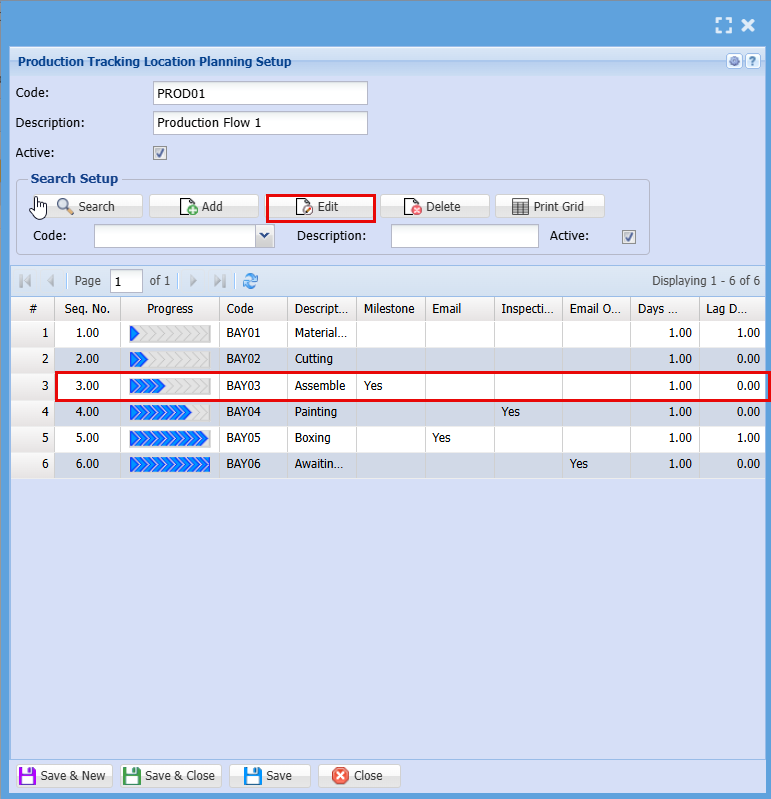
Tick the box of the email you want to receive
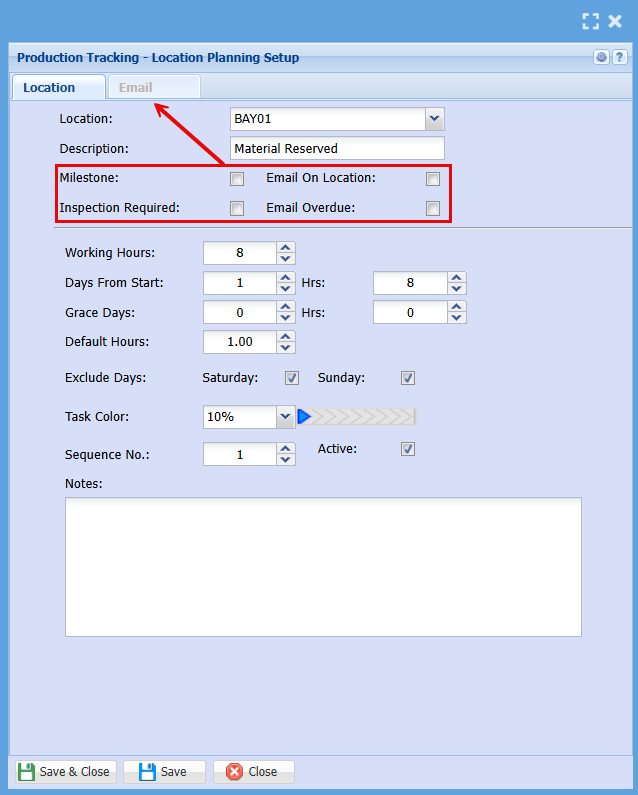
| Milestone | Triggers an email when the job hits a certain milestone |
| Email on Location | Triggers an email when the job hits a certain Location or Bay |
| Inspection Required | Triggers an email when an inspection is required, this will not stop the job from proceeding |
| Email Overdue | Triggers an email when the job falls behind schedule |
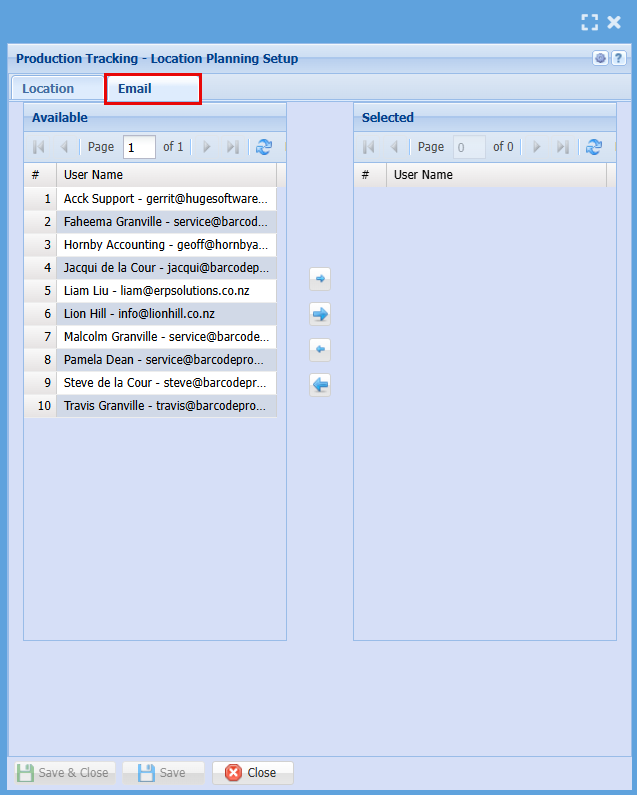
- Click on the Email Tab
- Double Click on the people who are to receive the email notification
- Click "Save & Close"
Production Tracking Quality Control Setup
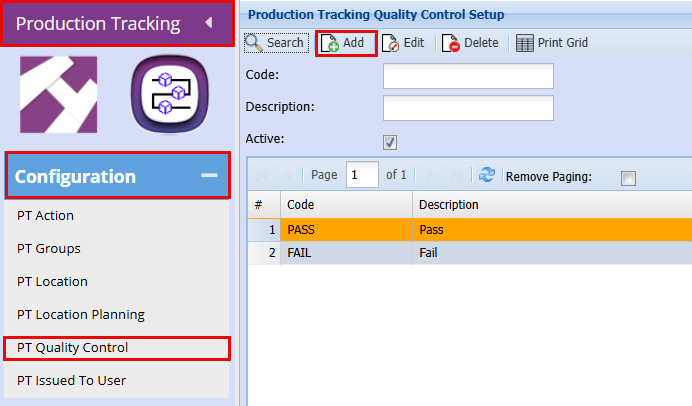
Production Tracking Quality Control
Quality Control set when a user checks items in locations
Production tracking > configuration > PT Quality Control
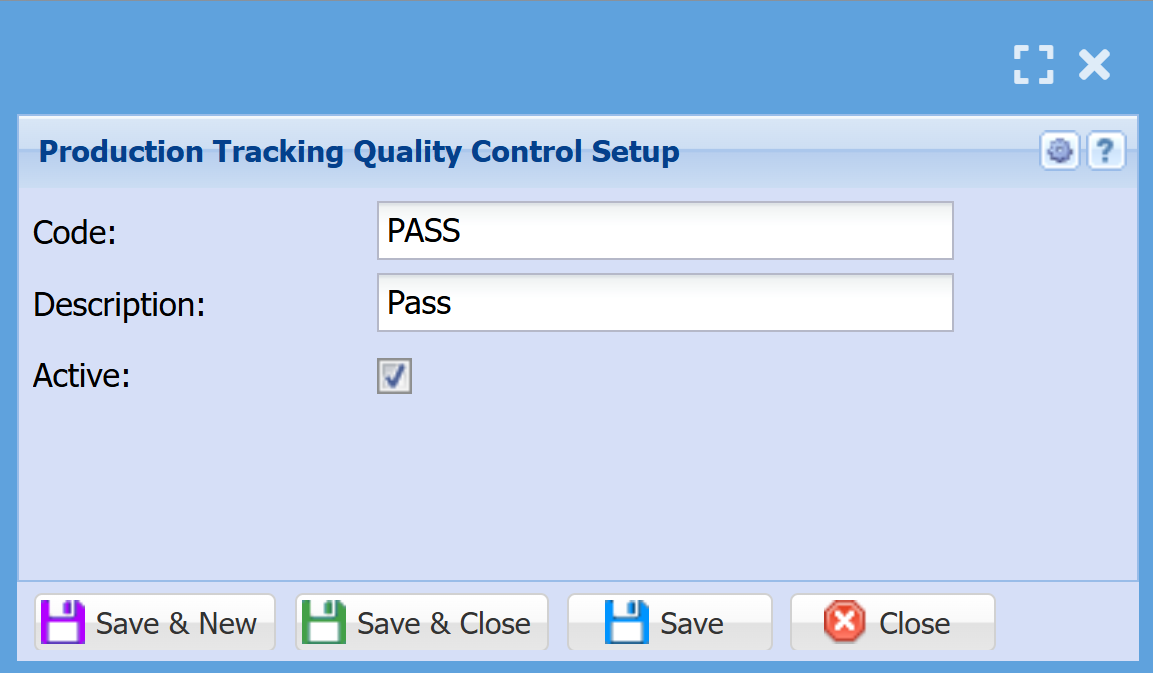
Adding and editing new quality controls
Production Tracking Issued By
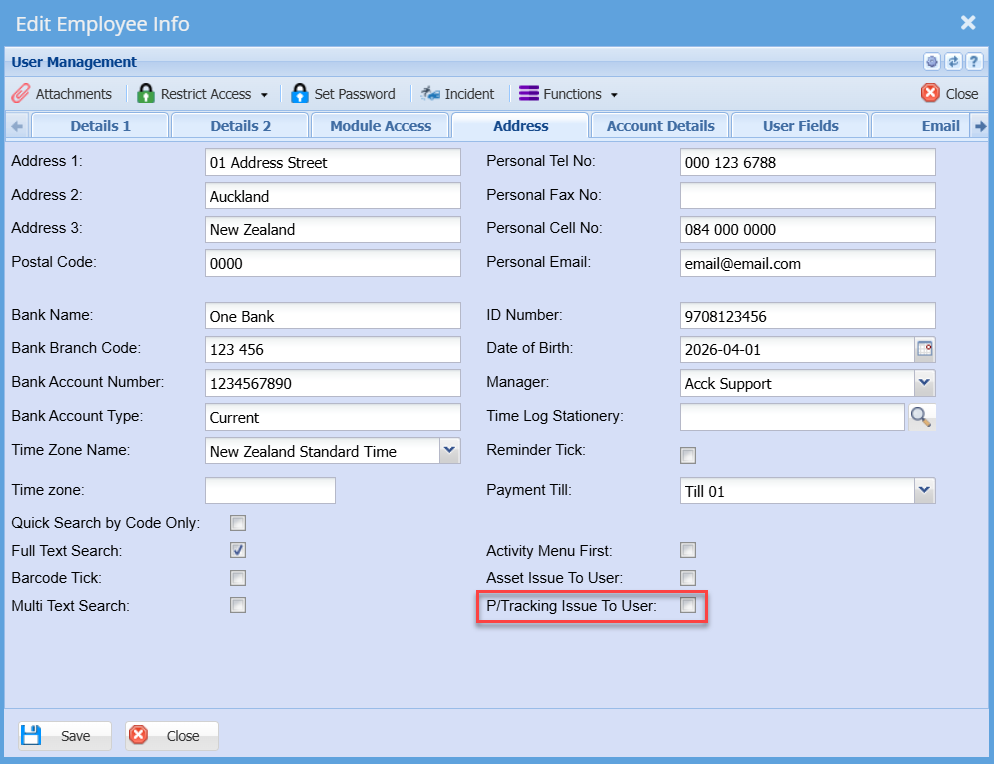
Production Tracking Issue To User
Same as the Asset Tracker - Issued to user
How to Add a user
Production Tracking > Configuration > PT Issued To User
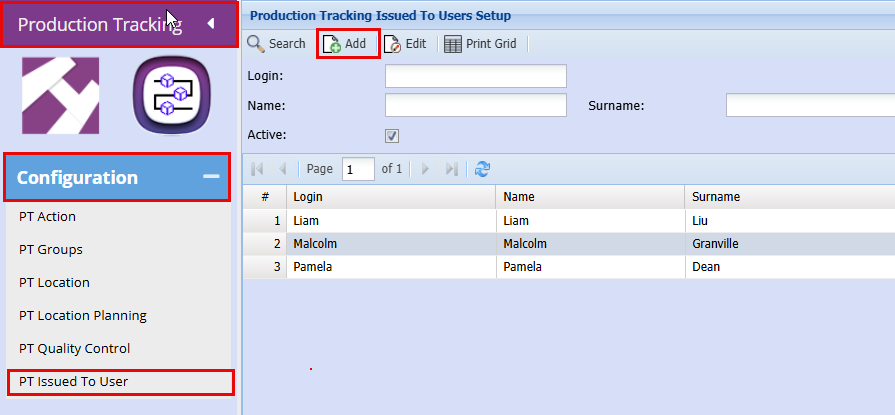
Adding a user which will automatically be marked as an Issued to User
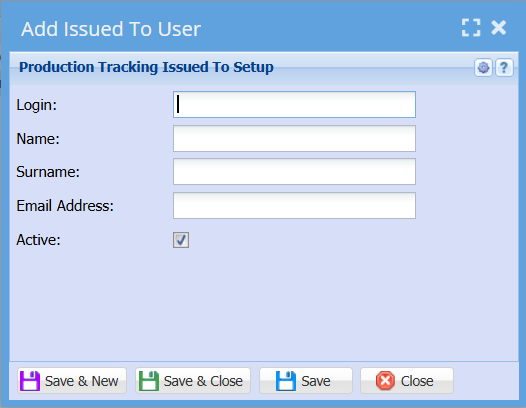
System Configuration> General> User Setup
User Setup has a tick box where you can active the user