# Production Tracking Location Planning Setup

# Production Tracking Location Planning

##### Setup a planning sequence for locations

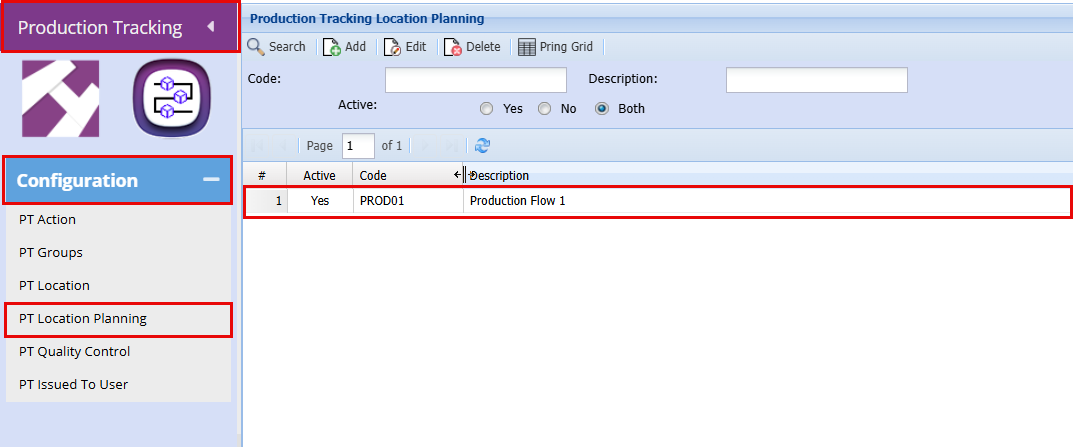
<span style="color: rgb(45, 194, 107);">**Production Tracking &gt; Configuration &gt; PT Location Planning**</span>

Allow for a group to be a default

[![image.png](https://hugeerp10.co.za/hsofmanual/uploads/images/gallery/2026-04/scaled-1680-/YDQimage.png)](https://hugeerp10.co.za/hsofmanual/uploads/images/gallery/2026-04/YDQimage.png)

- To create a Production Plan click "**Add**"
- Add a "**Code**"
- Add a "**Description**"
- Click "**Save**"

[![image.png](https://hugeerp10.co.za/hsofmanual/uploads/images/gallery/2026-04/scaled-1680-/Y42image.png)](https://hugeerp10.co.za/hsofmanual/uploads/images/gallery/2026-04/Y42image.png)

By clicking "**Save**" the "**Search Setup**" Grid will become active

- Click the "**Add**" button to start compiling your production flow.

[![image.png](https://hugeerp10.co.za/hsofmanual/uploads/images/gallery/2026-04/scaled-1680-/6Xuimage.png)](https://hugeerp10.co.za/hsofmanual/uploads/images/gallery/2026-04/6Xuimage.png)

The below window will pop up, here you will set up each step of the production flow.

- Complete the fields required

[![image.png](https://hugeerp10.co.za/hsofmanual/uploads/images/gallery/2026-04/scaled-1680-/t2jimage.png)](https://hugeerp10.co.za/hsofmanual/uploads/images/gallery/2026-04/t2jimage.png)

<table border="1" id="bkmrk-working-hours-how-ma" style="border-collapse: collapse; width: 100%;"><colgroup><col style="width: 18.6385%;"></col><col style="width: 81.2576%;"></col></colgroup><tbody><tr><td>**Working Hours**

</td><td>How Many hours work are there in a day</td></tr><tr><td>**Days From Start**

</td><td>In how many days do you plan on starting this job</td></tr><tr><td>**Grace Days**</td><td>Are you allowing any grace days for this job</td></tr><tr><td>**Default Hours**</td><td>How many hours are you allowing for this job</td></tr><tr><td>**Exclude Days**</td><td><div>Do you work on weekends? If not, tick the boxes to exclude them from the day count. </div></td></tr><tr><td>**Task Colour**</td><td><div>This will display as a progress bar to visually show how far along you are with the specific job. </div></td></tr><tr><td>**Sequence Number**</td><td><div>Sequence planning allows one to estimate when certain tasks will take place.</div></td></tr><tr><td>**Notes**</td><td>Add notes (Optional)</td></tr></tbody></table>

<p class="callout info">The estimated planning times will only become active when the first location is scanned</p>

- Click "**Save**"
- **Repeat** the above steps for the full production flow

---

##### Email Setup for Production Tracking

<span style="color: rgb(45, 194, 107);">**Production Tracking &gt; Configuration &gt; PT Location Planning**</span>

- **Double click** on the Production Flow you want to add an email notification to

[![image.png](https://hugeerp10.co.za/hsofmanual/uploads/images/gallery/2026-04/scaled-1680-/M79image.png)](https://hugeerp10.co.za/hsofmanual/uploads/images/gallery/2026-04/M79image.png)
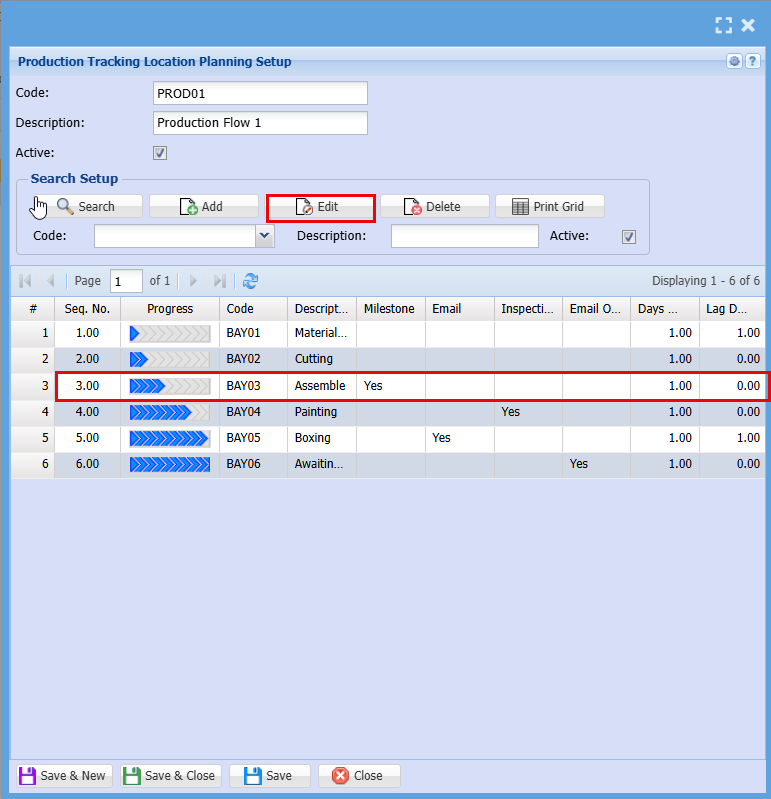
- **Double click** on the Process or click **Edit** to open up the line for the process you want to activate email notifications for

[![image.png](https://hugeerp10.co.za/hsofmanual/uploads/images/gallery/2026-04/scaled-1680-/nqDimage.png)](https://hugeerp10.co.za/hsofmanual/uploads/images/gallery/2026-04/nqDimage.png)
Tick the box of the email you want to receive

[![image.png](https://hugeerp10.co.za/hsofmanual/uploads/images/gallery/2026-04/scaled-1680-/ZGrimage.png)](https://hugeerp10.co.za/hsofmanual/uploads/images/gallery/2026-04/ZGrimage.png)
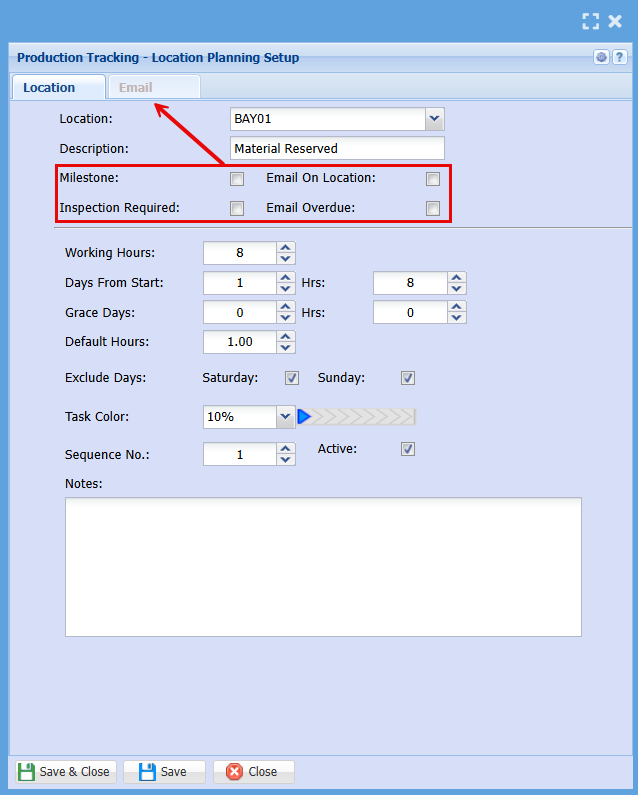
<table border="1" id="bkmrk-milestone-triggers-a" style="border-collapse: collapse; width: 100%;"><colgroup><col style="width: 17.1659%;"></col><col style="width: 82.8494%;"></col></colgroup><tbody><tr><td>Milestone</td><td>Triggers an email when the job hits a certain milestone</td></tr><tr><td>Email on Location</td><td>Triggers an email when the job hits a certain Location or Bay</td></tr><tr><td>Inspection Required</td><td>Triggers an email when an inspection is required, this will not stop the job from proceeding </td></tr><tr><td>Email Overdue</td><td>Triggers an email when the job falls behind schedule</td></tr></tbody></table>

- Click on the **Email** Tab
- **Double Click** on the people who are to receive the email notification
- Click "**Save &amp; Close**"

[![image.png](https://hugeerp10.co.za/hsofmanual/uploads/images/gallery/2026-04/scaled-1680-/hNZimage.png)](https://hugeerp10.co.za/hsofmanual/uploads/images/gallery/2026-04/hNZimage.png)