# Function Management
[](https://hugeerp10.co.za/hsofmanual/uploads/images/gallery/2024-06/FoYimage.png)
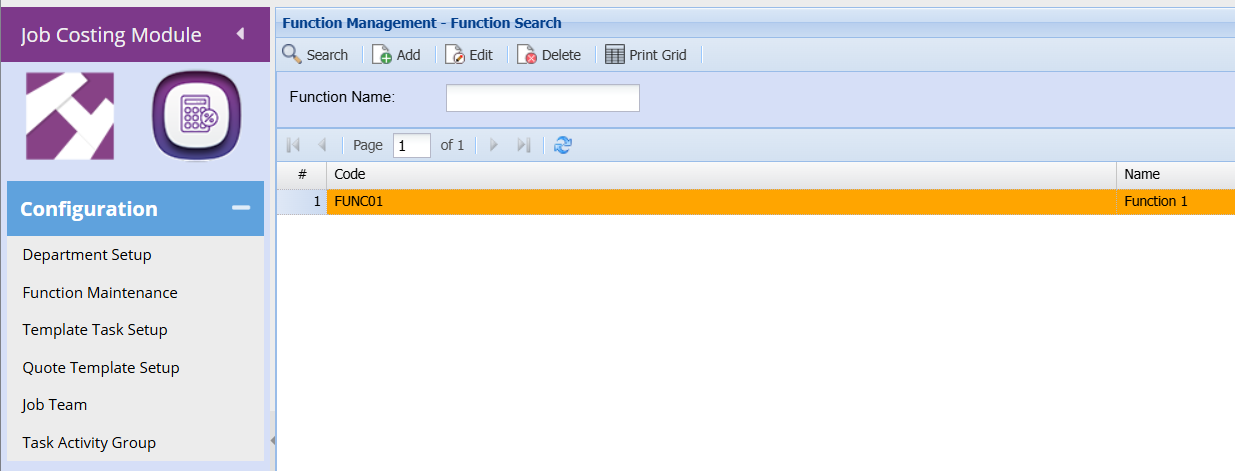
search tab shows available management functions.
The user can search function by name.
The Navigation Ribbon is used to action the following functions:
Search button: the search function will return Function Management Item records based on the search criteria entered
Add button: to insert a new Function Management Item
Edit button: to view or edit an already added Function Management Item
Delete button: to delete the currently selected Function Management Item
Print Grid Button: to print the displayed grid of Function Management Item
[](https://hugeerp10.co.za/hsofmanual/uploads/images/gallery/2024-06/OTSimage.png)
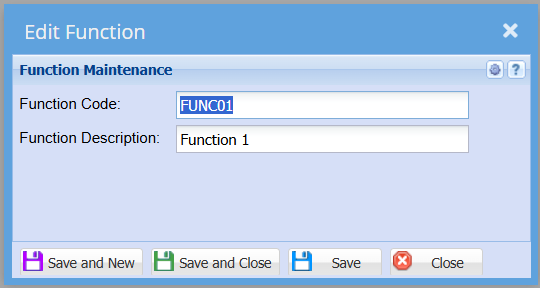
Function Management
This form allows the user to create new functions management by entering the code and the description
Save And New – Saves the form and then reopens it so you may create multiple forms without having to close and reopen constantly.
Save And Close – Will Save the form then close it.