# Stock Adjustment Types
Types allow one to define the ledger account the stock adjustments will update and tag the stock adjustments, which are both stock level and stock value.
If no ledger account is specified, then the default General Ledger Link will be processed.
When the system does an update, this will create a hotfix to add in a system type which all stock adjustments will be allocated to.
The hotfix will update all past stock adjustments done for both Level and Value
[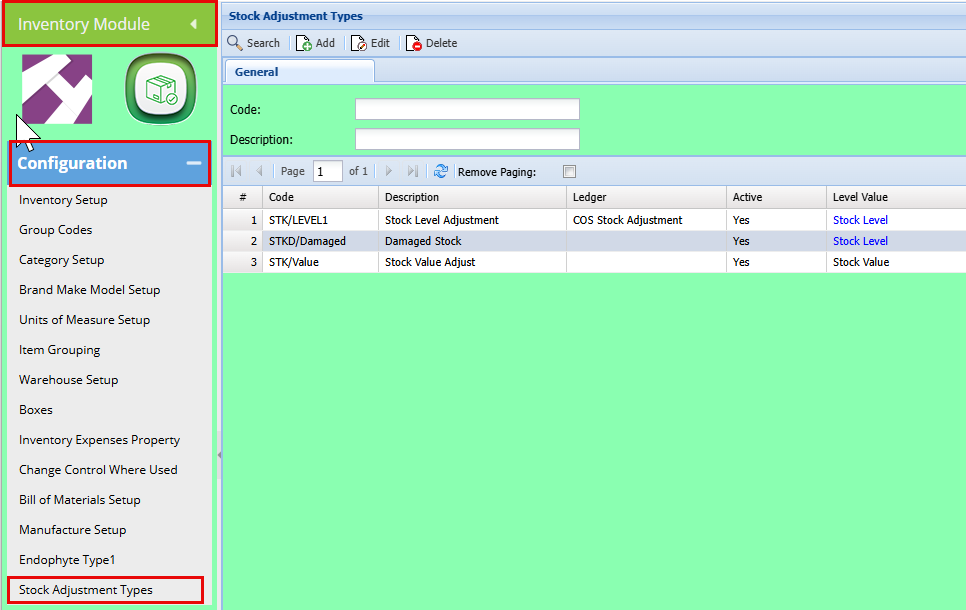](https://hugeerp10.co.za/hsofmanual/uploads/images/gallery/2026-01/lsbimage.png)
When deleting, check that this type is not used on any stock adjustments, if yes, then it cannot delete
COS ledger is restricted to Cost of Sales and Expense ledger accounts
##### Add a Stock Level Adjustment Type
**Inventory > Configuration > Stock Adjustment Type**
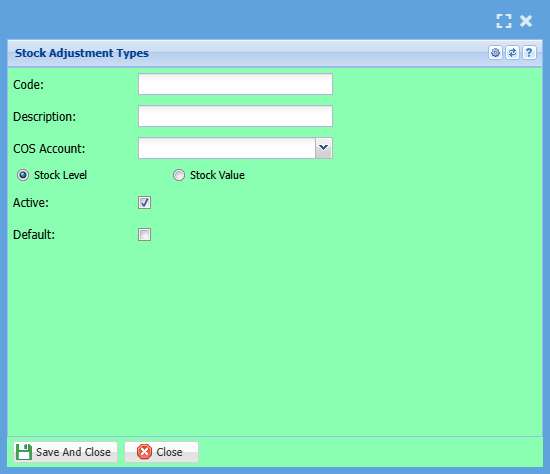
Click **Add**.
Enter a **Code**.
Enter a **Description**.
Choose the **Cost of Sales** account that this adjustment should be allocated to.
Specify whether this setup applies to a **Stock Level Adjustment** or a **Stock Value Adjustment**.
Click **Save And Close**.
[](https://hugeerp10.co.za/hsofmanual/uploads/images/gallery/2026-01/U5aimage.png)
---
##### Stock Level Adjustment
All stock level adjustments will require a stock type, when the stock type is select, the description will be copied to the short description.
The default stock adjustment type will populate the drop down.
---
##### Stock Level Adjustment search
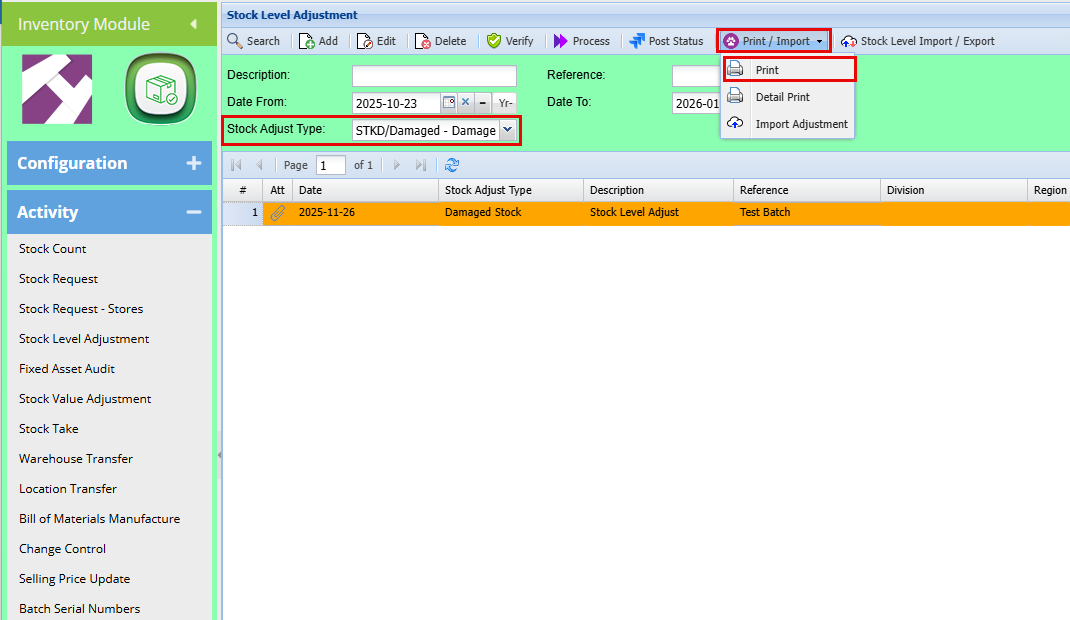
Filter by "**Stock Adjustment Types**"
Click "**Search**"
Here you can print a report for history of each type
[](https://hugeerp10.co.za/hsofmanual/uploads/images/gallery/2026-01/6nximage.png)
---
##### User access Types
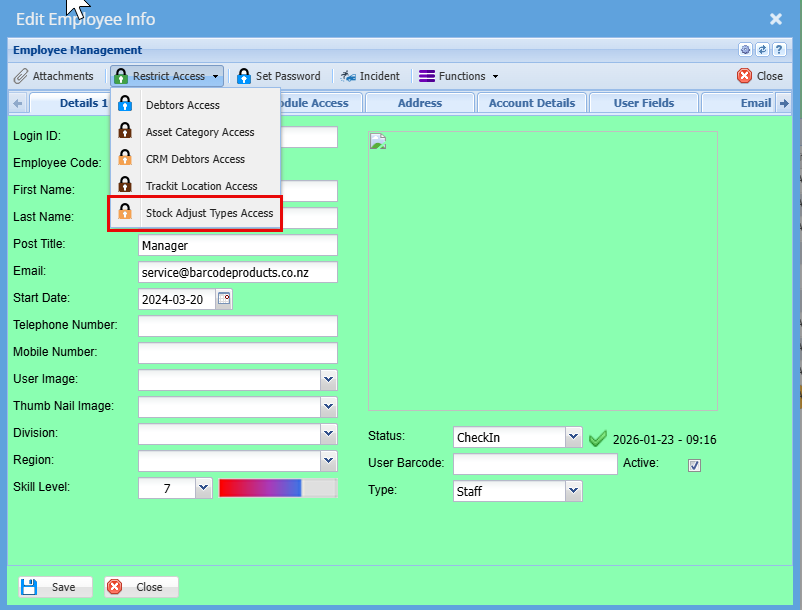
User can be restricted on which stock adjustment types they see
**Configuration > General > User Setup**
Select the "**User**"
Click on "**Restricted Access**" Drop down
Select "**Stock Adjustment Type Access**"
[](https://hugeerp10.co.za/hsofmanual/uploads/images/gallery/2026-01/MaIimage.png)
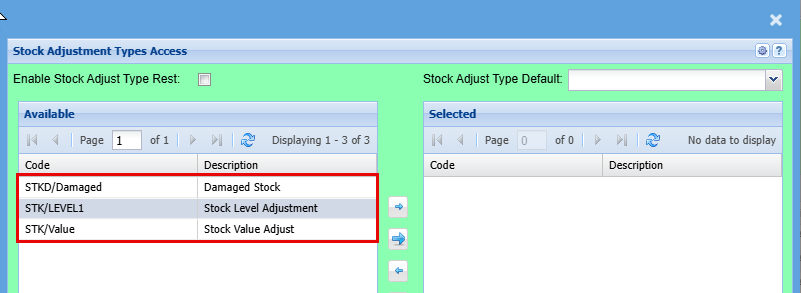
By double‑clicking any of the Stock Level Adjustment Types in the first grid, the selected type will move to the right‑hand column, allowing the user to process stock adjustments using that type.
If the restriction is not enabled, the user will see all types
[](https://hugeerp10.co.za/hsofmanual/uploads/images/gallery/2026-01/Hmkimage.png)
Click "**Save And Close**"
---
#####
##### Webatar Stock Level Adjustment module
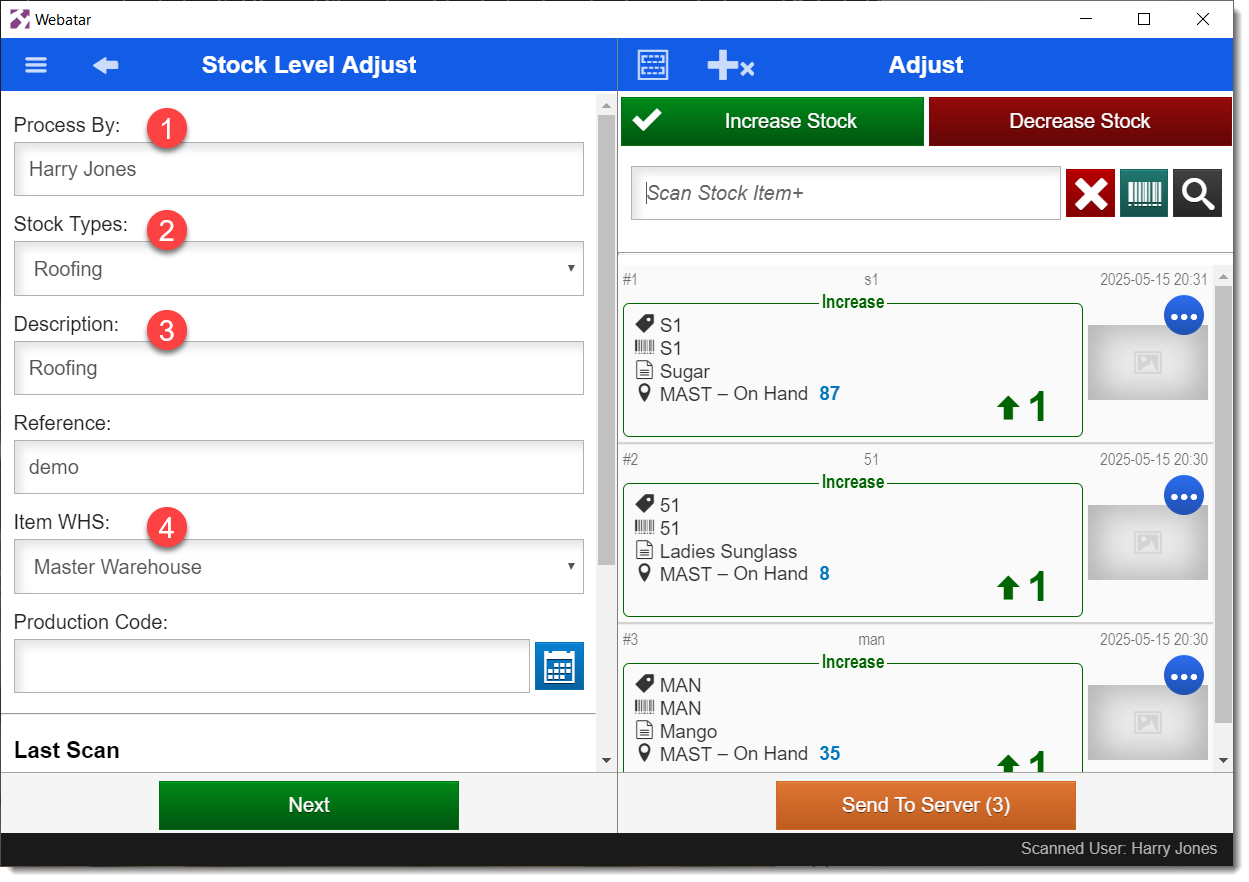
For the next Stock Level Adjust sent to the server, the Stock Adjustment Type can be changed by selecting from the "Stock Types" field **(2)**. The available Stock Level Adjustment Types, which are synced to the device in the Settings panel, will contain all active Types, unless restrictions were enabled in SCM User Setup, on the user in the "Process By" field **(1)**.
The Description field **(3)** is automatically set to the description of the selected Stock Adjustment Type.
Unlike the Stock Types field, the "Item WHS" field **(4)** currently is populated by the user signed into Webatar and not the "Process By" user.
While the form fields are saved for each Process By user, so that an incomplete Stock Level Adjust can be returned to later, the list of items is currently shared between all Process By users on the device. This means that any items left by the last Process By user will remain for the next Process By user.