# Inventory Setup

<span style="color: rgb(45, 194, 107);">**<span class="ts2">Inventory &gt;Configuration&gt; Inventory Setup</span>**</span>

<span class="ts0">In Inventory setup search, you will see two search tabs</span>

<table border="1" id="bkmrk-basic-search-tab-if-" style="border-collapse: collapse; width: 89.8765%;"><colgroup><col style="width: 19.1856%;"></col><col style="width: 80.7883%;"></col></colgroup><tbody><tr><td>**<span class="ts0">Search</span>**</td><td><span class="ts0">Allows you to search for an existing item, Creditor or Debtor based on system fields and which module you are in.</span></td></tr><tr><td>**<span class="ts0">Custom</span>**</td><td><span class="ts0">If you have setup custom fields in your inventory, you can search for the items using the custom fields linked.</span></td></tr></tbody></table>

<p class="callout info"><span class="ts0"><span style="color: rgb(224, 62, 45);">Note:</span> If you leave the fields blank it will bring back all Inventory codes which will be sorted in inventory code order alphabetically.</span></p>

<span class="ts0">If you click on the column heads they will sort A-Z or Z-A</span>

---

##### <span class="ts0">Navigation Ribbon</span>

[![image.png](https://hugeerp10.co.za/hsofmanual/uploads/images/gallery/2024-11/scaled-1680-/z7qimage.png)](https://hugeerp10.co.za/hsofmanual/uploads/images/gallery/2024-11/z7qimage.png)

<span class="ts0">The Navigation Ribbon is used to action the following functions:</span>

<table border="1" id="bkmrk-search-button-the-se" style="border-collapse: collapse; width: 97.1605%; height: 445.344px;"><colgroup><col style="width: 24.0979%;"></col><col style="width: 75.8774%;"></col></colgroup><tbody><tr style="height: 46.5938px;"><td style="height: 46.5938px;">**<span class="ts0">Search</span>**</td><td style="height: 46.5938px;"><span class="ts0">Allows you to search for an existing item, Creditor or Debtor based on system fields and the module you are in.</span></td></tr><tr style="height: 46.5938px;"><td style="height: 46.5938px;">**<span class="ts0">Add</span>**</td><td style="height: 46.5938px;"><span class="ts0">Allows you to create a new Inventory item, Creditor or Debtor depending on the Module you are in.</span></td></tr><tr style="height: 46.5938px;"><td style="height: 46.5938px;">**<span class="ts0">Edit</span>**</td><td style="height: 46.5938px;"><span class="ts0">Allows you to edit an existing Inventory Item, Creditor or Debtor depending on the module you are in</span></td></tr><tr style="height: 46.5938px;"><td style="height: 46.5938px;">**<span class="ts0">Clone</span>**</td><td style="height: 46.5938px;"><span class="ts0">Allows you to Clone an existing Inventory Item, Creditor or Debtor depending on the module you are in</span></td></tr><tr style="height: 63.3906px;"><td style="height: 63.3906px;">**<span class="ts0">Delete </span>**</td><td style="height: 63.3906px;"><span class="ts0">Allows you to Delete an existing Inventory Item, Creditor or Debtor depending on the module you are in, you will not be able to delete an Inventory Item, Creditor or Debtor if they have transactions against the.</span></td></tr><tr style="height: 29.7969px;"><td style="height: 29.7969px;">**<span class="ts0">Inventory Overview</span>**</td><td style="height: 29.7969px;"><span class="ts0">Allows you to view an overview of all movements for the selected Inventory Code.</span></td></tr><tr style="height: 29.7969px;"><td style="height: 29.7969px;">**<span class="ts0">View Image</span>**</td><td style="height: 29.7969px;"><span class="ts0">If you have uploaded an image of your Inventory item, you will be able to view it here</span></td></tr><tr style="height: 46.5938px;"><td style="height: 46.5938px;">**<span class="ts0">Serial No. Options</span>**</td><td style="height: 46.5938px;"><span class="ts0">When you select a product that has serial numbers recorded, you can either view them here or you can print them from here as well.</span></td></tr><tr style="height: 29.7969px;"><td style="height: 29.7969px;">**<span class="ts0">Functions</span>**</td><td style="height: 29.7969px;"><span class="ts0">Allows you to update various settings on the items selected</span></td></tr><tr style="height: 29.7969px;"><td style="height: 29.7969px;">**<span class="ts0">Print</span>**</td><td style="height: 29.7969px;"><span class="ts0">Prints the selected Inventory Code details</span></td></tr><tr style="height: 29.7969px;"><td style="height: 29.7969px;">**<span class="ts0">Import &amp; Export</span>**</td><td style="height: 29.7969px;"><span class="ts0">Export General Details of Inventory Code to Excel</span></td></tr></tbody></table>

---

#### Search options

<span class="ts0">[![image.png](https://hugeerp10.co.za/hsofmanual/uploads/images/gallery/2024-01/scaled-1680-/C8vimage.png)](https://hugeerp10.co.za/hsofmanual/uploads/images/gallery/2024-01/C8vimage.png)</span>

 Enter any of the fields, such as the item code or part of the item description to limit your search to a specific item or range of items.

<table border="1" id="bkmrk-main-tab-shows-a-lis" style="border-collapse: collapse; width: 101.235%; height: 182.578px;"><tbody><tr style="height: 29.7969px;"><td style="height: 29.7969px; width: 23.8691%;">**<span class="ts0">Main</span>**</td><td style="height: 29.7969px; width: 76.2501%;"><span class="ts0">Displays basic information of the item within the grid</span></td></tr><tr style="height: 29.7969px;"><td style="height: 29.7969px; width: 23.8691%;">**<span class="ts0">Cost Price</span>**</td><td style="height: 29.7969px; width: 76.2501%;"><span class="ts0">Shows the item cost and selling price information of a selected item</span></td></tr><tr style="height: 46.5938px;"><td style="height: 46.5938px; width: 23.8691%;">**<span class="ts0">Supplier Cost Price</span>**</td><td style="height: 46.5938px; width: 76.2501%;"><span class="ts0">Shows various supplier cost prices of a selected item, including historic cost prices.</span></td></tr><tr style="height: 29.7969px;"><td style="height: 29.7969px; width: 23.8691%;">**<span class="ts0">Stock Available</span>**</td><td style="height: 29.7969px; width: 76.2501%;"><span class="ts0">Shows stock quantity levels of the item in various warehouses.</span></td></tr><tr style="height: 46.5938px;"><td style="height: 46.5938px; width: 23.8691%;">**<span class="ts0">Serial Number</span>**</td><td style="height: 46.5938px; width: 76.2501%;"><span class="ts0">Shows serial numbers for the selected item. This tab is only active if the item code is flagged for serial number tracking</span></td></tr></tbody></table>

<span class="ts0">To create a new inventory item, click on the Add button</span>

<span class="ts0">Fill in all the relevant information on the inventory item.</span>

<span class="ts0">You will have to fill in the category type example, stock, service or custom.</span>

<table border="1" id="bkmrk-stock-physical-items" style="border-collapse: collapse; width: 100%;"><colgroup><col style="width: 11.866%;"></col><col style="width: 88.1093%;"></col></colgroup><tbody><tr><td>**<span class="ts0">Stock</span>**</td><td><span class="ts0">Physical items such as a ruler. Inventory items work with costing methods a. Latest cost or b. Average Cost. </span>

<span class="ts0">This is setup under the System Configuration Module- Administration – Reference Values.</span>

</td></tr><tr><td>**<span class="ts0">Service</span>**</td><td><span class="ts0">Labor can be termed a service item. This does not track inventory. Service items cannot be used in the Goods Received Vouchers.</span></td></tr><tr><td>**<span class="ts0">Custom</span>**</td><td><span class="ts0">Works the same as Service type. You can put sub-contractors work under this. This will appear in Goods Received Vouchers.</span></td></tr><tr><td>**<span class="ts0">Fixed Assets</span>**</td><td><span class="ts0">This type of inventory is only used to insert your fixed assets. You can put a cost value to it and run a report which will list all fixed assets with their cost value.</span></td></tr></tbody></table>

<p class="callout info"><span class="ts0">The inventory code can be changed at any time.</span></p>

<p class="callout warning"><span class="ts0">The Inventory category cannot be changed after it is saved</span></p>

---

##### Inventory Details Tab

<span class="ts0">In the General Details tab fill in the static information.</span>

<table border="1" id="bkmrk-inventory-code-this-" style="border-collapse: collapse; width: 100%;"><colgroup><col style="width: 17.3334%;"></col><col style="width: 82.7655%;"></col></colgroup><tbody><tr><td>**<span class="ts0">Inventory Code</span>**</td><td><span class="ts0">This is a unique code that identifies the Inventory Item. The Code field can be Alpha Numeric and over 200 Characters long.</span></td></tr><tr><td>**<span class="ts0">Category</span>**</td><td><span class="ts0">Select the type of inventory item that is being created. There are four options, stock, service, custom and fixed asset.</span></td></tr><tr><td>**<span class="ts0">Description</span>**</td><td><span class="ts0">This is the name of the inventory item. The Description field can be Alfa Numeric and over 500 Characters long.</span></td></tr><tr><td>**<span class="ts0">Long Description</span>**</td><td><span class="ts0">This is extra information on the inventory item. You can have a very descriptive note on the item. This can be automatically copy when doing your lines in the document.</span></td></tr><tr><td>**<span class="ts0">Primary Image</span>**</td><td><span class="ts0">This is a drop down and only shows Images which have being uploaded as attachments. You can select a default image against the customer to show on the right-hand side.</span></td></tr><tr><td>**<span class="ts0">Priority Level</span>**</td><td><span class="ts0">Select a priority level form the drop-down menu</span></td></tr><tr><td>**<span class="ts0">Group Code</span>**</td><td><span class="ts0">Select a group code from the drop-down menu</span></td></tr><tr><td>**<span class="ts0">Active</span>**</td><td><span class="ts0">Select if this item is active or not. To make an item inactive the item must have zero inventory on hand in all warehouses</span></td></tr><tr><td>**<span class="ts0">POS Item</span>**</td><td><span class="ts0">Tick if inventory item is a POS item</span></td></tr><tr><td>**<span class="ts0">Internal Ref ID</span>**</td><td><span class="ts0">Customer reference number for item</span></td></tr><tr><td>**<span class="ts0">More Details Tab Unit of Measurement</span>**</td><td><span class="ts0">This indicates the unit of measure of items. Case Lots uses this for its multiplication.</span></td></tr><tr><td>**<span class="ts0">Default Supplier</span>**</td><td><span class="ts0">Set this drop down which is populated by the supplier’s button to your most commonly used supplier.</span></td></tr><tr><td>**<span class="ts0">Tax Type</span>**</td><td><span class="ts0">Set a default tax type for this inventory item.</span></td></tr><tr><td>**<span class="ts0">Account Type</span>**</td><td><span class="ts0">Only used in Custom and Service type items. This account replaces the inventory account and puts costs to the ledger account set here. Do not use inventory account when setting up your custom and service items.</span></td></tr><tr><td>**<span class="ts0">Bar Code</span>**</td><td><span class="ts0">Insert a Bar Code for the item</span></td></tr><tr><td>**<span class="ts0">Bin</span>**</td><td><span class="ts0">Bin Location – Put in a note of the location of your inventory</span></td></tr><tr><td>**<span class="ts0">Weight per unit</span>**</td><td><span class="ts0">Setup your weight per unit. You can select the stationery layout with weights column which will multiple the quantity by the weight and give you the total weight per line product.</span></td></tr><tr><td>**<span class="ts0">Default Supplier Cost</span>**</td><td><span class="ts0">Tick this if you want to default your costing methods on the supplier cost.</span></td></tr><tr><td>**<span class="ts0">Pricing Override</span>**</td><td><span class="ts0">You can choose a pricing override for an item if you wish to run a special on this product. You will need to specify the start and end date of the special.</span></td></tr></tbody></table>

[![image.png](https://hugeerp10.co.za/hsofmanual/uploads/images/gallery/2024-11/scaled-1680-/vdfimage.png)](https://hugeerp10.co.za/hsofmanual/uploads/images/gallery/2024-11/vdfimage.png)

<span class="ts0">The system will automatically revert back to the default pricing structure when the date of the special has come to an end.</span>

<table border="1" id="bkmrk-serial-no-tracking-t" style="border-collapse: collapse; width: 102.099%;"><colgroup><col style="width: 17.4883%;"></col><col style="width: 82.4842%;"></col></colgroup><tbody><tr><td>**<span class="ts0">Serial No Tracking</span>**</td><td><span class="ts0">Tick if item code must be serial number tracked</span></td></tr></tbody></table>

---

##### <span class="ts0"> More Details Tab</span>

[![image.png](https://hugeerp10.co.za/hsofmanual/uploads/images/gallery/2024-11/scaled-1680-/BuJimage.png)](https://hugeerp10.co.za/hsofmanual/uploads/images/gallery/2024-11/BuJimage.png)


---

##### <span class="ts0">Pricing Levels tab</span>

<span class="ts0">You will have to setup a Pricing level for this item before closing. To setup a pricing level click on the Add button.</span>

<span class="ts0">In this area, the cost price is important if it is an inventory type, if you do not put in a value of cost, you will only be able to change this cost price via an Inventory Value Adjustment. This cost price is affected by your costing methods setup in System Configuration under Reference Values.</span>

<span class="ts0">You will have to put in a Tax Type for this item before saving. In order to see the other tabs you will have to save this item.</span>

<table border="1" id="bkmrk-cost-price-this-is-t" style="border-collapse: collapse; width: 100%;"><colgroup><col style="width: 10.7523%;"></col><col style="width: 89.2229%;"></col></colgroup><tbody><tr><td>**<span class="ts0">Cost Price</span>**</td><td><span class="ts0">This is the cost price of the item.</span></td></tr><tr><td>**<span class="ts0">Stock</span>**</td><td><span class="ts0">This is grayed out because it is governed by accounting costing methods found in the setting Reference Values under System Configuration. There are two types of costing methods Average costing or latest costing methods. The average costing method is the most commonly used.</span></td></tr><tr><td>**<span class="ts0">Service</span>**</td><td><span class="ts0">This cost is open and the user can put in a cost value there which will be carried across when doing invoices. Use costing in service only if you are an advanced accounting user. Instead leave the cost at zero.</span></td></tr><tr><td>**<span class="ts0">Custom</span>**</td><td><span class="ts0">This cost is open and the user can put in this cost is open and the user can put in a cost value there which will be carried across when doing invoices. This cost works on latest costing method and will be updated when this custom type item is used in a Goods Received Voucher.</span></td></tr></tbody></table>

<span class="ts0"> </span>[![image.png](https://hugeerp10.co.za/hsofmanual/uploads/images/gallery/2024-11/scaled-1680-/o8Himage.png)](https://hugeerp10.co.za/hsofmanual/uploads/images/gallery/2024-11/o8Himage.png)

<span class="ts0">In this area you can setup two ways to work out your end selling price</span>

<table border="1" id="bkmrk-amount-put-in-the-am" style="border-collapse: collapse; width: 100%;"><colgroup><col style="width: 13.0124%;"></col><col style="width: 87.0865%;"></col></colgroup><tbody><tr><td>**<span class="ts0">Amount</span>**</td><td><span class="ts0">Put in the amount you wish to sell the product at on an exclusive basis. The system will always bring up this selling price when selling irrespective of your cost price.</span></td></tr><tr><td>**<span class="ts0">Percentage</span>**</td><td><span class="ts0">You can create a percentage markup from your cost price. This percentage will change the selling price dependent on your cost price.</span></td></tr></tbody></table>

<span class="ts0">The difference between the two above is that should you chose Percentage this is good when a product is governed by currency rates and you do not want to lose profits.</span>

<span class="ts0"> </span>![](https://hugeerp0.co.za/csp/webhelp/topics/images/image(3032).png)

<span class="ts0">Once you have selected your pricing level you will need to select a Default pricing level for this item.</span>

<table border="1" id="bkmrk-sales-tax-type-set-t" style="border-collapse: collapse; width: 100%;"><colgroup><col style="width: 25.0596%;"></col><col style="width: 75.0596%;"></col></colgroup><tbody><tr><td>**Sales Tax Type**</td><td>Set the default sales tax type for this item, generally sales invoice VAT / GST tax type</td></tr><tr><td>**Supplier Tax Type**</td><td>Set the default supplier tax type for this item, generally GRV VAT / GST tax type</td></tr><tr><td>**Pricing Level**</td><td>Default pricing level to apply pricing if multiple pricing structures have been assigned to item. Usually best to set to the highest price.</td></tr><tr><td>**Lock Pricing**</td><td>Lock the sell price so that it is not affected by discount structures from customer</td></tr><tr><td>**Item Created**</td><td>The date the item was first created</td></tr><tr><td>**No discount**</td><td>Ensure that this item is excluded from discount from Customer default discount structures</td></tr><tr><td>**Exclude Margin Enforce**</td><td>Exclude the item from been checked for margin enforce ([View Manual](https://hugeerp10.co.za/hsofmanual/books/adm-configuration/page/sales-margin-warning "Sales Margin warning"))</td></tr><tr><td>**Pricing Override**</td><td>Section for setting up an override to standard pricing structures</td></tr><tr><td>**Overriding Level**</td><td>What pricing structure must be applied</td></tr><tr><td>**On Promotion**</td><td>Set that this is an active promotion to apply the pricing override</td></tr><tr><td>**Valid From / To**</td><td>Set the date from and date to that the promotion special pricing must be applied. Once the date to has expired the system will revert back to default pricing structure</td></tr></tbody></table>


---

##### <span class="ts0">Custom Fields tab</span>

<span class="ts0">If configured, you are able to select from drop down option</span>

<span class="ts0"> </span>![](https://hugeerp0.co.za/csp/webhelp/topics/images/image(3033).png)


---

##### <span class="ts0">Spec tab</span>

<span class="ts0">To add the specifications of the item</span>

<span class="ts0">The user can also have options to activate other fields by ticking the boxes on the right hand page</span>

[![image.png](https://hugeerp10.co.za/hsofmanual/uploads/images/gallery/2024-11/scaled-1680-/wcMimage.png)](https://hugeerp10.co.za/hsofmanual/uploads/images/gallery/2024-11/wcMimage.png)

<table border="1" id="bkmrk-reload-spec-button-t" style="border-collapse: collapse; width: 62.3457%;"><colgroup><col style="width: 31.25%;"></col><col style="width: 68.7164%;"></col></colgroup><tbody><tr><td>**<span class="ts0">Reload Spec</span>**</td><td><span class="ts0">To reload the spec</span></td></tr><tr><td>**<span class="ts0">Save Spec</span>**</td><td><span class="ts0">To save specs</span></td></tr><tr><td>**<span class="ts0">Preview Spec</span>**</td><td><span class="ts0">Allows the user to preview the spec</span></td></tr><tr><td>**<span class="ts0">Export to PDF </span>**</td><td><span class="ts0">To export the spec onto a PDF file</span></td></tr><tr><td>**<span class="ts0">Show Sample </span>**</td><td><span class="ts0">Shows the sample of the text</span></td></tr></tbody></table>


---

##### <span class="ts0">Properties</span><span class="ts0"> tab</span>

<span class="ts0">Add the dimensions of the inventory item</span>

[![image.png](https://hugeerp10.co.za/hsofmanual/uploads/images/gallery/2024-11/scaled-1680-/XYGimage.png)](https://hugeerp10.co.za/hsofmanual/uploads/images/gallery/2024-11/XYGimage.png)

---

##### Comments/Replace Item Tab

<span class="ts0"> </span>[![image.png](https://hugeerp10.co.za/hsofmanual/uploads/images/gallery/2024-11/scaled-1680-/x4Yimage.png)](https://hugeerp10.co.za/hsofmanual/uploads/images/gallery/2024-11/x4Yimage.png)


---

##### <span class="ts0">Supplier’s Button</span>

<span class="ts0">On the inventory items you will need to select the various suppliers where you purchase this item from.</span>

<span class="ts0">In this area we cater for multiple suppliers to one inventory item. This is handy so you can see what the cost price is that you purchase this item from the various suppliers. You will also be able to see the supplier item code and when the last time any changes done to this supplier was made.</span>

<span class="ts0">Last Updated field is changed in two ways:</span>

<table border="1" id="bkmrk-1-when-a-goods-recei" style="border-collapse: collapse; width: 64.1975%;"><colgroup><col style="width: 7.67583%;"></col><col style="width: 92.2885%;"></col></colgroup><tbody><tr><td>1</td><td><span class="ts0">When a Goods Received Note comes in and updates the price and date</span></td></tr><tr><td>2</td><td><span class="ts0">When the user manually changes the details.</span></td></tr></tbody></table>

<p class="callout info"><span class="ts0">This price has nothing to do with the cost price of the item, these prices have to do with the actual supplier price which he will give the item to you at.</span></p>

<span class="ts0"> </span>[![image.png](https://hugeerp10.co.za/hsofmanual/uploads/images/gallery/2024-11/scaled-1680-/KR0image.png)](https://hugeerp10.co.za/hsofmanual/uploads/images/gallery/2024-11/KR0image.png)

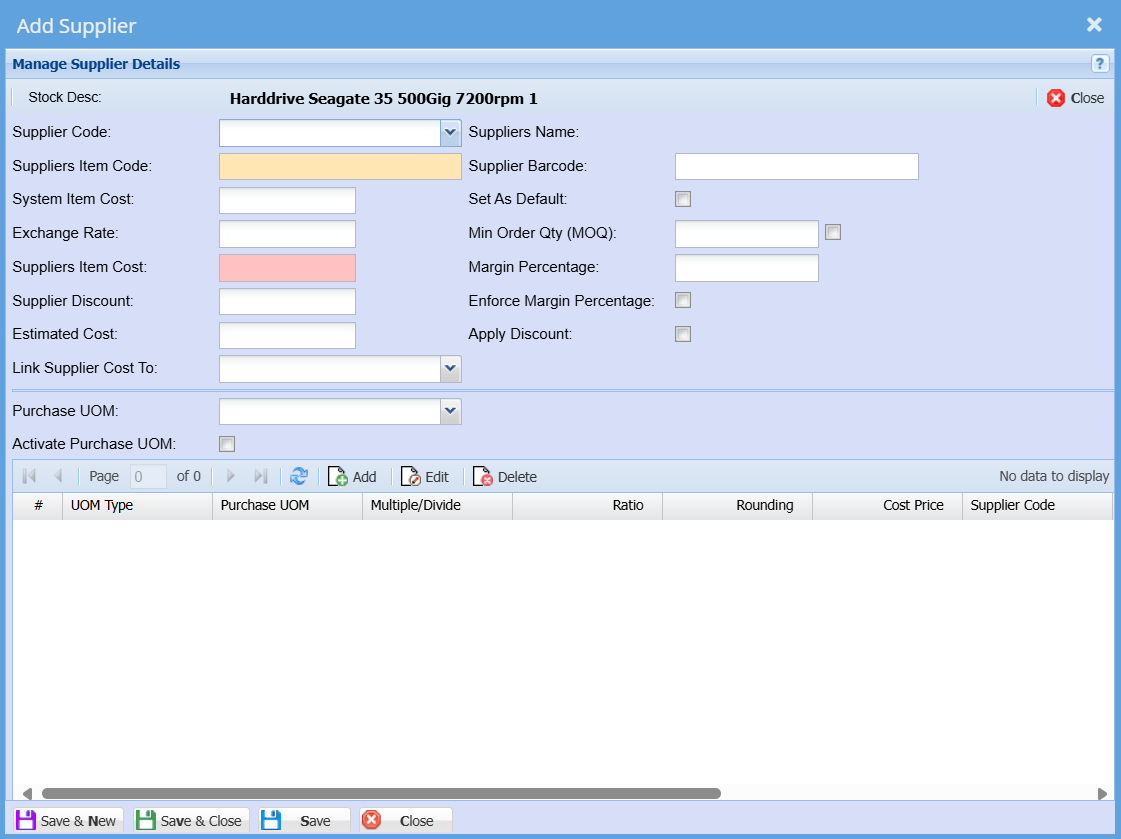
<span class="ts0">To create a new supplier, click on the Add button</span>

<span class="ts0">Fill in the Supplier item code, select the unit of measure and put in the price of the item that your supplier will sell it to you at.</span>

<p class="callout info"><span class="ts0">Prices are exclusive.</span></p>

<span class="ts0"> </span>[![image.png](https://hugeerp10.co.za/hsofmanual/uploads/images/gallery/2024-11/scaled-1680-/Eyqimage.png)](https://hugeerp10.co.za/hsofmanual/uploads/images/gallery/2024-11/Eyqimage.png)


---

##### <span class="ts0">Warehouses Tab</span>

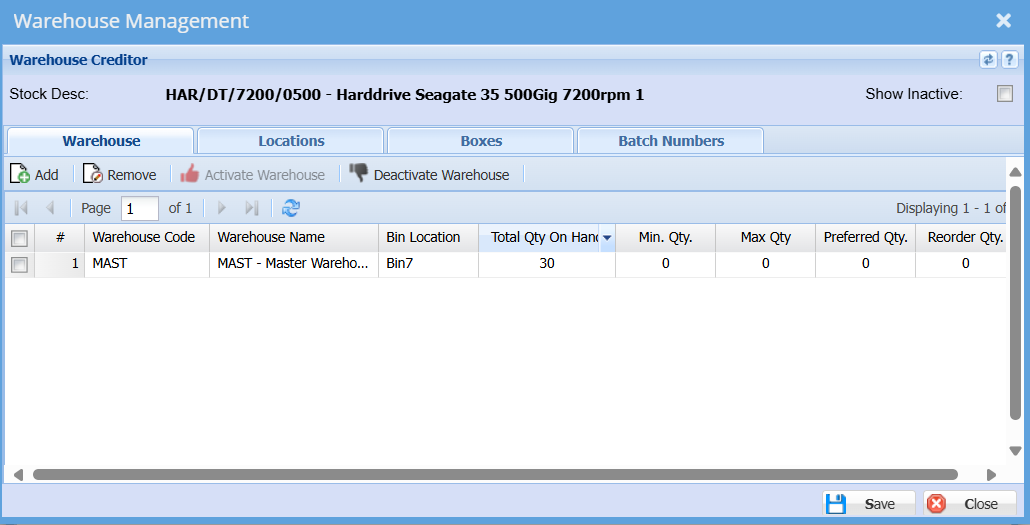
<span class="ts0">If you have the Warehouse Module you will be able to select multiple warehouses that this item belongs to.</span>

[![image.png](https://hugeerp10.co.za/hsofmanual/uploads/images/gallery/2024-11/scaled-1680-/3l1image.png)](https://hugeerp10.co.za/hsofmanual/uploads/images/gallery/2024-11/3l1image.png)

---

##### <span class="ts0">Attachments</span>

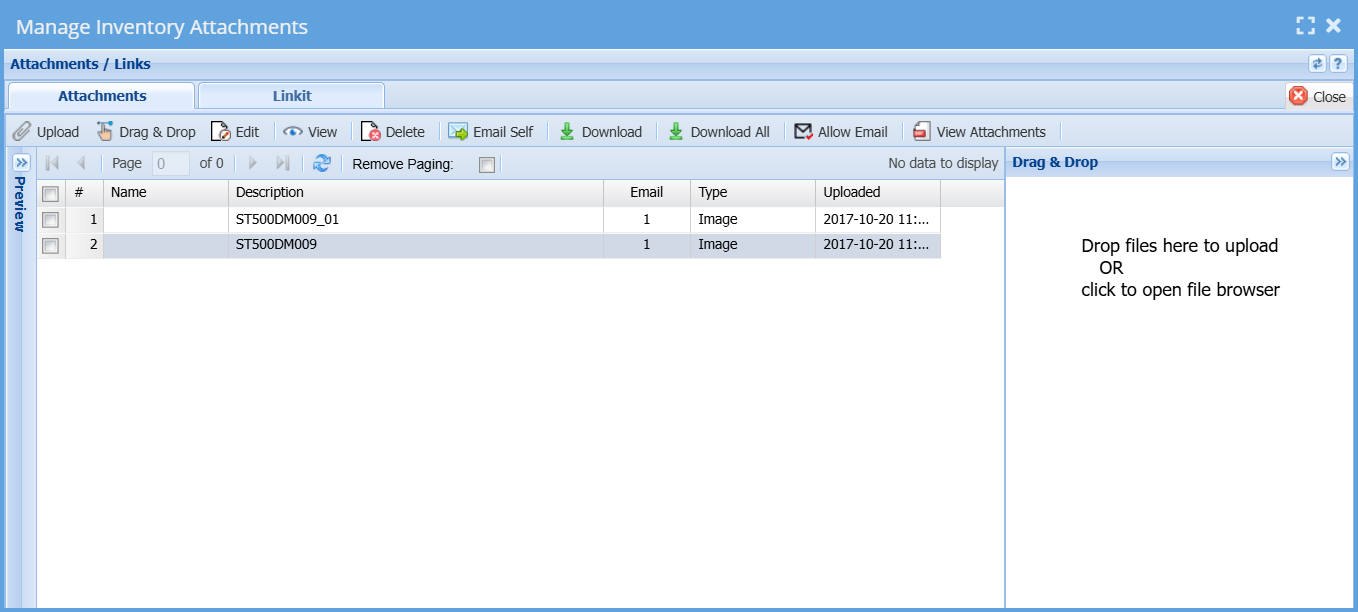
<span class="ts0">In this window we allow for unlimited number of uploads of documents to be attached to the Inventory item. You can attach pictures, Excel sheets, Word Documents and any file you wish.</span>

[![image.png](https://hugeerp10.co.za/hsofmanual/uploads/images/gallery/2024-11/scaled-1680-/0yzimage.png)](https://hugeerp10.co.za/hsofmanual/uploads/images/gallery/2024-11/0yzimage.png)

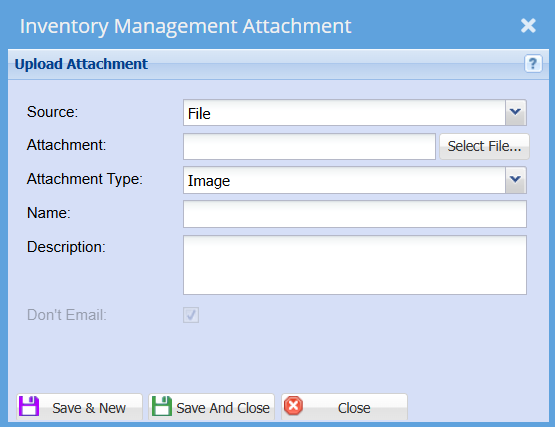
<span class="ts0">When you click on the Upload button Attachments Button the following will come up.</span>

<span class="ts0">In this area we allow you to categorize your documents, name the file and then chose the file.</span>

<span class="ts0">Once you click on the upload button it will take a copy of your file to the server. This means whenever you are in Huge ERP you will be able to view the file anywhere.</span>

[![image.png](https://hugeerp10.co.za/hsofmanual/uploads/images/gallery/2024-11/scaled-1680-/sVuimage.png)](https://hugeerp10.co.za/hsofmanual/uploads/images/gallery/2024-11/sVuimage.png)


---

##### <span class="ts0">Inventory Overview button</span>

The inventory overview window allows a quick access to view information on an item.

The icon that represents it is a blue item.

<table border="1" id="bkmrk-inventory-overview-i"><tbody><tr><td>[![stock.png](https://hugeerp10.co.za/hsofmanual/uploads/images/gallery/2024-08/scaled-1680-/stock.png)](https://hugeerp10.co.za/hsofmanual/uploads/images/gallery/2024-08/stock.png)

</td><td>Inventory Overview icon</td></tr></tbody></table>

It is accessed in most windows where stock items are present

<table border="1" id="bkmrk-main-detail-tab-show"><colgroup><col></col><col></col></colgroup><tbody><tr><td>**<span class="ts0">Load Totals</span>**</td><td><span class="ts0">Loads the item information on the main details tab</span></td></tr><tr><td>**<span class="ts0">Edit Item</span>**</td><td><span class="ts0">Here you can amend an inventory item</span></td></tr><tr><td>**<span class="ts0">Main Detail </span>**</td><td><span class="ts0">Shows summary of movements for select item code</span></td></tr><tr><td>**<span class="ts0">WIP- Work in Progress</span>**</td><td><span class="ts0">Run the count for work still currently progress items, On Shelf, All, Invoice, Sales Orders, Jobs and Bill of Materials. Most counts are done on the on-shelf option.</span></td></tr><tr><td>**<span class="ts0">Movement </span>**</td><td><span class="ts0">Shows all movements for the item code selected</span></td></tr><tr><td>**<span class="ts0">Document Analysis </span>**</td><td><span class="ts0">Search to view all document for the item code</span></td></tr></tbody></table>

<span class="ts0"> </span>[![image.png](https://hugeerp10.co.za/hsofmanual/uploads/images/gallery/2024-11/scaled-1680-/g8ximage.png)](https://hugeerp10.co.za/hsofmanual/uploads/images/gallery/2024-11/g8ximage.png)

<span class="ts0"></span>