Basic Inventory Import Export
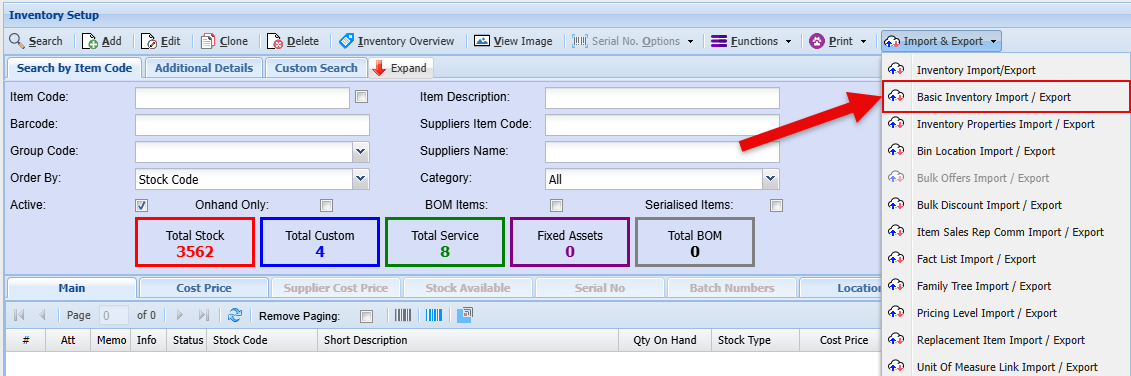
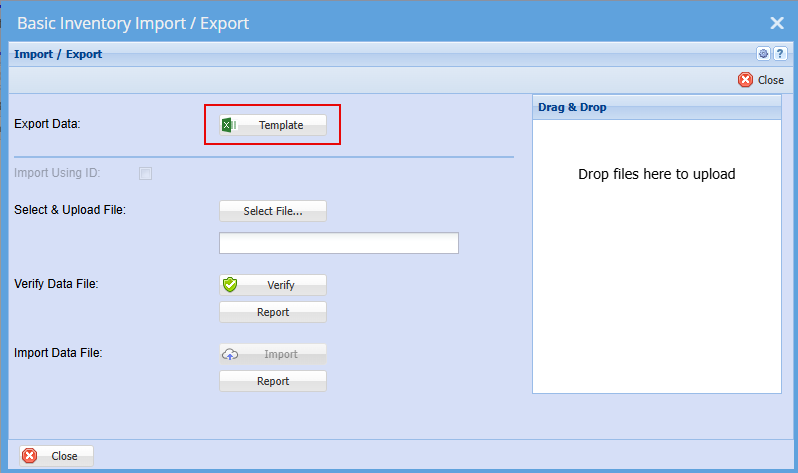
Click on the Template button for import layout
Basic Inventory Import Template.xlsx
Chapter 1: Basic Item Identification
-
1.1 Stock Code
-
1.2 Short Description
-
1.3 Active Status
-
1.4 Item Type
-
1.5 Long Description
-
1.6 Barcode
-
1.7 Label Description
-
1.8 Group Code
-
Summary & Key Points
Chapter 2: Pricing and Supplier Information
-
2.1 Cost Price
-
2.2 Selling Price Configuration
-
2.2.1 Selling Price Type
-
2.2.2 Selling Price Percentage
-
2.2.3 Selling Price Amount
-
-
2.3 Pricing Structure
-
2.4 Supplier Details
-
2.4.1 Default Supplier
-
2.4.2 Supplier Item Code
-
-
Summary & Key Points
Chapter 3: Item Classification and Customization
-
3.1 Unit of Measure
-
3.2 Hierarchical Classification: Brand, Make, and Model
-
3.3 Custom Fields
-
3.4 Predictive Field (Client-Specific)
-
Summary & Key Points
Chapter 4: File Preparation and Import Process
-
4.1 File Format and Saving
-
4.2 Final Import Step
-
Summary & Key Points
Chapter 1: Basic Item Identification
This chapter details the fundamental fields required to identify and classify an inventory item within the system. These fields serve as the primary identifiers for each product, service, or custom item.
1.1 Stock Code
Primary Information: The Stock Code is a mandatory and foundational field that must be unique for every item. It serves as the primary key for each product in the inventory system.
-
Summary: This paragraph identifies the
Stock Codeas a required, unique identifier for each inventory item. -
Key Points:
-
Field Name:
Stock Code -
Requirement: Must be unique.
-
1.2 Short Description
Primary Information: The Short Description field is used to provide a brief, concise description of the product. This is often what appears in primary lists and quick views.
-
Summary: This paragraph explains that the
Short Descriptionfield holds a brief product description for quick identification. -
Key Points:
-
Field Name:
Short Description -
Purpose: Concise product description.
-
1.3 Active Status
Primary Information: The Active field determines if an item is currently in use.
-
1: The item is active and available in the system. -
0: The item is non-active or discontinued.
Secondary Information: When importing new items, the value for this field should be set to 1 by default.
-
Summary: This paragraph describes the
Activefield, a binary flag (1for active,0for non-active), and notes that new items should default to active. -
Key Points:
-
Field Name:
Active -
Values:
1(Active),0(Non-active). -
Default for new items:
1.
-
1.4 Item Type
Primary Information: The Item Type field classifies the nature of the entry. There are three distinct types:
-
Stock: For physical inventory items that are tracked. -
Service: For non-physical items, such as labor or repair services. -
Custom: For bespoke or made-to-order items. -
Summary: This paragraph outlines the three possible classifications for an item:
Stock,Service, orCustom. -
Key Points:
-
Field Name:
Item Type -
Values:
Stock,Service,Custom.
-
1.5 Long Description
Primary Information: The Long Description field is for a more detailed and comprehensive description of the item.
Secondary Information: In situations where a detailed description is not necessary or available, the content from the Short Description can be copied into this field.
-
Summary: This paragraph defines the
Long Descriptionfield for detailed product information and suggests using theShort Descriptionas a fallback. -
Key Points:
-
Field Name:
Long Description -
Purpose: Detailed item description.
-
Practical Tip: Can be populated by copying the
Short Description.
-
1.6 Barcode
Primary Information: The Barcode field should contain the actual barcode number found on the physical product.
-
Summary: This paragraph specifies that the
Barcodefield is for the product's barcode number. -
Key Points:
-
Field Name:
Barcode -
Content: The numerical or alphanumeric string from the product's barcode.
-
1.7 Label Description
Primary Information: The Label field is used for a shortened version of the Short Description. This is specifically designed for printing on barcode labels where space is limited.
-
Summary: This paragraph explains that the
Labelfield holds an abbreviated description suitable for small labels. -
Key Points:
-
Field Name:
Label -
Purpose: A truncated description for printing on labels.
-
1.8 Group Code
Primary Information: The Group Code field links the item to a pre-existing product group. You must enter the specific code for a group that has already been configured in the system.
-
Summary: This paragraph states that the
Group Codefield requires a valid, pre-configured code to categorize the item into a product group. -
Key Points:
-
Field Name:
Group Code -
Requirement: The code must correspond to an existing group in the system.
-
Chapter 2: Pricing and Supplier Information
This chapter explains the fields related to the item's cost, selling price, and supplier relationships.
2.1 Cost Price
Primary Information: The Cost Price is the purchase price of the item, excluding any tax. This figure represents the base cost to the business.
-
Summary: This paragraph defines the
Cost Pricefield as the item's pre-tax purchase cost. -
Key Points:
-
Field Name:
Cost Price -
Rule: Must be tax-exclusive.
-
2.2 Selling Price Configuration
This section details a set of interdependent fields that work together to determine the final selling price of an item.
2.2.1 Selling Price Type
Primary Information: The Selling Price Type field dictates the method used to calculate the selling price. The full name of the type must be entered. There are two options:
-
Amount: Indicates that the selling price is a fixed, manually entered value. -
Percentage: Indicates that the selling price is calculated as a percentage markup from theCost Price. -
Summary: This paragraph describes the
Selling Price Typefield, which determines whether the sale price is a fixedAmountor aPercentagemarkup. -
Key Points:
-
Field Name:
Selling Price Type -
Values:
Amount,Percentage. -
Requirement: Enter the full word, not an abbreviation.
-
2.2.2 Selling Price Percentage
Primary Information: The Selling Price Percentage field is used when the Selling Price Type is set to Percentage. You enter the numerical value of the markup percentage here (e.g., 50 for a 50% markup).
Secondary Information: You can still enter a value in this field even if the Selling Price Type is Amount.
-
Key Points:
-
Field Name:
Selling Price Percentage -
Function: Holds the markup percentage value.
-
Dependency: Primarily used when
Selling Price TypeisPercentage.
-
2.2.3 Selling Price Amount
Primary Information: The Selling Price field contains the final selling price of the item, excluding any tax. If the Selling Price Type is Amount, this is the manually entered fixed price. If the type is Percentage, this field would typically hold the calculated result of the Cost Price plus the markup.
-
Summary: This paragraph defines the
Selling Pricefield as the item's final, tax-exclusive selling price, which is either manually set or calculated. -
Key Points:
-
Field Name:
Selling Price -
Rule: Must be tax-exclusive.
-
Value: A fixed amount or a calculated price based on cost and markup.
-
2.3 Pricing Structure
Primary Information: The Pricing Structure field is used for businesses that operate multiple pricing levels (e.g., retail, wholesale, VIP).
Secondary Information: In most standard scenarios, this field will be set to Default, indicating the item uses the standard pricing structure.
-
Summary: This paragraph explains the
Pricing Structurefield is for assigning an item to a specific pricing tier, withDefaultbeing the most common entry. -
Key Points:
-
Field Name:
Pricing Structure -
Common Value:
Default. -
Purpose: For implementing tiered pricing strategies.
-
2.4 Supplier Details
This section covers fields for linking an item to its supplier.
2.4.1 Default Supplier
Primary Information: In the Default Supplier field, you must enter the unique code of the item's primary supplier. This code must already exist in the system's supplier database.
-
Summary: This paragraph specifies that the
Default Supplierfield must contain the pre-existing code of the item's main supplier. -
Key Points:
-
Field Name:
Default Supplier -
Content: The supplier's unique code.
-
Requirement: The supplier must be set up in the system beforehand.
-
2.4.2 Supplier Item Code
Primary Information: The Supplier Item Code field is for the item's unique identifier as used by the supplier (e.g., their product number or SKU). This is useful for reordering.
-
Summary: This paragraph explains that the
Supplier Item Codefield stores the product's code from the supplier's own system. -
Key Points:
-
Field Name:
Supplier Item Code -
Purpose: To record the supplier's reference code for the item.
-
Chapter 3: Item Classification and Customization
This chapter describes advanced classification fields, including measurement units, hierarchical categories, and custom data fields.
3.1 Unit of Measure
Primary Information: The Unit of Measure field specifies how the item is quantified (e.g., "Each," "Box," "Kg"). You must enter the code that corresponds to the desired unit of measure, which should be pre-configured in the system.
-
Summary: This paragraph explains that the
Unit of Measurefield requires a pre-existing system code to define the item's unit (e.g., piece, kilogram). -
Key Points:
-
Field Name:
Unit of Measure -
Content: A system code representing the unit.
-
3.2 Hierarchical Classification: Brand, Make, and Model
Primary Information: The fields Brand, Make, and Model provide a structured, three-level hierarchy for classifying products. Like other code-based fields, you must enter the specific codes for each, and they must already exist in the system.
Secondary Information: These three fields have a strict dependency:
-
You can have a
Brandon its own. -
To specify a
Make, aBrandmust also be specified. -
To specify a
Model, both aBrandand aMakemust be specified.
The combination must exist in the system for the data to be uploaded successfully.
-
Summary: This paragraph details the hierarchical
Brand,Make, andModelfields, emphasizing that they use pre-existing codes and follow a strict dependency rule (Brand -> Make -> Model). -
Key Points:
-
Field Names:
Brand,Make,Model. -
Content: System codes for each category.
-
Hierarchical Rule:
MakerequiresBrand;ModelrequiresBrandandMake.
-
3.3 Custom Fields
Primary Information: The import template includes seven customizable fields. These are generic text fields that can be used to store any additional information relevant to the item.
Secondary Information: The names of these seven fields can be changed within the main system to better reflect the data they will hold (e.g., "Color," "Material," "Warranty Period").
-
Summary: This paragraph introduces seven flexible custom text fields that can be renamed and used for storing extra item details.
-
Key Points:
-
Field Count: Seven.
-
Type: Plain text.
-
Feature: Can be renamed in the system.
-
3.4 Predicted Field (Client-Specific)
Primary Information: The final field mentioned is labeled Predicted. This is a specialized field that is only relevant to a specific client's configuration.
Secondary Information: For general use, this field can be ignored or left blank.
-
Summary: This paragraph identifies the
Predictedfield as a non-standard, client-specific field that can be disregarded in most cases. -
Key Points:
-
Field Name:
Predicted. -
Relevance: Not for general use.
-
Action: Leave empty.
-
Chapter 4: File Preparation and Import Process
This chapter provides the final instructions for saving the data file and performing the import into the system.
4.1 File Format and Saving
Primary Information: After filling in all the required fields for your items, you must save the file in an Excel format.
External Insight: While the recording specifies "Excel file," this typically means a file with an *.xlsx* or *.xls* extension. Modern systems almost exclusively use *.xlsx*.
-
Summary: This paragraph instructs the user to save the completed template as an Excel file.
-
Key Points:
-
File Format: Excel (
.xlsxor.xls).
-
4.2 Final Import Step
Primary Information: Before initiating the upload process in the system, it is crucial to close the Excel file. An open file can cause the import to fail.
External Insight: This is a common requirement in software that reads files. An open file is often "locked" by the operating system to prevent other programs (like the import tool) from accessing it, which would lead to a file access error.
-
Sources:
-
Microsoft Office File Locking: [This is a general principle of file handling. When an application like Excel opens a file for writing, it places a lock on it to prevent data corruption from simultaneous edits. This is documented in various developer and user guides for applications that interact with Office files.]
-
-
Summary: This paragraph gives a critical final instruction: close the Excel file before attempting to upload it to the system to prevent import errors.
-
Key Points:
-
Action: Close the Excel file.
-
Reason: To prevent file-locking issues during the import.
-