# Warehouse Setup Menu

# Warehouse Setup

<span class="ts0">Multi-warehouse is a separate sub-module of Huge ERP.</span>

<span class="ts0">Multi-warehouse allows one to put stock in multiple warehouses.</span>

<span class="ts0">Multi-warehouse allows one to transfer stock from one warehouse to another.</span>

<span class="ts0">Take stock control and stock takes on each warehouse.</span>

<span class="ts0">Allows one to GRV stock into a specific warehouse and sell from another warehouse</span>

<span class="ts0">Multi-Warehouse is also used for consignment stock.</span>

<span class="ts0">This sub-module resides in the main inventory module.</span><span class="ts31"> </span>

[![image.png](https://hugeerp10.co.za/hsofmanual/uploads/images/gallery/2024-09/scaled-1680-/TSQimage.png)](https://hugeerp10.co.za/hsofmanual/uploads/images/gallery/2024-09/TSQimage.png)

<table border="1" id="bkmrk-search-allows-you-to" style="border-collapse: collapse; width: 100%;"><colgroup><col style="width: 18.5395%;"></col><col style="width: 81.4358%;"></col></colgroup><tbody><tr><td>**Search**</td><td>Allows you to search for a specific warehouse

If you don't put any information on the search criteria the search button will recall all warehouse

</td></tr><tr><td>**Add**</td><td>Add allows you to create a new warehouse</td></tr><tr><td>**Edit**</td><td>Allows you to edit an existing warehouse</td></tr><tr><td>**Associate**</td><td>Allows you to link all stock items to a warehouse</td></tr><tr><td>**Disassociate**</td><td>Allows you to delink all stock items to a warehouse</td></tr><tr><td>**Print Grid**</td><td>Allows you to print information that is displayed on the grid</td></tr><tr><td>**Print Linked Items**</td><td>Allows you to print items linked to a specific warehouse

For you to be able to see linked items you first need to highlight a warehouse you want to see linked items for

</td></tr></tbody></table>

When you click add or edit the screen below will be displayed:

[![image.png](https://hugeerp10.co.za/hsofmanual/uploads/images/gallery/2024-09/scaled-1680-/VRdimage.png)](https://hugeerp10.co.za/hsofmanual/uploads/images/gallery/2024-09/VRdimage.png)

<table border="1" id="bkmrk-code-enter-the-wareh" style="border-collapse: collapse; width: 100%; height: 224px;"><colgroup><col style="width: 32.6248%;"></col><col style="width: 67.3505%;"></col></colgroup><tbody><tr style="height: 29.6px;"><td style="height: 29.6px;">**Code**</td><td style="height: 29.6px;">Enter the warehouse's unique code</td></tr><tr style="height: 29.6px;"><td style="height: 29.6px;">**Description**</td><td style="height: 29.6px;">Enter the warehouse description or name</td></tr><tr style="height: 29.6px;"><td style="height: 29.6px;">**Active**</td><td style="height: 29.6px;">Leave a tick on if the warehouse is active </td></tr><tr style="height: 29.6px;"><td style="height: 29.6px;">**Location**</td><td style="height: 29.6px;"> </td></tr><tr style="height: 29.6px;"><td style="height: 29.6px;">**Shopify ID**</td><td style="height: 29.6px;">Add a warehouse Shopify ID if you have Shopify integration</td></tr><tr style="height: 29.6px;"><td style="height: 29.6px;">**Sync Mobile**</td><td style="height: 29.6px;">This tick allows for a warehouse to be linked to Webatar mobile app</td></tr><tr style="height: 46.4px;"><td style="height: 46.4px;">**Incl In Below Min Report**</td><td style="height: 46.4px;">Put a tick on if you want the warehouse to be displayed on the below minimum report</td></tr></tbody></table>

Locations Tab are where all the boxes are stored

# Add New Warehouse

**<span class="ts15" style="color: rgb(45, 194, 107);">Inventory Module&gt; Configuration&gt; Warehouse Setup</span>**

<span class="ts15" style="color: rgb(52, 73, 94);">C<span style="color: rgb(0, 0, 0);">lick Add to add a new warehouse</span></span>

<span style="color: rgb(0, 0, 0);"><span class="ts15">Enter a Code</span></span>

<span style="color: rgb(126, 140, 141);"><span class="ts15"><span style="color: rgb(0, 0, 0);">Enter a Descriptio</span>n</span></span>

<span style="color: rgb(0, 0, 0);"><span class="ts15">Click Save</span></span>

[![image.png](https://hugeerp10.co.za/hsofmanual/uploads/images/gallery/2024-01/scaled-1680-/QuRimage.png)](https://hugeerp10.co.za/hsofmanual/uploads/images/gallery/2024-01/QuRimage.png)

<span class="ts15"> </span><span class="ts0">Branches Link</span>

<span class="ts0">Warehouses are typically linked to Branches. Thus, this setup is only required if you have multiple branches setup on the system.</span>

<span class="ts9">To link a branch to a warehouse</span>

<span class="ts9">Click the Branch button.</span>

<span class="ts9">Then select the respective Branch to be linked to this warehouse.</span>

<span class="ts9"> double click the required branch on the left to move to the selected grid on the right.</span>

[![image.png](https://hugeerp10.co.za/hsofmanual/uploads/images/gallery/2024-01/scaled-1680-/3q9image.png)](https://hugeerp10.co.za/hsofmanual/uploads/images/gallery/2024-01/3q9image.png)

##### Warehouse item association:

Once the warehouse has been created, you will need to associate inventory items to the specific warehouse.

This feature allows one to have the flexibility to link specific items to specific warehouses.

for instance, if you have multiple branches, all branches may not necessarily stock the same items.

to associate items:

If all warehouses stock all items, then you can do a quick associate:

Click once on the selected or new warehouse and click the Associate button.

[![image.png](https://hugeerp10.co.za/hsofmanual/uploads/images/gallery/2024-01/scaled-1680-/OQximage.png)](https://hugeerp10.co.za/hsofmanual/uploads/images/gallery/2024-01/OQximage.png)

# Locations

Locations are linked to a warehouse

Locations have a unique code across all warehouses. This adds value when you want to scan a location, it will give you the warehouse that it is linked to.

There is Always one location setup per warehouse which is the default (system Location)

<p class="callout warning">A hotfix will be created and run to update all existing warehouses with at least one location for each.</p>

This system location cannot be deleted or made inactive. One can change the code or description, but not remove as it is linked to the warehouse.

#### Warehouse setup

[![image.png](https://hugeerp10.co.za/hsofmanual/uploads/images/gallery/2024-08/scaled-1680-/DUCimage.png)](https://hugeerp10.co.za/hsofmanual/uploads/images/gallery/2024-08/DUCimage.png)
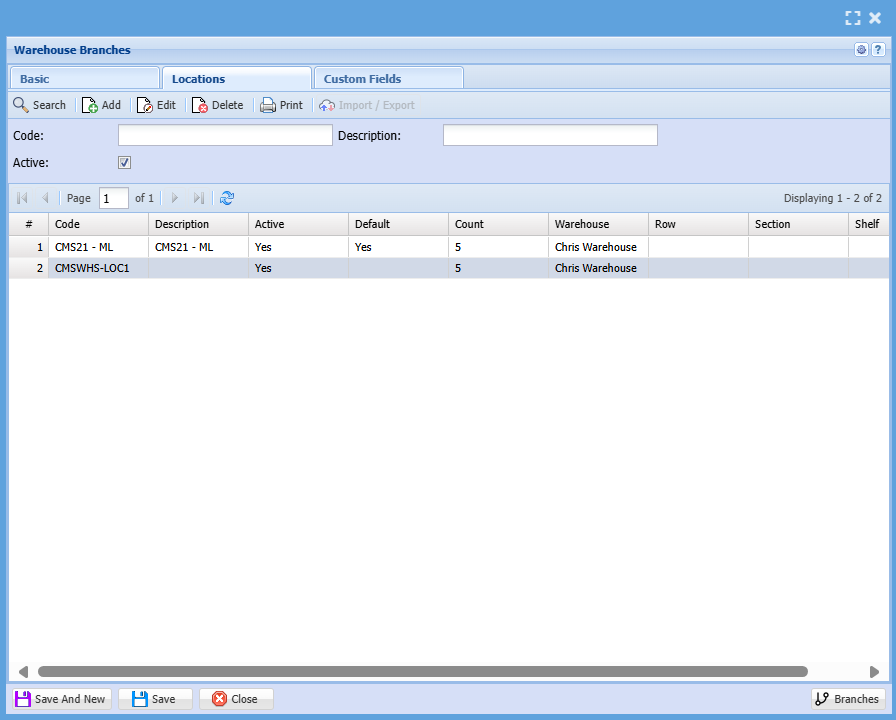
<table border="1" id="bkmrk-location-code-code-o" style="border-collapse: collapse; width: 100%; height: 206.766px;"><colgroup><col style="width: 23.7655%;"></col><col style="width: 76.3581%;"></col></colgroup><tbody><tr style="height: 29.7969px;"><td style="height: 29.7969px;">**Location Code**</td><td style="height: 29.7969px;">Code of the location which is unique across all warehouses</td></tr><tr style="height: 29.7969px;"><td style="height: 29.7969px;">**Location Description**</td><td style="height: 29.7969px;">Description of Location</td></tr><tr style="height: 57.7812px;"><td style="height: 57.7812px;">**Active**</td><td style="height: 57.7812px;">Shows that the location is active

A location cannot become inactive if it has items assigned to it

</td></tr><tr style="height: 29.7969px;"><td style="height: 29.7969px;">**Default**</td><td style="height: 29.7969px;">Shows which location is the default</td></tr><tr style="height: 29.7969px;"><td style="height: 29.7969px;">**Count**</td><td style="height: 29.7969px;">Shows how many products are linked in this location</td></tr></tbody></table>

---

#### Add or edit a location

[![image.png](https://hugeerp10.co.za/hsofmanual/uploads/images/gallery/2024-08/scaled-1680-/6qXimage.png)](https://hugeerp10.co.za/hsofmanual/uploads/images/gallery/2024-08/6qXimage.png)

<table border="1" id="bkmrk-location-code-unique" style="border-collapse: collapse; width: 100%;"><colgroup><col style="width: 28.188%;"></col><col style="width: 71.812%;"></col></colgroup><tbody><tr><td>**Location Code**</td><td>Unique number

</td></tr><tr><td>**Location Description**</td><td>Description of location</td></tr><tr><td>**Warehouse Linked**</td><td>Name of Location (Only name)</td></tr><tr><td>**System Warehouse**</td><td>Informs the user that this Location cannot be deleted or made inactive</td></tr><tr><td>**Active**</td><td>Tick to make inactive

Can only be made inactive if no items are linked to the location

System Linked warehouse locations cannot be made inactive

</td></tr><tr><td>**WHS**</td><td>Inserts the Warehouse code here but user can change</td></tr><tr><td>**Row**</td><td>User can enter a row value</td></tr><tr><td>**Section**</td><td>User can enter a Section value</td></tr><tr><td>**Shelf**</td><td>User can enter a shelf value</td></tr><tr><td>**Seperator**</td><td>Allows the user to use a separator when creating the code from WHS + Row + Section + Shelf

Default is None (other values are Space or - or | or \\ or / )

</td></tr><tr><td>**Make Code button**</td><td>When clicking on this, it will make a code based on WHS, Row, Section and Shelf</td></tr></tbody></table>

# Multi location and bin location

This is a new feature that is coming up before the end of the year

This feature will be found under

<span style="color: rgb(45, 194, 107);">**Inventory Module&gt; Configurations&gt; Warehouse Set up&gt; Locations Tab**</span>

The feature will include the following:

1. Multi-locations within a warehouse
2. Multi-bin locations within a warehouse
3. Boxing of products in a location

[![image.png](https://hugeerp10.co.za/hsofmanual/uploads/images/gallery/2024-08/scaled-1680-/g3Qimage.png)](https://hugeerp10.co.za/hsofmanual/uploads/images/gallery/2024-08/g3Qimage.png)