Group Codes Setup Menu
Group Codes Search
Group codes cater for grouping of the inventory master listing into various product groups and also is used for sales mapping purposes whereby the configuration can dictate posting of entries to respective GL Accounts.
Basic Search Tab
Allows the user to view and edit any existing group codes.
The user can also add any new group codes required.
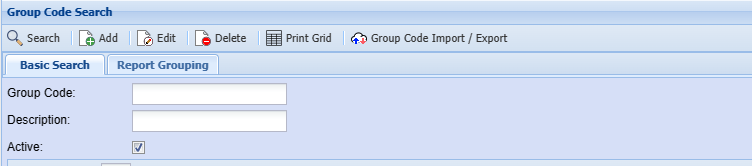
| Group Code | Search by entering the code |
| Description | Search by entering the description |
| Active |
Search for active group codes by ticking the box. Remove the tick to search for any deactivated group codes. |
| Add button | To create a new group code |
| Edit button | To view or make changes on the existing group code |
| Delete button | To delete the selected group code |
| Print Grid button | Returns the list of group codes in the grid based on search criteria and allows the user to print, email or export to excel. |
Report Grouping Search
This tab allows the user to search and edit any existing group code groupings.
The user can also add any new groupings when accessing this tab.
Group Codes Setup
Group codes are used for the following reasons:
- Categorise stock listing.
- Sales mapping - this caters for automatic postings to specific GL accounts when documents are processed.
Inventory Module>Configuration Menu>Group Codes Setup
.png)
- Click search to find the existing group codes and click on edit button to edit any existing group code.
- To create a new group code, click the Add button.
.png)
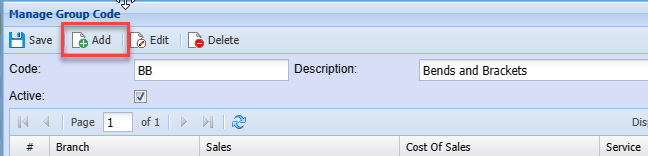
| Code | Enter a code of your choice |
| Description | Enter a description |
- Click Save
- Then click the Add button on the same screen.
.png)
| Branch |
if you have branches setup, you can select the respective branch for the specific group code if the group code is to be linked to multiple branches, you will need to click add a separate account postings setup linked to the relevant GL accounts for the branch. |
| Sales - Short Search | Select the sales account |
| Cost of sales - Short Search | Select the required Cost of Sales account |
| Custom - Short Search | Select the alternate Cost of Sales account. This is for service and Custom items. |
| Service - Short Search | Select the alternate Cost of Sales account. This is for service and Custom items. |
To export the Group code list to excel, click on Print grid and select export.
Report Grouping Setup
Report Grouping allows one to link various groups
This assists when generating reports, so that the user does not need to select multiple groups individually.
One can then simply select the grouping option and the linked group codes will automatically be selected.
To link multiple group codes, click the Report Grouping tab
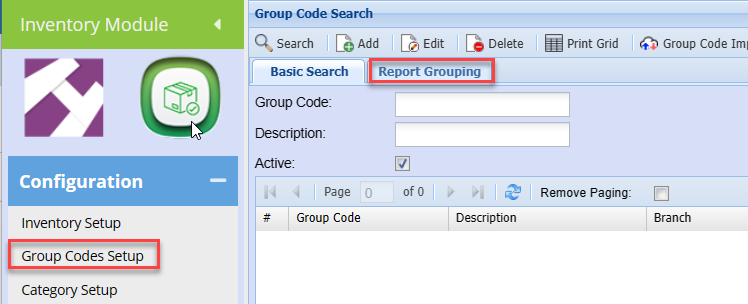
Click Add
| Code | Enter a code for the grouping |
| Description | Enter a description of the grouping |
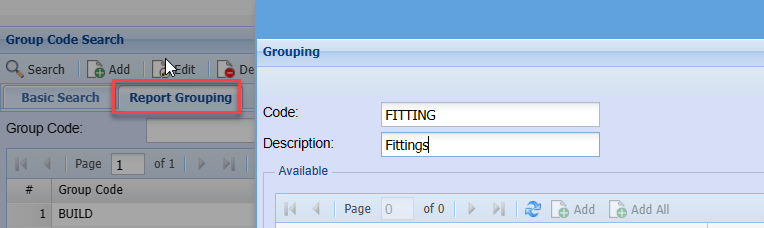
You will notice the grid is then populated with the existing group codes
You can now select respective group codes to be linked together.
In this example, we created a group: Fittings
We can now link multiple group codes to this reporting group
To link group codes, double click on the required group code in the top grid, this will then move to the bottom selected grid.
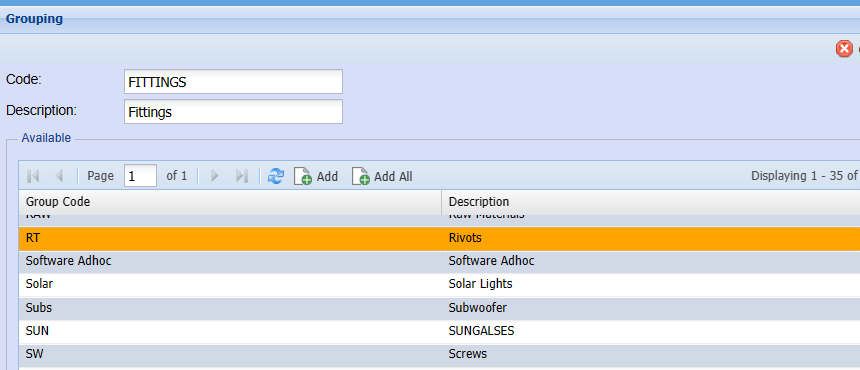
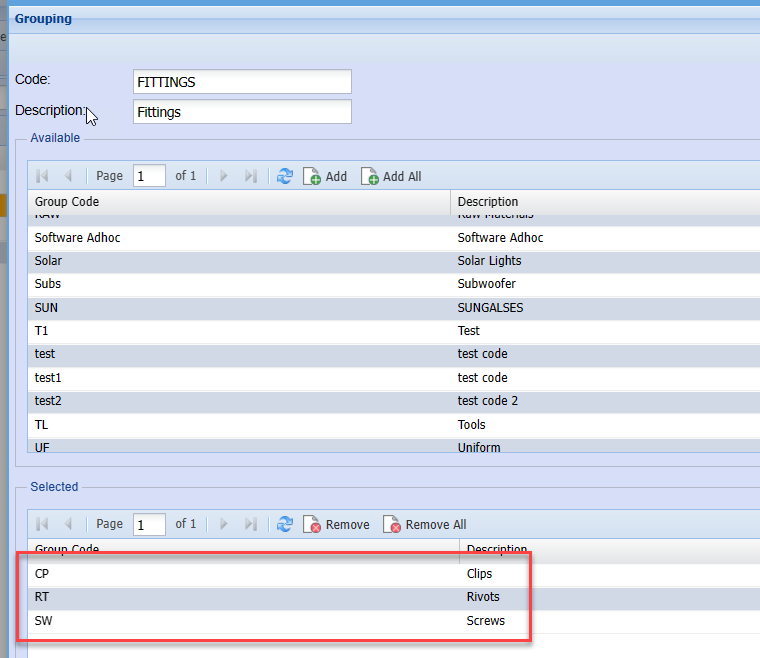
Click save once complete.
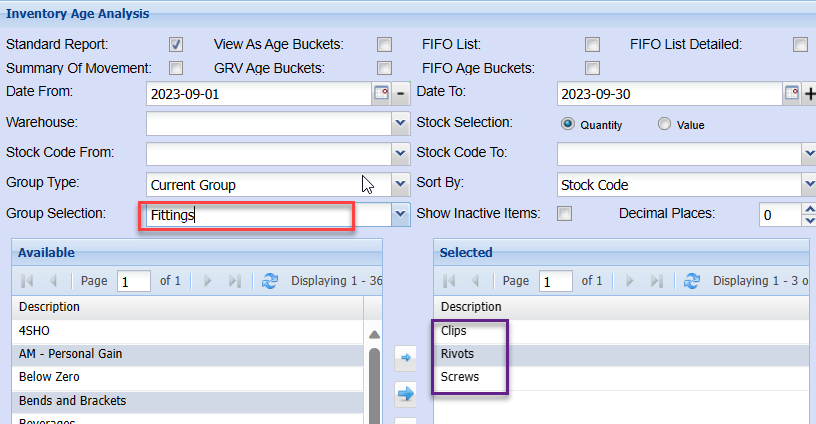
When you generate a report, you can select the reporting group. This will automatically select the underlying group codes without the user having to select each individual group code one at a time.
Link Group Code to Inventory Item
Once the groups have been created, you will need to link the inventory Items to the respective group codes.
Inventory Module> Configuration> Inventory Setup
Select and edit the required Inventory Item
Select the required group code from the drop down list
.png)
Click Save and Close.
As noted in the group code setup section, this will dictate the relevant sales and cost of sales account posting when this item is processed on an invoice or credit note.
Multiple reports can be generated using the inventory group code as a filter, thereby assisting in sales and inventory analysis.