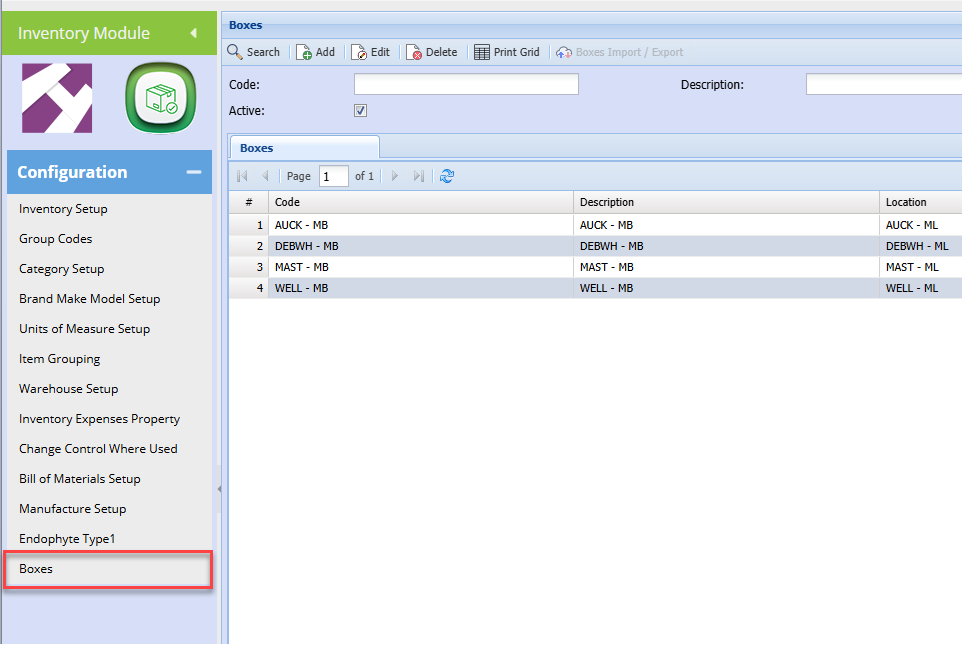
# Boxes Setup Menu

# Boxes

Setup boxes that will be linked to a location which in turn is linked to a warehouse

Boxes numbers are unique

The box is always linked to a location

Boxes can be moved between locations, and the contents are then moved to the new location.

Record of the movement of the items to the new location is recorded

[![image.png](https://hugeerp10.co.za/hsofmanual/uploads/images/gallery/2024-08/scaled-1680-/NcJimage.png)](https://hugeerp10.co.za/hsofmanual/uploads/images/gallery/2024-08/NcJimage.png)
Buttons

<table border="1" id="bkmrk-add-create-a-new-box" style="border-collapse: collapse; width: 100%; height: 118.4px;"><colgroup><col style="width: 29.6791%;"></col><col style="width: 70.4198%;"></col></colgroup><tbody><tr style="height: 29.6px;"><td style="height: 29.6px;">**Add**</td><td style="height: 29.6px;">Create a new box</td></tr><tr style="height: 29.6px;"><td style="height: 29.6px;">**Edit**</td><td style="height: 29.6px;">Edit an existing box</td></tr><tr style="height: 29.6px;"><td style="height: 29.6px;">**Delete**</td><td style="height: 29.6px;">The delete button allows you to delete a box as long as there is no movement against it</td></tr><tr style="height: 29.6px;"><td style="height: 29.6px;">**Print Grid**</td><td style="height: 29.6px;">Allows you to print boxes on the grid</td></tr></tbody></table>

To add a new box click add

When you click add the screen below will be displayed

[![image.png](https://hugeerp10.co.za/hsofmanual/uploads/images/gallery/2024-09/scaled-1680-/iDwimage.png)](https://hugeerp10.co.za/hsofmanual/uploads/images/gallery/2024-09/iDwimage.png)
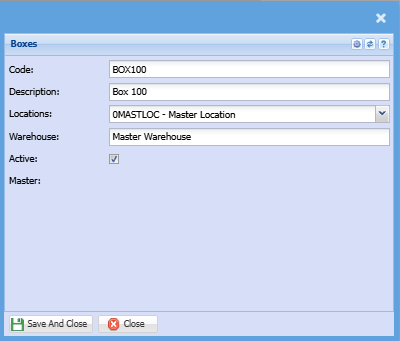
Add the following information

<table border="1" id="bkmrk-code-enter-box-code-" style="border-collapse: collapse; width: 100%; height: 119.188px;"><colgroup><col style="width: 26.3581%;"></col><col style="width: 73.7655%;"></col></colgroup><tbody><tr style="height: 29.7969px;"><td style="height: 29.7969px;">**Code**</td><td style="height: 29.7969px;">Enter box code</td></tr><tr style="height: 29.7969px;"><td style="height: 29.7969px;">**Description**</td><td style="height: 29.7969px;">Enter the box description</td></tr><tr style="height: 29.7969px;"><td style="height: 29.7969px;">**Locations**</td><td style="height: 29.7969px;">Select the box location on the drop down menu

This location will determine the warehouse

</td></tr><tr style="height: 29.7969px;"><td style="height: 29.7969px;">**Warehouse**</td><td style="height: 29.7969px;">This will be automatically populated based on the location </td></tr></tbody></table>

<p class="callout info">You can have multiple boxes linked to one location</p>

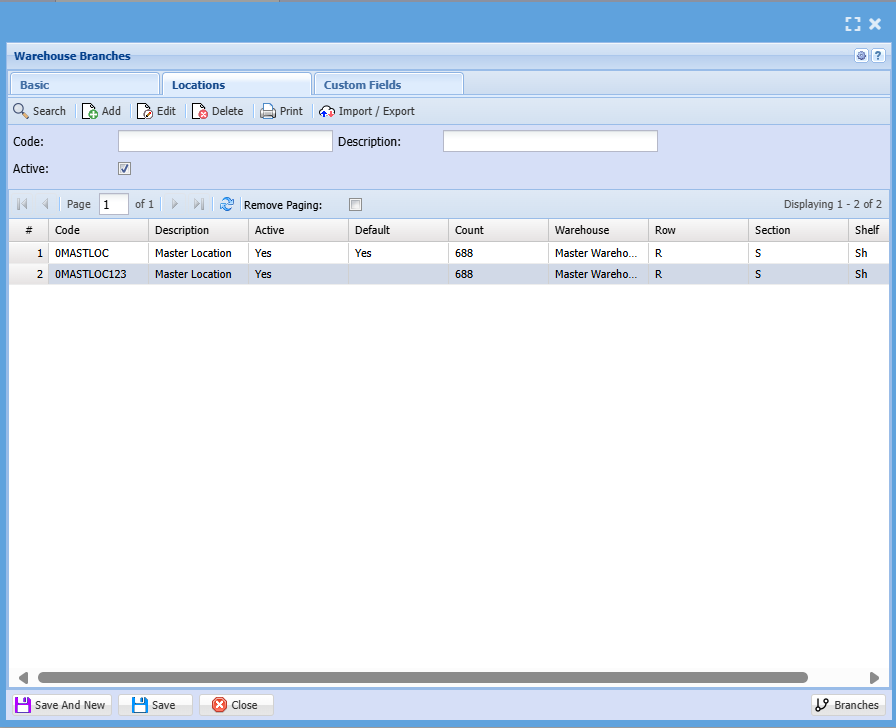
To see the boxes linked

Go to <span style="color: rgb(45, 194, 107);">**Inventory Module&gt; Configuration&gt; Warehouse setup** </span>

Click search, then double-click on the warehouse linked to the box you want to see

Click on the locations tab and the boxes will display as shown below:

[![image.png](https://hugeerp10.co.za/hsofmanual/uploads/images/gallery/2024-09/scaled-1680-/ArQimage.png)](https://hugeerp10.co.za/hsofmanual/uploads/images/gallery/2024-09/ArQimage.png)