# Bill of Materials (BOM) Setup Menu

# Bill Of Material Setup Add

<span style="color: rgb(45, 194, 107);">**<span class="ts23">Go to Inventory Module&gt; Configuration&gt; Bill of Materials Setup</span>**</span>

[![image.png](https://hugeerp10.co.za/hsofmanual/uploads/images/gallery/2024-08/scaled-1680-/kogimage.png)](https://hugeerp10.co.za/hsofmanual/uploads/images/gallery/2024-08/kogimage.png)

<span lang="EN-US" style="mso-ansi-language: EN-US;">Click Add</span>

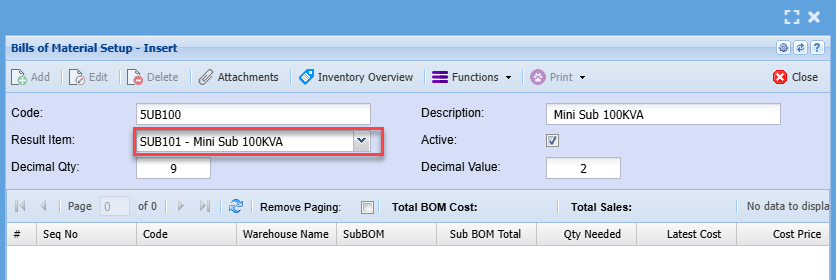
<span lang="EN-US" style="mso-ansi-language: EN-US;">Enter a BOM code</span>

<span lang="EN-US" style="mso-ansi-language: EN-US;">Enter a Description</span>

<span lang="EN-US" style="mso-ansi-language: EN-US;">Select the BOM Resultant Item -<span style="mso-spacerun: yes;"> </span>this is the Stock item created in the previous step</span>

<span lang="EN-US" style="mso-ansi-language: EN-US;">Check the Active box is ticked</span>

<span lang="EN-US" style="mso-ansi-language: EN-US;">Click the Save button</span>

[![image.png](https://hugeerp10.co.za/hsofmanual/uploads/images/gallery/2024-08/scaled-1680-/b0Bimage.png)](https://hugeerp10.co.za/hsofmanual/uploads/images/gallery/2024-08/b0Bimage.png)

<span lang="EN-US" style="mso-ansi-language: EN-US;">You will notice the Add button becomes active</span>

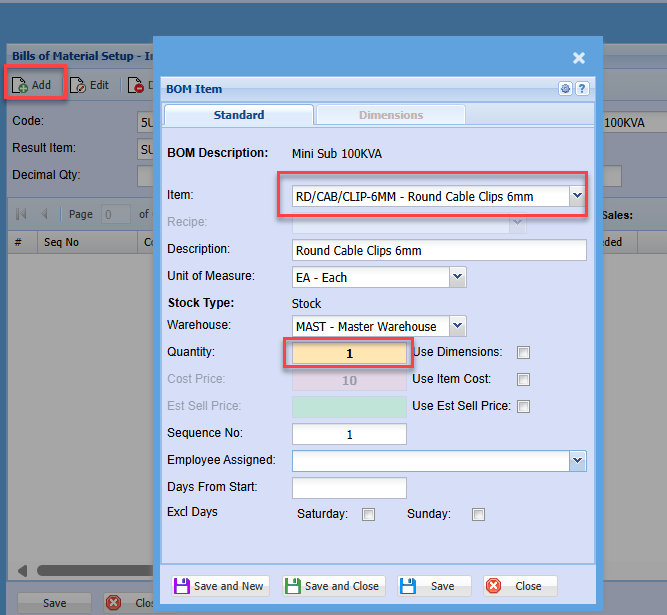
<span lang="EN-US" style="mso-ansi-language: EN-US;">Click Add to begin adding the components of the Bill of materials<span style="mso-spacerun: yes;"> </span>(BOM)</span>

<span lang="EN-US" style="mso-ansi-language: EN-US;">Select the Component item</span>

<p class="callout info"><span lang="EN-US" style="mso-ansi-language: EN-US;">Enter the required quantity, this is the quantity of the component required in the manufacture of<span style="mso-spacerun: yes;"> </span></span><span lang="EN-US" style="mso-ansi-language: EN-US;">one of the resultant item</span></p>

<span lang="EN-US" style="mso-ansi-language: EN-US;">Click Save and New to add the next component and quantity</span>

<span lang="EN-US" style="mso-ansi-language: EN-US;">Repeat this step until all components are added</span>

[![image.png](https://hugeerp10.co.za/hsofmanual/uploads/images/gallery/2024-08/scaled-1680-/2vbimage.png)](https://hugeerp10.co.za/hsofmanual/uploads/images/gallery/2024-08/2vbimage.png)

<span lang="EN-US" style="mso-ansi-language: EN-US;">Once you have added all the components, click Save and Close.</span>

<span lang="EN-US" style="mso-ansi-language: EN-US;">You will notice the components will be listed in the grid.</span>

[![image.png](https://hugeerp10.co.za/hsofmanual/uploads/images/gallery/2024-08/scaled-1680-/UD3image.png)](https://hugeerp10.co.za/hsofmanual/uploads/images/gallery/2024-08/UD3image.png)

<span lang="EN-US" style="mso-ansi-language: EN-US;">Click and Close</span>

---

#### <span lang="EN-US" style="mso-ansi-language: EN-US;">Setting up the Build item</span>

<span lang="EN-US" style="mso-ansi-language: EN-US;">The build item is always a Custom item</span>

<span style="color: rgb(45, 194, 107);">**<span lang="EN-US" style="mso-ansi-language: EN-US;">Go to Inventory Module&gt; Configuration&gt; Inventory Setup</span>**</span>

<span lang="EN-US" style="mso-ansi-language: EN-US;">Enter a Code and description</span>

<span lang="EN-US" style="mso-ansi-language: EN-US;">Select the Category as Custom</span>

[![image.png](https://hugeerp10.co.za/hsofmanual/uploads/images/gallery/2024-08/scaled-1680-/Qjfimage.png)](https://hugeerp10.co.za/hsofmanual/uploads/images/gallery/2024-08/Qjfimage.png)

<span lang="EN-US" style="mso-ansi-language: EN-US;">Click Save</span>

<span lang="EN-US" style="mso-ansi-language: EN-US;">You will be prompted to enter the cost and selling prices</span>

<span lang="EN-US" style="mso-ansi-language: EN-US;">Enter the Sell Price</span>

<span lang="EN-US" style="mso-ansi-language: EN-US;">Once again, the cost price will be the total of the BOM component's costs</span>

<span lang="EN-US" style="mso-ansi-language: EN-US;">Click Continue</span>

<span lang="EN-US" style="mso-ansi-language: EN-US;"> </span>

##### <span lang="EN-US" style="mso-ansi-language: EN-US;">Click the Properties Tab</span>

<span lang="EN-US" style="mso-ansi-language: EN-US;">Tick the Build Kit Box – this identifies this item as a build item</span>

<span lang="EN-US" style="mso-ansi-language: EN-US;">Select the BOM resultant Item</span>

<span lang="EN-US" style="mso-ansi-language: EN-US;">Select the BOM Recipe</span>

<span lang="EN-US" style="mso-ansi-language: EN-US;">Tick Update Qty Box – This allows you to edit the quantity of the builds when adding on sales documents or jobs.</span>

<span lang="EN-US" style="mso-ansi-language: EN-US;"> </span>

##### <span lang="EN-US" style="mso-ansi-language: EN-US;">Use Kit Parent Group</span>

<span lang="EN-US" style="mso-ansi-language: EN-US;">This will dictate the posting to the respective sales and cost of sales GL accounts using the group code selected on the parent which is the Stock item created above.</span>

<p class="callout info"><span lang="EN-US" style="mso-ansi-language: EN-US;">Each component of the recipe may have its own group code setup. If this box is not ticked, the postings will be based on the various groups on the individual components of the build (recipe).</span></p>

[![image.png](https://hugeerp10.co.za/hsofmanual/uploads/images/gallery/2024-08/scaled-1680-/VSHimage.png)](https://hugeerp10.co.za/hsofmanual/uploads/images/gallery/2024-08/VSHimage.png)

<span lang="EN-US" style="mso-ansi-language: EN-US;">Click Save and close</span>

<span lang="EN-US" style="mso-ansi-language: EN-US;">This concludes the Build Kit Setup</span>

<span lang="EN-US" style="mso-ansi-language: EN-US;">The Build can now be used on Sales documents and Jobs</span>

<span lang="EN-US" style="mso-ansi-language: EN-US;"> </span>

  
Old <span class="ts10">Video Training Manual 2019 - </span>[Click Here](https://vimeo.com/375561179)

# Resultant Item Setup

<span class="ts43">A resultant item is an item that is manufactured by the company. It is made up of various components that are linked to a Bill of Material. When the Bill of Material 9BOM) is manufactured the resultant or manufactured item is then added into the stock.</span>

<span class="ts43">The system thus needs to be able to differentiate a BOM or resultant item from a standard item.</span>

To mark an item as a resultant item, create a stock. refer to Inventory Item setup section.

<span class="ts43">Click the Bill of Material tab</span>

<span class="ts43">Tock the activate BOM Box</span>

<span class="ts43">One can opt to show the underlying components of this resultant item on various documents.</span>

<span class="ts43">Ticking any of the boxes will result in the components being displayed on the respect document.</span>

![](https://hugeerp0.co.za/csp/webhelp/topics/images/image(3060).png)

<span class="ts43">Tick the BOM Item Box</span>

<span class="ts43">Click Save and Close</span>

![](https://hugeerp0.co.za/csp/webhelp/topics/images/image(3061).png)

# BOM Multiple Import

![](https://hugeerp0.co.za/csp/webhelp/topics/images/new%20feature(1).jpg)

<span class="ts70">Still coming or will be in new release</span>

**<span class="ts2">Bill of Materials (BOM) multiple import</span>**

<span class="ts0">This will allow for multiple BOM imports from one Excel sheet.</span>

<span class="ts0">Go to Inventory &gt; Configuration &gt; BOM setup</span>

<span class="ts0">Click on Print/ Export drop down and select Import BOMs</span>

<span class="ts0"> </span>![](https://hugeerp0.co.za/csp/webhelp/topics/images/image(3062).png)

<span class="ts0">Select your file for import, upload and import</span>

<span class="ts0"> </span>![](https://hugeerp0.co.za/csp/webhelp/topics/images/image(3063).png)

<span class="ts0">Exception report</span>

<span class="ts0">There will be an except report afterwards which will show what Bill of Materials have not imported due to the following:</span>

<table border="1" id="bkmrk-1-bill-of-materials-" style="border-collapse: collapse; width: 52.0988%;"><colgroup><col style="width: 9.96611%;"></col><col style="width: 90.2238%;"></col></colgroup><tbody><tr><td>1</td><td><span class="ts0">Bill of materials code is not unique, duplicate found</span></td></tr><tr><td>2</td><td><span class="ts0">Inventory line item does not exist, or is Not active</span></td></tr><tr><td>3</td><td><span class="ts0">Bill of materials result item does not exist</span></td></tr><tr><td>4</td><td><span class="ts0">Bill of materials result item is not marked as a BOM</span></td></tr></tbody></table>

**<span class="ts4">Excel file layout</span>**

<span class="ts0">Prepare the Excel file for import</span>

<span class="ts0">The file is prepared in a CSV file and separated by Semi colon.</span>

<table border="1" id="bkmrk-bh-bom-header-which-" style="border-collapse: collapse; width: 100%; height: 118.4px;"><colgroup><col style="width: 16.8396%;"></col><col style="width: 83.2593%;"></col></colgroup><tbody><tr style="height: 29.6px;"><td style="height: 29.6px;"><span class="ts0">BH</span></td><td style="height: 29.6px;"><span class="ts0">BOM Header which stands for the BOM information</span></td></tr><tr style="height: 29.6px;"><td style="height: 29.6px;"><span class="ts0">BL</span></td><td style="height: 29.6px;"><span class="ts0">BOM Lines which make up the BOM or build inventory lines</span></td></tr><tr style="height: 29.6px;"><td style="height: 29.6px;"><span class="ts0">Code</span></td><td style="height: 29.6px;"><span class="ts0">This is unique and is the code of the BOM (Required)</span></td></tr><tr style="height: 29.6px;"><td style="height: 29.6px;"><span class="ts0">Description</span></td><td style="height: 29.6px;"><span class="ts0">Description of the BOM (Required)</span></td></tr><tr><td><span class="ts0">Result item</span></td><td><span class="ts0">is the code of the BOM inventory item which is flagged as a bill of materials item (Required)</span></td></tr><tr><td><span class="ts0">BL</span></td><td><span class="ts0">  
</span></td></tr><tr><td><span class="ts0">Code</span></td><td><span class="ts0">Inventory item code (Required)</span></td></tr><tr><td><span class="ts0">Description</span></td><td><span class="ts0">Description of inventory item</span></td></tr><tr><td><span class="ts0">Qty</span></td><td><span class="ts0">Quantity of BOM line which will make up one item (Required)</span></td></tr><tr><td><span class="ts0">Warehouse</span></td><td><span class="ts0">Stock item warehouse code (Required for stock items)</span></td></tr><tr><td><span class="ts0">Cost</span></td><td><span class="ts0">Cost price of line</span></td></tr></tbody></table>

<span class="ts0">Stock items will get cost from system</span>

<span class="ts0">Service and custom items will update cost that is set here</span>

<span class="ts0">Note - if value is left blank for service and custom, this will bring in a cost of zero</span>

<div id="bkmrk-bh-code-description-"><table class="tbl4"><tbody><tr class="row0"><td class="cell30"><span class="ts12">BH</span>

</td><td class="cell31"><span class="ts12">Code</span>

</td><td class="cell32"><span class="ts12">Description</span>

</td><td class="cell33"><span class="ts12">Result item</span>

</td><td class="cell34"><span class="ts13"> </span>

</td><td class="cell35"><span class="ts13"> </span>

</td><td class="cell36"></td></tr><tr class="row0"><td class="cell30"><span class="ts12">BL</span>

</td><td class="cell37"><span class="ts12">Code</span>

</td><td class="cell32"><span class="ts12">Description</span>

</td><td class="cell38"><span class="ts12">QTY</span>

</td><td class="cell39"><span class="ts12">Warehouse</span>

</td><td class="cell40"><span class="ts12">Cost</span>

</td><td class="cell41"><span class="ts71">Stock Type</span>

</td></tr><tr class="row0"><td class="cell30"><span class="ts12">BL</span>

</td><td class="cell37"><span class="ts12">Code</span>

</td><td class="cell32"><span class="ts12">Description</span>

</td><td class="cell38"><span class="ts12">QTY</span>

</td><td class="cell39"><span class="ts12">Warehouse</span>

</td><td class="cell40"><span class="ts12">Cost</span>

</td><td class="cell41"><span class="ts71">Stock Type</span>

</td></tr><tr class="row0"><td class="cell30"><span class="ts12">BL</span>

</td><td class="cell37"><span class="ts12">Code</span>

</td><td class="cell32"><span class="ts12">Description</span>

</td><td class="cell38"><span class="ts12">QTY</span>

</td><td class="cell39"><span class="ts12">Warehouse</span>

</td><td class="cell40"><span class="ts12">Cost</span>

</td><td class="cell41"><span class="ts71">Stock Type</span>

</td></tr><tr class="row0"><td class="cell42"><span class="ts13"> </span>

</td><td class="cell43"><span class="ts13"> </span>

</td><td class="cell32"><span class="ts13"> </span>

</td><td class="cell44"><span class="ts13"> </span>

</td><td class="cell34"><span class="ts13"> </span>

</td><td class="cell35"><span class="ts13"> </span>

</td><td class="cell36"><span class="ts71"> </span>

</td></tr><tr class="row0"><td class="cell42"><span class="ts12">BH</span>

</td><td class="cell43"><span class="ts12">Code</span>

</td><td class="cell32"><span class="ts12">Description</span>

</td><td class="cell44"><span class="ts12">Result item</span>

</td><td class="cell34"><span class="ts13"> </span>

</td><td class="cell35"><span class="ts13"> </span>

</td><td class="cell36"><span class="ts71"> </span>

</td></tr><tr class="row0"><td class="cell42"><span class="ts12">BL</span>

</td><td class="cell43"><span class="ts12">Code</span>

</td><td class="cell32"><span class="ts12">Description</span>

</td><td class="cell44"><span class="ts12">QTY</span>

</td><td class="cell34"><span class="ts12">Warehouse</span>

</td><td class="cell35"><span class="ts12">Cost</span>

</td><td class="cell36"><span class="ts71">Stock Type</span>

</td></tr><tr class="row0"><td class="cell42"><span class="ts12">BL</span>

</td><td class="cell43"><span class="ts12">Code</span>

</td><td class="cell32"><span class="ts12">Description</span>

</td><td class="cell44"><span class="ts12">QTY</span>

</td><td class="cell34"><span class="ts12">Warehouse</span>

</td><td class="cell35"><span class="ts12">Cost</span>

</td><td class="cell36"><span class="ts71">Stock Type</span>

</td></tr><tr class="row0"><td class="cell42"><span class="ts12">BL</span>

</td><td class="cell43"><span class="ts12">Code</span>

</td><td class="cell32"><span class="ts12">Description</span>

</td><td class="cell44"><span class="ts12">QTY</span>

</td><td class="cell34"><span class="ts12">Warehouse</span>

</td><td class="cell35"><span class="ts12">Cost</span>

</td><td class="cell36"><span class="ts71">Stock Type</span>

</td></tr><tr class="row0"><td class="cell42"><span class="ts13"> </span>

</td><td class="cell43"><span class="ts13"> </span>

</td><td class="cell32"><span class="ts13"> </span>

</td><td class="cell44"><span class="ts13"> </span>

</td><td class="cell34"><span class="ts13"> </span>

</td><td class="cell35"><span class="ts13"> </span>

</td><td class="cell36"><span class="ts71"> </span>

</td></tr><tr class="row0"><td class="cell42"><span class="ts12">BH</span>

</td><td class="cell43"><span class="ts12">PC/BOM/WSi3/01</span>

</td><td class="cell32"><span class="ts12">PC BOM Workstation i3</span>

</td><td class="cell44"><span class="ts12">XX/PC/BOM/WSi3</span>

</td><td class="cell34"><span class="ts13"> </span>

</td><td class="cell35"><span class="ts13"> </span>

</td><td class="cell36"><span class="ts71"> </span>

</td></tr><tr class="row0"><td class="cell42"><span class="ts12">BL</span>

</td><td class="cell43"><span class="ts12">CAS/SIL/PS08</span>

</td><td class="cell32"><span class="ts12">Silverstone case</span>

</td><td class="cell44"><span class="ts12">1</span>

</td><td class="cell34"><span class="ts12">MAST</span>

</td><td class="cell35"><span class="ts12">50.00</span>

</td><td class="cell36"><span class="ts71">Stock</span>

</td></tr><tr class="row0"><td class="cell42"><span class="ts12">BL</span>

</td><td class="cell43"><span class="ts12">POW/DES</span>

</td><td class="cell32"><span class="ts12">Power supply</span>

</td><td class="cell44"><span class="ts12">1</span>

</td><td class="cell34"><span class="ts12">MAST</span>

</td><td class="cell35"><span class="ts12">85.00</span>

</td><td class="cell36"><span class="ts71">Stock</span>

</td></tr><tr class="row0"><td class="cell42"><span class="ts12">BL</span>

</td><td class="cell43"><span class="ts12">MBD/H310M</span>

</td><td class="cell32"><span class="ts12">Motherboard</span>

</td><td class="cell44"><span class="ts12">1</span>

</td><td class="cell34"><span class="ts12">MAST</span>

</td><td class="cell35"><span class="ts12">140.00</span>

</td><td class="cell36"><span class="ts71">Custom</span>

</td></tr><tr class="row0"><td class="cell42"><span class="ts12">BL</span>

</td><td class="cell43"><span class="ts12">MEM/DES/DDR4/4Gig</span>

</td><td class="cell32"><span class="ts12">Power supply</span>

</td><td class="cell44"><span class="ts12">4</span>

</td><td class="cell34"><span class="ts12">MAST</span>

</td><td class="cell35"><span class="ts12">45.00</span>

</td><td class="cell36"><span class="ts71">Stock</span>

</td></tr><tr class="row0"><td class="cell42"><span class="ts12">BL</span>

</td><td class="cell43"><span class="ts12">LAB/LABSD</span>

</td><td class="cell32"><span class="ts12">Labour</span>

</td><td class="cell44"><span class="ts12">2</span>

</td><td class="cell34"><span class="ts13"> </span>

</td><td class="cell35"><span class="ts12">90.00</span>

</td><td class="cell36"><span class="ts71">Service</span>

</td></tr></tbody></table>

</div>**<span class="ts4">Template</span>**

<span class="ts0">Import template can be found under System Configuration &gt; Administration &gt; Imports</span>

<span class="ts0"> </span><span class="ts0"> </span>![](https://hugeerp0.co.za/csp/webhelp/topics/images/image(3064).png)

<span class="ts0"> </span>

<span class="ts0"> </span>

<span class="ts0"></span>

# BOM Setup

<span class="ts15">Inventory&gt; Configuration&gt; Bill of Materials Setup</span>

<span class="ts0">This is where you will setup the Bill of Materials Recipe based on your manufacturing items.</span>

<span class="ts0">In order to create a BOM item you need raw material stock type items, custom type items and or as well as Service type items.</span>

<span class="ts0">One would have created a BOM item and put all of its information in.</span>

<span class="ts0">Remember when creating a Bill of Materials item always remember these rules.</span>

<span class="ts0">Unit of Measure IN = Unit of Measure OUT</span>

<span class="ts0">Don’t mix up your units of measures, if you are working in Kg work all the way in KGs.</span>

<span class="ts0">Always work your recipe to the unit of ONE.</span>

<span class="ts0">Here is a simple example of a Bill of Materials.</span>

<span class="ts0">BOM item (Result Item or Finished Goods) will be a </span><span class="ts0">Pencil</span>

<span class="ts0">Box</span>

<span class="ts0">(In this example we are only going to use simple items so one can get the idea of a BOM recipe)</span>

<span class="ts0">In the BOM setup screen we first have to setup the BOM recipe.</span>

<span class="ts0"> </span>![](https://hugeerp0.co.za/csp/webhelp/topics/images/image(3065).png)

<span class="ts0">Click on the insert button to insert a new BOM recipe. Fill in the information for your Bill of Materials and then click on Save.</span>

<span class="ts0"> </span>![](https://hugeerp0.co.za/csp/webhelp/topics/images/image(3066).png)

<span class="ts0">After clicking on the save button go to insert to put in the raw material lines.</span>

![](https://hugeerp0.co.za/csp/webhelp/topics/images/image(3067).png)

<span class="ts0">After entering all the stock items for the recipe this is what the BOM will look like.</span>

<span class="ts0"> </span>![](https://hugeerp0.co.za/csp/webhelp/topics/images/image(3068).png)

<span class="ts0">We now have one recipe for a BOM</span>

<span class="ts0"> </span>![](https://hugeerp0.co.za/csp/webhelp/topics/images/image(3069).png)

<span class="ts0">Under the Extras tab, there are 2 functions</span>

<table border="1" id="bkmrk-clone-this-is-where-" style="border-collapse: collapse; width: 100%;"><colgroup><col style="width: 7.91307%;"></col><col style="width: 92.0622%;"></col></colgroup><tbody><tr><td><span class="ts0">Clone</span></td><td><span class="ts0">this is where one wants to create a new BOM using the current recipe, after you have created the item you can make changes to the raw materials.</span></td></tr><tr><td><span class="ts0">Verify</span></td><td><span class="ts0">this is where you want to check what stock you would need if you wanted to manufacture stock.</span></td></tr></tbody></table>

<span class="ts0"> </span>![](https://hugeerp0.co.za/csp/webhelp/topics/images/image(3070).png)

<span class="ts0">To Clone, highlight the BOM you want to clone and click on the Clone button. Once the Code and Description has been entered click on OK.</span>

<span class="ts0"> </span>![](https://hugeerp0.co.za/csp/webhelp/topics/images/image(3071).png)

<span class="ts0">There will be two Bills created.</span>

<span class="ts0"> </span>![](https://hugeerp0.co.za/csp/webhelp/topics/images/image(3072).png)

<span class="ts0">To verify if we can manufacture a BOM item, lets highlight the BOM and click on Verify button.</span>

<span class="ts0">Enter the quantity of Cakes one wants to manufacture and then click OK</span>

<span class="ts0"> </span>![](https://hugeerp0.co.za/csp/webhelp/topics/images/image(2085).png)

<span class="ts0">Should there not be enough stock to manufacture this will be indicated by a red block or Invalid message.</span>

<span class="ts0"> </span>![](https://hugeerp0.co.za/csp/webhelp/topics/images/image(2086).png)

<span class="ts0">If all is correct then all lines will be green</span>

![](https://hugeerp0.co.za/csp/webhelp/topics/images/image(2087).png)

<span class="ts0">You can print out the BOM Verification report by clicking on the print button.</span>

<span class="ts0"> </span>![](https://hugeerp0.co.za/csp/webhelp/topics/images/image(2088).png)

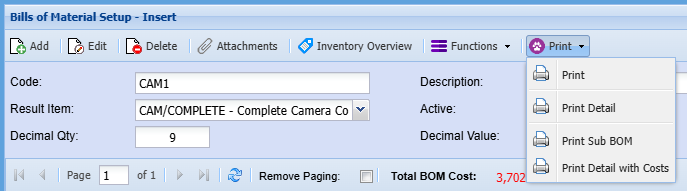
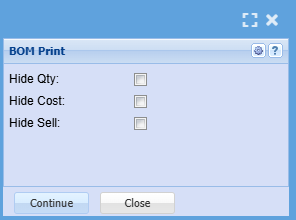
<span class="ts0">To print out the BOM recipe and have a look at the costs of the Bill of Material. Search for the BOM, highlight it and click on the print tab and then print button at the bottom of the BOM setup screen.</span>

![](https://hugeerp0.co.za/csp/webhelp/topics/images/image(2091).png)

# Print Tab

[![image.png](https://hugeerp10.co.za/hsofmanual/uploads/images/gallery/2024-10/scaled-1680-/mUvimage.png)](https://hugeerp10.co.za/hsofmanual/uploads/images/gallery/2024-10/mUvimage.png)

#### Print

[![image.png](https://hugeerp10.co.za/hsofmanual/uploads/images/gallery/2024-10/scaled-1680-/wDOimage.png)](https://hugeerp10.co.za/hsofmanual/uploads/images/gallery/2024-10/wDOimage.png)
# Import

![](https://hugeerp0.co.za/csp/webhelp/topics/images/image(3274).png)

<span class="ts0"> </span>![](https://hugeerp0.co.za/csp/webhelp/topics/images/image(3074).png)

<span class="ts0">Import Bill of Materials Help</span>

<span class="ts0">Imports items into the Bill of Materials recipe from a CSV File that has been prepared with the fields as indicated below.</span>

<table border="1" id="bkmrk-select-file-allows-t" style="border-collapse: collapse; width: 75.4321%;"><colgroup><col style="width: 16.5466%;"></col><col style="width: 83.4206%;"></col></colgroup><tbody><tr><td><span class="ts0">Select File</span></td><td><span class="ts0">Allows the user to browse the computer to find the CSV file to be imported.</span></td></tr><tr><td><span class="ts0">Upload</span></td><td><span class="ts0">Uploads the file to the server</span></td></tr><tr><td><span class="ts0">Import</span></td><td><span class="ts0">Import the data from the CSV File</span></td></tr></tbody></table>

<div class="block0" id="bkmrk-field-name-required-"><table class="tbl4"><tbody><tr class="row1"><td class="cell45"><span class="ts0">FIELD NAME</span>

</td><td class="cell46"><span class="ts0">REQUIRED</span>

</td><td class="cell47"><span class="ts0">VALUE</span>

</td></tr><tr class="row1"><td class="cell45"><span class="ts0">SubBOM</span>

</td><td class="cell46"><span class="ts0">No</span>

</td><td class="cell47"><span class="ts0"> </span>

</td></tr><tr class="row1"><td class="cell45"><span class="ts0">StockCode</span>

</td><td class="cell46"><span class="ts0">Yes</span>

</td><td class="cell47"><span class="ts0"> </span>

</td></tr><tr class="row1"><td class="cell45"><span class="ts0">Description</span>

</td><td class="cell46"><span class="ts0">No</span>

</td><td class="cell47"><span class="ts0"> </span>

</td></tr><tr class="row1"><td class="cell45"><span class="ts0">Quantity</span>

</td><td class="cell46"><span class="ts0">Yes</span>

</td><td class="cell47"><span class="ts0"> </span>

</td></tr><tr class="row1"><td class="cell45"><span class="ts0">WarehouseCode</span>

</td><td class="cell46"><span class="ts0">No, only if Stock item</span>

</td><td class="cell47"><span class="ts0"> </span>

</td></tr><tr class="row1"><td class="cell45"><span class="ts0">Cost</span>

</td><td class="cell46"><span class="ts0">No, only if Service Item</span>

</td><td class="cell47"><span class="ts0"> </span>

</td></tr><tr class="row1"><td class="cell45"><span class="ts0">Total</span>

</td><td class="cell46"><span class="ts0">No</span>

</td><td class="cell47"><span class="ts0"> </span>

</td></tr><tr class="row1"><td class="cell45"><span class="ts0">StockType</span>

</td><td class="cell46"><span class="ts0">No</span>

</td><td class="cell47"><span class="ts0">Service, custom or stock</span>

</td></tr></tbody></table>

</div><span class="ts0"></span>

# Update Cost Price

![](https://hugeerp0.co.za/csp/webhelp/topics/images/image(3264).png)

<span class="ts0">This function updates custom or service items found in the selected BOM</span>

# Create Stock Request

![](https://hugeerp0.co.za/csp/webhelp/topics/images/image(3266).png)

![](https://hugeerp0.co.za/csp/webhelp/topics/images/image(3265).png)

<span class="ts7">The three options in the dropdown,</span>

<table border="1" id="bkmrk-1-request-for-purcha" style="border-collapse: collapse; width: 44.4444%;"><colgroup><col style="width: 8.89768%;"></col><col style="width: 91.0776%;"></col></colgroup><tbody><tr><td>1</td><td><span class="ts7">Request for Purchase Order</span></td></tr><tr><td>2</td><td><span class="ts7">Request for Quote</span></td></tr><tr><td>3</td><td><span class="ts7">Request Create Job Picking Slip</span></td></tr></tbody></table>

<span class="ts7">Are simply a suggestion from the Stock Request originator to the recipient of what action must be taken when processing the Stock Request.</span>

---

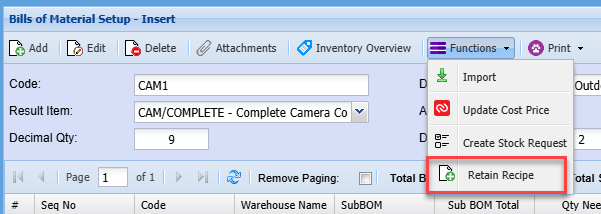
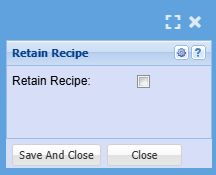
#### <span class="ts7">Retain Recipe</span>

[![image.png](https://hugeerp10.co.za/hsofmanual/uploads/images/gallery/2024-10/scaled-1680-/UBaimage.png)](https://hugeerp10.co.za/hsofmanual/uploads/images/gallery/2024-10/UBaimage.png)

[![image.png](https://hugeerp10.co.za/hsofmanual/uploads/images/gallery/2024-10/scaled-1680-/LhDimage.png)](https://hugeerp10.co.za/hsofmanual/uploads/images/gallery/2024-10/LhDimage.png)