# Batch Tracking
# Batch Tracking
New future development in Huge ERP
Batch tracking in inventory management is a method used to monitor and trace groups of products that were manufactured or received together. It’s especially useful in industries like food, pharmaceuticals, and manufacturing, where tracking expiration dates, recalls, or quality issues is critical.
Here’s how it works:
---
##### **1. What Is a Batch?**
A **batch** (or lot) is a specific quantity of a product that is produced or received at the same time and under the same conditions. Each batch is assigned a **unique identifier** (batch number or lot number).
---
##### **2. Key Components of Batch Tracking**
- **Batch Number**: A unique code assigned to a group of items.
- **Production/Receipt Date**: When the batch was made or received.
- **Expiration Date** (if applicable): Especially important for perishable goods.
- **Supplier or Manufacturer Info**: Useful for traceability.
- **Quantity**: How many units are in the batch.
---
##### **3. How It Works in Inventory Systems**
- When items are received or produced, they are logged into the inventory system with their batch number.
- As items are sold, used, or moved, the system tracks which batch they came from.
- If a problem arises (e.g., a recall), the system can identify:
- Which customers received items from the affected batch.
- How much of the batch remains in stock.
- Where the batch is stored.
---
##### **4. Benefits of Batch Tracking**
- **Traceability**: Quickly trace defective or expired products.
- **Compliance**: Meet regulatory requirements (e.g., FDA, ISO).
- **Inventory Accuracy**: Know exactly what’s in stock and its condition.
- **Quality Control**: Identify patterns in defects or issues.
---
##### **5. Common Use Cases**
- **Food & Beverage**: Track expiration dates and recalls.
- **Pharmaceuticals**: Ensure compliance and patient safety.
- **Manufacturing**: Monitor quality and production consistency.
- **Cosmetics**: Manage shelf life and ingredient sourcing.
---
#### How it works
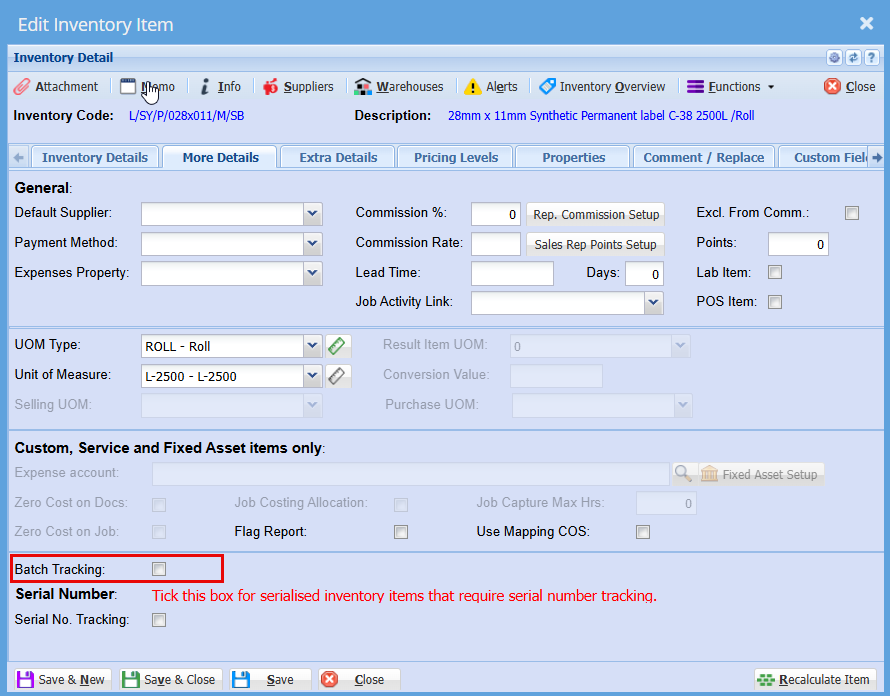
Batch number tracking setup
You cannot have serial number and batch number active at the same time, if serial number is active then batch number must be grayed out, same goes the other way.
[](https://hugeerp10.co.za/hsofmanual/uploads/images/gallery/2026-03/2o7image.png)
---
#### **Example: Batch Tracking**
Imagine you run a small business that sells organic honey. You receive honey in batches from your supplier and want to track:
- **Batch Number**
- **Date Received**
- **Expiration Date**
- **Quantity Received**
- **Quantity Sold**
- **Remaining Stock**
##### **Excel Table Example**
| Batch No | Date Received | Expiry Date | Quantity Received | Quantity Sold | Remaining Stock |
|---|
| HNY001 | 2025-06-01 | 2026-06-01 | 100 jars | 40 | 60 |
| HNY002 | 2025-07-01 | 2026-07-01 | 150 jars | 20 | 130 |
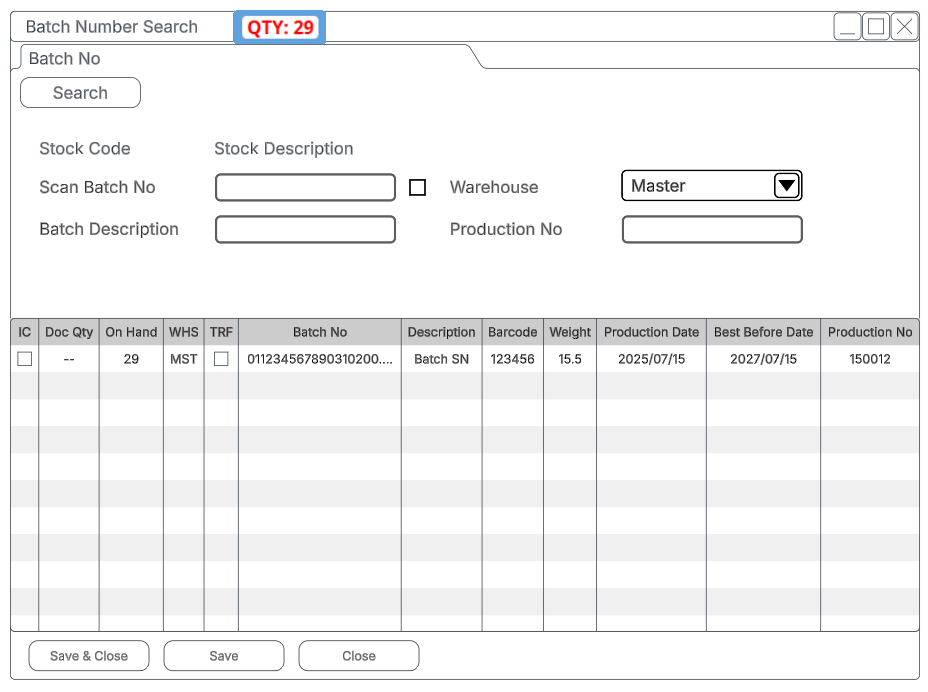
If multiple batches are selected from multiple warehouses then a warning will pop up to say that you have selected from multiple warehouses and that this will create multiple document lines with different warehouses. After the window closes, it saves the item and closes the add line item window.
However one can click on transfer button to transfer stock from one warehouse to another.
This window allows one to select multiple batches of stock to sell.
In the first column, there is an icon which will pop up an icon if the product is about to expired, going to expiry in 30 days, in 7 days, in 3 months
[](https://hugeerp10.co.za/hsofmanual/uploads/images/gallery/2025-07/LpXimage.png)
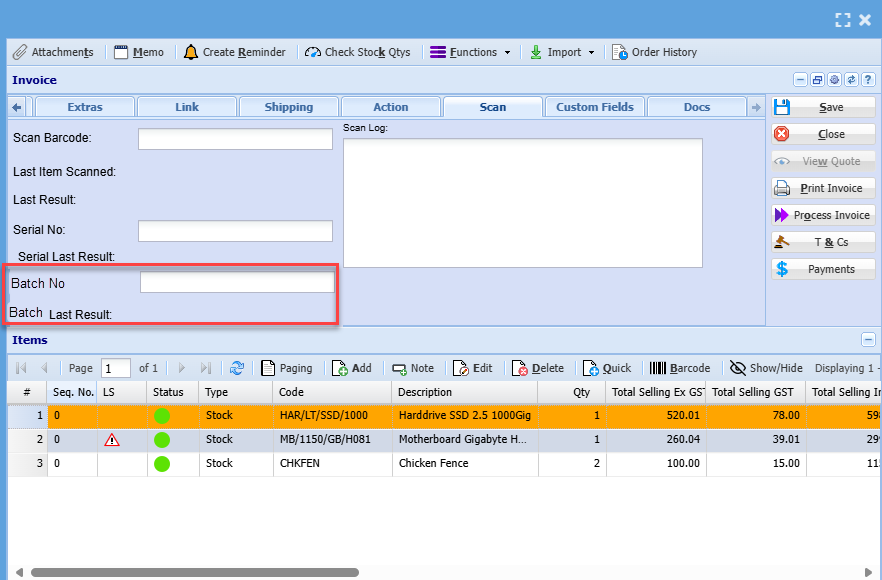
Batch Serial number scan on Docs
[](https://hugeerp10.co.za/hsofmanual/uploads/images/gallery/2025-07/UA2image.png)
---
##### **How ERP System works**
1. **Batch Numbers** are assigned automatically or manually during receiving or production.
2. Each batch is linked to:
- Supplier
- Purchase Order
- Expiry Date
- Storage Location
3. When fulfilling sales orders, you can:
- Choose specific batches (FIFO, FEFO, or manually).
- Track which customer received which batch.
4. Reports can show:
- Batch-level stock levels
- Expiring soon batches
- Recall traceability
---
You can expand it with additional features like:
- Conditional formatting for near-expiry items
- Drop-downs for batch status
- Charts for visual stock tracking
---
##### 🔄 **1. Automatic Alerts**
- **Conditional Formatting** to highlight:
- Batches nearing expiration (e.g., within 30 days)
- Low stock levels (e.g., below a threshold)
- Example: Highlight rows in red if `Remaining Stock < 10` or `Expiry Date < TODAY()+30`
---
##### 📦 **2. Batch Status Column**
- Add a column like **Status** with values such as:
- `In Stock`
- `Sold Out`
- `Expired`
- Use formulas to auto-update based on stock and expiry.
---
##### 📊 **3. Dashboard or Summary Sheet**
- Create a separate sheet with:
- Total stock by batch
- Number of batches expiring soon
- Graphs showing stock trends or expiry timelines
---
##### 🔍 **4. Search & Filter Tools**
- Use Excel’s **Data Validation** to create drop-downs for filtering by batch or status.
- Add a **search bar** using filters or VBA for quick lookup.
---
##### 📁 **5. Traceability Features**
- Add columns for:
- **Supplier Name**
- **Purchase Order Number**
- **Customer Name** (for sold batches)
- Helps with recalls or audits.
---
##### 📅 **6. FIFO/FEFO Tracking**
- Add logic to suggest which batch to sell next:
- **FIFO**: First In, First Out
- **FEFO**: First Expired, First Out
---
##### 🔐 **7. Data Protection**
- Lock formula cells to prevent accidental edits.
- Use sheet protection with a password.
---