AGL Configuration
- General Ledger Accounts Menu
- Cashbook + Journal Type Menu
- Additional GL Properties Menu
- Cash Flow Report Setup Menu
- Expense Setup Menu
- GL Category Menu
- Payments Defined Menu
- GL Classification Menu
- GL Report Code Menu
General Ledger Accounts Menu
General Ledger Accounts
General Ledger>Configuration>General Ledger Accounts
Setup General Ledger accounts in both the Tree view and Search tabs

Accounting formula
General Ledger accounts are based on accounting formula
Owners Equity = Assets - Liabilities
Accumulative profits contains income accounts: Sales, Cost of Sales, Income, Expense, Taxation
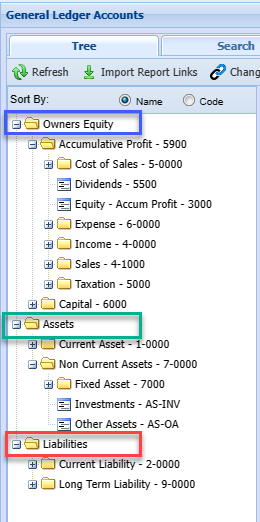
Ledger account
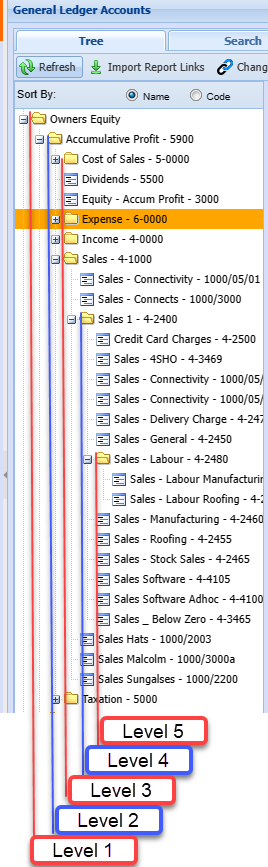
The system allows for unlimited levels down in setup.
Posting is done to the lowest level.
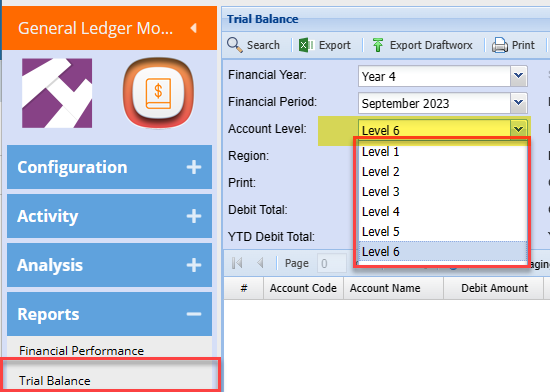
Reporting can be done at each level.
Levels are counted from the first level on left and moving to the right.
|
Counting the levels in the system. Notice that reporting is done on the lowest level, however you can report on higher levels. |
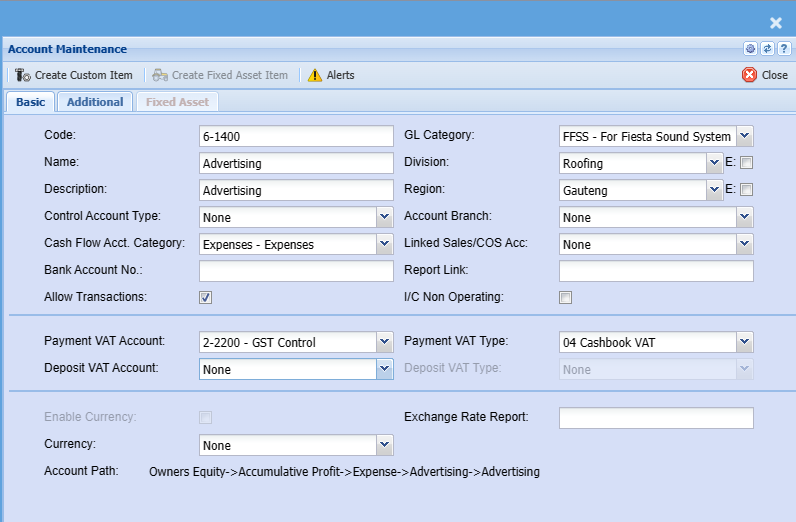
Ledger Account
General Ledger> Configuration > GL Accounts
Create and edit accounts.
Account code must be unique
Basic Tab
Buttons
| Create Custom Item | Click this button to create a custom item that will be linked to this ledger account when creating supplier invoices GRV. |
| Create Fixed Asset Item | Click this button to create a fixed asset item that will be linked to this ledger account when creating supplier invoices GRV. Only active when GL account is a fixed asset. |
| Alerts | Create an alert for the account |
Functions
| Code | Unique account code |
| Name | Name of account |
| Description | Other description of the account, usually the same as the Name |
| Control Account Type | Control accounts are used to define if the account has additional functions. Usually none - Accounts are defined below |
| Cash Flow Acct Category |
All accounts must have a cash flow account category defined. This is used in the cash flow report |
| Bank Account No | Required when setting up a bank account and the Control Account Type is defined as Bank |
| Allow Transactions |
Allow transactions to this account An Account that is a parent account will has this tick off |
| GL Category | Setup a General Ledger Category for reporting |
| Division | Setup a Division for reporting by cost center |
| Region | Setup a Region for reporting by cost center |
| Account Branch |
When running multiple branches, select the default branch this account is linked to.
Thus when creating multiple GL accounts per branch, then each account should typically be linked to a single branch. If these are not linked, then when a transaction e.g. Rent DBN is posted by a user from JHB, who is logged on with his/her JHB login id; then the transaction will not default to his/her primary branch as per the user setup, but rather to the GL Account Branch.
This field if linked to various branches will allow a user who’s primary branch is different to the specific GL account branch to post transactions to the GL account.
If the account is not linked to that users branch, then the User will not be able to allocate transactions to this account. |
| Linked Sales / COS Acc |
This is used for Sales and COS accounts only Used in a report to compare profits between two similar accounts for sales and cost of sales |
| Report Link | Field is used to link accounts to external accounts eg Draftworx |
| I/C Non Operating |
Assign General Ledger accounts for Income Statement (I/C) / Profit and loss report. This splits the report up into operating and non operating accounts Assign an account to be filtered to the non operating section of the report |
| Payment VAT / GST Account | Used to automatically select the VAT / GST account in Cashbooks |
| Payment VAT / GST Type | Used to automatically select the VAT / GST type in Cashbooks |
| Deposit VAT / GST Account |
Used to automatically select the VAT / GST account in Cashbooks Only used in certain conditions, otherwise leave as none |
| Deposit VAT / GST Type |
Used to automatically select the VAT / GST type in Cashbooks Only used in certain conditions, otherwise leave as none |
| Enable Currency |
Used on Bank accounts only Enable multi-currency if bank account is a foreign bank account where transactions are tracked in local and foreign currency |
| Currency |
Enter a currency if the bank account is foreign account |
| Exchange Rate Report |
Enter an exchange rate to fix all transactions on a particular rate |
| Account Path |
Shows the account path and levels the ledger account is positioned |
Additional Tab
Most of these fields are used in report, Power BI exports, BankIT categories
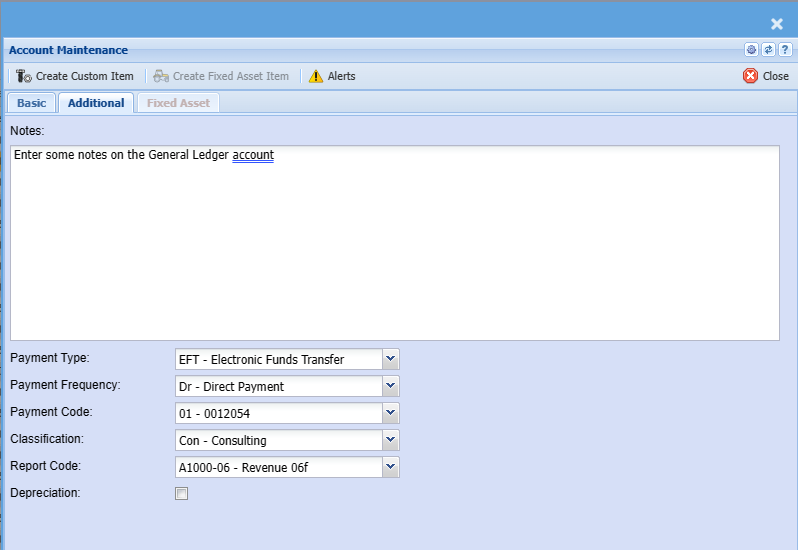
All these drop downs have their own tables to setup
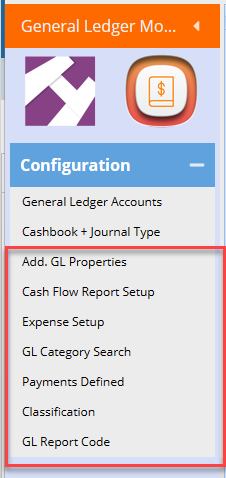
Go to General Ledger Configuration menu group to setup fields
| Notes | Enter notes on the ledger account |
| Payment Types | Select a Payment Type |
| Payment Frequency | Select a Payment frequency |
| Payment Code | Select a Payment code |
| Classification | Select a classification |
| Report Code | Select a report code |
| Depreciation | Flag this ledger account as a depreciation account |
Setup your relevant fields
GL Accounts Import
General Ledger Module> Configuration
.png)
Import GL Report Link
Click the select File Button to open the “open file dialog” which will allow you to navigate to your file in order select it.
Click the Upload button to upload the file onto the server.
Click the Import button to start the import process.
Please Note:
Your file must be in a *.CSV file format.
If any errors are found, it will be written in the log, please correct the errors and start the import process again.
Below is a template of the CSV File:
.png)
Accumulative Profit Definition
General Ledger Module > Configuration > general Ledger Accounts
The accumulative profit account is an internal account which works out the profit from the previous year and accumulative years into one figure.
This is automatically done per year end on Reports.
All figures that are Income statement items are rolled into the accumulative profit account.
.png)
Parent Account and General Ledger Reporting
A parent account is the main account into which all related sub-accounts are consolidated at year-end.
There are important differences between GL Report No. 1 and GL Report No. 2, and each report should be used for its appropriate purpose.
GL Report No. 1 is the auditor’s report and is the correct report to be used for accounting and audit purposes. This report is restricted to a specific financial year only. At the beginning of each financial year, all income statement accounts are zeroed, and the figures are then accumulated month by month until the selected end period of that financial year. The report should therefore only be run for a maximum period of one financial year, or up to the end of the relevant financial period for that year.
GL Report No. 2 is a useful management report where all accounts need to be reviewed without zeroing the income statement accounts at the beginning of each financial year. This report reflects all transactions across all financial years and is helpful where management requires a view of the cumulative expense over multiple financial years. It should be noted that GL Report No. 2 is a management report and not an accounting or audit report.
There are various ways to review accumulated profit. One method is to run the Summary Income Report for each financial year and then total the net profit amounts. This process must be performed from the first financial year onward.
It is also necessary to determine whether a balance journal was processed during the initial take-on in year one to the Accumulated Profit sub-account. This sub-account is normally used only to record an opening balance on take-on.
Profit and Loss by Period Report
GL Module > Report List > Profit and Loss by Period Report
.png)
Balance sheet / Financial Position report
Look at the balance sheet and go down on your last level. – GL Module >Reports >Balance sheet
.png)
.png)
Retained Income is your income from the previous year OR and including other previous years.
Net income is your current financial year, which equals your income statement year to date on current period
Run the balance sheet for each year end and see how the accumulative profit is rolled up. If there is a problem in the Accumulative profit, it is because there is entries in the Income statement type accounts.
Cashbook + Journal Type Menu
Cashbook + Journal Type
General Ledger > Configuration > Cashbook + Journal Type
This form allows the user to search, group and filter for a journal or cashbook type
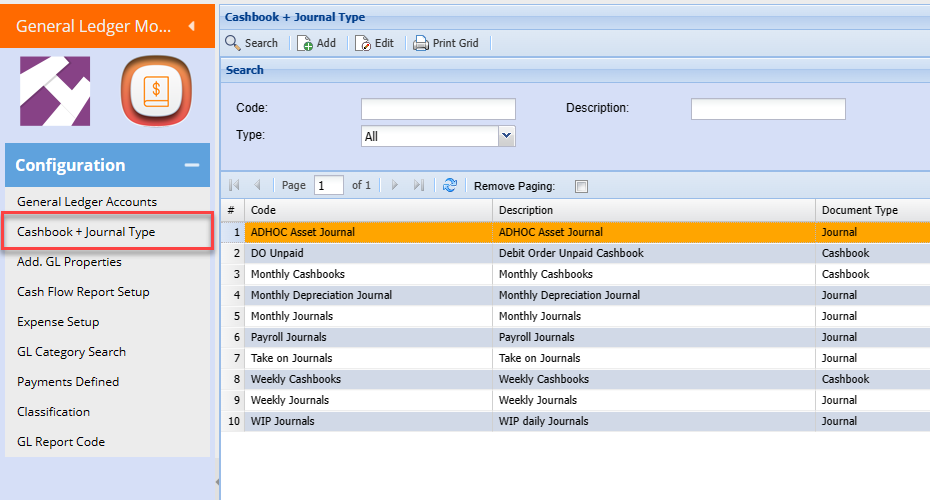
Search
| Code | To search enter the code of the journal or the cashbook |
| Description | To search enter the description of the journal or the cashbook |
| Type |
Search by selecting the type from the drop down arrow All, Cashbook or Journal |
Add Type
.png)
| Code | Enter document code |
| Description | Enter document description |
| Doc Type | Select the correct document type on the drop down |
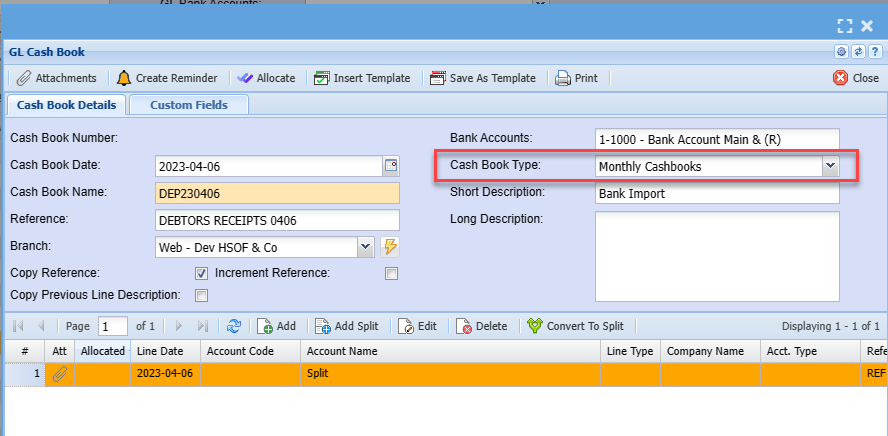
Used in Cashbooks and Journals to group for search filtering
Additional GL Properties Menu
GL Properties
General Ledger> Configuration>Additional GL Properties
The form that allows the user to set up cost centres
Setup the following cost centres
| 1. |
Division |
| 2. |
Region |
| 3. |
Invoice Group |
This information will update Debtors and Creditors Additional Properties
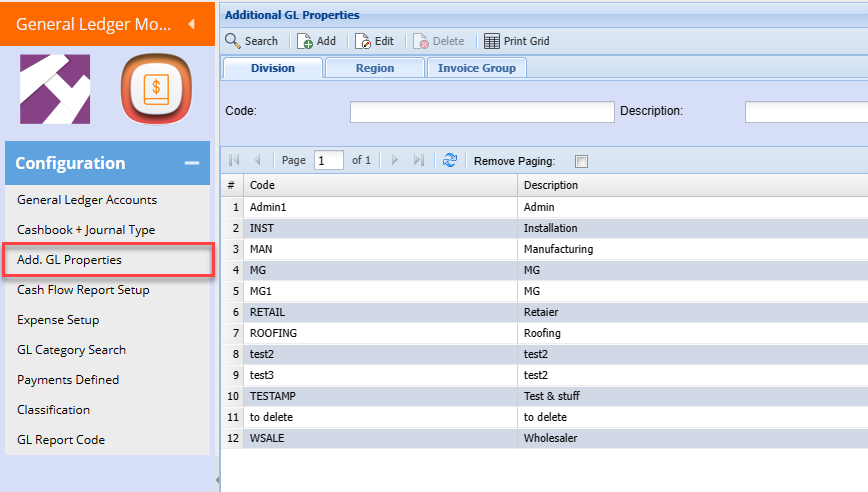
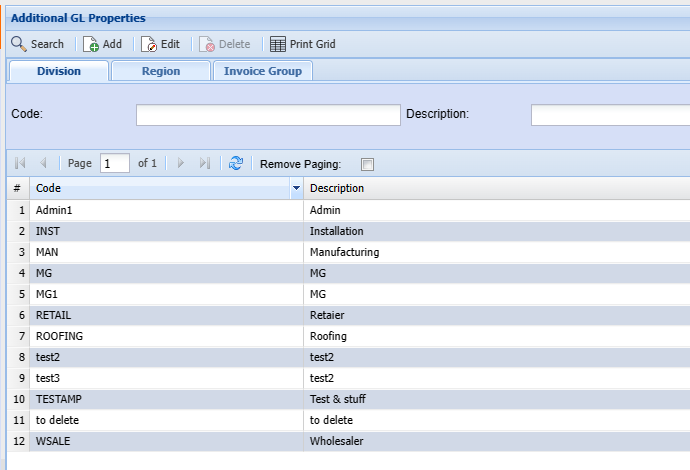
Division
Setup a division cost center
Add or edit a division
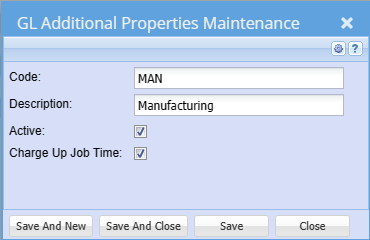
| Code | Enter a code that is unique |
| Description | Enter a description |
| Active | Active or inactive |
| Charge Up Job Time | Used in Job costing time logging to set that this group, charges time logs as Charge up |
Region
Setup region cost centers
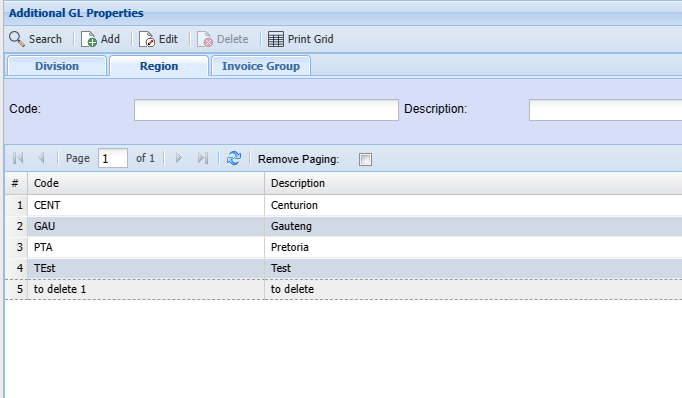
Add or edit a region
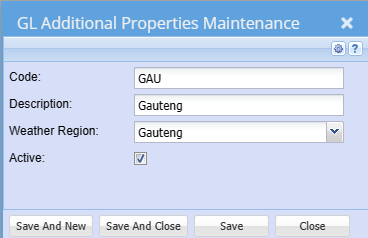
| Code | Enter a code that is unique |
| Description | Enter a description |
| Weather Region | Used in Job Costing to display the weather in that region |
| Active | Active or inactive |
Invoice Group
Setup an invoice group cost center
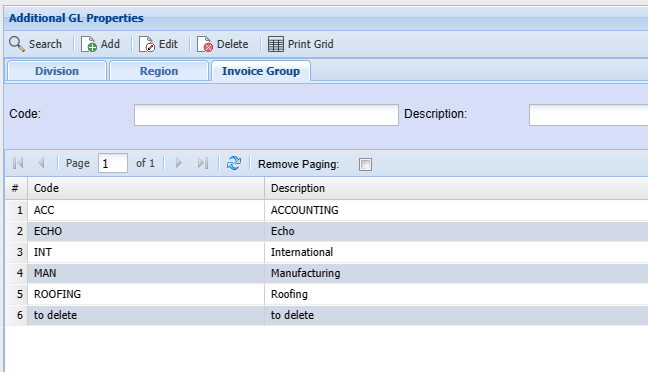
Add or edit an invoice group
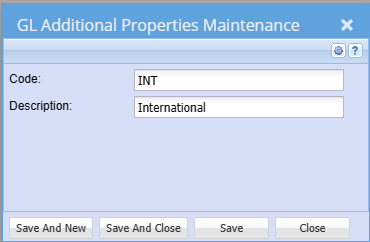
| Code | Enter a code that is unique |
| Description | Enter a description |
| Active | Active or inactive |
GL Properties Cost Centers
An example of setting up cost centres. Choose the General Ledger module and click on Administration and then Additional GL Properties. Click on search.
Observe the tabs at the top of the page. Under division, the four example cost centres have been added. Click on the GL Group tab at the top of the same page, the four main headings of the required general ledger have been added under this tab.
The Region tab could be used for areas, branches and cities nationally or internationally.
Still in the General Ledger, click on Activity and click on Cashbooks. Insert a cashbook and fill in the description, reference, choose a bank account and click on save. Click on INSERT SPLIT.
Choose the correct date, reference, and entry type e.g. deposit or payment. Insert a short description and click on save. Insert the split lines, this now gives the option to choose a cost centre to put the payments or deposits to.
Ensure that the split lines total corresponds with the bank statement line total exactly.
.png)
Cost center allocation
.png)
Cash Flow Report Setup Menu
Cash Flow Report Setup
General Ledger>Configuration>Cash Flow Report Setup
This form allows the user to search for cash flow report setup
Search
Search allows the user to search by entering the fields
| Code | search by selecting from the code |
| Description | search by selecting the description |
| Account Category | to search by selecting the category from the drop down arrow |
| Amend | to view or edit an already created cash flow report form. |
.png)
Cash Flow Setup Amend
This form allows the user to view cash flow setup
.png)
Expense Setup Menu
Expense Setup
General Ledger>Configuration>Expense Setup
Expenses are used for expense claims
Search
.png)
Add a new expense
.png)
| Code | Enter code |
| Description | Enter description and save |
| Supplier | |
| Stock Item | |
| Tax Account | |
| Tax Type | |
| Division | |
| Region | |
| GRV Group |
Add Expense Setup
To add a new expense setup go to
General Ledger> Configuration> Expense Setup
First, you need to add the expense category
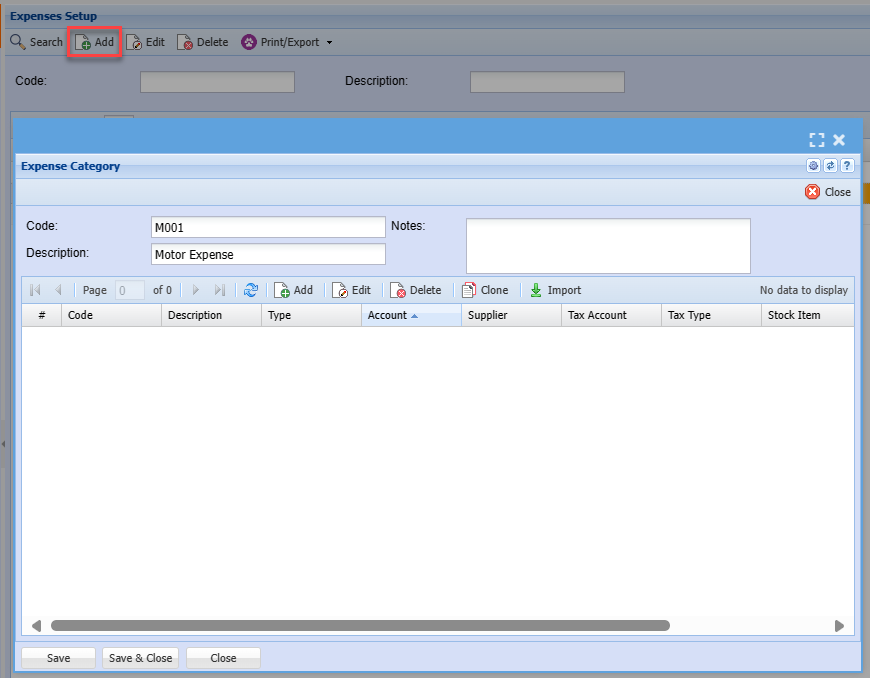
| Code | Enter expense category code |
| Description | Enter expense category name or description |
| Notes | Add notes regarding what the expense category will be used for |
Adding a new expense rule
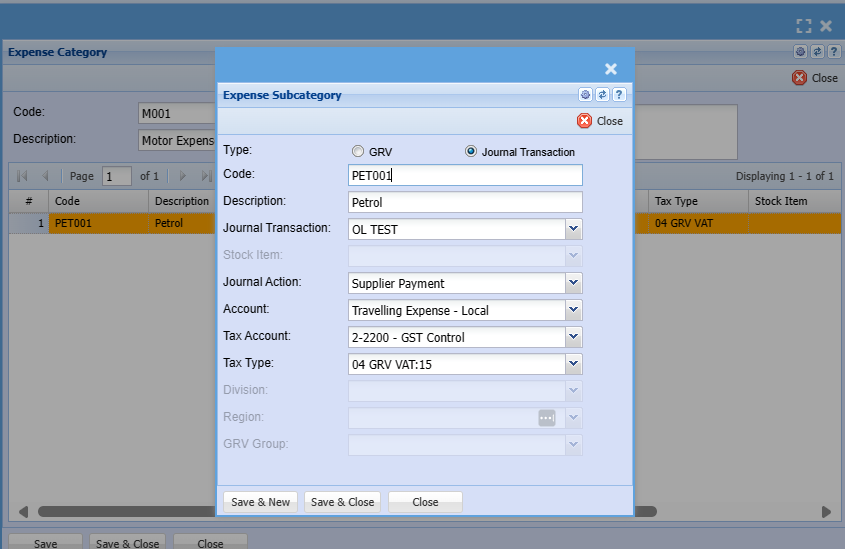
| Type | Select the type of entry to be created when a finance manager approves the expense claim |
| Code | Enter the code for the expense subcategory |
| Description | Enter the name or description of the sub category. This is the name that will appear on the expense sub category drop down |
| Journal Transaction | Journal Type is usually a supplier |
| Stock Item | Enter stock item to be used if transaction type is GRV |
| Journal Action | Select journal action on the drop down selection |
| Account | Select the account the journal or GRV needs to be posted in |
| Tax Account | Select VAT/GST account from the drop down selection |
| Tax Type | Select Tax/ GST Type from the drop down selection |
| Division | Select the division from the drop down selection if applicable |
| Region | Select the region from the drop down selection if applicate |
| GRV Group | Select GRV group from the drop down selection |
GL Category Menu
GL Category
General Ledger>Configuration>GL Category Search
Setting up GL categories for reporting in the system
These categories are defined in multiple reports and exports to allow you to group reports.

| Import GL Category | |
| Import GL Category To GL | |
| Print Grid |
Add or Edit GL Category
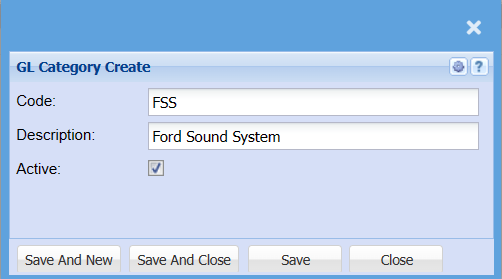
| Code | |
| Description | |
| Active |
Payments Defined Menu
Payments Defined
Setup various payments defined for BankIT payment categories.
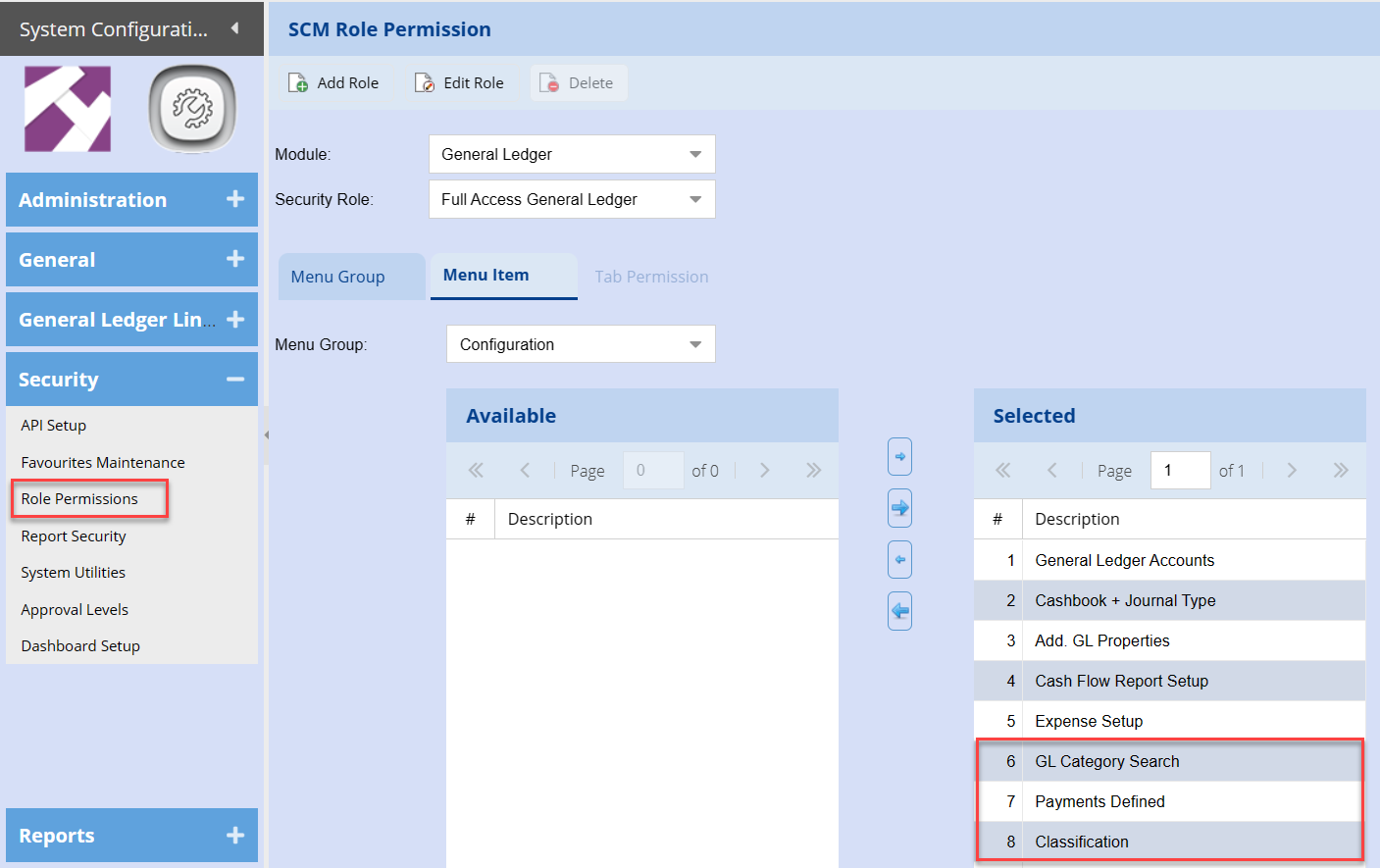
Security View Payments Defined
System Configuration>Security>Role Permissions
Setup the Payments Defined in Role permissions.
Payment Type
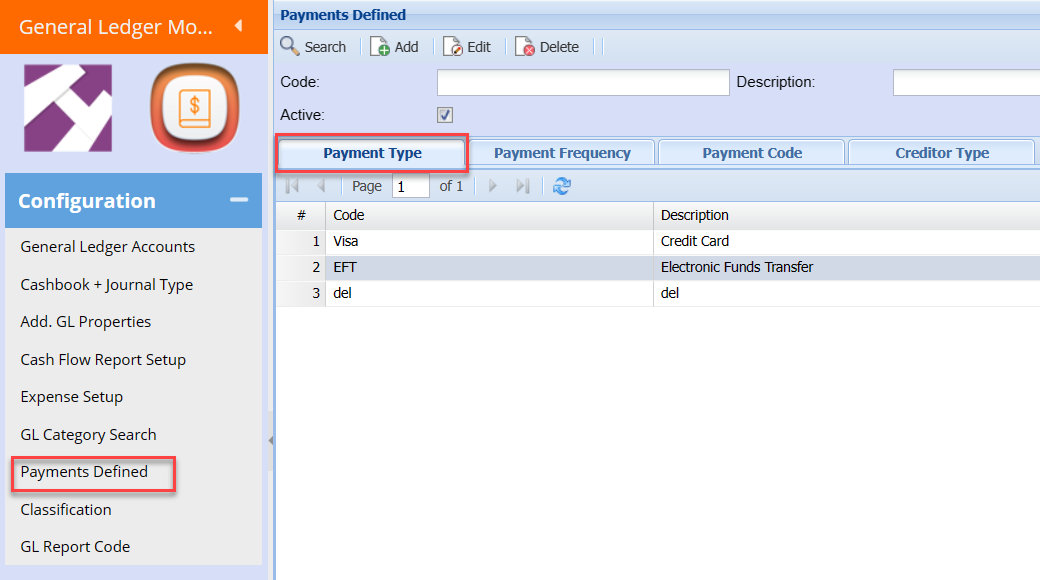
General Ledger>Configuration>Payments Defined
Setup the Payment Types for the Creditors and GL accounts
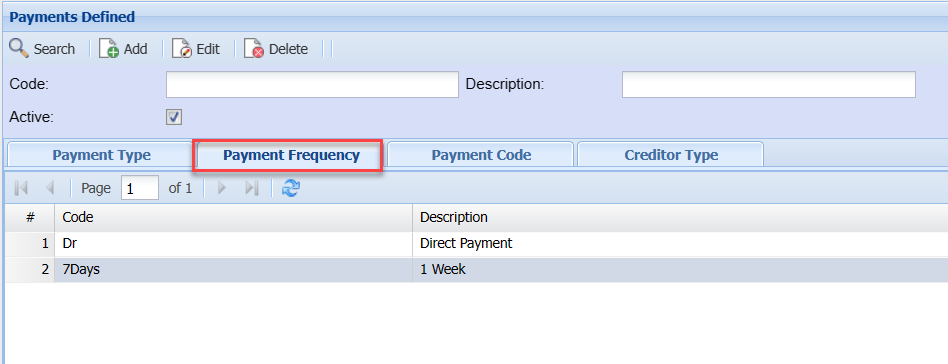
Payment Frequency
Setup the Payment Frequency for the Creditors and GL accounts
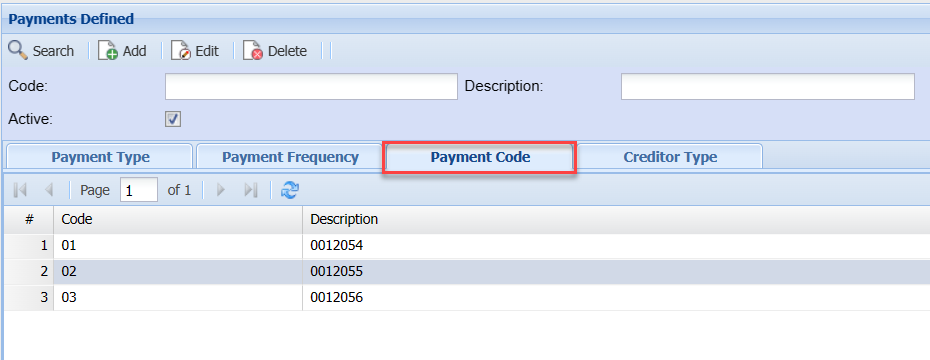
Payment Code
Setup the payment codes in the system
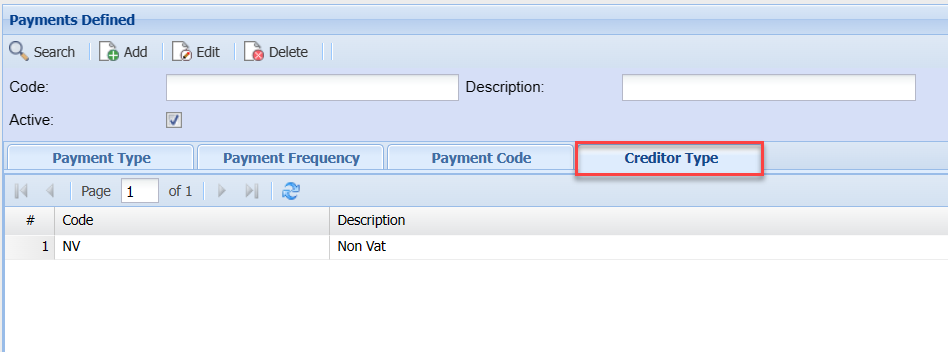
Creditor Type
Add or Edit Payments Defined
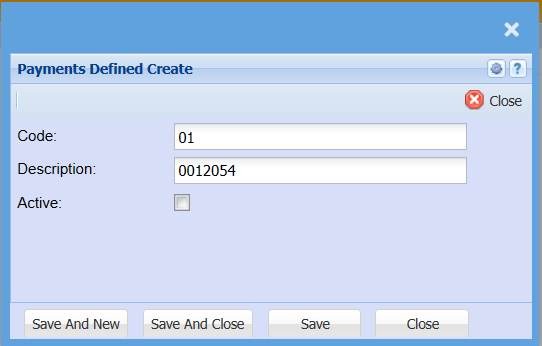
| Code | |
| Description | |
| Active Tick |
GL Classification Menu
GL Classification
Setting up your GL Classification
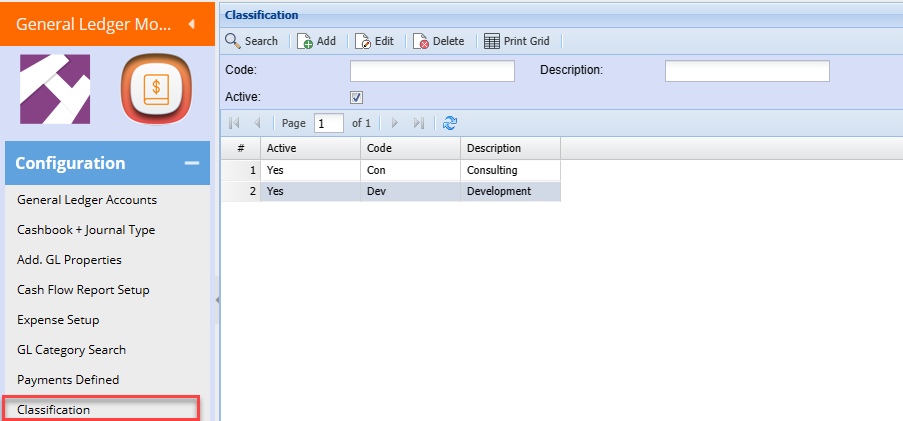
Adding in or editing an existing classification
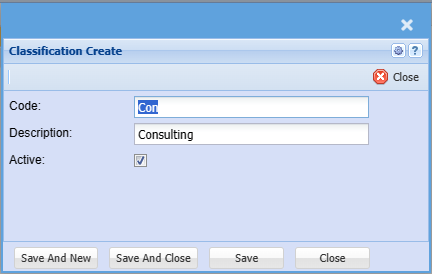
| Code | Adding in a code you wish to use |
| Description | Adding in a description |
| Active Tick |
GL Report Code Menu
Report Codes for Power BI categories
GL Report Code
Setup GL Report Codes to group GL accounts for Power BI advanced reports
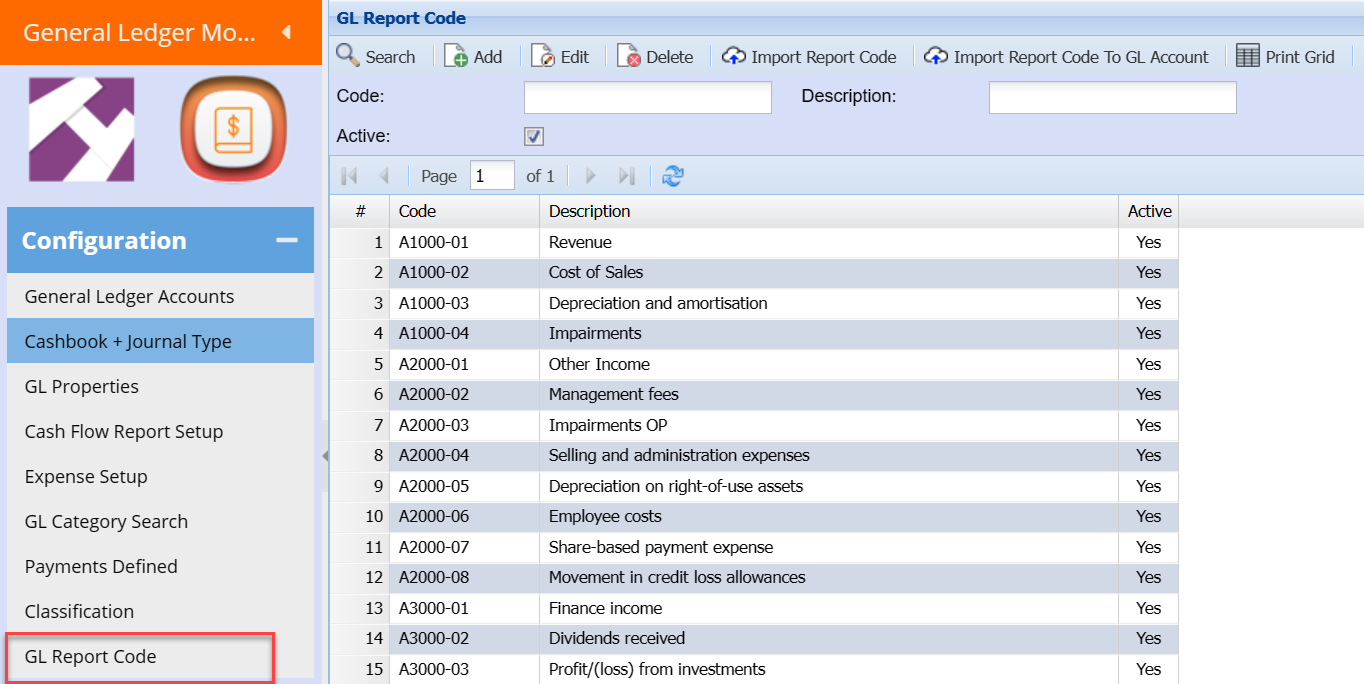
| Search | |
| Add | |
| Edit | |
| Import Report Code | |
| Import Report Code to GL Account | |
| Print Grid |
Add or Edit GL Report Code
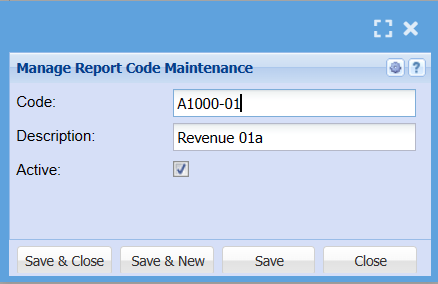
| Code | |
| Description | |
| Active Tick |