# Recurring Debtors Invoice Setup
The recurring debtor setup consists of three steps:
1. Create contract
2. Create invoice template
3. Apply to debtor
#### Step 1: Creating Contract
**Go to Systems configuration> General menu> Recurring Transactions**
[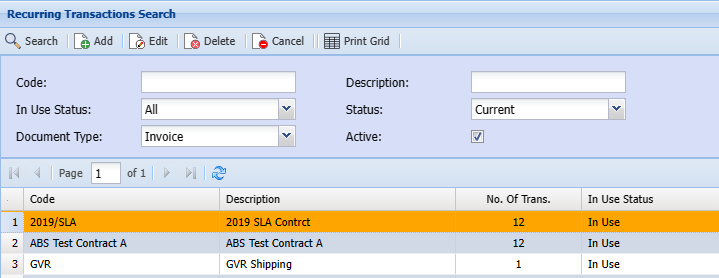f](https://hugeerp10.co.za/hsofmanual/uploads/images/gallery/2024-04/8Ebimage.png)
To set up the contract
[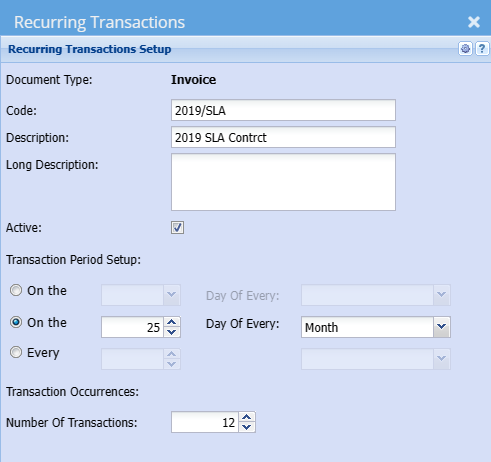](https://hugeerp10.co.za/hsofmanual/uploads/images/gallery/2024-04/4Gzimage.png)
| **Code** | Enter Code |
| **Description** | Enter a description |
| **Long Description** | The long description can be the same as the description but has functionality for additional information |
| **Active** | Put the tick on if the recurring transaction should be in use or is active |
| **Transaction Period Setup** | Select the date you wish the monthly invoice to be created or generated on
This can be either on the last day/ first day or on a specific day of the month
|
| **Number of Transactions** | Enter the number of invoices to be created.
This can be looked at as the terms of the contract
Enter the number of invoices to be created. (usually the contract term, eg. 6. 12, 24)
|
---
#### Step 2: Creating Invoice Template
The next step will be to create an invoice template
To create an invoice template, one needs to capture the invoice to begin with
Capture an invoice, to capture an invoice [click here](https://hugeerp10.co.za/hsofmanual/books/bdm-activity/page/add-invoice "Creating Invoice Template")
Once the invoice details have been captured and saved, click the functions drop down
Select Convert to Invoice Template as shown below:
[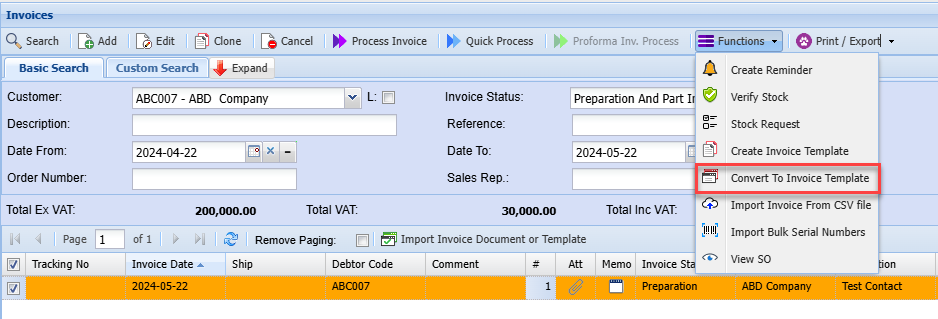](https://hugeerp10.co.za/hsofmanual/uploads/images/gallery/2024-05/neWimage.png)
After, clicking Convert to Invoice Template the screen below will pop up
[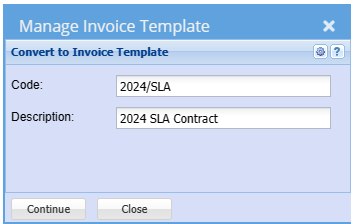](https://hugeerp10.co.za/hsofmanual/uploads/images/gallery/2024-04/ixQimage.png)
| **Code** | Enter the code for your invoice template
|
| **Description** | Enter the description for your invoice template |
Click Continue
This will now complete the creation of your invoice template
---
#### Step 3: Apply To Debtor/Customer
To apply debtor, follow these steps
Go to Debtor/ Customer Module> Configuration then search for the customer to whom you want to apply the recurring transaction to
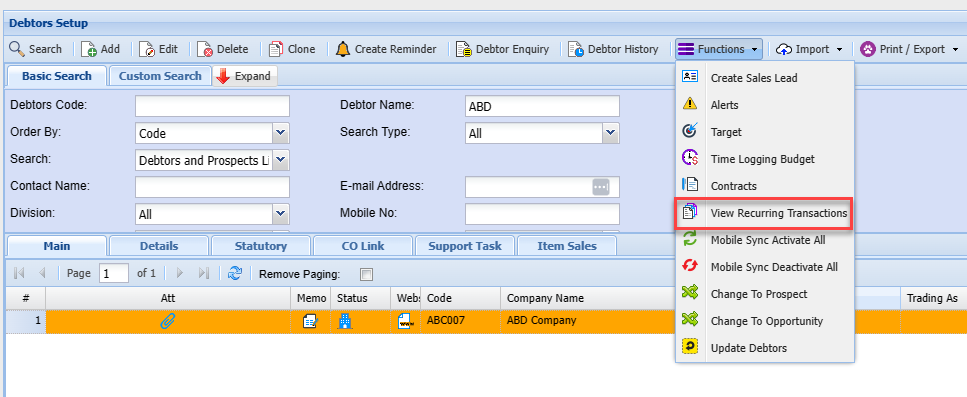
Once you find the debtor, go to the functions drop down then click View Recurring Transactions
[](https://hugeerp10.co.za/hsofmanual/uploads/images/gallery/2024-04/zhCimage.png)
---
##### Summary Tab
When you click View Recurring Transactions it will take you to the screen below:
To see a list of recurring transactions, click on search, and the list will appear.
[](https://hugeerp10.co.za/hsofmanual/uploads/images/gallery/2023-11/DAZimage.png)
Or, click add to create a new recurring transaction
[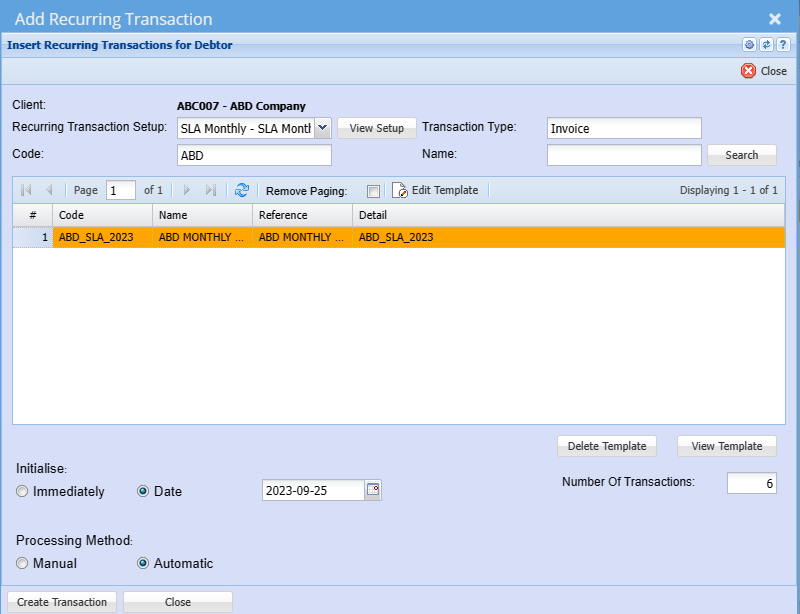](https://hugeerp10.co.za/hsofmanual/uploads/images/gallery/2023-11/6jyimage.png)
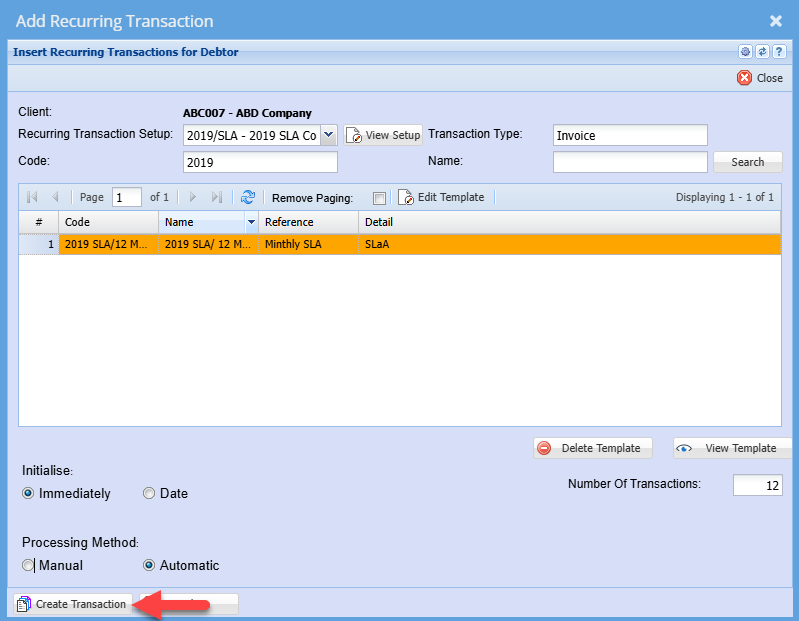
| **Client** | The client's name will pop-up |
| **Recurring Transaction Setup** | Select the recurring transaction setup on the dropdown |
| **Code** | Enter the code for the template that you want to use |
| **Transaction Type** | Add the type of transaction |
| **Edit Template** | This button allows you to change the template code or description |
| **Grid** | The grid shows a list of available templates when you click search |
| **Initialise** | Choose if you want the recurring transaction to be effective immediately or on a specific date |
| **Processing Method** | Choose a processing criteria |
| **Number of Transactions** | Enter the number of transactions you want to |
Buttons
| **View Setup** | This button allows you to view, add or edit recurring transaction setup |
| **Delete Template** | This button will enable you to delete a template |
| **View Template** | This button will enable you to view and edit a template
|
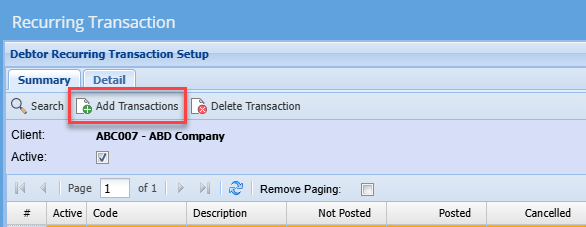
Click Add Transactions
[](https://hugeerp10.co.za/hsofmanual/uploads/images/gallery/2024-05/Yatimage.png)
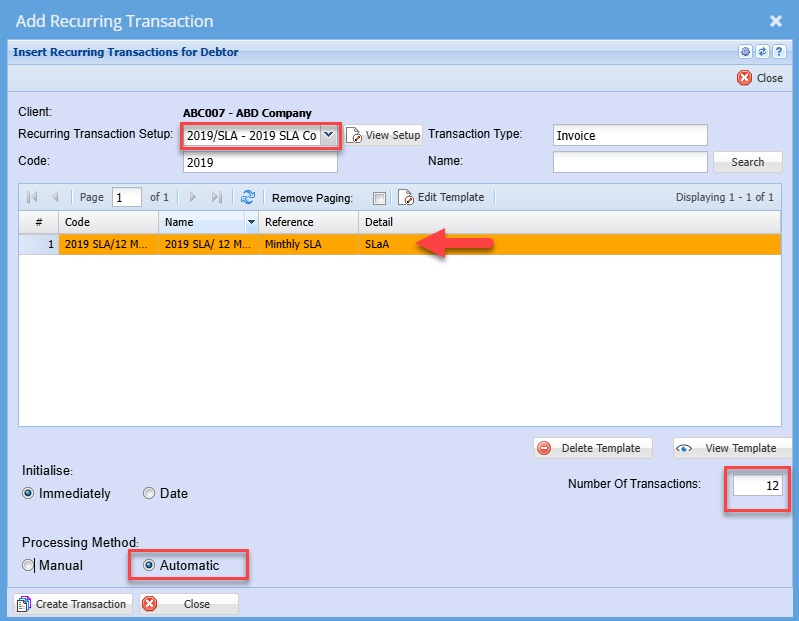
Select the recurring transaction you wish to set up
[](https://hugeerp10.co.za/hsofmanual/uploads/images/gallery/2024-05/Ul8image.png)
Select the Recurring Transaction Setup: This is the Recurring Contract description you created in Step 1
Select the Transaction Type: This will typically be invoiced
Select the required invoice template
This is the template created in step 2
Enter the code or description and click search
Click once on the template on the grid to select - It will be highlighted in orange
Leave the initialise setting on immediately
Select whether the processing method is to be processed manually or automatically
Automatic processing will result in the invoice automatically processing and no edits will be made
Selecting manual processing will result in the monthly recurring invoice status. For the invoice to be changed from recurring to preparation status this will need to be done manually.
You can make the changes required before processing the invoice manually.
Once the above selections have been entered, click the Create Transactions Button.
[](https://hugeerp10.co.za/hsofmanual/uploads/images/gallery/2024-05/S4Eimage.png)
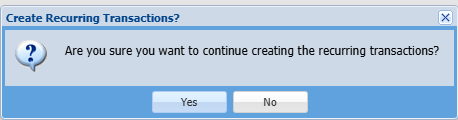
Then Click Yes.
[](https://hugeerp10.co.za/hsofmanual/uploads/images/gallery/2024-05/aSZimage.png)
---
##### Detail Tab
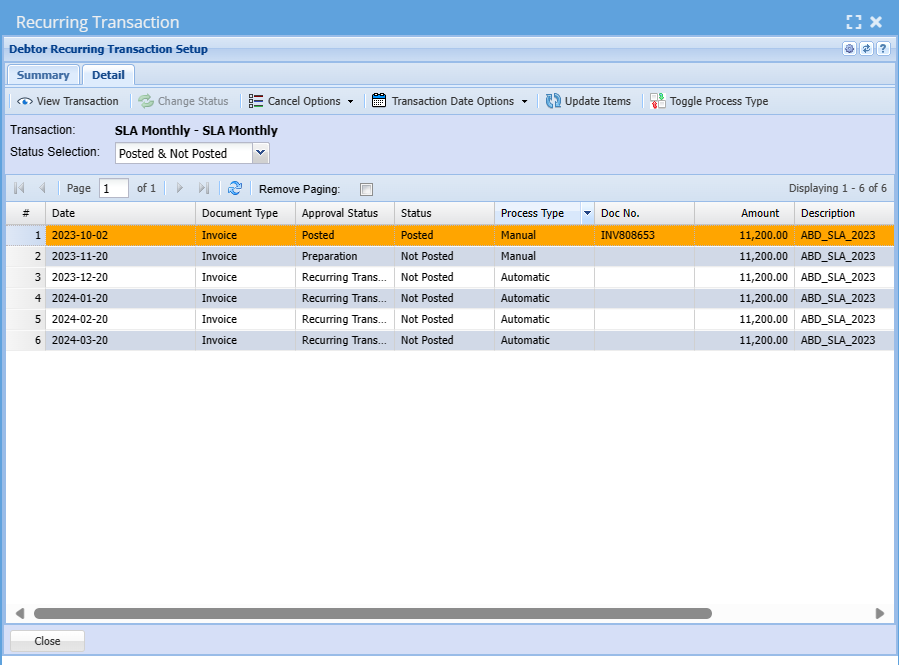
This is where you find your detailed recurring transaction details
[](https://hugeerp10.co.za/hsofmanual/uploads/images/gallery/2023-11/tKlimage.png)
| **View Transaction** | This tab allows you to view a detailed invoice
If the invoice is not yet processed, you can make changes to the invoice it will allow you to save and close.
|
| **Change Status** | When a transaction status is read as Recurring transactions you cannot process it.
To be able to process the transaction you need to change the status to preparation
To change the status from recurring transaction to preparation you need to click on the change status button
|
| **Cancel Options Drop Down** | You are allowed to cancel a single recurring transaction or all on the dropdown
You can also reinstate a single transaction or all transactions
|
| **Transaction Date Options Drop Down** | You can change a date or update dates.
First, you need to edit the date on a transaction then click change or update
|
| **Update Items** | You can add a new line or delete a line on one item then select update item so that all items can be updated.
|
| **Toggle Process Type** | Allows you to change Process type from manual to automatic and vice versa |
| **Grid** | Shows a quick overview of the transaction
|
---
#### To Apply Automatic Increases (Escalation)
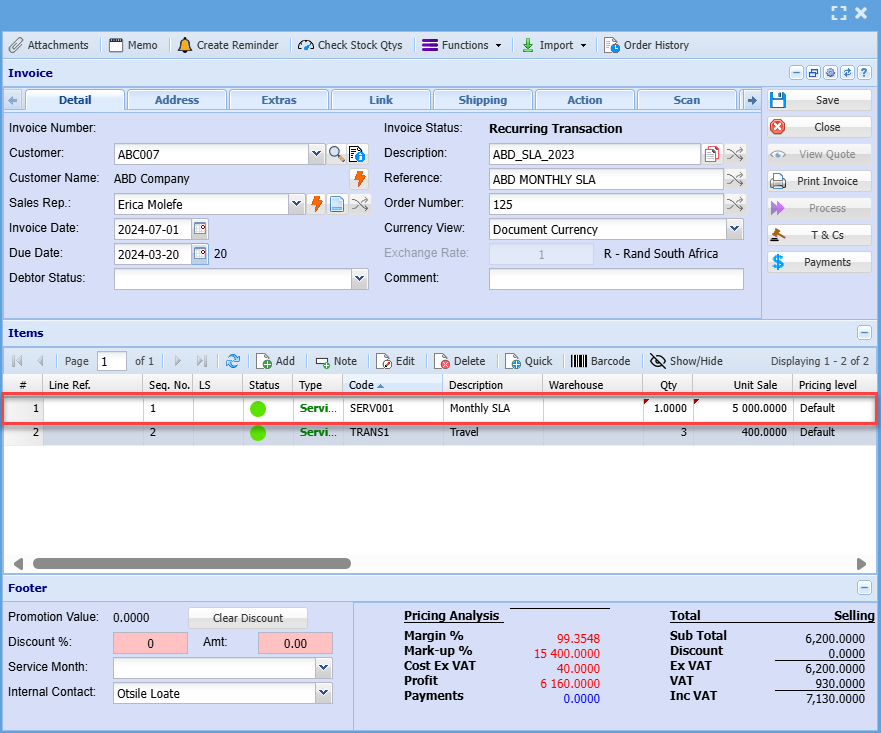
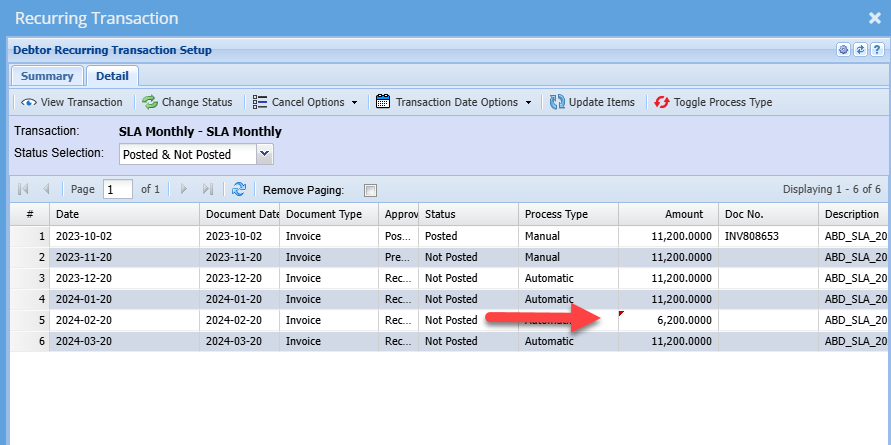
In the event where the recurring contract stipulates an annual increase or needs to be amended you will the click on the invoice where the amendment needs to start from and edit the invoice detail or value
[](https://hugeerp10.co.za/hsofmanual/uploads/images/gallery/2024-05/xzTimage.png)
Double click to open the invoice line
Amend the prices and or details
[](https://hugeerp10.co.za/hsofmanual/uploads/images/gallery/2024-05/0cgimage.png)
Once the invoice has been adjusted as required, Click Save
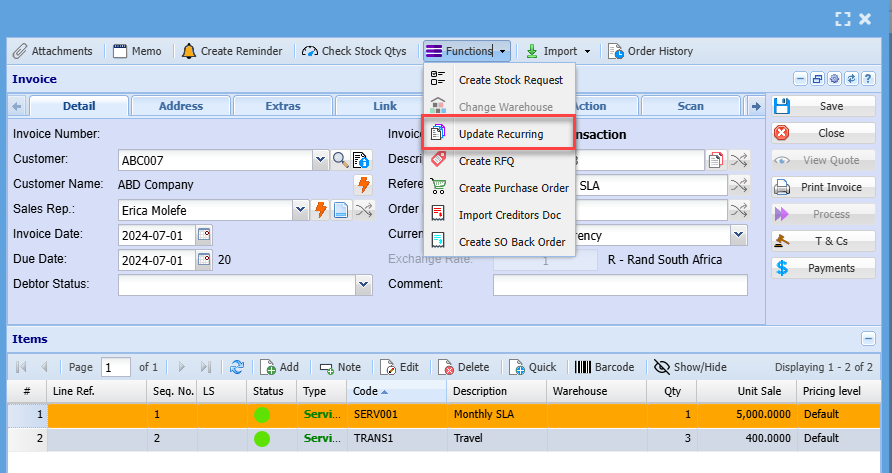
Click on the functions Dropdown
Click update recurring
[](https://hugeerp10.co.za/hsofmanual/uploads/images/gallery/2024-05/bi7image.png)
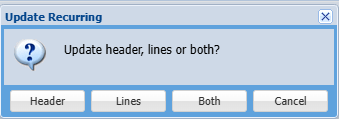
The window below will be displayed, where you can opt to update either the invoice header or the information on the invoice line
[](https://hugeerp10.co.za/hsofmanual/uploads/images/gallery/2024-05/peiimage.png)
[](https://hugeerp10.co.za/hsofmanual/uploads/images/gallery/2024-05/W8cimage.png)