# Debtors Group Discount Matrix Setup

<span lang="EN-US" style="mso-ansi-language: EN-US;">You can use the Debtor Discount Matrix to set up a discount structure for specific debtors by product brand</span>

<span lang="EN-US" style="mso-ansi-language: EN-US;">This can be setup per a specific product group or various product groups that make up a product Brand</span>

<span lang="EN-US" style="mso-ansi-language: EN-US;">Example: </span>

<span lang="EN-US" style="mso-ansi-language: EN-US;">The brand may be: Matrixs</span>

<span lang="EN-US" style="mso-ansi-language: EN-US;">And Matrix may then have various groups such as Perms, Color Sync, Haircare</span>

<span lang="EN-US" style="mso-ansi-language: EN-US;">You can setup the discount Matrix either on the group level or the entire brand</span>

<span lang="EN-US" style="mso-ansi-language: EN-US;">To set this up:</span>

1. <span lang="EN-US" style="mso-ansi-language: EN-US;">Setup the various discount structures</span>
2. <span lang="EN-US" style="mso-ansi-language: EN-US;">Apply the discount Matrix to the Debtor</span>

<span lang="EN-US" style="mso-ansi-language: EN-US;">Setting up the Discount structure:</span>

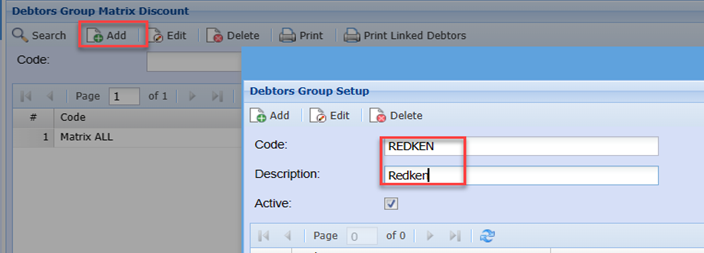
<span style="color: rgb(45, 194, 107);">**<span lang="EN-US" style="mso-ansi-language: EN-US;">Go to Debtors Module &gt; Configuration&gt; Debtors Group Matrix Discount</span>**</span>

<span lang="EN-GB" style="mso-ansi-language: EN-US;"><span style="mso-spacerun: yes;"> </span></span>![](https://hugeerp10.co.za/hsofmanual/uploads/images/gallery/2023-12/embedded-image-prdf1gdm.png)

[![image.png](https://hugeerp10.co.za/hsofmanual/uploads/images/gallery/2024-10/scaled-1680-/IA6image.png)](https://hugeerp10.co.za/hsofmanual/uploads/images/gallery/2024-10/IA6image.png)

[![image.png](https://hugeerp10.co.za/hsofmanual/uploads/images/gallery/2024-10/scaled-1680-/YTbimage.png)](https://hugeerp10.co.za/hsofmanual/uploads/images/gallery/2024-10/YTbimage.png)

---

#### Debtor/Customer Group Setup

[![image.png](https://hugeerp10.co.za/hsofmanual/uploads/images/gallery/2023-12/scaled-1680-/7TSimage.png)](https://hugeerp10.co.za/hsofmanual/uploads/images/gallery/2023-12/7TSimage.png)<span lang="EN-GB" style="mso-no-proof: yes;"></span>

<p class="callout info"><span lang="EN-GB" style="mso-no-proof: yes;"><span lang="EN-US" style="mso-ansi-language: EN-US;">The description of the discount matrix is not necessarily the product brand. It is ideally the debtor/ customer name.<span style="mso-spacerun: yes;"> </span>so if you need to edit the discounts at a later stage, it is easy to identify the specific matrix you wish to edit.</span></span></p>

<table border="1" id="bkmrk-code-enter-a-code-fo" style="border-collapse: collapse; width: 100%;"><colgroup><col style="width: 26.9565%;"></col><col style="width: 73.0435%;"></col></colgroup><tbody><tr><td>**Code**</td><td><span lang="EN-US" style="mso-ansi-language: EN-US;">Enter a code for the discount matrix</span></td></tr><tr><td>**Description**</td><td>Enter a description for the discount matrix</td></tr><tr><td>**Active**</td><td>Put the tick to activate the discount matrix</td></tr></tbody></table>

---

#### <span lang="EN-US" style="mso-ansi-language: EN-US;">Item Group Setup</span>

[![image.png](https://hugeerp10.co.za/hsofmanual/uploads/images/gallery/2024-08/scaled-1680-/Xi9image.png)](https://hugeerp10.co.za/hsofmanual/uploads/images/gallery/2024-08/Xi9image.png)

<table border="1" id="bkmrk-group-code-select-th" style="border-collapse: collapse; width: 100%; height: 59.5938px;"><colgroup><col style="width: 25.9566%;"></col><col style="width: 74.0434%;"></col></colgroup><tbody><tr style="height: 29.7969px;"><td style="height: 29.7969px;">**Group Code**</td><td style="height: 29.7969px;"><span lang="EN-US" style="mso-ansi-language: EN-US;">Select the required Group code</span></td></tr><tr style="height: 29.7969px;"><td style="height: 29.7969px;">**Discount Percentage**</td><td style="height: 29.7969px;"><span lang="EN-US" style="mso-ansi-language: EN-US;">Enter the discount percentage</span></td></tr><tr><td>**Lock Pricing Override**</td><td><span lang="EN-US" style="mso-ansi-language: EN-US;">This will enforce the discount matrix on the line even though the stock item is locked for pricing</span></td></tr></tbody></table>


##### <span lang="EN-GB" style="mso-no-proof: yes;">Lock pricing override</span>

<span lang="EN-GB" style="mso-no-proof: yes;">This will override the Lock Pricing set against the item and apply the group discount to the item.</span>

[![image.png](https://hugeerp10.co.za/hsofmanual/uploads/images/gallery/2024-08/scaled-1680-/Fzvimage.png)](https://hugeerp10.co.za/hsofmanual/uploads/images/gallery/2024-08/Fzvimage.png)

---

##### <span lang="EN-GB" style="mso-no-proof: yes;">Multiple item groups</span>

<span lang="EN-GB" style="mso-no-proof: yes;">If adding multiple item group: <span lang="EN-US" style="mso-ansi-language: EN-US;">Select the next Group Code and the required percentage discount</span></span>

<span lang="EN-US" style="mso-ansi-language: EN-US;">Continue until all the discounts have been added for that specific brand Groups</span>

<p class="callout info"><span lang="EN-US" style="color: rgb(0, 0, 0);">Note: You do not have to select the groups that do not have a discount. The system will apply the default prices for these products.</span></p>

<span lang="EN-US" style="mso-ansi-language: EN-US;">By the time you are done, you should now have all the product groups you added a discount for listed in the grid with the respective discount percentage.</span>

<span lang="EN-GB" style="mso-no-proof: yes;">![](https://hugeerp10.co.za/hsofmanual/uploads/images/gallery/2023-12/embedded-image-oiw3b0vs.png)  
</span>

<p class="callout info"><span lang="EN-US" style="mso-ansi-language: EN-US;">If you have an instance where multiple customers receive the same discount structure, you need only setup the matrix once and apply the same discount matrix to the various customer. You may wish to rename the matric description though: Eg. VIP clients instead of a specific customer name.</span></p>

<span lang="EN-US" style="mso-ansi-language: EN-US;"> </span><span lang="EN-US" style="mso-ansi-language: EN-US;">Click Add to add another matrix which will be for a different customer at different discount percentages, or different product groups </span>
<span lang="EN-US" style="mso-ansi-language: EN-US;"> </span><span lang="EN-US" style="mso-ansi-language: EN-US;"> </span><span lang="EN-GB" style="mso-no-proof: yes;"></span>![](https://hugeerp10.co.za/hsofmanual/uploads/images/gallery/2023-12/embedded-image-r5ulpetu.png)

<span lang="EN-US" style="mso-ansi-language: EN-US;">Select the Required Group codes and enter the respective discount percentage</span>

<span lang="EN-GB" style="mso-no-proof: yes;">![](https://hugeerp10.co.za/hsofmanual/uploads/images/gallery/2023-12/embedded-image-knbbx88g.png)  
</span>

<span lang="EN-US" style="mso-ansi-language: EN-US;"> </span><span lang="EN-US" style="mso-ansi-language: EN-US;">Continue in a similar manner you did above until all the required group codes have been entered with the discount.</span>

---

#### <span lang="EN-US" style="mso-ansi-language: EN-US;">Applying the Matrix to the debtor</span>

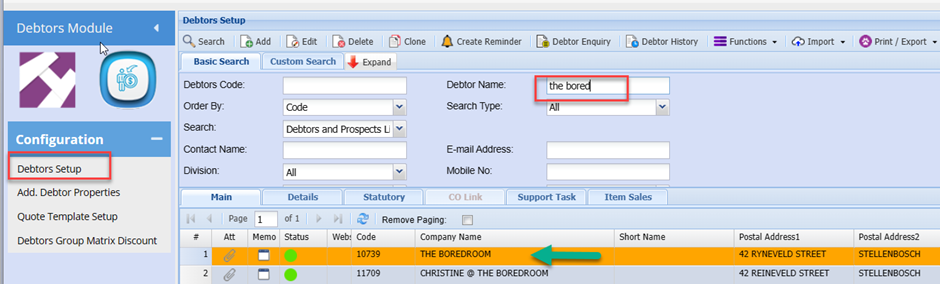
<span style="color: rgb(45, 194, 107);">**<span lang="EN-US" style="mso-ansi-language: EN-US;">Go to Debtors Module &gt; Configuration&gt; Debtor setup</span>**</span>

<span lang="EN-US" style="mso-ansi-language: EN-US;">Search for the required debtor</span>

<span lang="EN-GB" style="mso-no-proof: yes;">![](https://hugeerp10.co.za/hsofmanual/uploads/images/gallery/2023-12/embedded-image-o8eli7om.png)  
</span>

<span lang="EN-US" style="mso-ansi-language: EN-US;">Double-click the line on the grid to edit the debtor setup</span>

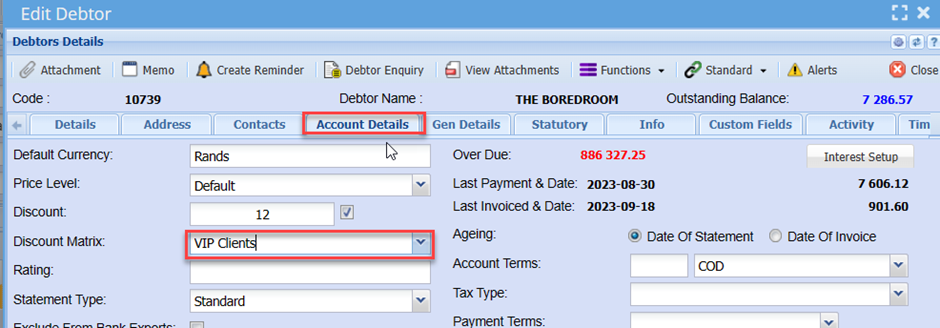
<span lang="EN-US" style="mso-ansi-language: EN-US;">Click the Accounts Tab</span>

<span lang="EN-US" style="mso-ansi-language: EN-US;">Select the required discount Matrix from the drop down</span>

<span lang="EN-GB" style="mso-no-proof: yes;">![](https://hugeerp10.co.za/hsofmanual/uploads/images/gallery/2023-12/embedded-image-olwtngom.png)</span>

<span lang="EN-US" style="mso-ansi-language: EN-US;">This will conclude the discount Matrix setup.</span>

<span lang="EN-US" style="mso-ansi-language: EN-US;">Any new invoice done for the debtor/ customer where you added a discount matrix for, will now automatically pull through the respective discounts for the product groups added on the matrix.</span>

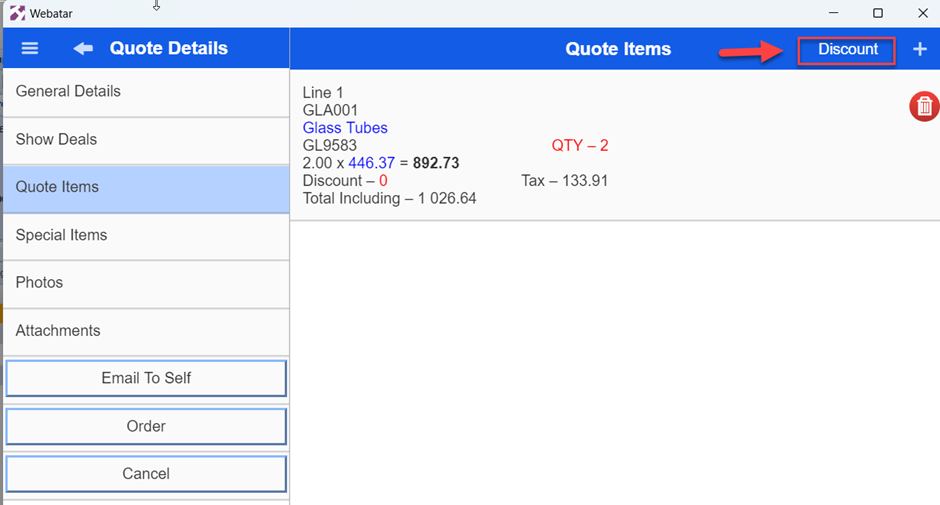
<p class="callout success"><span lang="EN-US" style="mso-ansi-language: EN-US;">After the setup is complete, request the sales consultants to sync the Webatar Mobile app so that the discounts are available on the APP. This way, when they do order for these clients, the discounts will also pull through automatically.</span></p>

<p class="callout info"><span lang="EN-US" style="mso-ansi-language: EN-US;"> F</span><span lang="EN-US" style="color: #0070c0; mso-ansi-language: EN-US;">or the discount matrix to pull through from order done by the sales consultants on the APP, they will have to press the “Discount“ Button on their devices before syncing the orders to the main system.</span></p>

<span lang="EN-GB" style="mso-no-proof: yes;">![](https://hugeerp10.co.za/hsofmanual/uploads/images/gallery/2023-12/embedded-image-yhqoxwno.png)  
</span>

<span lang="EN-US" style="mso-ansi-language: EN-US;"></span>