# Credit Reason
To be able to select a credit reason on credit notes credit reasons applicable to your business needs to be created first
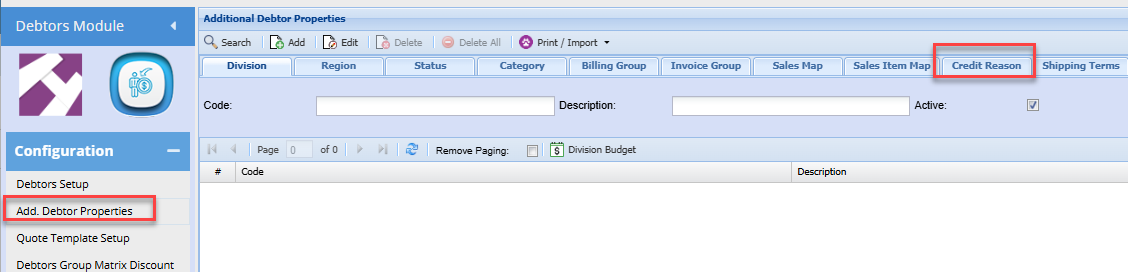
To add or edit a credit reason go to:
**Debtors module> Configuration> Add. Debtor Properties> Credit Reason**
Click the tab Credit Reason
[](https://hugeerp10.co.za/hsofmanual/uploads/images/gallery/2024-11/lKiimage.png)
Click Add to create a new Credit Reason
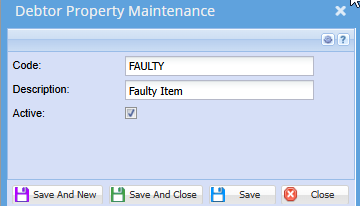
Enter a Code and Description
Click Save and close or,
Save and New to add another Credit reason
[](https://hugeerp10.co.za/hsofmanual/uploads/images/gallery/2024-11/zh7image.png)
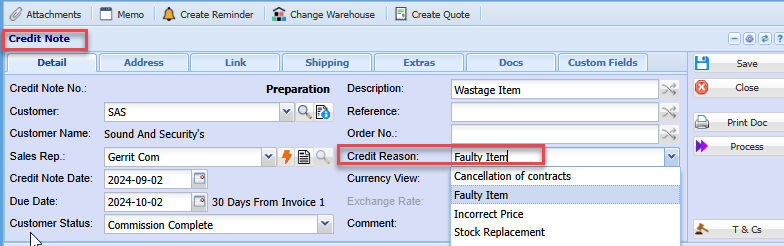
Once all reasons have been setup, this will allow the user to select the applicable reason for the credit note when capturing a credit note.
[](https://hugeerp10.co.za/hsofmanual/uploads/images/gallery/2024-11/fktimage.png)