# Add Debtor

Adding in a new Debtor or customer, tabs below defined

#### Details Tab

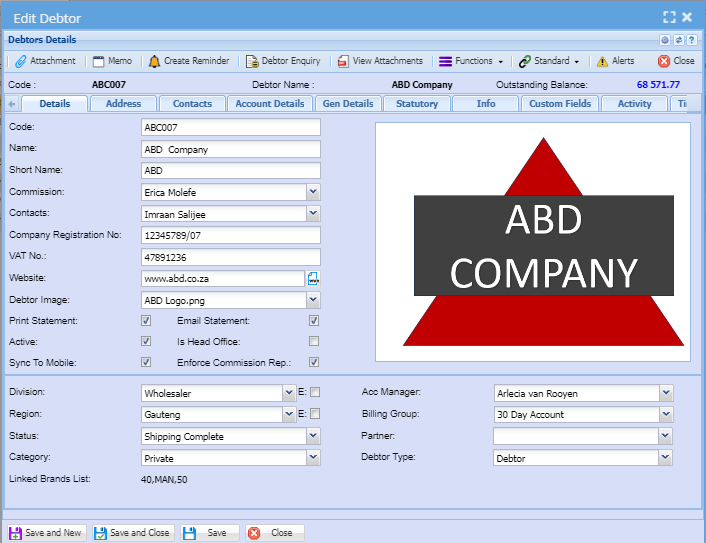
Debtors/ Customer details contain information about the debtor.

The user has to enter all essential information of a debtor or customer on this tab

<p class="callout info">After adding all information about a debtor or customer always remember to click save.</p>

---

[![image.png](https://hugeerp10.co.za/hsofmanual/uploads/images/gallery/2023-10/scaled-1680-/4Ccimage.png)](https://hugeerp10.co.za/hsofmanual/uploads/images/gallery/2023-10/4Ccimage.png)

<table border="1" id="bkmrk-debtors-code-this-is" style="width: 104.198%; height: 798.775px;"><tbody><tr style="height: 102.55px;"><td style="width: 24.8393%; height: 102.55px;">**<span class="ts0">Debtors Code</span>**</td><td style="width: 75.1359%; height: 102.55px;"><span class="ts0">This is a unique code that identifies the debtor</span>

<span class="ts0">This code needs to be filled in or the customers/ debtors information will give you an error when trying to save. </span>

<span class="ts0">The code is also used for exports.</span>

</td></tr><tr style="height: 29.7875px;"><td style="width: 24.8393%; height: 29.7875px;">**<span class="ts0">Name</span>**</td><td style="width: 75.1359%; height: 29.7875px;"><span class="ts0">Enter a legal customer or debtor name that will appear on all documents. </span></td></tr><tr style="height: 29.7875px;"><td style="width: 24.8393%; height: 29.7875px;">**<span class="ts0">Short Name</span>**</td><td style="width: 75.1359%; height: 29.7875px;"><span class="ts0">Short name that the company uses for a client</span></td></tr><tr style="height: 46.5875px;"><td style="width: 24.8393%; height: 46.5875px;">**<span class="ts0">Commission</span>**</td><td style="width: 75.1359%; height: 46.5875px;"><span class="ts0">This is a drop down and only shows commission structures set up under System Configuration Module</span></td></tr><tr style="height: 46.5875px;"><td style="width: 24.8393%; height: 46.5875px;">**<span class="ts0">Contacts</span>**</td><td style="width: 75.1359%; height: 46.5875px;"><span class="ts0">This is a drop-down and only shows contact names that have been entered from the contacts tab.</span></td></tr><tr style="height: 29.7875px;"><td style="width: 24.8393%; height: 29.7875px;">**<span class="ts0">Company Registration No</span>**</td><td style="width: 75.1359%; height: 29.7875px;"><span class="ts0">This is the company registration number</span></td></tr><tr style="height: 29.7875px;"><td style="width: 24.8393%; height: 29.7875px;">**<span class="ts0">VAT / GST No</span>**</td><td style="width: 75.1359%; height: 29.7875px;"><span class="ts0">This is the tax number for the customer if the company is VAT / GST vendor</span></td></tr><tr style="height: 29.7875px;"><td style="width: 24.8393%; height: 29.7875px;">**<span class="ts0">Customs Client No (CCN)</span>**</td><td style="width: 75.1359%; height: 29.7875px;"><span class="ts0">The Import / Export code</span></td></tr><tr style="height: 29.7875px;"><td style="width: 24.8393%; height: 29.7875px;">**<span class="ts0">Website</span>**</td><td style="width: 75.1359%; height: 29.7875px;"><span class="ts0">Enter the website of the company</span></td></tr><tr style="height: 29.7875px;"><td style="width: 24.8393%; height: 29.7875px;">**<span class="ts0">Debtor Image</span>**</td><td style="width: 75.1359%; height: 29.7875px;"><span class="ts0">This is the image that has been added under the attachment e.g. company logo</span></td></tr><tr style="height: 39.375px;"><td style="width: 24.8393%; height: 39.375px;">**<span class="ts0">Division</span>**</td><td style="width: 75.1359%; height: 39.375px;"><span class="ts0">The down arrow allows a selection according to the division the debtor is categorized into</span></td></tr><tr style="height: 37.375px;"><td style="width: 24.8393%; height: 37.375px;">**Status**</td><td style="width: 75.1359%; height: 37.375px;"><span class="ts0">Shows the debtor or customer status</span></td></tr><tr style="height: 57.6px;"><td style="width: 24.8393%; height: 57.6px;">**Region**</td><td style="width: 75.1359%; height: 57.6px;">The drop-down menu facilitates the selection process based on the debtor's categorization within their respective region.

</td></tr><tr style="height: 46.4px;"><td style="width: 24.8393%; height: 46.4px;">**<span class="ts0">Category</span>**</td><td style="width: 75.1359%; height: 46.4px;"> This drop-down menu facilitates the selection process based on the debtor's or customer category based on the categories that that have been added to the drop down. </td></tr><tr style="height: 46.4px;"><td style="width: 24.8393%; height: 46.4px;">**<span class="ts0">Acc Manager</span>**</td><td style="width: 75.1359%; height: 46.4px;">The drop down shows a list of accounts managers and only the account manager for the customer or debtor needs to be selected. </td></tr><tr style="height: 80px;"><td style="width: 24.8393%; height: 80px;">**<span class="ts0">Billing Group</span>**</td><td style="width: 75.1359%; height: 80px;"><span class="ts0">The drop down shows the types of billing groups within the organization and only the right billing group should be selected for the debtor or customer.</span>

<span class="ts0">For example, billing groups can be categorized as monthly or annually </span>

</td></tr><tr style="height: 29.7875px;"><td style="width: 24.8393%; height: 29.7875px;">**<span class="ts0">Partner</span>**</td><td style="width: 75.1359%; height: 29.7875px;">Select the business partner for the debtor or customer on the drop down. </td></tr><tr style="height: 57.6px;"><td style="width: 24.8393%; height: 57.6px;">**<span class="ts0">Debtor type</span>**</td><td style="width: 75.1359%; height: 57.6px;"><span class="ts0">The drop down shows different debtor types whether it is a debtor/ customer or a prospect. </span>

<span class="ts0">Select the correct debtor type on the drop down. </span>

</td></tr></tbody></table>

<span class="ts0">Details tab tick boxes explained</span>

<p class="callout info"><span class="ts0">Tick boxes are pretty simple to use. If the box is ticked this means yes and if a box is not ticked this means no. </span></p>

<table border="1" id="bkmrk-print-statement-put-" style="border-collapse: collapse; width: 100%; height: 177.6px;"><colgroup><col style="width: 25.3337%;"></col><col style="width: 74.6416%;"></col></colgroup><tbody><tr style="height: 29.6px;"><td style="height: 29.6px;">**Print Statement**</td><td style="height: 29.6px;">Put a tick if the statements will be printed</td></tr><tr style="height: 29.6px;"><td style="height: 29.6px;">**Active**</td><td style="height: 29.6px;">Put a tick if a debtor is active</td></tr><tr style="height: 29.6px;"><td style="height: 29.6px;">**Sync to Mobile**</td><td style="height: 29.6px;">Put a tick if you want the customer to be synced to your Webatar App (Mobile App) </td></tr><tr style="height: 29.6px;"><td style="height: 29.6px;">**Email Statement**</td><td style="height: 29.6px;">Put a tick if the email Statement</td></tr><tr style="height: 29.6px;"><td style="height: 29.6px;">**Is Head Office**</td><td style="height: 29.6px;">Put a tick if Consolidate Branch Statements at Head Office Level is required</td></tr><tr style="height: 29.6px;"><td style="height: 29.6px;">**Enforce Commission Rep**</td><td style="height: 29.6px;">Put a tick if you want to enforce sales rep commission against a customer or debtor</td></tr></tbody></table>

---

#### <span class="ts0">Address Tab</span>

The designated area for debtor address information facilitates the input of data and provides the user with convenient options to replicate the address, including the use of buttons labeled "Same as Physical," "Same as Postal," and "Same as Delivery."

A user can add multiple addresses on the debtor's or customer grid if they have multiple locations.

[![image.png](https://hugeerp10.co.za/hsofmanual/uploads/images/gallery/2023-10/scaled-1680-/biaimage.png)](https://hugeerp10.co.za/hsofmanual/uploads/images/gallery/2023-10/biaimage.png)

<table border="1" id="bkmrk-insert-address-butto" style="width: 100.494%; height: 88.8px;"><colgroup><col style="width: 28.6713%;"></col><col style="width: 71.304%;"></col></colgroup><tbody><tr style="height: 29.6px;"><td style="height: 29.6px;">**<span class="ts0">Add</span>**</td><td style="height: 29.6px;"><span class="ts0">Used to add a new address on the grid if a customer/ debtor has multiple customers.</span></td></tr><tr style="height: 29.6px;"><td style="height: 29.6px;">**<span class="ts0">Edit</span>**</td><td style="height: 29.6px;"><span class="ts0">Used to edit customer address on the grid debtor/ customer has multiple addresses </span></td></tr><tr style="height: 29.6px;"><td style="height: 29.6px;">**<span class="ts0">Delete</span>**</td><td style="height: 29.6px;"><span class="ts0">Used to delete addresses on the grid if a debtor or customer has multiple addresses</span></td></tr></tbody></table>

<table border="1" id="bkmrk-physical-enter-the-p" style="border-collapse: collapse; width: 100%; height: 418.4px;"><colgroup><col style="width: 28.5467%;"></col><col style="width: 71.4286%;"></col></colgroup><tbody><tr style="height: 35.2px;"><td style="height: 35.2px;">**Physical**

</td><td style="height: 35.2px;">Enter the physical address or legal entity address for a debtor/ customer</td></tr><tr style="height: 29.6px;"><td style="height: 29.6px;">**Postal**</td><td style="height: 29.6px;">Enter the postal address for a debtor/customer</td></tr><tr style="height: 29.6px;"><td style="height: 29.6px;">**Delivery**</td><td style="height: 29.6px;">Enter the delivery address for the debtor/ customer </td></tr><tr style="height: 29.6px;"><td style="height: 29.6px;">**Default Address**</td><td style="height: 29.6px;">This is the address that will populate on all debtor/customer documents</td></tr><tr style="height: 29.6px;"><td style="height: 29.6px;">**Address Line 1**</td><td style="height: 29.6px;">This can be a street name or the name of the business park</td></tr><tr style="height: 29.6px;"><td style="height: 29.6px;">**Address Line 2**</td><td style="height: 29.6px;">Suburb or street if line 1 consists of a business park name or estate</td></tr><tr style="height: 29.6px;"><td style="height: 29.6px;">**Address Line 3**</td><td style="height: 29.6px;">Enter the city name for a debtor/customer</td></tr><tr style="height: 29.6px;"><td style="height: 29.6px;">**Address Line 4**</td><td style="height: 29.6px;">Enter the province name for a debtor/ customer</td></tr><tr style="height: 29.6px;"><td style="height: 29.6px;">**Address Postal Code**</td><td style="height: 29.6px;">Enter the postal code for a debtor/customer </td></tr><tr style="height: 29.6px;"><td style="height: 29.6px;">**Country**</td><td style="height: 29.6px;">Select the country that the debtor or customer is in</td></tr><tr style="height: 57.6px;"><td style="height: 57.6px;">**GPS Coords**</td><td style="height: 57.6px;">Enter the GPS coordinates for the debtor/customer

One can use the button for locate on map, however this needs to be set up first

</td></tr><tr style="height: 29.6px;"><td style="height: 29.6px;">**Plus Code**</td><td style="height: 29.6px;">Enter the plus code for the debtor/ customer which can be found on Google map search</td></tr><tr style="height: 29.6px;"><td style="height: 29.6px;">**User defined Address grid**</td><td style="height: 29.6px;">This is where you will a list of addresses if a debtor/customer has multiple addresses </td></tr></tbody></table>

Buttons to define the address

<table border="1" id="bkmrk-same-as-physical-add" style="border-collapse: collapse; width: 100%; height: 223.563px;"><colgroup><col style="width: 28.1773%;"></col><col style="width: 71.798%;"></col></colgroup><tbody><tr style="height: 29.7969px;"><td style="height: 29.7969px;">**Same as Physical Address**</td><td style="height: 29.7969px;">When in an address section, use this button to copy the physical address </td></tr><tr style="height: 29.7969px;"><td style="height: 29.7969px;">**Same as Postal**</td><td style="height: 29.7969px;">When in an address section, use this button to copy the postal address</td></tr><tr style="height: 29.7969px;"><td style="height: 29.7969px;">**Same as Delivery**</td><td style="height: 29.7969px;">When in an address section, use this button to copy the delivery address</td></tr><tr style="height: 46.5938px;"><td style="height: 46.5938px;">**Copy to All**</td><td style="height: 46.5938px;">This button is used to copy addresses to be the same as all three addresses (Postal, physical and delivery addresses)</td></tr><tr style="height: 57.7812px;"><td style="height: 57.7812px;">**Get Location**</td><td style="height: 57.7812px;">Use this button to get your GPS location and plus code

This needs to be set up first

</td></tr><tr style="height: 29.7969px;"><td style="height: 29.7969px;">**Locate on Map**</td><td style="height: 29.7969px;">Click on this button to open up Google Maps to view the location of the company</td></tr></tbody></table>

---

<span style="color: rgb(34, 34, 34); font-family: var(--font-heading, var(--font-body)); font-size: 1.666em; font-weight: 400;">Contact Tab</span>

Contact details section is dedicated

<span class="ts0">In this Field you will insert the customers Contact details</span>

<span class="ts0">these could be the generic company information.</span>

[![image.png](https://hugeerp10.co.za/hsofmanual/uploads/images/gallery/2023-10/scaled-1680-/aUZimage.png)](https://hugeerp10.co.za/hsofmanual/uploads/images/gallery/2023-10/aUZimage.png)


Add or Edit Customer Contact Person Details

[![image.png](https://hugeerp10.co.za/hsofmanual/uploads/images/gallery/2023-10/scaled-1680-/8Jcimage.png)](https://hugeerp10.co.za/hsofmanual/uploads/images/gallery/2023-10/8Jcimage.png)

Debtor or Customer Fields

<table border="1" id="bkmrk-name-enter-the-conta" style="border-collapse: collapse; width: 100%; height: 564.5px;"><colgroup><col style="width: 24.5983%;"></col><col style="width: 75.4017%;"></col></colgroup><tbody><tr style="height: 29.7969px;"><td style="height: 29.7969px;">**Name**</td><td style="height: 29.7969px;">Enter the contact person's first name </td></tr><tr style="height: 29.7969px;"><td style="height: 29.7969px;">**Surname**</td><td style="height: 29.7969px;">Enter the contact person's surname</td></tr><tr style="height: 29.7969px;"><td style="height: 29.7969px;">**Post Title**</td><td style="height: 29.7969px;">Enter the contact person's work title </td></tr><tr style="height: 29.7969px;"><td style="height: 29.7969px;">**Telephone**</td><td style="height: 29.7969px;">Enter the contact person's work telephone number</td></tr><tr style="height: 57.7812px;"><td style="height: 57.7812px;">**Cell Phone**</td><td style="height: 57.7812px;">Enter the contact person's work or personal cellphone number.

This is optional

</td></tr><tr style="height: 29.7969px;"><td style="height: 29.7969px;">**Additional Number**</td><td style="height: 29.7969px;">Enter the contact person's additional telephone number or cellphone number if applicable</td></tr><tr style="height: 46.5938px;"><td style="height: 46.5938px;">**Category**</td><td style="height: 46.5938px;">This drop-down menu facilitates the selection process based on the contact person's categories that have been added to the drop down. </td></tr><tr style="height: 57.7812px;"><td style="height: 57.7812px;">**Email Address**</td><td style="height: 57.7812px;">Enter the contact person's email address.

The email address is compulsory to be able to send communication from the system

</td></tr><tr style="height: 29.7969px;"><td style="height: 29.7969px;">**Title**</td><td style="height: 29.7969px;">Select the contact person's tile on the drop down </td></tr><tr style="height: 29.7969px;"><td style="height: 29.7969px;">**Gender**</td><td style="height: 29.7969px;">Select the contact person's gender on the drop-down menu</td></tr><tr style="height: 57.7812px;"><td style="height: 57.7812px;">**ID Number**</td><td style="height: 57.7812px;">Enter the contact person's identity document if applicable

This is optional

</td></tr><tr style="height: 29.7969px;"><td style="height: 29.7969px;">**Contact Image**</td><td style="height: 29.7969px;"> Select the contact person's image if added to the list of attachments</td></tr><tr style="height: 29.7969px;"><td style="height: 29.7969px;">**Date of Birth**</td><td style="height: 29.7969px;">Enter the contact person's date of birth if applicable</td></tr><tr style="height: 29.7969px;"><td style="height: 29.7969px;">**Fax Number**</td><td style="height: 29.7969px;">Enter the contact person's fax number if applicable</td></tr><tr style="height: 46.5938px;"><td style="height: 46.5938px;">**No Email Reason**</td><td style="height: 46.5938px;">If a contact person has given a reason for not wanting to be included to the mailing list, write down the reason why before clicking on do not bulk email. </td></tr></tbody></table>

Contact Details Debtor or Customer Tick boxes

<p class="callout info"><span class="ts0">Tick boxes are pretty simple to use. If the box is ticked this means yes and if a box is not ticked this means no. </span></p>

<table border="1" id="bkmrk-south-african-id-put" style="border-collapse: collapse; width: 100%; height: 288.75px;"><colgroup><col style="width: 25.3413%;"></col><col style="width: 74.6587%;"></col></colgroup><tbody><tr style="height: 29.7969px;"><td style="height: 29.7969px;">**South African ID**</td><td style="height: 29.7969px;">Put a tick if the contact person has provided a South African Identity Number.</td></tr><tr style="height: 29.7969px;"><td style="height: 29.7969px;">**Active**</td><td style="height: 29.7969px;">Put a tick if the contact person is active</td></tr><tr style="height: 29.7969px;"><td style="height: 29.7969px;">**Statement SMS**</td><td style="height: 29.7969px;">Put a tick if a contact person should receive statements via SMS</td></tr><tr style="height: 29.7969px;"><td style="height: 29.7969px;">**Debit Order SMS**</td><td style="height: 29.7969px;">Put a tick if a contact person should receive debit order notifications via SMS</td></tr><tr style="height: 80.1719px;"><td style="height: 80.1719px;">**Do Not Bulk Email**</td><td style="height: 80.1719px;">Put a tick if the recipient does not want to receive bulk emails.

Remember to put a note confirming why the recipient does not want to receive bulk emails.

If you do not put a reason, then the system will ask for a password.

</td></tr><tr style="height: 29.7969px;"><td style="height: 29.7969px;">**Statement Email**</td><td style="height: 29.7969px;">Put a tick on if you want the recipient to receive statements via Email</td></tr><tr style="height: 29.7969px;"><td style="height: 29.7969px;">**Debit Order Email**</td><td style="height: 29.7969px;">Put a tick if the recipient wants to receive debit order notifications via Email</td></tr><tr style="height: 29.7969px;"><td style="height: 29.7969px;">**Document Email**</td><td style="height: 29.7969px;">Put a tick if the recipient would like to receive documents from the system such as invoices and quotes via Email</td></tr></tbody></table>

Contact Details Debtor or Customer Buttons

<table border="1" id="bkmrk-e-mail-update-compan" style="border-collapse: collapse; width: 100%; height: 175.156px;"><colgroup><col style="width: 26.5788%;"></col><col style="width: 73.4212%;"></col></colgroup><tbody><tr style="height: 57.7812px;"><td style="height: 57.7812px;">**e-Mail**</td><td style="height: 57.7812px;">Allows user to send email directly from the system

The email address opens up on a user's mailbox without having to leave the system

</td></tr><tr style="height: 29.7969px;"><td style="height: 29.7969px;">**Update Company**</td><td style="height: 29.7969px;">The update company button allows user to update the company details</td></tr><tr style="height: 57.7812px;"><td style="height: 57.7812px;">**Set as the default contact**</td><td style="height: 57.7812px;">Make a contact person a primary contact

This is the contact person that will appear on the documents and the details tab screen

</td></tr><tr style="height: 29.7969px;"><td style="height: 29.7969px;">**Update Documents**</td><td style="height: 29.7969px;">Allows contact person to be updated on all open invoices </td></tr></tbody></table>

Edit or Add Contact Details Additional Tab

[![image.png](https://hugeerp10.co.za/hsofmanual/uploads/images/gallery/2023-10/scaled-1680-/8D5image.png)](https://hugeerp10.co.za/hsofmanual/uploads/images/gallery/2023-10/8D5image.png)

<table border="1" id="bkmrk-department-salary-em" style="border-collapse: collapse; width: 100%; height: 238.375px;"><colgroup><col style="width: 28.5547%;"></col><col style="width: 71.4453%;"></col></colgroup><tbody><tr style="height: 29.7969px;"><td style="height: 29.7969px;">**Department**</td><td style="height: 29.7969px;">Enter the contact person's department</td></tr><tr style="height: 29.7969px;"><td style="height: 29.7969px;">**Salary**</td><td style="height: 29.7969px;">Enter the contact person's salary</td></tr><tr style="height: 29.7969px;"><td style="height: 29.7969px;">**Employment Date**</td><td style="height: 29.7969px;">Enter the contact person's salary date</td></tr><tr style="height: 29.7969px;"><td style="height: 29.7969px;">**Employer**</td><td style="height: 29.7969px;">Enter the name of the employer</td></tr><tr style="height: 29.7969px;"><td style="height: 29.7969px;">**Delivery Date**</td><td style="height: 29.7969px;">Enter delivery date if applicable</td></tr><tr style="height: 29.7969px;"><td style="height: 29.7969px;">**Deal**</td><td style="height: 29.7969px;">  
</td></tr><tr style="height: 29.7969px;"><td style="height: 29.7969px;">**Note**</td><td style="height: 29.7969px;">Add any notes related to the contact person</td></tr><tr style="height: 29.7969px;"><td style="height: 29.7969px;">**Division**</td><td style="height: 29.7969px;">Add the division that the contact person belongs to</td></tr><tr><td>**Pay Type**</td><td>Add the contact person's pay type</td></tr><tr><td>**Pay Date**</td><td>Enter the contact person's pay date</td></tr><tr><td>**Activated Date**</td><td>confirm the activated date for a contact person</td></tr></tbody></table>

---

#### Account Details Tab

<span class="ts0">This is the account details information of the Debtor Because of our security you may want to lock down this tab to users if they do not have security access to the debtor.</span>

[![image.png](https://hugeerp10.co.za/hsofmanual/uploads/images/gallery/2023-10/scaled-1680-/DQIimage.png)](https://hugeerp10.co.za/hsofmanual/uploads/images/gallery/2023-10/DQIimage.png)

<table border="1" id="bkmrk-default-currency-if-" style="width: 100%; height: 1432.06px;"><colgroup><col style="width: 28.801%;"></col><col style="width: 71.199%;"></col></colgroup><tbody><tr style="height: 102.562px;"><td style="height: 102.562px;">**<span class="ts0">Default Currency</span>**</td><td style="height: 102.562px;"><span class="ts0">If you are working with multi-currency customers, this allows you to select the default currency to work with on that customer. </span>

<span class="ts0">Note: Once the first transaction has been posted against the currency you cannot change the currency</span>

</td></tr><tr style="height: 32.5938px;"><td style="height: 32.5938px;">**<span class="ts0">Pricing Level</span>**</td><td style="height: 32.5938px;"><span class="ts0">The dropdown only shows pricing structures setup under System Configuration Module</span></td></tr><tr style="height: 46.5938px;"><td style="height: 46.5938px;">**<span class="ts0">Discount</span>**</td><td style="height: 46.5938px;"><span class="ts0">This field is only used as an information indicator of what discount rate you would discount the customer for</span></td></tr><tr style="height: 29.7969px;"><td style="height: 29.7969px;">**<span class="ts0">Discount Matrix</span>**</td><td style="height: 29.7969px;"><span class="ts0">Select the correct type of discount for a customer or debtor on the drop down</span></td></tr><tr style="height: 29.7969px;"><td style="height: 29.7969px;">**<span class="ts0">Rating</span>**</td><td style="height: 29.7969px;"><span class="ts0">Open text box to comment on the customer example Excellent Rating, Good rating</span></td></tr><tr style="height: 29.7969px;"><td style="height: 29.7969px;">**<span class="ts0">Statement type</span>**</td><td style="height: 29.7969px;">Select the correct statement type on the drop down</td></tr><tr style="height: 31.5938px;"><td style="height: 31.5938px;">**<span class="ts0">Exclude from Bank Exports</span>**</td><td style="height: 31.5938px;"><span class="ts0">Put a tick on if a user should be excluded from bank exports</span>

<span class="ts0">By default this check box is unchecked. When exporting Debtor Details, Transaction Details or Debtor Age Analysis to text files via the Bank File Export facility found under Debtor Report List. This check box will either include or exclude the debtor into the exported data.</span>

</td></tr><tr style="height: 29.7969px;"><td style="height: 29.7969px;">[**<span class="ts0">On Hold Tick</span>**](https://hugeerp10.co.za/hsofmanual/books/adm-configuration/page/on-hold "On Hold ")</td><td style="height: 29.7969px;"><span class="ts0">Put a tick on to put the customer on hold</span></td></tr><tr style="height: 29.7969px;"><td style="height: 29.7969px;">**<span class="ts0">On Hold Reason</span>**</td><td style="height: 29.7969px;"><span class="ts0">Add a reason why the customer is put on hold</span></td></tr><tr style="height: 29.7969px;"><td style="height: 29.7969px;">[**<span class="ts0">Legal Handover</span>**](https://hugeerp10.co.za/hsofmanual/books/adm-configuration/page/legal-handover)</td><td style="height: 29.7969px;"><span class="ts0">This is when you give the account to lawyers due to the account not being paid. </span></td></tr><tr style="height: 29.7969px;"><td style="height: 29.7969px;">**<span class="ts0">Enable Statement Note</span>**</td><td style="height: 29.7969px;"><span class="ts0">This will allow a user to put a note by putting a tick in a box</span></td></tr><tr style="height: 29.7969px;"><td style="height: 29.7969px;">**<span class="ts0">Statement Note</span>**</td><td style="height: 29.7969px;"><span class="ts0">This is a note that a user can add to the debtor's statement</span></td></tr><tr style="height: 80.1719px;"><td style="height: 80.1719px;">**<span class="ts0">Statement Stationery</span>**</td><td style="height: 80.1719px;"><span class="ts0">This is usually a copy of a statement customized for a debtor or customer based on their needs.</span>

<span class="ts0">It usually has minor changes to the original copy used across the system. </span>

</td></tr><tr style="height: 29.7969px;"><td style="height: 29.7969px;">**Overdue**  
</td><td style="height: 29.7969px;"><span class="ts0">The amount that is in arrears</span></td></tr><tr style="height: 29.7969px;"><td style="height: 29.7969px;">**<span class="ts0">Last Payment &amp; Date</span>**</td><td style="height: 29.7969px;"><span class="ts0">Shows, when last the account, was settled</span></td></tr><tr style="height: 29.7969px;"><td style="height: 29.7969px;">**<span class="ts0">Last Invoice &amp; Date</span>**</td><td style="height: 29.7969px;"><span class="ts0">Shows when last the customer was invoiced</span></td></tr><tr style="height: 29.7969px;"><td style="height: 29.7969px;">**<span class="ts0">Ageing</span>**</td><td style="height: 29.7969px;"><span class="ts0">This is selecting on date of the statement or date of the invoice</span></td></tr><tr style="height: 29.7969px;"><td style="height: 29.7969px;">**<span class="ts0">Account terms</span>**</td><td style="height: 29.7969px;"><span class="ts0">Select the terms of your customer in the drop-down</span></td></tr><tr style="height: 29.7969px;"><td style="height: 29.7969px;">**<span class="ts0">Tax Type</span>**</td><td style="height: 29.7969px;"><span class="ts0">Select the correct tax type on the drop down</span></td></tr><tr style="height: 31.5938px;"><td style="height: 31.5938px;">**Payment Terms**</td><td style="height: 31.5938px;">Select the correct payment term on the drop down</td></tr><tr style="height: 29.7969px;"><td style="height: 29.7969px;">**<span class="ts0">Enforce Credit Limit</span>**</td><td style="height: 29.7969px;"><span class="ts0">Putting a tick in, will be enforcing a credit limit or it could be just an indicator</span></td></tr><tr style="height: 63.3906px;"><td style="height: 63.3906px;">**<span class="ts0">Credit Limit</span>**</td><td style="height: 63.3906px;"><span class="ts0">This is a field to enter the credit limit of a customer. This field is only used as an information indicator of what interest rate you would charge the customer for overdue accounts</span></td></tr><tr style="height: 46.5938px;"><td style="height: 46.5938px;">**<span class="ts0">T/C Invoice</span>**</td><td style="height: 46.5938px;"><span class="ts0">Select the right terms and conditions that should reflect on the customer or debtor's invoice</span></td></tr><tr style="height: 46.5938px;"><td style="height: 46.5938px;">**<span class="ts0">T/C Credit Note</span>**</td><td style="height: 46.5938px;"><span class="ts0">Select the right terms and conditions that should reflect on the customer or debtor's Credit note</span></td></tr><tr style="height: 102.562px;"><td style="height: 102.562px;">**<span class="ts0">Quote Template</span>**</td><td style="height: 102.562px;"><span class="ts0">It’s a copy of a completed quote</span>

<span class="ts0">This is usually a copy of a quote customized for a debtor or customer based on their needs.</span>

<span class="ts0">It usually has minor changes to the original copy used across the system. </span>

</td></tr><tr style="height: 80.1719px;"><td style="height: 80.1719px;">**Sales Order Template**</td><td style="height: 80.1719px;"><span class="ts0">This is usually a copy of a sales order customized for a debtor or customer based on their needs.</span>

<span class="ts0">It usually has minor changes to the original copy used across the system. </span>

</td></tr><tr style="height: 80.1719px;"><td style="height: 80.1719px;">**<span class="ts0">Invoice Template</span>**</td><td style="height: 80.1719px;"><span class="ts0">This is usually a copy of an invoice customized for a debtor or customer based on their needs.</span>

<span class="ts0">It usually has minor changes to the original copy used across the system. </span>

</td></tr><tr style="height: 80.1719px;"><td style="height: 80.1719px;">**<span class="ts0">Credit Note Template</span>**</td><td style="height: 80.1719px;"><span class="ts0">This is usually a copy of a credit note customized for a debtor or customer based on their needs.</span>

<span class="ts0">It usually has minor changes to the original copy used across the system. </span>

</td></tr><tr style="height: 80.1719px;"><td style="height: 80.1719px;">**Delivery Note Template**</td><td style="height: 80.1719px;"><span class="ts0">This is usually a copy of a delivery note customized for a debtor or customer based on their needs.</span>

<span class="ts0">It usually has minor changes to the original copy used across the system. </span>

</td></tr><tr style="height: 80.1719px;"><td style="height: 80.1719px;">**Delivery Note 2 Template**</td><td style="height: 80.1719px;"><span class="ts0">This is usually a copy of a delivery note 2 customized for a debtor or customer based on their needs.</span>

<span class="ts0">It usually has minor changes to the original copy used across the system. </span>

</td></tr></tbody></table>

Buttons

<table border="1" id="bkmrk-hand-over-details-in" style="border-collapse: collapse; width: 100%;"><colgroup><col style="width: 28.8027%;"></col><col style="width: 71.1973%;"></col></colgroup><tbody><tr><td>**Hand Over Details**</td><td>This is where a user puts the details of why they are handing over a debtor or customer</td></tr><tr><td style="height: 29.7969px;">**<span class="ts0">Interest Setup</span>**</td><td style="height: 29.7969px;"><span class="ts0">Where the interest against the customer or debtor is setup</span></td></tr></tbody></table>

---

#### General Details Tab

This is a designated area for debtor or customer banking details.

[![image.png](https://hugeerp10.co.za/hsofmanual/uploads/images/gallery/2023-10/scaled-1680-/DvDimage.png)](https://hugeerp10.co.za/hsofmanual/uploads/images/gallery/2023-10/DvDimage.png)

<table border="1" id="bkmrk-account-number-debto" style="width: 100%; height: 739.797px;"><colgroup><col style="width: 30.771%;"></col><col style="width: 69.229%;"></col></colgroup><tbody><tr style="height: 35.3906px;"><td style="height: 35.3906px;">**<span class="ts0">Account Type</span>**</td><td style="height: 35.3906px;"><span class="ts0">Select the kind of account on the drop down</span>

</td></tr><tr style="height: 57.7812px;"><td style="height: 57.7812px;">**<span class="ts0">Account Holder</span>**</td><td style="height: 57.7812px;"><span class="ts0">Name the account holder in most cases if it is a company account, the account holder is usually the name of the company</span>

</td></tr><tr style="height: 33.75px;"><td style="height: 33.75px;">**Bank**</td><td style="height: 33.75px;">Add bank name of a debtor or customer</td></tr><tr style="height: 57.7812px;"><td style="height: 57.7812px;">**<span class="ts0">Account Number</span>**</td><td style="height: 57.7812px;"><span class="ts0">Debtors account number</span>

<span class="ts0">Account Type of account that the debtor holds i.e. Current account</span>

</td></tr><tr style="height: 29.7969px;"><td style="height: 29.7969px;">**<span class="ts0">Branch</span>**</td><td style="height: 29.7969px;"><span class="ts0">Branch code of the particular bank that the debtor or customer uses</span></td></tr><tr style="height: 29.7969px;"><td style="height: 29.7969px;">**<span class="ts0">Branch Code</span>**</td><td style="height: 29.7969px;"><span class="ts0">Add Branch code </span></td></tr><tr style="height: 29.7969px;"><td style="height: 29.7969px;">**<span class="ts0">Swift Code</span>**</td><td style="height: 29.7969px;"><span class="ts0">Add swift code - this is a unique code for every bank</span></td></tr><tr style="height: 29.7969px;"><td style="height: 29.7969px;">**<span class="ts0">IBAN</span>**</td><td style="height: 29.7969px;"><span class="ts0">Add the debtor or customer's international bank account number</span></td></tr><tr style="height: 29.7969px;"><td style="height: 29.7969px;">**<span class="ts0">Debit Order</span>**</td><td style="height: 29.7969px;"><span class="ts0">When putting a tick in the box, allows a debit order</span></td></tr><tr style="height: 80.1719px;"><td style="height: 80.1719px;">**<span class="ts0">Debit order Day</span>**</td><td style="height: 80.1719px;"><span class="ts0">The day the money will be debited from a customer’s account</span>

<span class="ts0">Once Off Debit Order the debit order can be done once or by putting the tick in the box or continuously without a tick</span>

</td></tr><tr style="height: 35.3906px;"><td style="height: 35.3906px;">**<span class="ts0">Duration</span>**</td><td style="height: 35.3906px;"><span class="ts0">The period that debit order should be deducted for. This is usually in months</span>

</td></tr><tr style="height: 35.3906px;"><td style="height: 35.3906px;">**<span class="ts0">Instalment</span>**

</td><td style="height: 35.3906px;"><span class="ts0">The amount to be deducted from the bank every month</span>

</td></tr><tr style="height: 35.3906px;"><td style="height: 35.3906px;">**<span class="ts0">Plan ID</span>**</td><td style="height: 35.3906px;"><span class="ts0">Add plan ID</span>

</td></tr><tr style="height: 35.3906px;"><td style="height: 35.3906px;">**<span class="ts0">Repayment</span>**</td><td style="height: 35.3906px;"><span class="ts0">Add how much needs to be paid</span>

</td></tr><tr style="height: 35.3906px;"><td style="height: 35.3906px;">**<span class="ts0">Activation Fee</span>**</td><td style="height: 35.3906px;"><span class="ts0">Add the amount to activate the debit order</span>

</td></tr><tr style="height: 29.7969px;"><td style="height: 29.7969px;">**<span class="ts0">Credit Card Number</span>**</td><td style="height: 29.7969px;"><span class="ts0">Add the debtor's or customer's credit card number</span></td></tr><tr style="height: 29.7969px;"><td style="height: 29.7969px;">**<span class="ts0">Expiry Date</span>**</td><td style="height: 29.7969px;"><span class="ts0">Add credit card's expiry date</span></td></tr><tr style="height: 29.7969px;"><td style="height: 29.7969px;">**<span class="ts0">Security Code</span>**</td><td style="height: 29.7969px;"><span class="ts0">Add a card verification value (CVV) is a 3 or 4 security code usually found at the back of a credit card</span></td></tr><tr style="height: 29.7969px;"><td style="height: 29.7969px;">**<span class="ts0">Employee Category</span>**</td><td style="height: 29.7969px;"><span class="ts0">Select the employee category on the drop down</span></td></tr><tr style="height: 29.7969px;"><td style="height: 29.7969px;">**<span class="ts0">BankIT Intelligence Keywords</span>**</td><td style="height: 29.7969px;"><span class="ts0">Add keywords for a statement to remember the debtor or customer </span></td></tr><tr><td>**<span class="ts0">Exclude from BankIT</span>**</td><td><span class="ts0">Add a tick if the debtor or customer should be excluded from BankIT</span></td></tr></tbody></table>

Buttons

<table border="1" id="bkmrk-load-card-details-up" style="border-collapse: collapse; width: 100%;"><colgroup><col style="width: 25.3413%;"></col><col style="width: 74.6587%;"></col></colgroup><tbody><tr><td>**Load Card Details**</td><td>Click on Load Card details to add credit card details</td></tr><tr><td>**Update Card Details**</td><td>Click update Card details after adding credit card details.</td></tr></tbody></table>

---

#### Statutory Tab

The fields on the statutory tab can be altered to fit the organisation's needs.

These requirements may vary depending on your jurisdiction and the nature of your business.

[![image.png](https://hugeerp10.co.za/hsofmanual/uploads/images/gallery/2023-10/scaled-1680-/Juoimage.png)](https://hugeerp10.co.za/hsofmanual/uploads/images/gallery/2023-10/Juoimage.png)

<table border="1" id="bkmrk-company-reg-number-a" style="border-collapse: collapse; width: 100%; height: 476.75px;"><colgroup><col style="width: 26.1112%;"></col><col style="width: 74.0124%;"></col></colgroup><tbody><tr style="height: 29.7969px;"><td style="height: 29.7969px;">**Company Reg Number**</td><td style="height: 29.7969px;">Add debtor or customer company registration number </td></tr><tr style="height: 29.7969px;"><td style="height: 29.7969px;">**Income Tax Number**</td><td style="height: 29.7969px;">Add debtor or customers' Income tax</td></tr><tr style="height: 29.7969px;"><td style="height: 29.7969px;">**VAT Number**</td><td style="height: 29.7969px;">Add the customer or debtor VAT/GST number</td></tr><tr style="height: 29.7969px;"><td style="height: 29.7969px;">**UIF Registration Number**</td><td style="height: 29.7969px;">Add debtor or customer UIF Registration Number</td></tr><tr style="height: 29.7969px;"><td style="height: 29.7969px;">**PAYE Registration Number**</td><td style="height: 29.7969px;">Add debtor's or customer's pay as you earn number</td></tr><tr style="height: 29.7969px;"><td style="height: 29.7969px;">**WC Registration Number**</td><td style="height: 29.7969px;">Add the debtor or customer's work compensation number</td></tr><tr style="height: 29.7969px;"><td style="height: 29.7969px;">**SDL Registration Number**</td><td style="height: 29.7969px;">Add debtor's or customer's skills development levy number</td></tr><tr style="height: 29.7969px;"><td style="height: 29.7969px;">**BEE Accreditation Level**</td><td style="height: 29.7969px;">Select the debtor's or customer's BEE accreditation level on the drop down</td></tr><tr style="height: 29.7969px;"><td style="height: 29.7969px;">**Route**</td><td style="height: 29.7969px;"> </td></tr><tr style="height: 29.7969px;"><td style="height: 29.7969px;">**Other Registrations**</td><td style="height: 29.7969px;">If a company has multiple company numbers they can be added on the registrations fields</td></tr><tr style="height: 29.7969px;"><td style="height: 29.7969px;">**Target for the Year**</td><td style="height: 29.7969px;">The targetted amount for the financial year-end</td></tr><tr style="height: 29.7969px;"><td style="height: 29.7969px;">**Registration Date**</td><td style="height: 29.7969px;">Add registration data</td></tr><tr style="height: 29.7969px;"><td style="height: 29.7969px;">**BEE Score**</td><td style="height: 29.7969px;">Select the correct BEE score on the drop down</td></tr><tr style="height: 29.7969px;"><td style="height: 29.7969px;">**Annual Returns**</td><td style="height: 29.7969px;">Add actual SARS returns</td></tr><tr style="height: 29.7969px;"><td style="height: 29.7969px;">**Year End Date**</td><td style="height: 29.7969px;">Select financial year-end date on the drop down</td></tr><tr style="height: 29.7969px;"><td style="height: 29.7969px;">**VAT Category**</td><td style="height: 29.7969px;">Select the correct VAT/GST number on the drop down</td></tr></tbody></table>

---

#### Info Tab

Info Tab is mainly used for document passwords.

[![image.png](https://hugeerp10.co.za/hsofmanual/uploads/images/gallery/2023-10/scaled-1680-/ndpimage.png)](https://hugeerp10.co.za/hsofmanual/uploads/images/gallery/2023-10/ndpimage.png)

<table border="1" id="bkmrk-%C2%A0-21" style="border-collapse: collapse; width: 100%; height: 786.407px;"><colgroup><col style="width: 27.0685%;"></col><col style="width: 72.9315%;"></col></colgroup><tbody><tr style="height: 29.7969px;"><td style="height: 29.7969px;">**Information**</td><td style="height: 29.7969px;">Add any additional information regarding documents</td></tr><tr style="height: 29.7969px;"><td style="height: 29.7969px;">**Sync to Web Shop**</td><td style="height: 29.7969px;">Put a tick if details debtor's or customer information needs to sync to Web Shop</td></tr><tr style="height: 29.7969px;"><td style="height: 29.7969px;">**Inter-Company Account**</td><td style="height: 29.7969px;">Put a if a debtor or customer has an Inter-Company Account</td></tr><tr style="height: 29.7969px;"><td style="height: 29.7969px;">**Limit Branches**</td><td style="height: 29.7969px;">Put a tick to limit branches</td></tr><tr style="height: 29.7969px;"><td style="height: 29.7969px;">**External ID**</td><td style="height: 29.7969px;">Add debtor or customer ID if applicable</td></tr><tr style="height: 57.7812px;"><td style="height: 57.7812px;">**Commission Invoice**</td><td style="height: 57.7812px;">Choose the right commission for the invoice

Choose between item commission percentage or Item commission rate.

</td></tr><tr style="height: 80.1719px;"><td style="height: 80.1719px;">**PDF Quote Password**</td><td style="height: 80.1719px;">Add a PDF Quote password

This password will be used by a debtor or customer to open a PDF Quotation document on their side

</td></tr><tr style="height: 80.1719px;"><td style="height: 80.1719px;">**PDF Sales Order Password**</td><td style="height: 80.1719px;">Add a PDF Sales Order password

This password will be used by a debtor or customer to open a PDF Sales order document on their side

</td></tr><tr style="height: 80.1719px;"><td style="height: 80.1719px;">**PDF Invoice Password**</td><td style="height: 80.1719px;">Add a PDF Invoice password

This password will be used by a debtor or customer to open a PDF Invoice document on their side

</td></tr><tr style="height: 80.1719px;"><td style="height: 80.1719px;">**PDF Credit Note Password**</td><td style="height: 80.1719px;">Add a PDF Credit Note password

This password will be used by a debtor or customer to open a PDF Credit Note document on their side

</td></tr><tr style="height: 80.1719px;"><td style="height: 80.1719px;">**PDF Statement Password**</td><td style="height: 80.1719px;">Add a PDF Statement password

This password will be used by a debtor or customer to open a PDF Statement document on their side

</td></tr><tr style="height: 29.7969px;"><td style="height: 29.7969px;">**SMS Invoice**</td><td style="height: 29.7969px;">Put a tick on to SMS invoices</td></tr><tr style="height: 29.7969px;"><td style="height: 29.7969px;">**Cell 1**</td><td style="height: 29.7969px;">Put a primary cell number to SMS invoices</td></tr><tr style="height: 29.7969px;"><td style="height: 29.7969px;">**Cell 2**</td><td style="height: 29.7969px;">Put a secondary cell number to SMS Invoices</td></tr><tr style="height: 29.7969px;"><td style="height: 29.7969px;">**SMS statement**</td><td style="height: 29.7969px;">Put a tick to SMS statements to a customer or debtor</td></tr><tr style="height: 29.7969px;"><td style="height: 29.7969px;">**Cell 1**</td><td style="height: 29.7969px;">Put a primary cell number to SMS Statements</td></tr><tr style="height: 29.7969px;"><td style="height: 29.7969px;">**Cell 2**</td><td style="height: 29.7969px;">Put a secondary cell number to SMS Statements</td></tr></tbody></table>

---

#### Custom Fields Tab

This tab is a versatile and fully customizable feature within the debtor or customer setup. It is designed to empower businesses with the flexibility to tailor their debtor or customer setup according to their unique needs. This tab offers a dynamic interface that allows users to configure and display debtor data, metrics, and insights in a way that best serves the debtor or customer's needs.

[![image.png](https://hugeerp10.co.za/hsofmanual/uploads/images/gallery/2023-10/scaled-1680-/kg1image.png)](https://hugeerp10.co.za/hsofmanual/uploads/images/gallery/2023-10/kg1image.png)

---

#### Activity Tab

The activity tab helps a debtor or customer to view all activities against a debtor or customer.

Put a tick on any activity that you want to show on the grid for example if you only want to view reminders and memos only put a tick on reminders and memos.

[![image.png](https://hugeerp10.co.za/hsofmanual/uploads/images/gallery/2023-10/scaled-1680-/WD8image.png)](https://hugeerp10.co.za/hsofmanual/uploads/images/gallery/2023-10/WD8image.png)

<table border="1" id="bkmrk-%C2%A0-29" style="border-collapse: collapse; width: 100%; height: 59.5938px;"><colgroup><col style="width: 28.5803%;"></col><col style="width: 71.5433%;"></col></colgroup><tbody><tr style="height: 29.7969px;"><td style="height: 29.7969px;">**Order by**</td><td style="height: 29.7969px;">Select the order you want to view grid by</td></tr><tr style="height: 29.7969px;"><td style="height: 29.7969px;">**Date From**</td><td style="height: 29.7969px;">Select state date</td></tr><tr><td>**Date To**</td><td>Select to date</td></tr></tbody></table>

---

#### Time Logging Tab

Time logging Tab streamlines the management of time and travel dedicated to debtor or customer-related activities and projects.

[![image.png](https://hugeerp10.co.za/hsofmanual/uploads/images/gallery/2023-10/scaled-1680-/fm6image.png)](https://hugeerp10.co.za/hsofmanual/uploads/images/gallery/2023-10/fm6image.png)

<table border="1" id="bkmrk-charge-travel-fees-c" style="border-collapse: collapse; width: 100%; height: 616.484px;"><colgroup><col style="width: 22.7441%;"></col><col style="width: 77.2559%;"></col></colgroup><tbody><tr style="height: 35.3906px;"><td style="height: 35.3906px;">**Charge Travel Fees**</td><td class="cell70" style="height: 35.3906px;"><span class="ts0">Tick if Travel Fees are to be charged</span>

</td></tr><tr style="height: 29.7969px;"><td style="height: 29.7969px;">**Charge Toll Fees**</td><td class="cell69" style="height: 29.7969px;"> <span class="ts0">Tick if Toll Fees are to be charged</span></td></tr><tr style="height: 35.3906px;"><td style="height: 35.3906px;">**Travel Bill Type**</td><td class="cell70" style="height: 35.3906px;"><span class="ts0">Select either Distance or Time Charged</span>

</td></tr><tr style="height: 35.3906px;"><td style="height: 35.3906px;">**Distance Rate**</td><td class="cell70" style="height: 35.3906px;"><span class="ts0">A distance value to be used in the calculations of a traveled billing value</span>

</td></tr><tr style="height: 35.3906px;"><td style="height: 35.3906px;">**Travel Item**</td><td class="cell70" style="height: 35.3906px;"><span class="ts0">Select the appropriate inventory item for travel</span>

</td></tr><tr style="height: 35.3906px;"><td style="height: 35.3906px;">**Toll Fees Item**</td><td class="cell70" style="height: 35.3906px;"><span class="ts0">Select the appropriate inventory item for toll fees</span>

</td></tr><tr style="height: 29.7969px;"><td style="height: 29.7969px;">**Toll Value**</td><td class="cell69" style="height: 29.7969px;">type the amount for tollgates</td></tr><tr style="height: 29.7969px;"><td style="height: 29.7969px;">**Non Billable**</td><td style="height: 29.7969px;">Put a tick if billable</td></tr><tr style="height: 29.7969px;"><td style="height: 29.7969px;">**GPS Longitude**</td><td style="height: 29.7969px;">Measures the distance going east or west</td></tr><tr style="height: 29.7969px;"><td style="height: 29.7969px;">**Contract**</td><td style="height: 29.7969px;">Select a contract for the debtor or customer</td></tr><tr style="height: 35.3906px;"><td style="height: 35.3906px;">**Task**</td><td class="cell66" style="height: 35.3906px;"><span class="ts0">Select the desired task</span>

</td></tr><tr style="height: 35.3906px;"><td style="height: 35.3906px;">**Billing Rate**</td><td class="cell66" style="height: 35.3906px;"><span class="ts0">Select the desired Billing Rate</span>

</td></tr><tr style="height: 29.7969px;"><td style="height: 29.7969px;">**Potential Billing Rate**</td><td class="cell65" style="height: 29.7969px;"> Select the potential billing rate on the drop down</td></tr><tr style="height: 29.7969px;"><td style="height: 29.7969px;">**Service Item**</td><td style="height: 29.7969px;">Select the correct service item on the drop down</td></tr><tr style="height: 35.3906px;"><td style="height: 35.3906px;">**Time Rate**</td><td class="cell70" style="height: 35.3906px;"><span class="ts0">A time value to be used in the calculations of a time travelled billing value</span>

</td></tr><tr style="height: 35.3906px;"><td style="height: 35.3906px;">**Time Travelled**</td><td class="cell70" style="height: 35.3906px;"><span class="ts0">Time duration of the journey</span>

</td></tr><tr style="height: 29.7969px;"><td style="height: 29.7969px;">**Distance To**</td><td class="cell69" style="height: 29.7969px;"> Enter the ending distance</td></tr><tr style="height: 29.7969px;"><td style="height: 29.7969px;">**GPS Latitude**</td><td style="height: 29.7969px;">Measures the distance going North or South</td></tr><tr style="height: 29.7969px;"><td style="height: 29.7969px;">**Grid**</td><td style="height: 29.7969px;">A list of Timelogs against a debtor or customer</td></tr></tbody></table>

#### Keyboard quick keys

Quick keys help access functions using the keyboard

Used with Alt + Letter

<table border="1" id="bkmrk-search-alt-%2B-s-searc" style="width: 100%;"><tbody><tr><td style="width: 15.8484%;">Attachmen**<span style="text-decoration: underline;">t</span>**</td><td style="width: 8.69955%;">Alt + t</td><td style="width: 75.4282%;">Opens the Attchment window.</td></tr><tr><td style="width: 15.8484%;"><span style="text-decoration: underline;">**M**</span>emo</td><td style="width: 8.69955%;">Alt + m</td><td style="width: 75.4282%;">Opens the Memo window</td></tr><tr><td style="width: 15.8484%;">Create **R**eminder</td><td style="width: 8.69955%;">Alt + r</td><td style="width: 75.4282%;">Creates a reminder for the Debtor</td></tr><tr><td style="width: 15.8484%;">Debtor Enqu**<span style="text-decoration: underline;">i</span>**ry</td><td style="width: 8.69955%;">Alt + i</td><td style="width: 75.4282%;">Opens the Debtor Enquiry window</td></tr><tr><td style="width: 15.8484%;">Vie<span style="text-decoration: underline;">**w**</span> Attachments</td><td style="width: 8.69955%;">Alt + w</td><td style="width: 75.4282%;">Opens a view window displaying a list of attachments, each attachment can be viewed individually</td></tr><tr><td style="width: 15.8484%;">**F**unctions</td><td style="width: 8.69955%;">Alt + f</td><td style="width: 75.4282%;">Focus on the button</td></tr><tr><td style="width: 15.8484%;">Tab Detail</td><td style="width: 8.69955%;">Alt + 1</td><td style="width: 75.4282%;">Detail Tab</td></tr><tr><td style="width: 15.8484%;">Tab Stepping</td><td style="width: 8.69955%;">Alt + 2</td><td style="width: 75.4282%;">Pressing Alt + 2 repeatedly will step through all the tabs e.g. Details, Address, Contact Person etc.</td></tr></tbody></table>