Debtors Setup Functions Explained
- Automatic Discount
- Ageing Periods
- On Hold
- Legal Handover
- Direct Debit
- BankIt Bank Feed
- Sales Margin warning
- Overdue account onhold
- Sales Rep Group Link
Automatic Discount
Automatic Discount works differently in Webatar than in the main system.
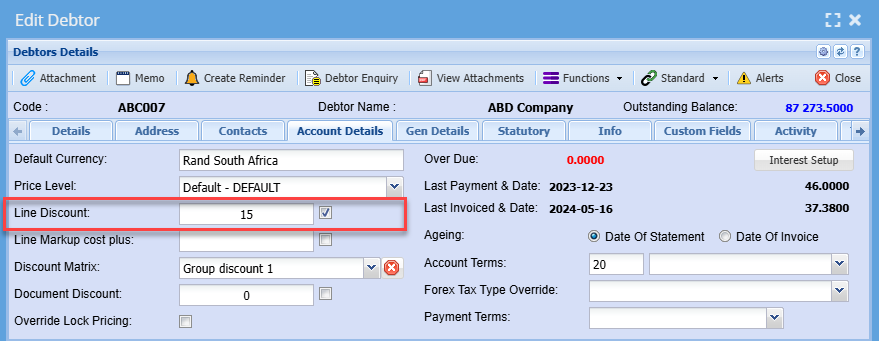
Setup automatic discount on customer setup
Debtors Module> Configuration> Debtor Setup> Account Details Tab
The tick indicates that this discount needs to be applied. If a tick is off, a discount is not applied to documents or line items
There are three types of Discounts namely:
- Line Discount
- Discount Matrix
- Document Discount
Line Discount
Line discount allows a user to put a discount on all items that have been marked to allow line discount.
If an item is not marked to allow line discount it will not add the discount to the line.
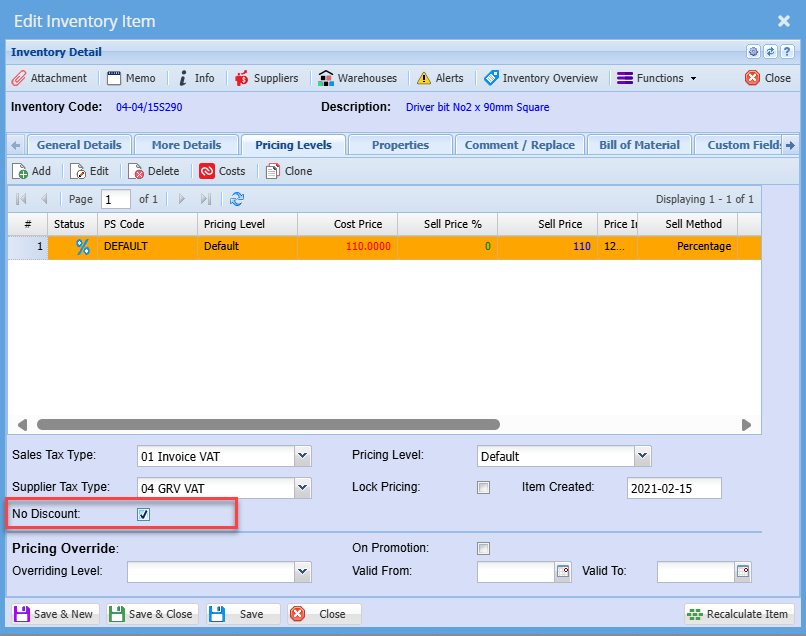
If you don't wish for a specific item to be included in the line discount you need to add a tick to No discount
Go to Inventory module> Configuration> Inventory Setup> Pricing levels
Them put a tick on the No Discount Tickbox

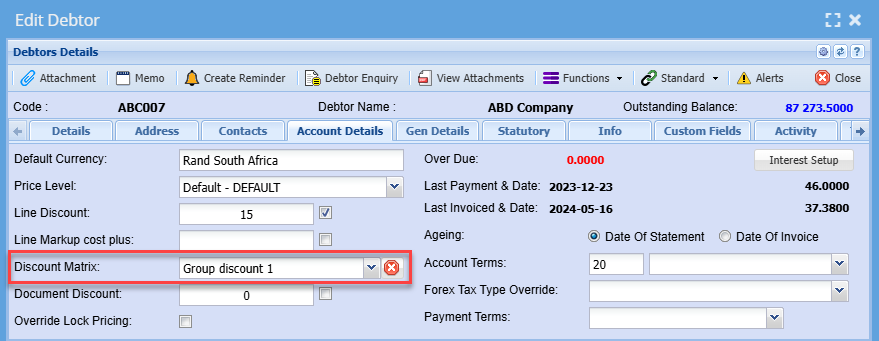
Discount Matrix
Document Discount
Document Discount will give a dis
NOTE:
That when adding new items to the document in Webaccounting after a sync from Webatar.
There will be no discount applied to the new lines added.
This is because when you first open up the document in Webaccounting, discount is applied to the whole document.
.png)
Ageing Periods
Video training manual 2019 - Click Here
Debtor / Customer Setup > Configuration > Setup
.png)
On Hold
On hold refers to the status of a debtor or customer account.
On hold allows you to temporarily restrict certain actions against a debtor or customer, such as processing debtor or customer documents due to the following reasons
- Credit limit exceeded
- Payment issues
- Document requirements and other reasons related to internal policies
How to put a customer on hold:
Debtors/ Customer Module> Configuration> Debtor/Customer setup> Account Details Tab
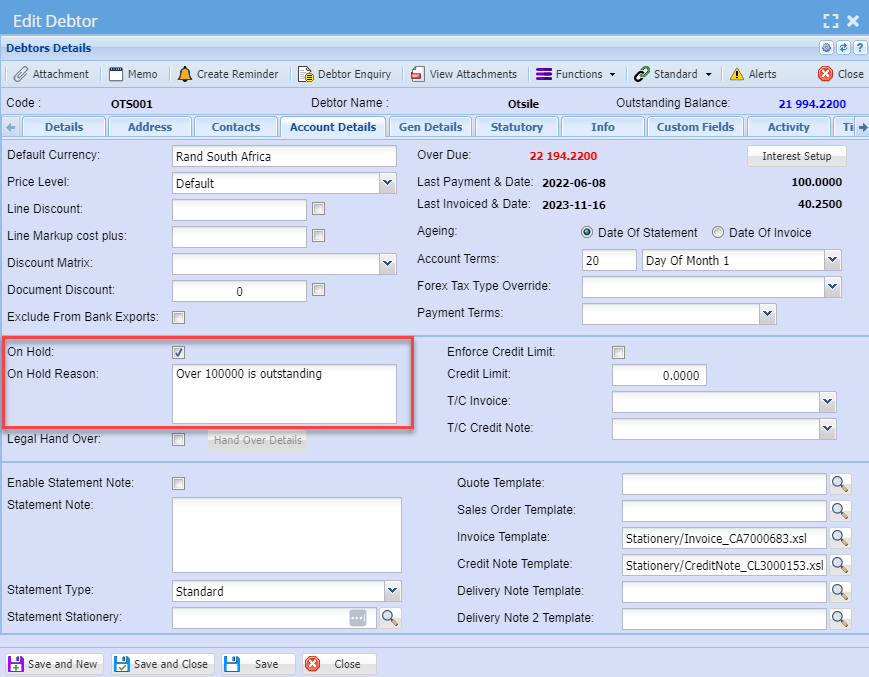
Once done with putting a debtor or customer on hold then click save and close and you will see the icon below on debtor or customer status, the icon means that the customer is on hold

The documents that are affected by Onhold are:
- Quotations
- Sales Order
- Sales Order Confirm
- Invoices
- Credit Notes
- Stock Dispatch
Documents On hold
When a debtor or customer is on hold you can still create all transaction documents, affected by on hold but you will not be able to process them.
You can promote a quotation to invoice or sales order but will not be able to process it.
If a debtor or customer is on hold it will show on the grid and when you are creating any transaction document
See examples below:
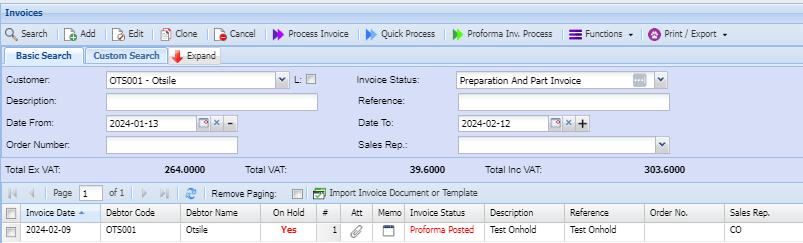
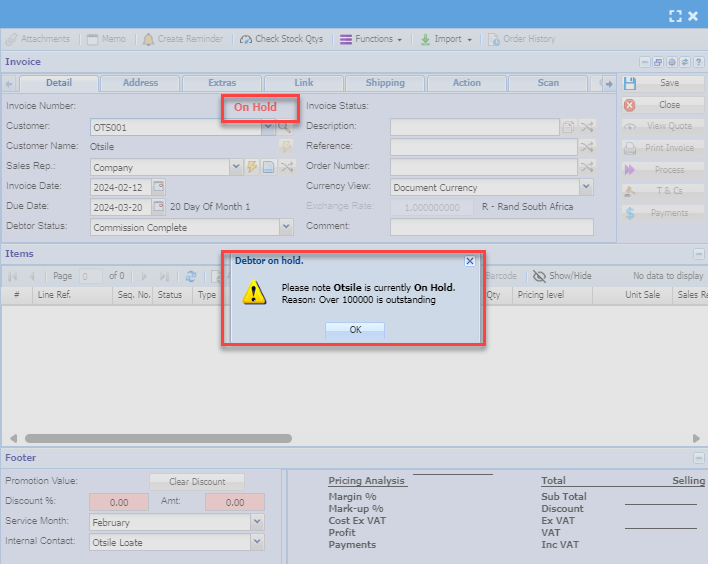
When creating a new invoice or any document for a debtor or customer you will see the prompt below:
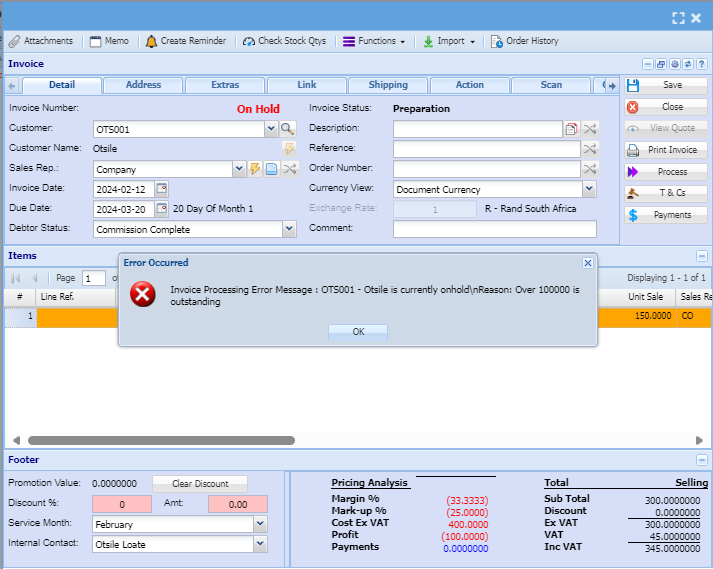
When you have finished capturing a document and click "Process," a prompt message will appear.
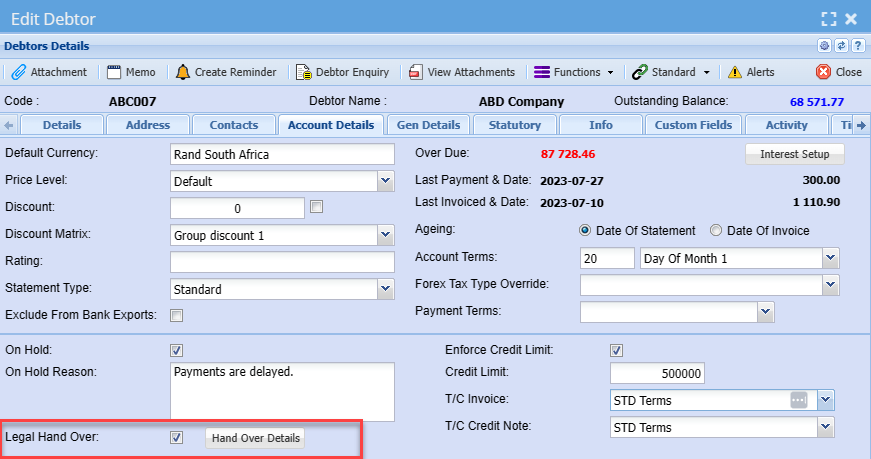
Legal Handover
Legal handover is when you have started legal process of a customer for non-payment.
Tick the box for legal handover.
Legal Hand Over Detail
This is where you complete the legal law firm details and file number for a debtor/ customer you want to handover
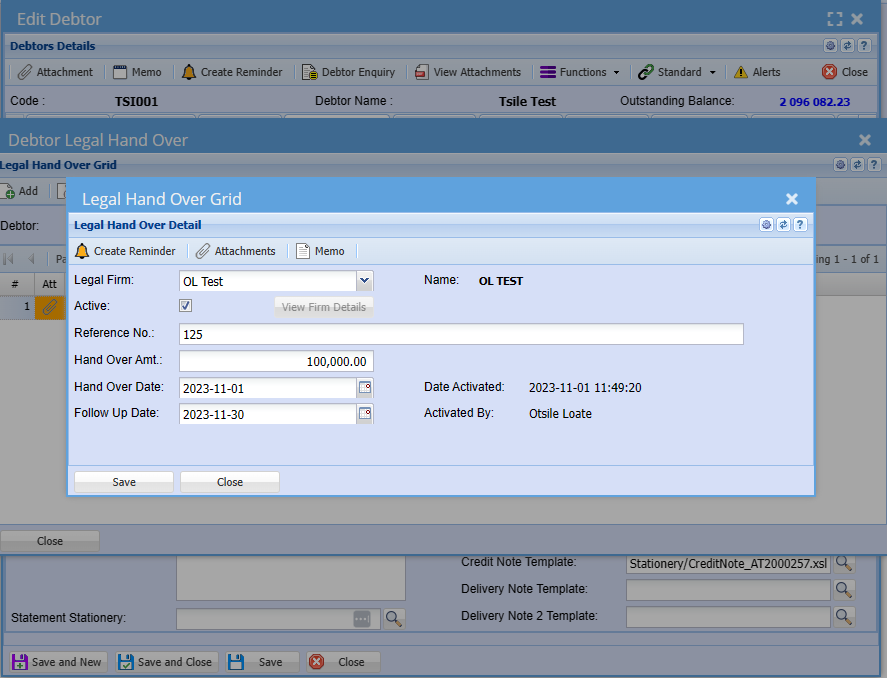
| Legal Firm | Select the legal firm from drop down |
| Active | Put a tick on if active and to deactivate you need to put the tick off |
| View Firm Details |
Click view details to see all details of the firm |
| Reference Number | Enter reference number |
| Hand Over Amount | Enter the amount that should be collected by the handover firm |
| Hand Over Date | Enter handover date |
| Follow-up Date | Enter handover follow-up date |
| Name | The name of the firm will populate after you click save |
| Activated Date | The date the legal handovers were activated |
| Activated By | The name of the person who activated the handover |
Direct Debit
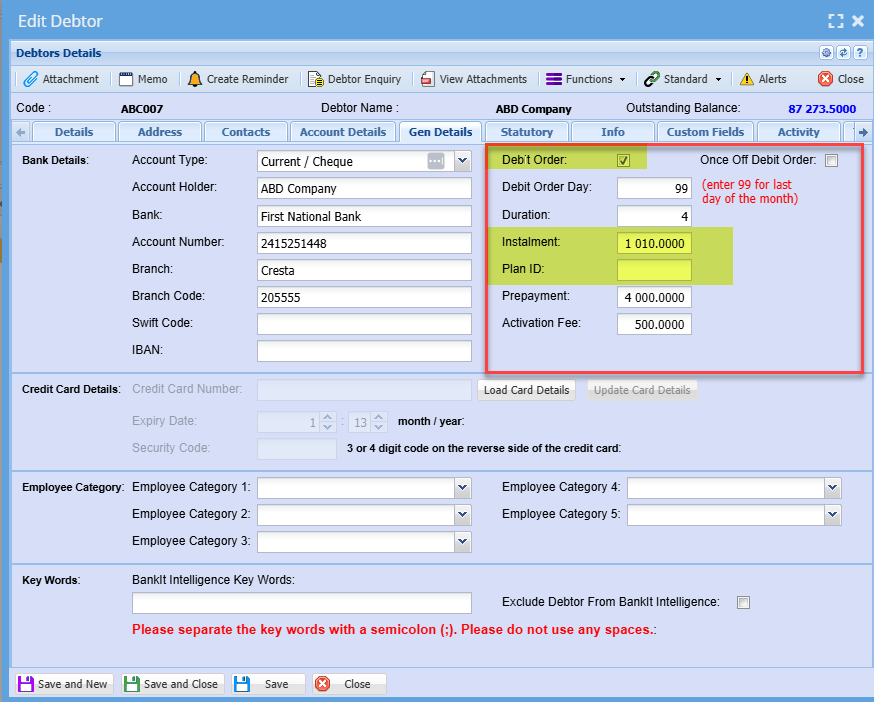
To setup customers with direct debit or direct order flag follow these two steps:
- Mark Debtor/ Customer as debit order by adding a tick to the tick box
- Input information all the necessary information required
Debtors/ Customer Module> Configuration> Debtor/ Customer Setup> Gen Details Tab
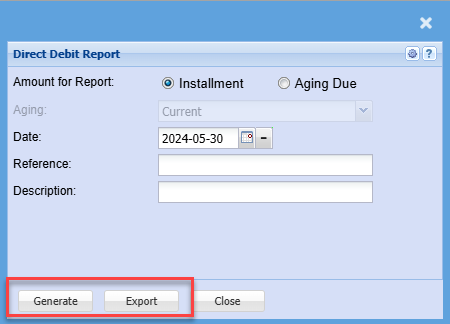
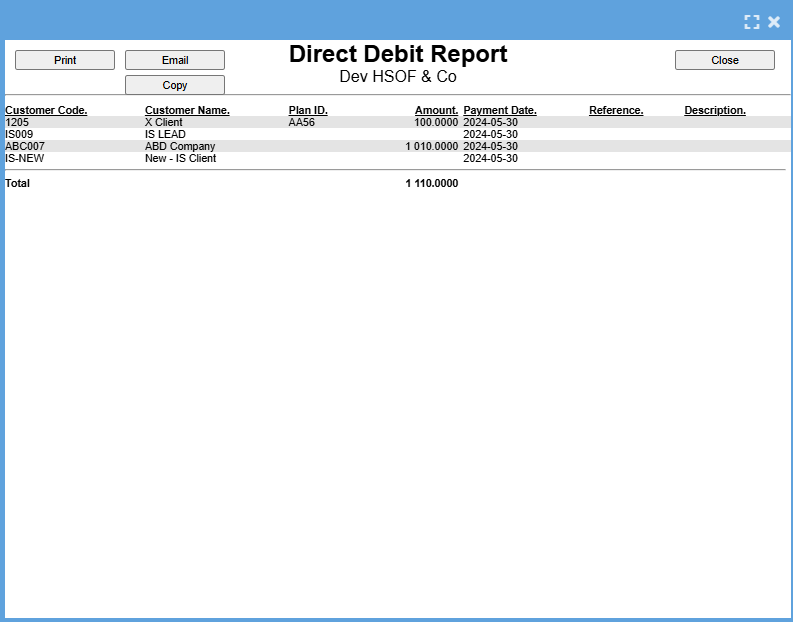
Print or export a report on Direct Debit
Go to Debtors Module> Reports > Direct Debit Report
BankIt Bank Feed
Debtors Module > Customer setup> Edit customer
| 1. Improved intelligence on the Customers and Suppliers | 2. Time log to invoice |
| a. Additional key words on Customers and Suppliers | a. Skip summary screen |
| b. Exclude customers or suppliers from system intelligence | b. Process to invoice after completion of time logs |
| c. Customer invoice number search to allocate to customer. | c. Default set for drop down |
Key Words and Exclude from Bankit Intelligence
.png)
Sales Margin warning
Setting up documents for Sales margin warning
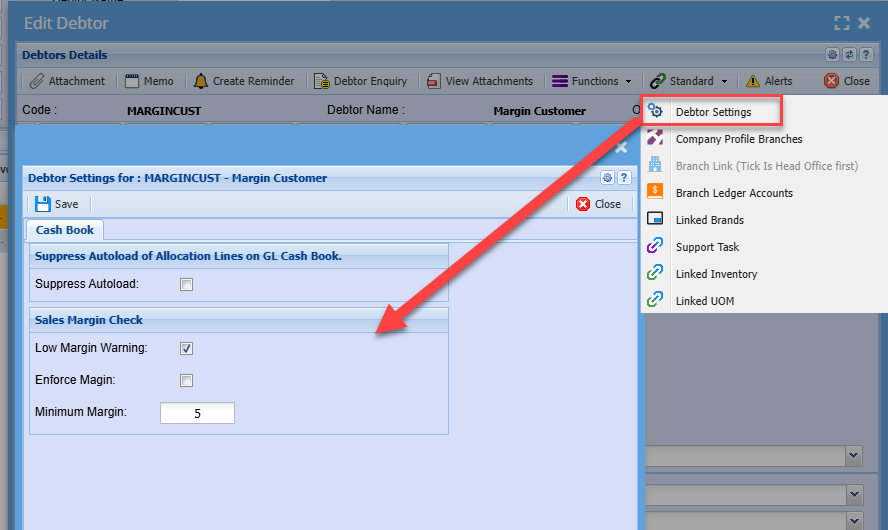
| Low Margin Warning |
If this is enable it will check low margin on adding an item to a sales document. It will check when invoice is processed, giving a warning to proceed or not |
| Enforce Margin | Will not allow an invoice to process if the user is not a margin supervisor |
| Minimum Margin | Enter value for checking margin percentage |
Margin check is on each customer
If you want any new customers to have a default setting, set this up in the system configuration module - Sales Margin Setup
Low Margin Warning
Low margin warning works on the following documents:
- Quotation
- Sales Order
- Invoice
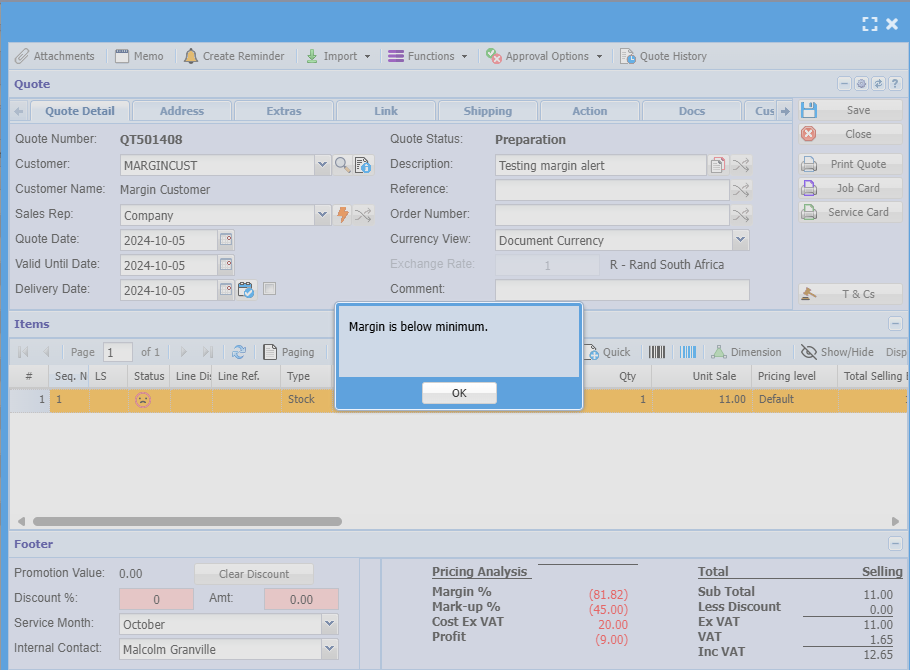
The warning comes up when you add stock item line that is below the margin set up at the customer.
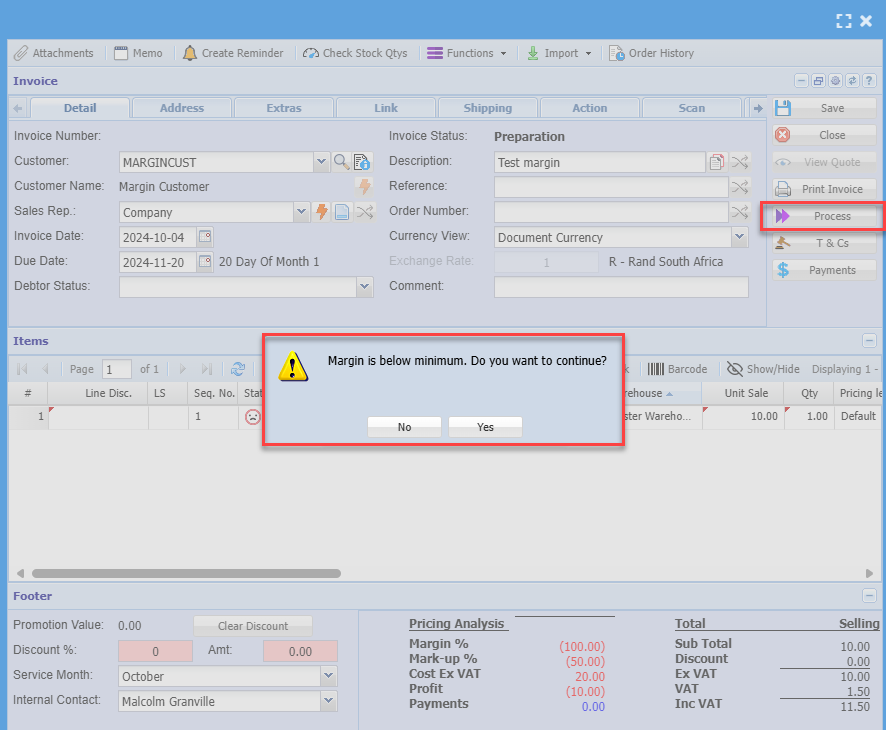
The margin warning also comes up when you are about to process the document, and it is below margin.
The process warning will give you an option to either continue or to correct the margin on the document.
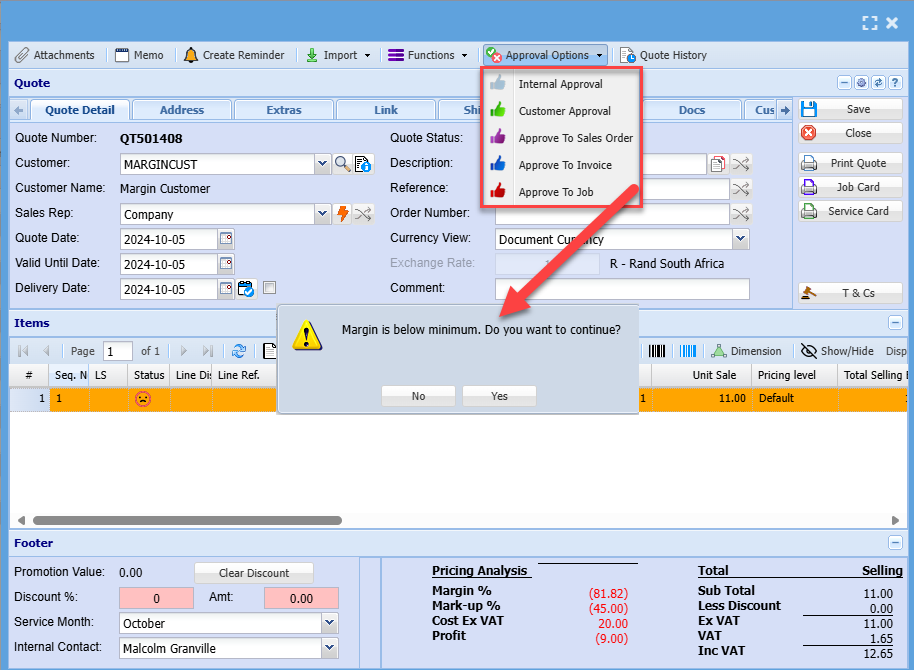
Example of a low margin warning on a stock item add
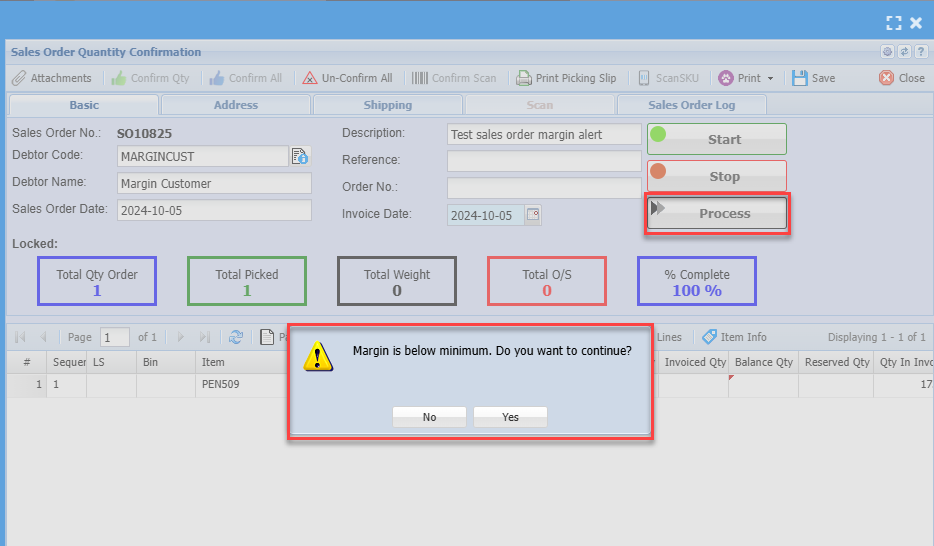
Example of a low margin warning when processing a document
Enforce Margin
When a margin in force is activated on a customer, it means the user cannot process the invoice unless they correct the margin.
However, a margin supervisor can process a document all the way through even though the margin is below.
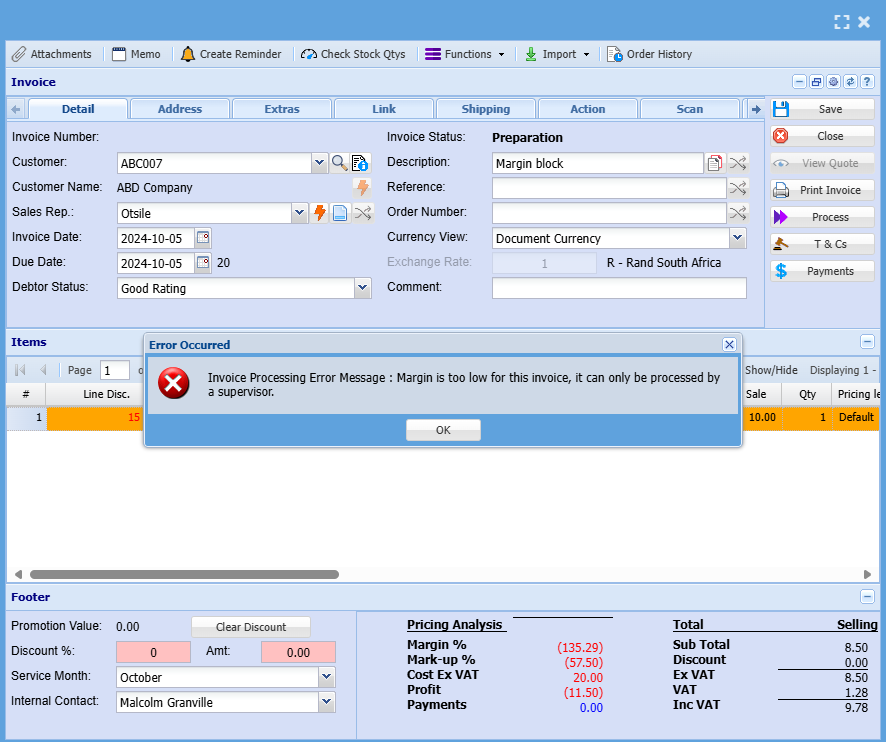
To setup a Sales Margin supervisor, go to the User setup
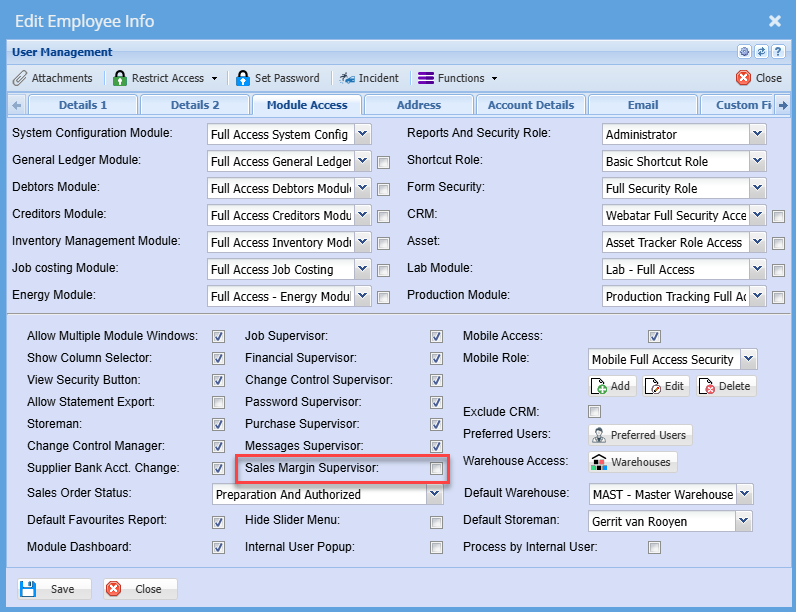
Document margin warnings
Quote warning will show when promoting quote.
Sales order warning will show up when you Process to invoice
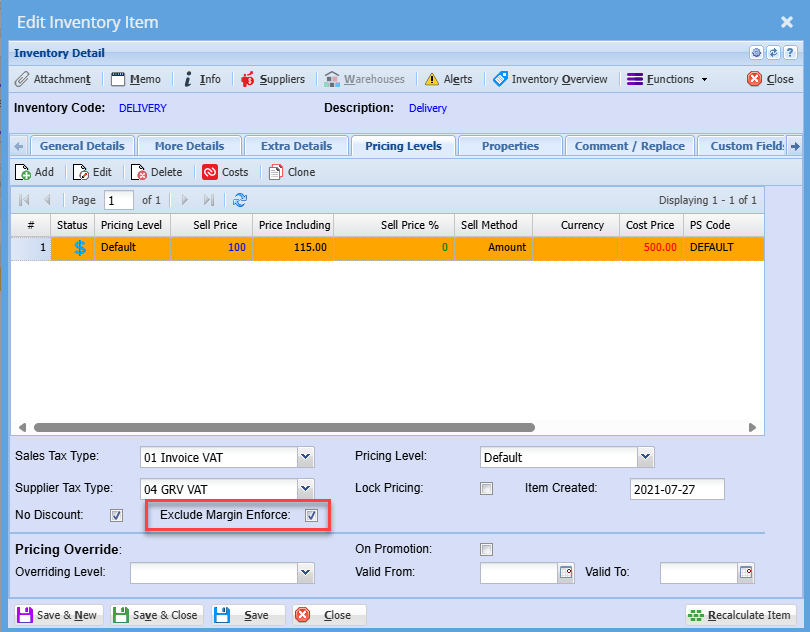
Exclude Margin enforce on inventory items
Exclude items so that one does not need to enter a password where enforce margin is on.
The system will bypass enforce password on items ticked to Exclude margin enforce.
The system will still warn of items below margin.
Good examples of this are Freight, shipping or labour
Overdue account onhold
Setup the system to automatically put a customer account on hold.
Setup a schedule to check customer accounts to put any customer on hold that has any amount overdue.
The customer will be flagged on hold and a note put in as "Account Overdue".
If the account has been settled, the system will check if the account is On-hold with the Reason "Account Overdue".
When the criteria is met and there is no overdue amount, the account will be deselected with On hold and the On Hold Reason cleared.

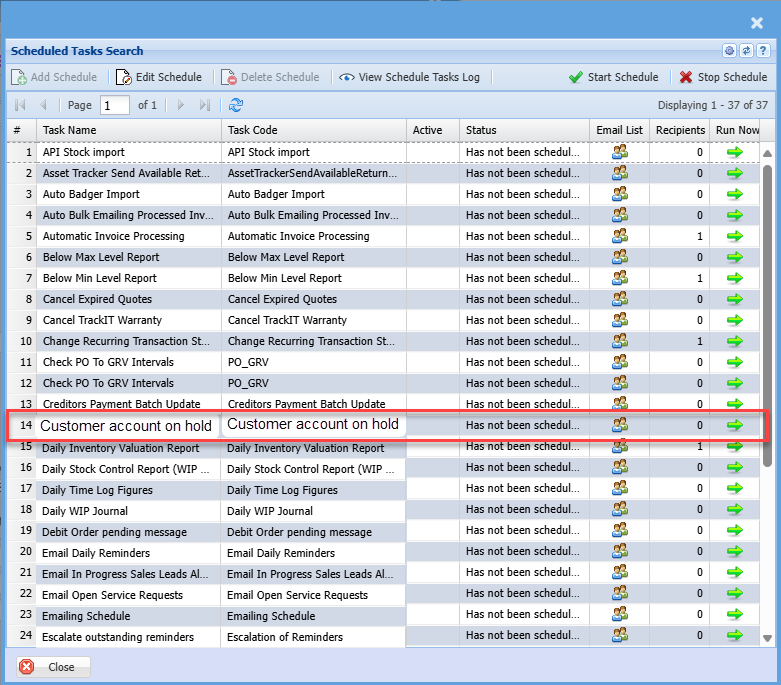
Activate Schedule
Activate the Customer account on hold with overdue amount.
Go to System Configuration, Company Profiles, schedule setup
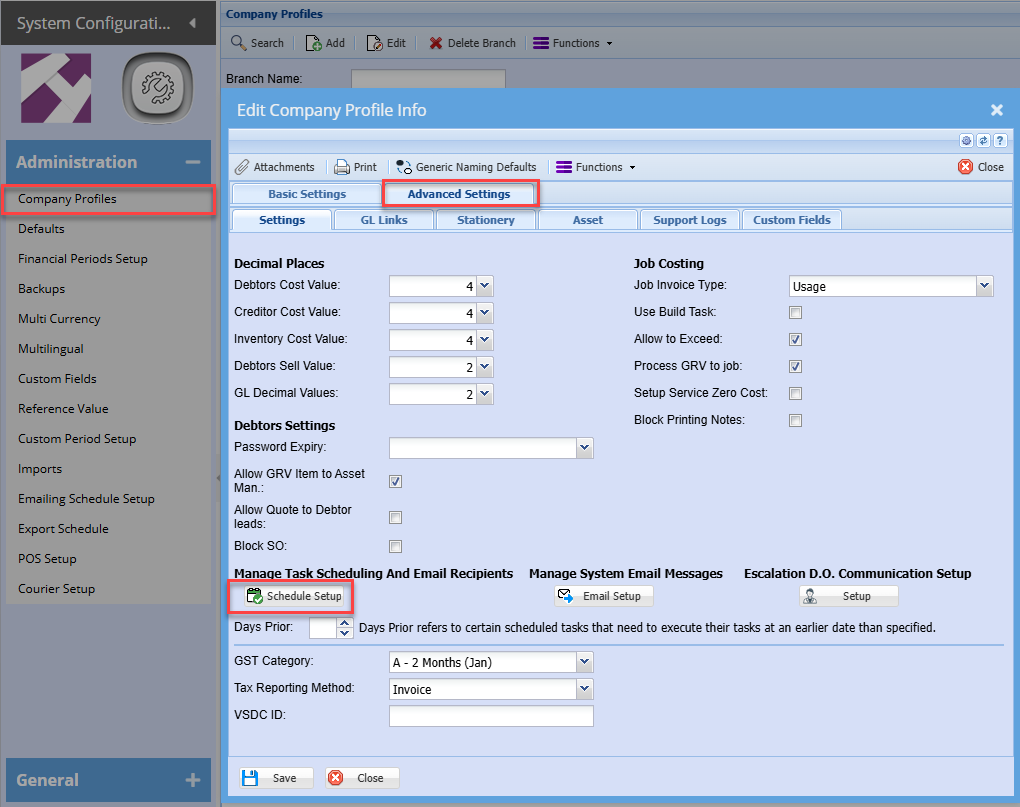
Activate the schedule for Customer account on hold
When setting up email list, then the system will email those on the email list an email to inform which accounts have been put on hold or accounts that have be reactivated.
Automatic email report
Email report sent to users setup in email will receive a report as below

Sales Rep Group Link
This option allows you to link a sales representative to a specific item group when creating a sales document.
Creating a Sales Rep Item Group Template
This allows one to setup a template for Item groups to Sales Rep, this template is used to populate against the customer
Debtors > Configuration > Sales Rep Item group Template
Click "Add"
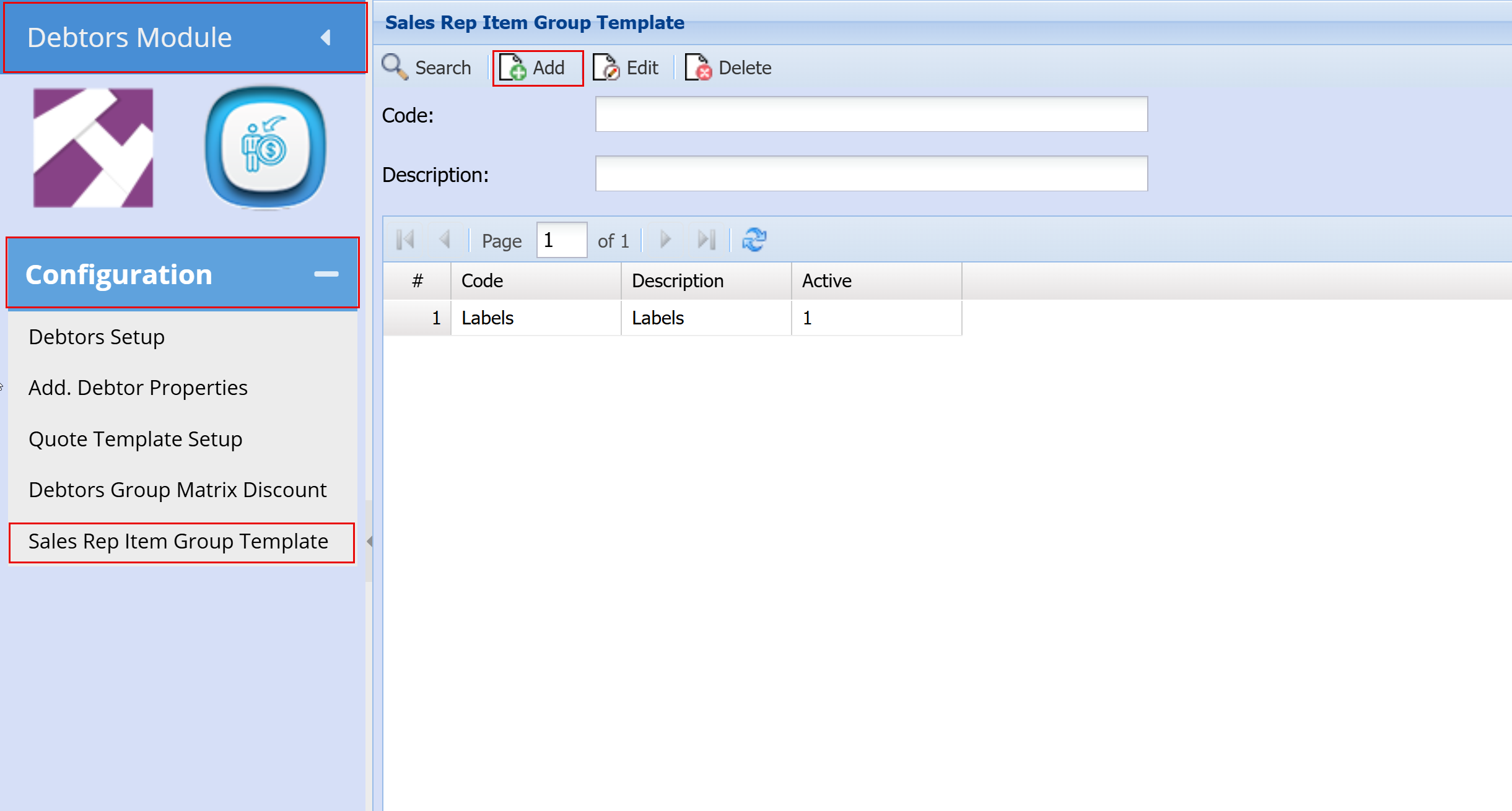
- Add "Code"
- Add "Description"
- Click "Save"
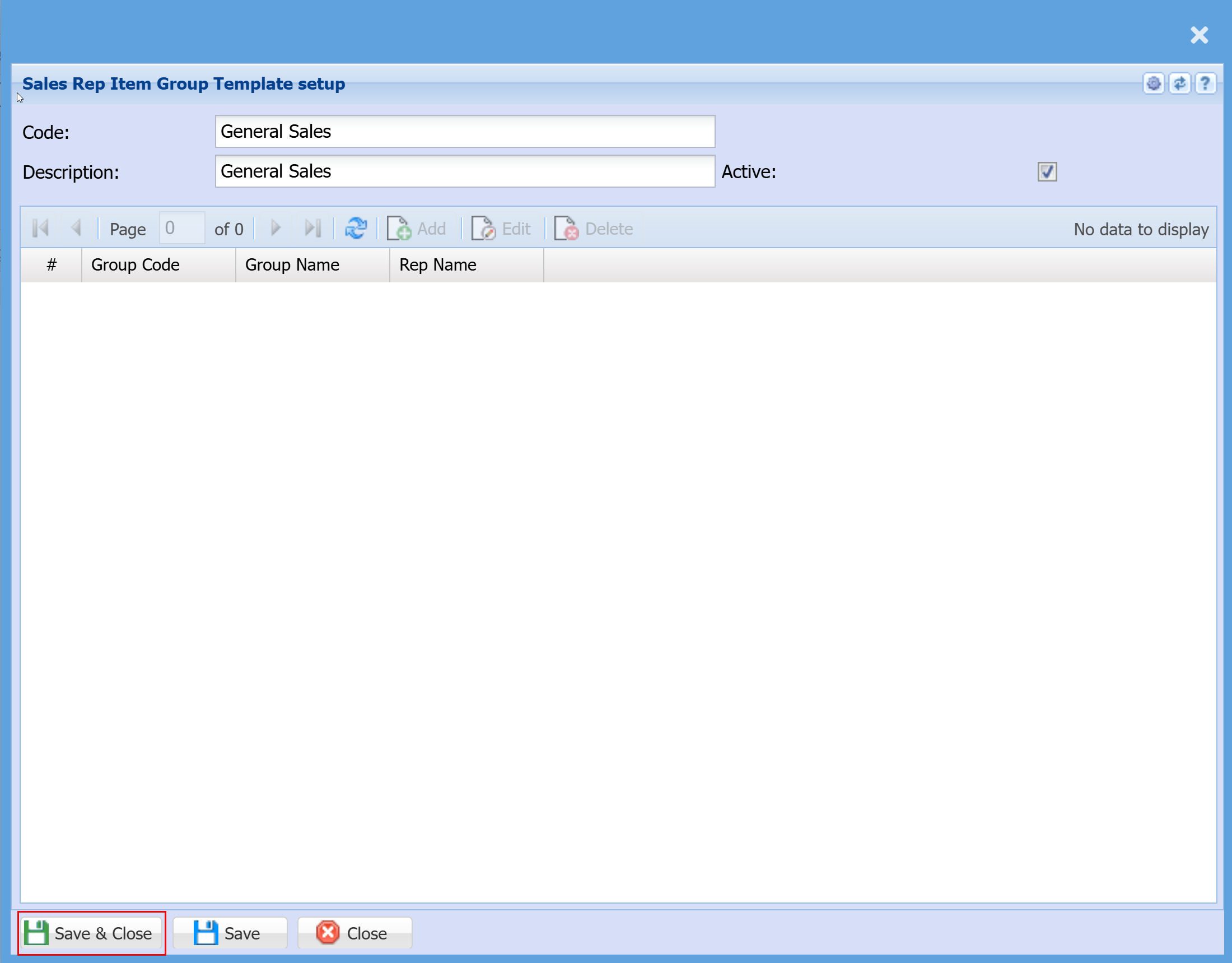
- Click "Add"
- Select "Group Code"
- Select "Sales Rep"
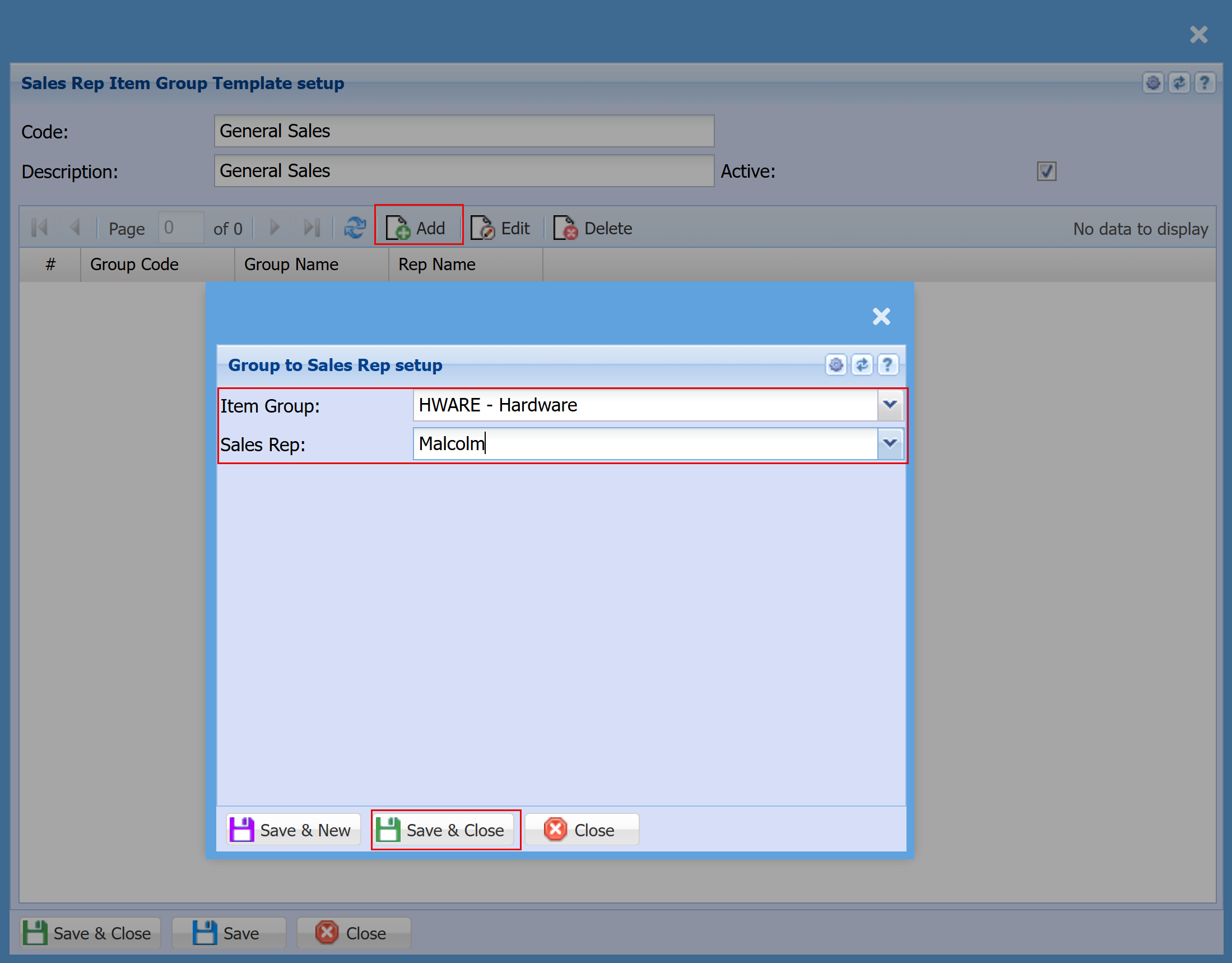
- Click "Save & Close" or "Save & New" to Save or add another Template
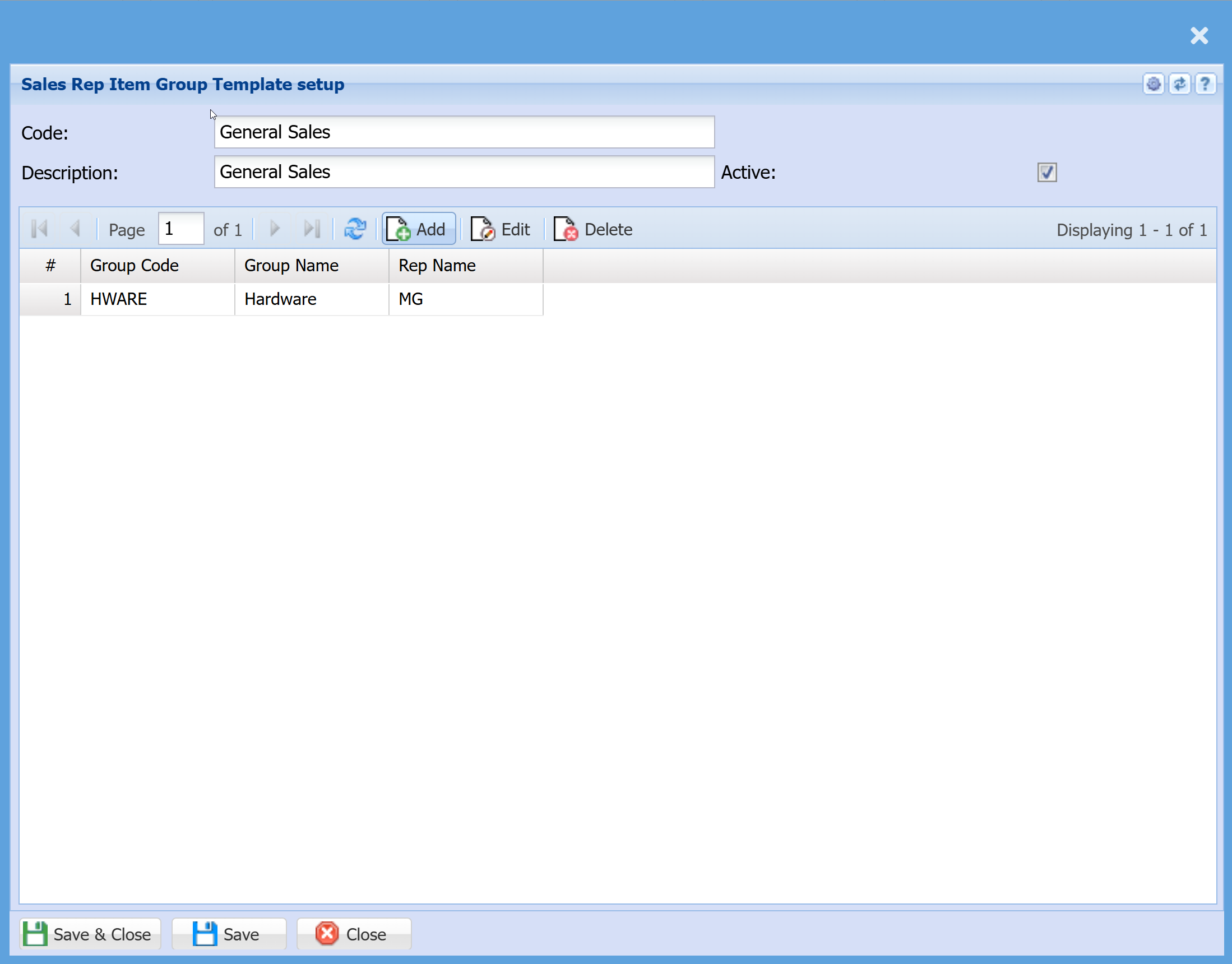
Activate the link between the Sales Rep and Item group
Debtors > Configuration > Debtor Setup
- Search for and open your customer
- Double‑click on the customer record
- Click the Standard dropdown (top right of the screen)
- Select Rep Code to Group Code
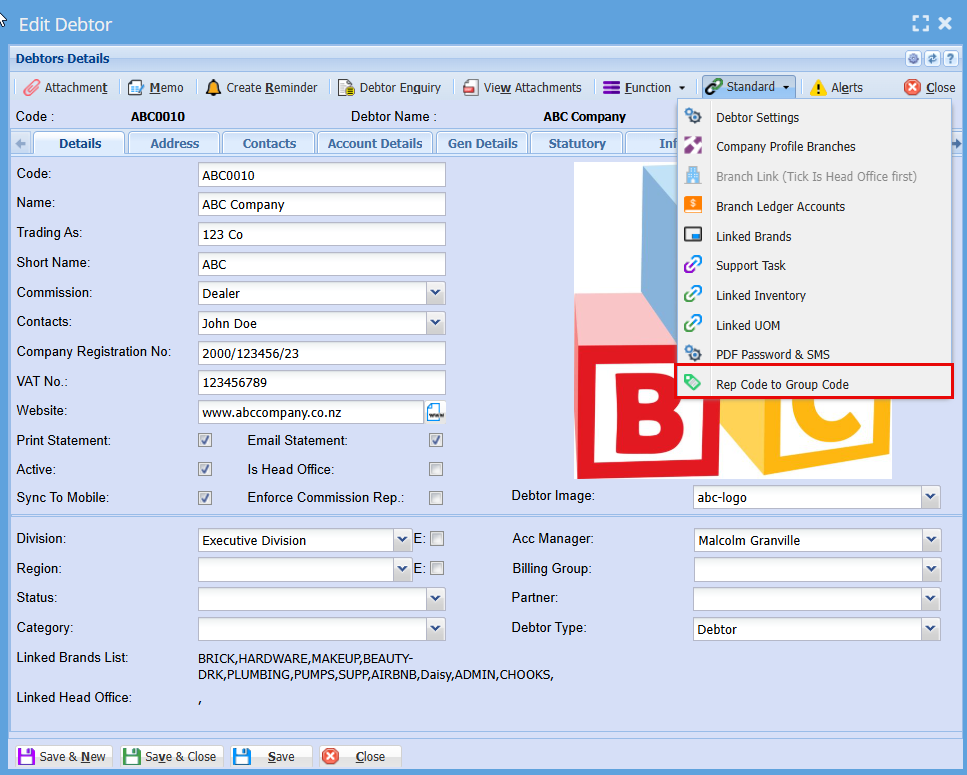
Tick the "Activate" Box
Click "Add"
If this option is not active, the system will assign the default sales representative to the document.
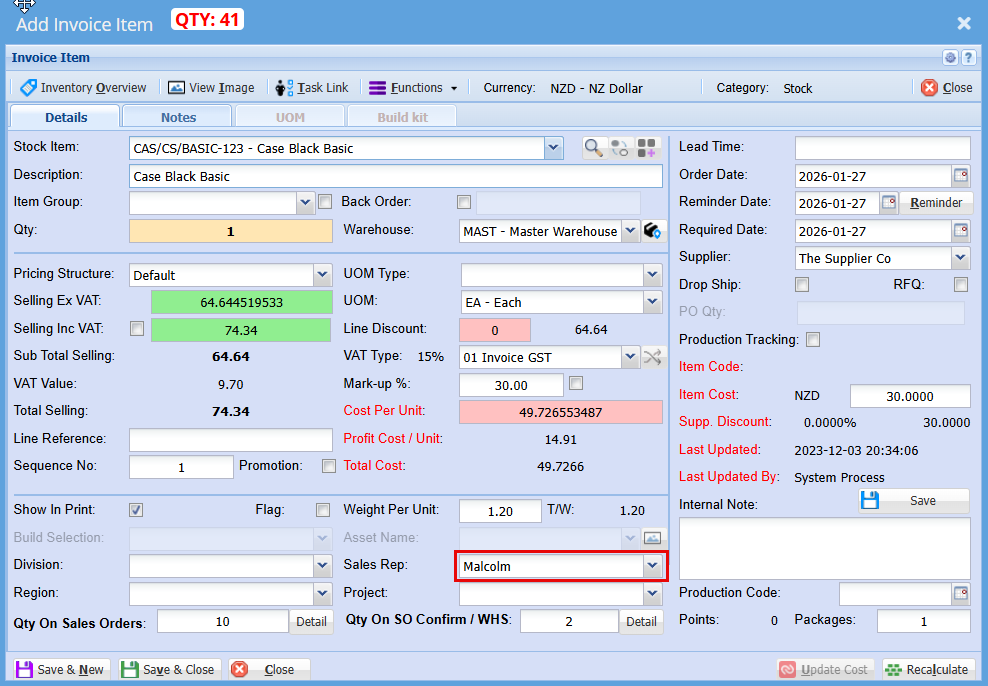
When enabled, the sales document will check the customer and the stock item’s group, then override the sales representative on the item line. This means each line item on the document can have a different rep code assigned.
Sales document will check customer, stock item on the group and then override the sales rep on the Item line
This means that per line item can have a different rep code
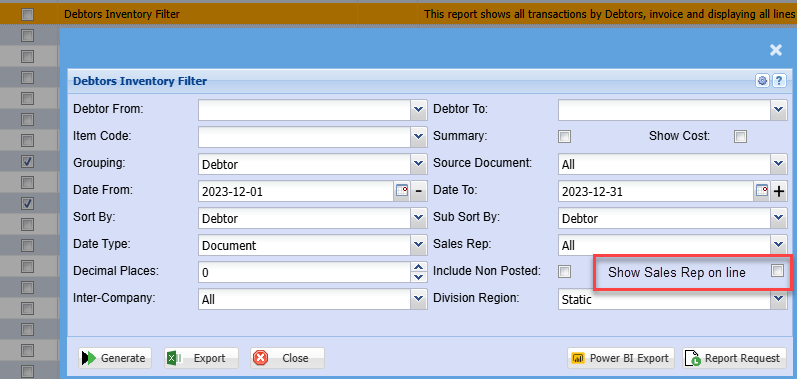
Sales report updated to view sales rep by line or by document
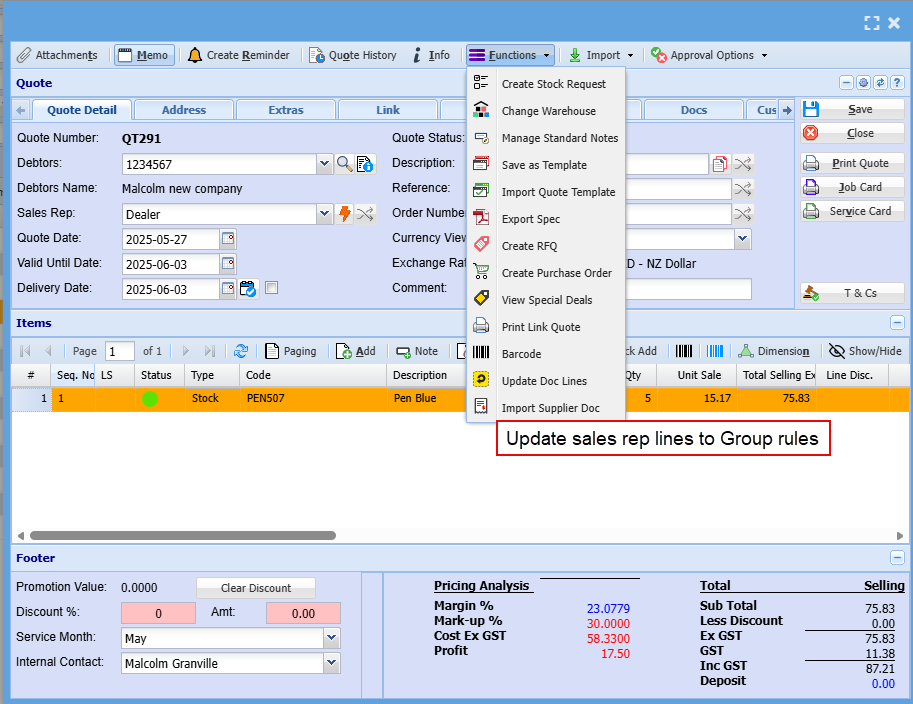
Function update
Function to update all document lines with sales reps based on group sales reps
Documents to have this rule:
- Quote
- Sales Order
- Invoice
- Credit note
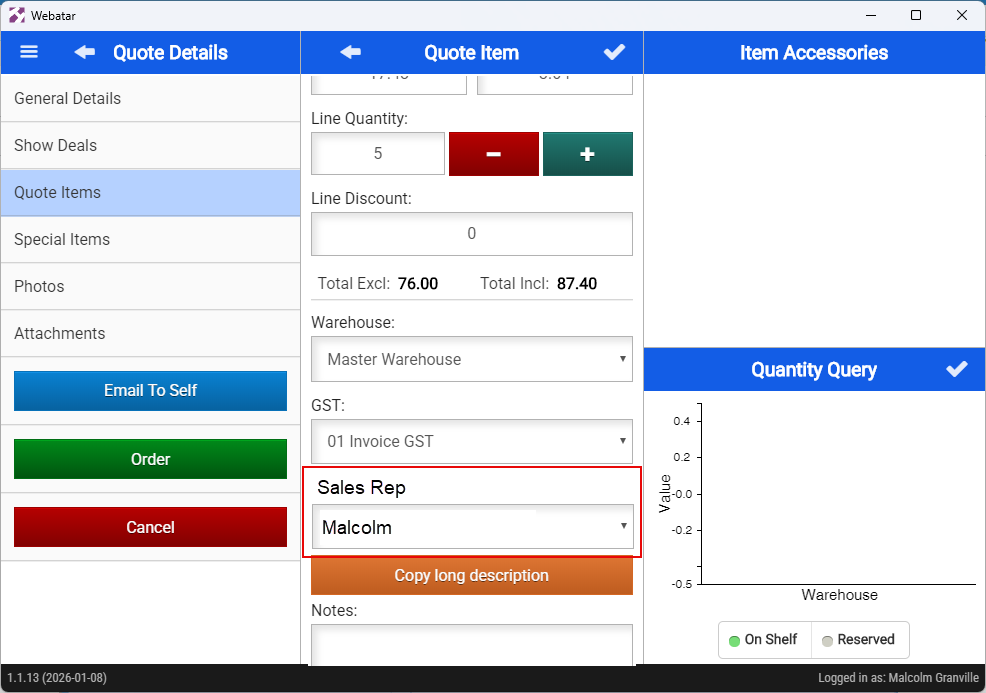
Webatar quote update sales reps per line
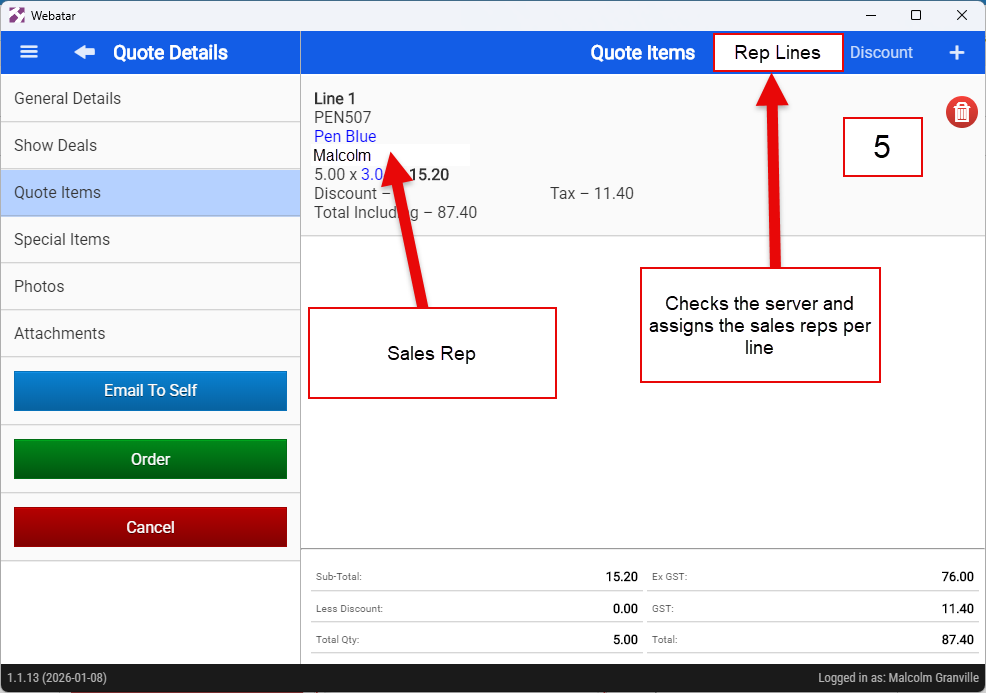
Sales rep per line
When the quote is created, the sales rep is taken from the general details default sales rep