# Email Template Letters
# Email Template Letter Setup
Email templates are **set up and maintained by the customer**. The system does not provide pre‑configured content. Customers are responsible for creating, updating, and approving all email wording, layout, using the appropriate [placeholders](https://hugeerp10.co.za/hsofmanual/link/1628#bkmrk-placeholders).
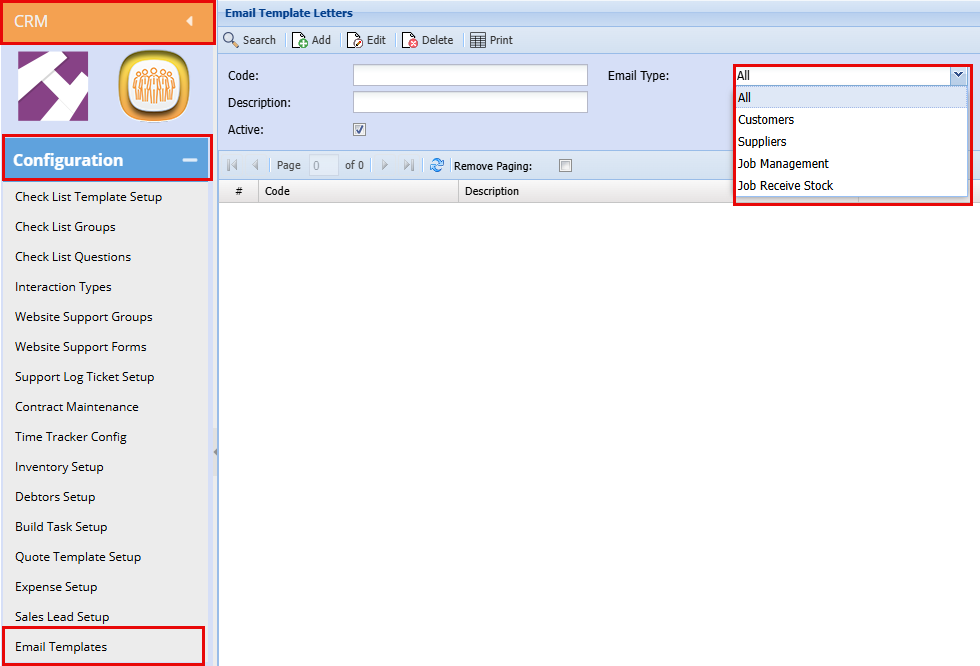
There are **Five email template options**, each used for a different part of the system.
**CRM > Configuration > Email Template**
[](https://hugeerp10.co.za/hsofmanual/uploads/images/gallery/2026-04/ECaimage.png)
---
##### 1: Customers:
This option is used for **Customer Batch Email Out**.
[Bulk Email Template Setup](https://hugeerp10.co.za/hsofmanual/link/1044#bkmrk-page-title)
Email templates for **Customer mail‑outs** are designed, created, and managed in the **CRM Module**
- Customer mail‑outs uses a customer contact list that can also be customized.
[Creating a customer mailing](https://hugeerp10.co.za/hsofmanual/books/bcr-activity/chapter/email-mailing-menu)
---
##### 2: Suppliers
This option controls emails sent to **suppliers**.
Email Template Setup
Email templates for **Supplier mail‑outs** are **designed, created, and managed in the same location as customer Emails** within the system and for email type you will select Suppliers.
Uses a separate template specific to supplier communication
---
##### 3: Job Management
This option is used for emails generated through the **Job Management** and are designed, created, and managed in the **CRM Module**.
---
##### 4: Job Receive Stock
This option is used when emails are sent during the **Job Receive Stock** process. **Job receive Stock** email templates are designed, created, and managed in the **CRM Module**
For the email to be triggered, stock items must be correctly configured with the appropriate setting enabled.
[Stock Item Setup](https://hugeerp10.co.za/hsofmanual/books/bcm-activity/page/email-send-on-receive-stock#bkmrk-page-title)
- This email is triggered when stock is received against a job
---
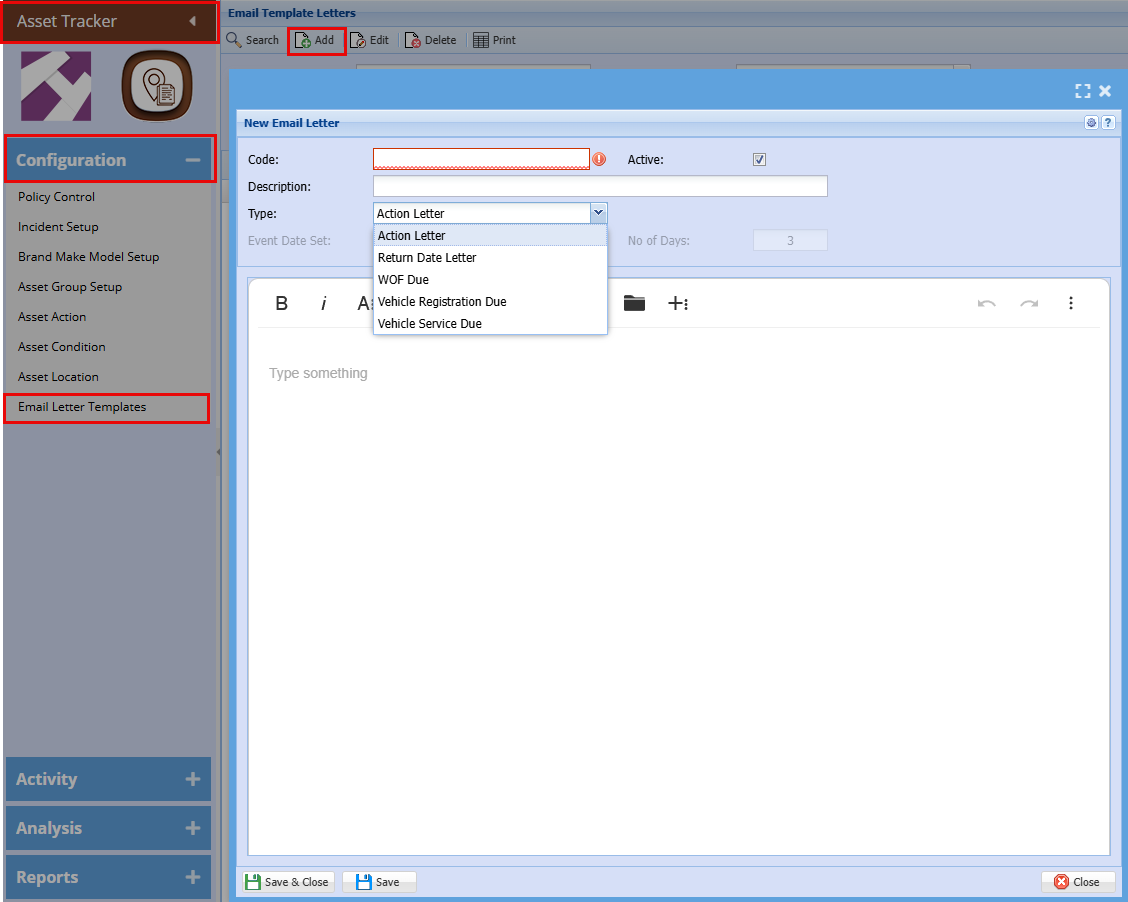
##### 5: Asset Email Out:
This option is used for **Asset Email Out via the Webatar App**
**Asset Tracker > Configuration > Email Letter Template**
These emails can be Scheduled as needed for Asset Allocation, Service dates, Return dates etc.
[Asset Email out Setup Manual](https://hugeerp10.co.za/hsofmanual/books/aat-configuration/page/asset-email-letter-templates#bkmrk-page-title)
[](https://hugeerp10.co.za/hsofmanual/uploads/images/gallery/2026-04/JOhimage.png)
Email templates for **Asset Actions** are **designed, created, and managed within the Asset Module**
- Asset mail out are sent to the specific staff member being allocated the asset through the Webatar App.
- To activate the Mail out for each item the **“Return Date Email”** checkbox needs to be ticked at bottom of the **Asset Information** page, tick the **“Return Date Email”** checkbox to activate this mail‑out.
| Assign to employee |
|
| Job Description |
|
| Asset Number |
|
| Asset Name |
|
| Checklist Number |
|
| Checklist Description |
|