# Add Creditor

Adding or Editing a new Creditor / Supplier.

This has many tabs and sections to be filled in.

<span lang="EN-US">To create a new Creditor or edit and existing Creditor:</span>

<span lang="EN-US">Go to: <span style="color: rgb(45, 194, 107);">**Creditors Module&gt; Configuration&gt; Creditors Setup**</span></span>

<span lang="EN-US">To edit an existing Creditor click the Edit Button or to add a new Creditor Click the Add Button</span>

<span lang="EN-US">![](https://hugeerp10.co.za/hsofmanual/uploads/images/gallery/2023-08/embedded-image-0b3h23kz.png)</span>

#### Details Tab

In this section add the basic information for the Creditor

Minimum details are Creditor Code and Name

[![image.png](https://hugeerp10.co.za/hsofmanual/uploads/images/gallery/2023-10/scaled-1680-/uhOimage.png)](https://hugeerp10.co.za/hsofmanual/uploads/images/gallery/2023-10/uhOimage.png)

<table border="1" id="bkmrk-creditors-code-creat" style="width: 100%;"><colgroup><col style="width: 17.433%;"></col><col style="width: 82.5422%;"></col></colgroup><tbody><tr><td>**<span class="ts0">Creditors Code</span>**</td><td><span lang="EN-US">Create a unique code that identifies the supplier/creditor. The Code field </span><span lang="EN-US">can be Alfa Numeric.</span>

<span style="color: rgb(35, 111, 161);"><span lang="EN-US">Recommend: If using only numbers for the code, do not start the code with </span><span lang="EN-US">the number zero (0), as this may cause complications when exporting data. </span></span>

</td></tr><tr><td>**<span class="ts0">Name</span>**</td><td><span class="ts0">Enter the name of the supplier/creditor. <span lang="EN-US">This will ideally be the registered name</span><span lang="EN-US"> of the Creditor. </span></span><span class="ts0">The Name field can be Alfa Numeric and over 500 Characters long</span>

</td></tr><tr><td>**<span class="ts0">Short Name</span>**</td><td><span lang="EN-US">This is essentially a shortened form of the supplier company name, e.g.: ABI</span></td></tr><tr><td>**<span class="ts0">Contact Person</span>**</td><td><span class="ts0">This is a drop down and only shows contact Names which has being entered from the Contact Persons tab: A default contact person can be added against the Supplier</span></td></tr><tr><td>**<span class="ts0">Website</span>**</td><td><span class="ts0">Enter the website address for the Supplier</span></td></tr><tr><td>**<span class="ts0">Registration No</span>**</td><td><span class="ts0">Enter the registration number for the Supplier</span></td></tr><tr><td>**<span class="ts0">VAT Number</span>**</td><td><span class="ts0">Enter the VAT number for the Supplier (if applicable).</span></td></tr><tr><td>**<span class="ts0">Creditor Image</span>**</td><td><span class="ts0">This drop down will only shows Images which have being uploaded as attachments. </span>

<span class="ts0">Select an image for the creditor to show on the right</span>

</td></tr></tbody></table>

<span lang="EN-US">Tick the boxes “Print Statement and Email Statement. This allows for statements (Remittance Advise) to be generated and emailed directly to the Creditor/ Supplier.</span>

<table border="1" id="bkmrk-active-indicates-and" style="width: 100%;"><colgroup><col style="width: 14.4563%;"></col><col style="width: 85.519%;"></col></colgroup><tbody><tr><td>**<span lang="EN-US">Active</span>**</td><td><span lang="EN-US">Indicates and sets the Creditor as an active creditor. Should you no longer deal with the particular Creditor and do not want to see the creditor on searches, then remove the tick on this box</span></td></tr><tr><td>**<span lang="EN-US">Sync to Mobile</span>**</td><td><span lang="EN-US">This tick allows for the particular Creditor to be sync to the Webatar Mobile App</span></td></tr></tbody></table>

<span lang="EN-US">Creditors can be categorized by using one or more of the following fields:</span>

<span lang="EN-US">Division, Region, Creditor Type, Creditor Status</span>

<span lang="EN-US">These fields are user defined as such options can be added to suite your companies specific requirements.</span>

<table border="1" id="bkmrk-division-could-be-us"><colgroup><col></col><col></col></colgroup><tbody><tr><td>**<span lang="EN-US">Division</span>**</td><td><span lang="EN-US">Could be used for differentiating creditors specific to different branches of the organization</span></td></tr><tr><td>**<span lang="EN-US">Region</span>**</td><td><span lang="EN-US">Could be used for Geographic region the creditor is located</span></td></tr><tr><td>**<span lang="EN-US">Our Account No.</span>**</td><td><span lang="EN-US">  
</span></td></tr><tr><td>**<span lang="EN-US">Comment</span>**</td><td><span lang="EN-US">  
</span></td></tr><tr><td>**<span lang="EN-US">Acc Manager</span>**</td><td><span lang="EN-US">  
</span></td></tr><tr><td>**<span lang="EN-US">Creditor Status</span>**</td><td><span lang="EN-US">  
</span></td></tr><tr><td>**<span lang="EN-US">Creditor Type</span>**</td><td><span lang="EN-US">Could be used for the type of supplier, i.e. Raw Materials, Consumables, etc.</span></td></tr><tr><td>**<span lang="EN-US">Clearing Agent Tick</span>**</td><td><span lang="EN-US">  
</span></td></tr><tr><td>**<span lang="EN-US">Forwarding Agent Tick</span>**</td><td><span lang="EN-US">  
</span></td></tr></tbody></table>

<span lang="EN-US">Once you have entered the above information, click the save button for the Address and Contacts Tabs to be activated.</span>

<p class="callout info"><span lang="EN-US">Note: All the above fields are not mandatory by default. The creditor Code and Name are minimum requirements</span></p>

---

<span style="color: rgb(34, 34, 34); font-family: var(--font-heading, var(--font-body)); font-size: 1.666em; font-weight: 400;">Attachments</span>

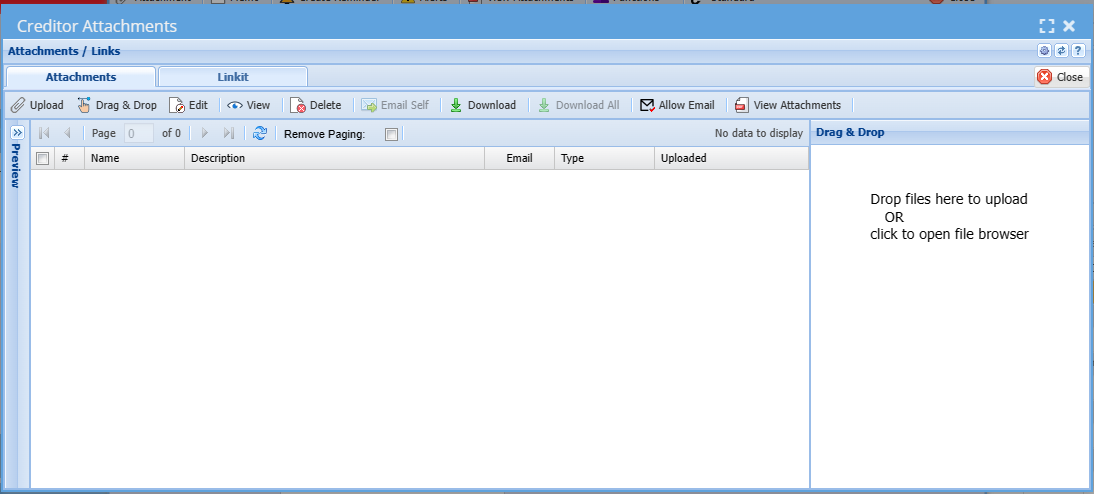
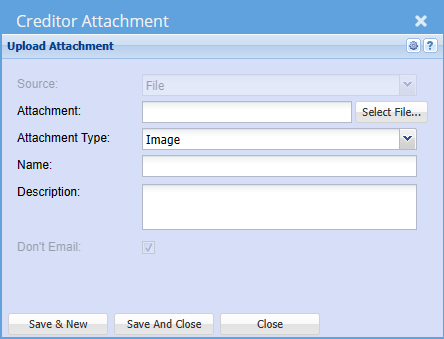
<span lang="EN-US">In this tab we allow for unlimited amount of uploads of documents to be attached to the Creditor. You can attach pictures, Excel sheets, Word and PDF Documents and any file you wish.</span>

[![image.png](https://hugeerp10.co.za/hsofmanual/uploads/images/gallery/2023-11/scaled-1680-/87Ximage.png)](https://hugeerp10.co.za/hsofmanual/uploads/images/gallery/2023-11/87Ximage.png)

<span lang="EN-US">When you click on the Attachments Button the following will come up. You can then drag &amp; drop or upload any documents required.</span>

[![image.png](https://hugeerp10.co.za/hsofmanual/uploads/images/gallery/2023-11/scaled-1680-/tpgimage.png)](https://hugeerp10.co.za/hsofmanual/uploads/images/gallery/2023-11/tpgimage.png)

[![image.png](https://hugeerp10.co.za/hsofmanual/uploads/images/gallery/2023-11/scaled-1680-/YYQimage.png)](https://hugeerp10.co.za/hsofmanual/uploads/images/gallery/2023-11/YYQimage.png)
---


#### Memo

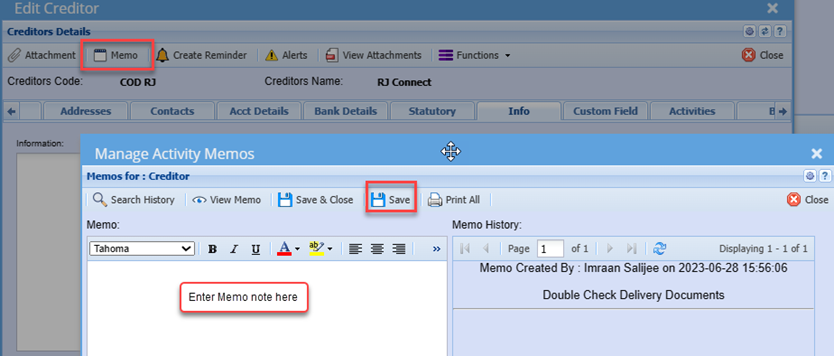
<span style="mso-bidi-font-family: Calibri; mso-bidi-theme-font: minor-latin;">Should there be any information or comments related to the Credit that you wish to note for users to access and be aware of, you can enter this information on the memo note</span>

<span style="mso-bidi-font-family: Calibri; mso-bidi-theme-font: minor-latin;">Memo notes are Date and time stamped and also logs the user how added the Memo</span>

<span style="mso-no-proof: yes;">![](https://hugeerp10.co.za/hsofmanual/uploads/images/gallery/2023-08/embedded-image-37cpoufp.png)</span>

---

<span style="color: rgb(34, 34, 34); font-family: var(--font-heading, var(--font-body)); font-size: 1.666em; font-weight: 400;">Address Tab</span>

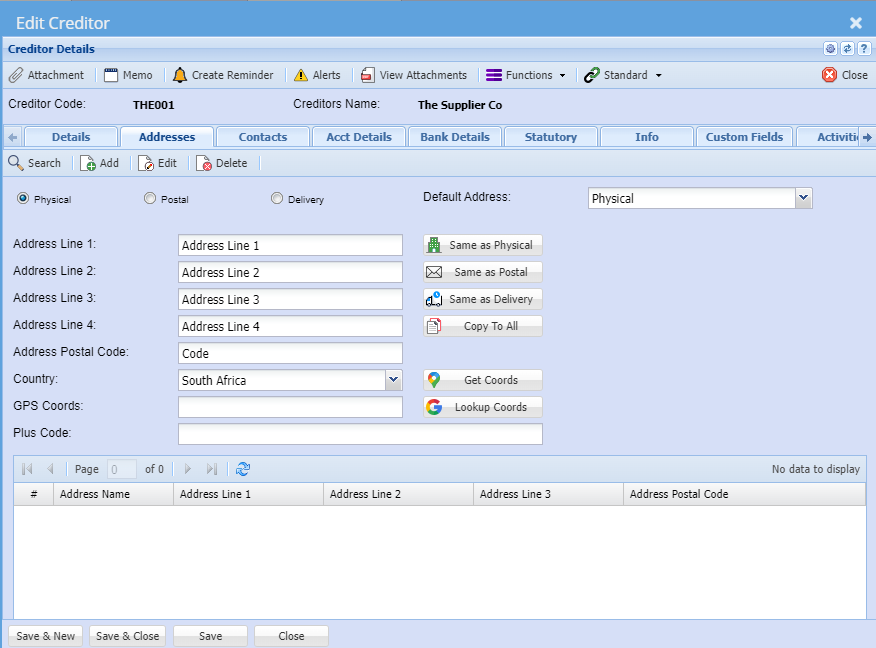
<span class="ts0">Fill in the Physical, Postal and Delivery addresses in the Address Tab. There are buttons called “Same as Physical” etc., once the Postal area button is clicked, it will copy all the details from the Physical Address to the Postal address.</span>

<span class="ts0">The system also allows the entering of multiple Delivery addresses. All addresses created can be selected at the time of the documents i.e. Purchase Orders.</span>

[![image.png](https://hugeerp10.co.za/hsofmanual/uploads/images/gallery/2023-10/scaled-1680-/kNWimage.png)](https://hugeerp10.co.za/hsofmanual/uploads/images/gallery/2023-10/kNWimage.png)

<table border="1" id="bkmrk-default-address-this" style="width: 100%;"><colgroup><col style="width: 25.9557%;"></col><col style="width: 74.0443%;"></col></colgroup><tbody><tr><td>**<span class="ts0">Physical</span>**</td><td><span class="ts0">Physical address default setting</span></td></tr><tr><td>**<span class="ts0">Postal</span>**</td><td><span class="ts0">  
</span></td></tr><tr><td>**<span class="ts0">Delivery</span>**</td><td><span class="ts0">  
</span></td></tr><tr><td>**<span class="ts0">Default Address</span>**</td><td><span class="ts0">This can be selected to be used whenever a document is created, you can override the address selection at the document level.</span></td></tr><tr><td>**<span class="ts0">Address Line 1</span>**</td><td><span class="ts0">  
</span></td></tr><tr><td>**<span class="ts0">Address Line 2</span>**</td><td><span class="ts0">  
</span></td></tr><tr><td>**<span class="ts0">Address Line 3</span>**</td><td><span class="ts0">  
</span></td></tr><tr><td>**<span class="ts0">Address Line 4</span>**</td><td><span class="ts0">  
</span></td></tr><tr><td>**<span class="ts0">Address Postal Code</span>**</td><td><span class="ts0">  
</span></td></tr><tr><td>**<span class="ts0">Country</span>**</td><td><span class="ts0">  
</span></td></tr><tr><td>**<span class="ts0">GPS Coords</span>**</td><td><span class="ts0">  
</span></td></tr><tr><td>**<span class="ts0">Plus Code</span>**</td><td><span class="ts0">  
</span></td></tr><tr><td>**<span class="ts0">User defined address grid</span>**</td><td><span class="ts0">  
</span></td></tr></tbody></table>

Buttons to define address

<table border="1" id="bkmrk-same-as-physical-sam" style="border-collapse: collapse; width: 100%; height: 178.781px;"><colgroup><col style="width: 26.4816%;"></col><col style="width: 73.6421%;"></col></colgroup><tbody><tr style="height: 29.7969px;"><td style="height: 29.7969px;">**Same as Physical**</td><td style="height: 29.7969px;">  
</td></tr><tr style="height: 29.7969px;"><td style="height: 29.7969px;">**Same as Postal**</td><td style="height: 29.7969px;">  
</td></tr><tr style="height: 29.7969px;"><td style="height: 29.7969px;">**Same as Delivery**</td><td style="height: 29.7969px;">  
</td></tr><tr style="height: 29.7969px;"><td style="height: 29.7969px;">**Copy to All**</td><td style="height: 29.7969px;">  
</td></tr><tr style="height: 29.7969px;"><td style="height: 29.7969px;">**Get Coords**</td><td style="height: 29.7969px;">  
</td></tr><tr style="height: 29.7969px;"><td style="height: 29.7969px;">**Lookup Coords**</td><td style="height: 29.7969px;"> </td></tr></tbody></table>

---

#### Contacts Tab

In this tab you can create all the relevant people who work for this company, including all their details.

[![image.png](https://hugeerp10.co.za/hsofmanual/uploads/images/gallery/2023-11/scaled-1680-/KL6image.png)](https://hugeerp10.co.za/hsofmanual/uploads/images/gallery/2023-11/KL6image.png)

<table border="1" id="bkmrk-insert-button-to-ins" style="width: 44.8148%;"><tbody><tr><td style="width: 35.6169%;">**<span class="ts7">View button</span>**</td><td style="width: 64.3279%;"><span class="ts7">to view the contact</span></td></tr><tr><td style="width: 35.6169%;">**<span class="ts7">Add button</span>**</td><td style="width: 64.3279%;"><span class="ts7">to add a new contact</span></td></tr><tr><td style="width: 35.6169%;">**<span class="ts7">Edit button</span>**</td><td style="width: 64.3279%;"><span class="ts7">to edit the contact</span></td></tr><tr><td style="width: 35.6169%;">**<span class="ts7">Delete button</span>**</td><td style="width: 64.3279%;"><span class="ts7">to delete the contact person</span></td></tr><tr><td style="width: 35.6169%;">**<span class="ts7">Show All Tick</span>**</td><td style="width: 64.3279%;"><span class="ts7">  
</span></td></tr></tbody></table>

<table border="1" id="bkmrk-telephone-1-telephon" style="border-collapse: collapse; width: 45.3086%; height: 148px;"><colgroup><col style="width: 34.3961%;"></col><col style="width: 65.5493%;"></col></colgroup><tbody><tr style="height: 29.6px;"><td style="height: 29.6px;">**Telephone 1**</td><td style="height: 29.6px;">  
</td></tr><tr style="height: 29.6px;"><td style="height: 29.6px;">**Telephone 2**</td><td style="height: 29.6px;">  
</td></tr><tr style="height: 29.6px;"><td style="height: 29.6px;">**Fax**</td><td style="height: 29.6px;"> </td></tr><tr style="height: 29.6px;"><td style="height: 29.6px;">**Mobile No**</td><td style="height: 29.6px;">  
</td></tr><tr style="height: 29.6px;"><td style="height: 29.6px;">**Email**</td><td style="height: 29.6px;">  
</td></tr></tbody></table>

Click the Add button to add Creditors contacts details

[![image.png](https://hugeerp10.co.za/hsofmanual/uploads/images/gallery/2023-11/scaled-1680-/bPYimage.png)](https://hugeerp10.co.za/hsofmanual/uploads/images/gallery/2023-11/bPYimage.png)

<span lang="EN-US">Enter the contact persons First Name, Surname, Contact Numbers and email address:</span>

<span lang="EN-US">You can add the addition details if preferred</span>

<span lang="EN-US">If the particular Contact person being added is the default contact for this particular Creditor, you can click the Update Company and Set as Default button, which saves you from recapturing these details as default contacts</span>

<table border="1" id="bkmrk-receive-remittance-t" style="border-collapse: collapse; width: 100%;"><colgroup><col style="width: 18.5679%;"></col><col style="width: 81.5309%;"></col></colgroup><tbody><tr><td>**Receive Remittance**</td><td><span lang="EN-US">Ticking this box implies that the particular Contact can receive remittance </span>advises when emailed from the system.

</td></tr></tbody></table>

<span lang="EN-US">Recommended that the contact person’s email addresses are captured as this will save the</span>

<span lang="EN-US">User from manually having to type the email each time documents are emailed from the system.</span>

---

<span style="color: rgb(34, 34, 34); font-family: var(--font-heading, var(--font-body)); font-size: 1.666em; font-weight: 400;">Account Details Tab</span>

The account details tab stores all the specific account information related to this creditor

<span class="ts28">I</span><span class="ts0">mportant information about the Creditor can be added in the Account Details. For purposes of security, lock down this tab as a precaution against users who should not have access to these details.</span>

<span class="ts0">When doing a Goods Received Note for example a message will appear to the user that the account is on hold and will give the reason for it.</span>

[![image.png](https://hugeerp10.co.za/hsofmanual/uploads/images/gallery/2023-11/scaled-1680-/bHSimage.png)](https://hugeerp10.co.za/hsofmanual/uploads/images/gallery/2023-11/bHSimage.png)

<table border="1" id="bkmrk-currency-when-workin" style="font-family: var(--font-body); font-size: 14px; width: 100%;"><colgroup><col style="width: 15.0766%;"></col><col style="width: 84.8987%;"></col></colgroup><tbody><tr><td>**<span class="ts0">Currency</span>**</td><td><span class="ts0">The system caters for Multicurrency. As such one can setup a foreign creditor account and all values could then be in USD, Euro etc. When working with multi-currency Suppliers, you can select the default currency to work with on that Supplier. Note - Once the first transaction has been posted against the currency you cannot change the currency.</span></td></tr><tr><td>**<span class="ts0">Account Terms</span>**</td><td><span class="ts0">Select the terms of your Supplier in the drop down. This is the account payment terms that the organization has with the creditor, e.g. COD, 30 Days, 60 Days, etc.</span>

<p class="callout info"><span class="ts0">Note: The account terms set here will determine and auto populate the due dates on Purchase orders.</span></p>

</td></tr><tr><td>**<span class="ts0">Rating</span>**</td><td>  
</td></tr><tr><td>**<span class="ts0">Discount</span>**</td><td><span class="ts0">Used as an indication of discount rates received from the Supplier. <span lang="EN-US">Should the creditor always allow a discount percentage to all purchases made, you can set </span><span lang="EN-US">this on the discount field and the discount percentage will then pull through to all purchase </span><span lang="EN-US">Orders created.</span></span></td></tr><tr><td>**<span class="ts0">Outstanding Balance</span>**</td><td><span class="ts0">This is the running balance of the Supplier irrespective of transaction dates.</span></td></tr><tr><td>**<span class="ts0">Aging</span>**</td><td><span class="ts0">We allow for aging of Date of Statement and Date of Invoice per Creditor. <span lang="EN-US" style="mso-ansi-language: EN-US;">This is the ageing method for outstanding accounts</span><span lang="EN-US" style="mso-ansi-language: EN-US;"><span style="mso-spacerun: yes;"> i</span>s the terms calculated from Date of Invoice or Month End (Statement) Date.</span></span></td></tr><tr><td>**Forex Tax Type Override**</td><td><span lang="EN-US" style="mso-ansi-language: EN-US;">This field is only used for Foreign Creditors where the default GRV VAT type will not apply </span><span lang="EN-US" style="mso-ansi-language: EN-US;">You can select Non-VAT or Import VAT here, which will pull through to order and prevent </span><span lang="EN-US" style="mso-ansi-language: EN-US;">users from erroneously selecting GRV VAT. </span><span lang="EN-US" style="mso-ansi-language: EN-US;">For local Creditors, you will leave this blank</span>

</td></tr><tr><td>**Payment Terms**</td><td>  
</td></tr><tr><td>  
</td><td>  
</td></tr><tr><td style="height: 46.4px;">**<span class="ts0">Credit Limit</span>**</td><td><span class="ts0">This field is used to enter the purchasing limit from a Supplier. This could be enforced or used as an indicator. <span lang="EN-US">You can enter a purchase limit value and select to enforce the limit or not</span><span lang="EN-US"> if this limit is reached, the system will notify the user that the credit limit will be </span><span lang="EN-US">exceeded and provide option to continue (depending on if limit is enforced or not)</span></span></td></tr><tr><td>**<span class="ts0">Enforce Credit limit</span>**</td><td><span class="ts0">Tick this check box if you want to enforce the credit limit indicated in the Credit limit box.</span></td></tr><tr><td>**<span class="ts0">On Hold</span>**</td><td><span class="ts0">Tick this box to put the Supplier account on hold. <span lang="EN-US" style="mso-ansi-language: EN-US;">Should you wish to not deal with a particular supplier but do not want to de activate the creditor, you can set the Creditor on hold, which will prevent any orders from being processed.</span></span></td></tr><tr><td>**<span class="ts0">On Hold Reason</span>**</td><td><span class="ts0">Put in a reason for putting the Supplier on hold.</span></td></tr><tr><td>**<span class="ts0">  
</span>**</td><td><span class="ts0">  
</span></td></tr><tr><td>**<span class="ts0">Enable Statement Note</span>**</td><td><span class="ts0">  
</span></td></tr><tr><td>**<span class="ts0">Statement Note</span>**</td><td><span class="ts0">If you tick the box and put a message in the Statement text box, this message will appear on this Supplier’s statement only. If you have added a global message under System Configuration Module – Administration Company Profiles both messages will appear on the statement</span></td></tr><tr><td>**<span class="ts0">T/C GRV</span>**

</td><td><span class="ts0">  
</span></td></tr><tr><td>**<span class="ts0">T/C Stock Return</span>**</td><td><span class="ts0">  
</span></td></tr><tr><td>**<span class="ts0">Statement Template</span>**</td><td><span class="ts0">  
</span></td></tr></tbody></table>

---

<span style="color: rgb(34, 34, 34); font-family: var(--font-heading, var(--font-body)); font-size: 1.666em; font-weight: 400;">Bank Details Tab</span>

Put in all the information of the Creditor’s bank details.

[![image.png](https://hugeerp10.co.za/hsofmanual/uploads/images/gallery/2023-11/scaled-1680-/eR9image.png)](https://hugeerp10.co.za/hsofmanual/uploads/images/gallery/2023-11/eR9image.png)

<table border="1" id="bkmrk-bank-name-of-the-ban" style="width: 100%;"><colgroup><col style="width: 19.3998%;"></col><col style="width: 80.5755%;"></col></colgroup><tbody><tr><td>**<span class="ts7">Bank</span>**</td><td><span class="ts7">Name of the bank of the Supplier</span></td></tr><tr><td>**<span class="ts7">Account Number</span>**</td><td><span class="ts7">Account number of the Supplier</span></td></tr><tr><td>**<span class="ts7">Account Type</span>**</td><td><span class="ts7">The type of account the Supplier has example, Current or Savings etc.</span></td></tr><tr><td>**<span class="ts7">Branch</span>**</td><td><span class="ts7">The Branch name of the bank of the Supplier</span></td></tr><tr><td>**<span class="ts7">Branch Code</span>**</td><td><span class="ts7">The branch code of the bank of the Supplier</span></td></tr><tr><td>**<span class="ts7">Beneficiary Reference (20)</span>**</td><td><span class="ts7">  
</span></td></tr><tr><td>**<span class="ts7">Payment Type</span>**</td><td><span class="ts7">  
</span></td></tr><tr><td>**<span class="ts7">Payment Frequency</span>**</td><td><span class="ts7">  
</span></td></tr><tr><td>**<span class="ts7">Payment Code</span>**</td><td><span class="ts7">  
</span></td></tr><tr><td>**<span class="ts7">GL Category</span>**</td><td><span class="ts7">  
</span></td></tr><tr><td>**<span class="ts7">Classification</span>**</td><td><span class="ts7">  
</span></td></tr><tr><td>**<span class="ts7">PDF Passwords</span>**</td><td><span class="ts7">PDF passwords allow passwords to be attached to the various documents for security purposes. Only give the passwords to the Supplier so he can open the documents. If the fields are left blank, the PDF will just open. We have split PDF passwords to various document types so each document can be directed to various people in the organization.</span></td></tr><tr><td>**<span class="ts7">Note</span>**</td><td><span class="ts7">When a document is generated with the PDF password it cannot be changed on that specific document when it was created. You can however change PDF passwords every month, but it is a good idea to write all passwords down for the specific months.</span></td></tr><tr><td>**<span class="ts7">PO Password</span>**</td><td><span class="ts7">  
</span></td></tr><tr><td>**<span class="ts7">GRV Password</span>**</td><td><span class="ts7">  
</span></td></tr><tr><td>**<span class="ts7">Stock Return Password</span>**</td><td><span class="ts7">  
</span></td></tr><tr><td>**<span class="ts7">Report Password</span>**

</td><td><span class="ts7">  
</span></td></tr><tr><td>**<span class="ts7">Statement Password</span>**</td><td><span class="ts7">  
</span></td></tr><tr><td>**<span class="ts7">Key Words</span>**</td><td><span class="ts7"><span lang="EN-US" style="mso-bidi-font-family: Calibri; mso-bidi-theme-font: minor-latin; mso-ansi-language: EN-US;">This fields allows for specific words which appear on Bank statement entries and is used on the BankIT intelligence feature in the system</span></span></td></tr></tbody></table>

<p class="callout info"><span lang="EN-US" style="mso-bidi-font-family: Calibri; mso-bidi-theme-font: minor-latin; mso-ansi-language: EN-US;">Note: When a document is generated with the PDF password it cannot be changed on that specific document when it was created.<span style="mso-spacerun: yes;"> </span>You can however change PDF passwords every month, but it is a good idea to write all passwords down for the specific months.</span></p>

---

<span style="color: rgb(34, 34, 34); font-family: var(--font-heading, var(--font-body)); font-size: 1.666em; font-weight: 400;">Statutory Tab</span>

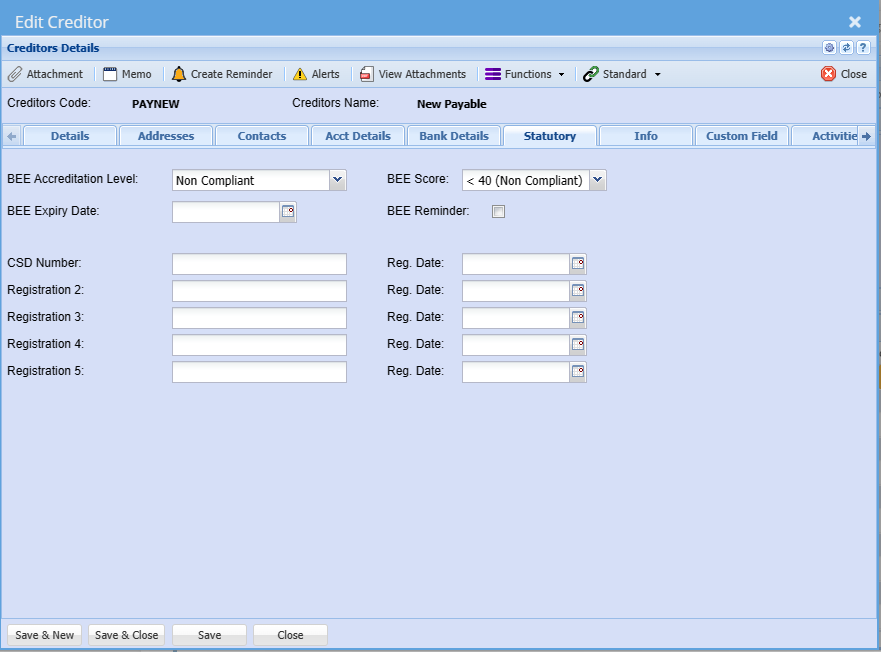
<span lang="EN-US" style="mso-bidi-font-family: Calibri; mso-bidi-theme-font: minor-latin; mso-ansi-language: EN-US; mso-bidi-font-weight: bold;">This tab caters for entering the BEE details of the Creditor</span>

<span lang="EN-US" style="mso-bidi-font-family: Calibri; mso-bidi-theme-font: minor-latin; mso-ansi-language: EN-US; mso-bidi-font-weight: bold;">You can also set reminders, whereby the system will send an email reminder to the dedicated user when the BEE certificate is due to expire. </span>

<span lang="EN-US" style="mso-bidi-font-family: Calibri; mso-bidi-theme-font: minor-latin; mso-ansi-language: EN-US; mso-bidi-font-weight: bold;">The Registration 1 to Registration 5 fields are customizable to the organization’s preference</span>

[![image.png](https://hugeerp10.co.za/hsofmanual/uploads/images/gallery/2023-11/scaled-1680-/strimage.png)](https://hugeerp10.co.za/hsofmanual/uploads/images/gallery/2023-11/strimage.png)

<table border="1" id="bkmrk-bee-accreditation-le" style="border-collapse: collapse; width: 100%;"><colgroup><col style="width: 20.4198%;"></col><col style="width: 79.6791%;"></col></colgroup><tbody><tr><td>**BEE Accreditation Level**</td><td>  
</td></tr><tr><td>**BEE Expiry Date**</td><td>  
</td></tr><tr><td>**CSD Number**</td><td>  
</td></tr><tr><td>**Registration 2**</td><td> </td></tr><tr><td>**Registration 3**</td><td>  
</td></tr><tr><td>**Registration 4**</td><td>  
</td></tr><tr><td>**Registration 5**</td><td>  
</td></tr><tr><td>**BEE Score**</td><td>  
</td></tr><tr><td>**BEE Reminder**</td><td>  
</td></tr><tr><td>**Reg. Date**</td><td>  
</td></tr></tbody></table>

---

<span style="color: rgb(34, 34, 34); font-family: var(--font-heading, var(--font-body)); font-size: 1.666em; font-weight: 400;">Info Tab</span>

<span lang="EN-US" style="mso-bidi-font-family: Calibri; mso-bidi-theme-font: minor-latin; mso-ansi-language: EN-US;">This tab allows you to insert any additional notes against the company.</span>

<span lang="EN-US" style="mso-bidi-font-family: Calibri; mso-bidi-theme-font: minor-latin; mso-ansi-language: EN-US;">You can also set additional indicators as per the respective tock boxes.</span>

[![image.png](https://hugeerp10.co.za/hsofmanual/uploads/images/gallery/2023-11/scaled-1680-/MPTimage.png)](https://hugeerp10.co.za/hsofmanual/uploads/images/gallery/2023-11/MPTimage.png)

<table border="1" id="bkmrk-information-exclude-" style="border-collapse: collapse; width: 100%;"><colgroup><col style="width: 25.9494%;"></col><col style="width: 74.0259%;"></col></colgroup><tbody><tr><td>**Information**</td><td>  
</td></tr><tr><td>**Exclude From Dashboard**</td><td>  
</td></tr><tr><td>**Exclude From Reports**

</td><td>  
</td></tr><tr><td>**Inter-Company Account**</td><td><span lang="EN-US" style="mso-ansi-language: EN-US;">This identifies the creditor as an intercompany Supplier and as such can be<span style="mso-spacerun: yes;"> </span></span><span lang="EN-US" style="mso-ansi-language: EN-US;">excluded from certain reports if need be.</span></td></tr><tr><td>**Allow Delivery To Customer**</td><td>  
</td></tr><tr><td>**Doc Import Item**</td><td> </td></tr><tr><td>**Use Courier API**</td><td>  
</td></tr><tr><td>**Internal Ref. ID**</td><td><span lang="EN-US" style="mso-ansi-language: EN-US;">This is where one can enter a unique identifier of the creditor that may apply to a </span><span lang="EN-US" style="mso-ansi-language: EN-US;">third-party application.</span></td></tr><tr><td>**Shipping Method**</td><td><span lang="EN-US" style="mso-ansi-language: EN-US;">This allows you to select the default shipping method for this creditor so as not to </span><span lang="EN-US" style="mso-ansi-language: EN-US;">select on each document</span></td></tr><tr><td>**Customer Link**</td><td>  
</td></tr></tbody></table>

---

#### Custom Field Tab

<span lang="EN-US" style="mso-bidi-font-family: Calibri; mso-bidi-theme-font: minor-latin; mso-ansi-language: EN-US;">Under the Custom Fields tab, this is where you can insert predefined user fields.<span style="mso-spacerun: yes;"> </span>Add as many custom fields as you require for additional information.</span>

[![image.png](https://hugeerp10.co.za/hsofmanual/uploads/images/gallery/2023-11/scaled-1680-/Duqimage.png)](https://hugeerp10.co.za/hsofmanual/uploads/images/gallery/2023-11/Duqimage.png)

<table border="1" id="bkmrk-category-recurring-o" style="border-collapse: collapse; width: 100%;"><colgroup><col style="width: 17.2099%;"></col><col style="width: 82.8889%;"></col></colgroup><tbody><tr><td>**Category**</td><td>  
</td></tr><tr><td>**Recurring Order**</td><td> </td></tr></tbody></table>

---

<span style="color: rgb(34, 34, 34); font-family: var(--font-heading, var(--font-body)); font-size: 1.666em; font-weight: 400;">Activities Tab</span>

[![image.png](https://hugeerp10.co.za/hsofmanual/uploads/images/gallery/2023-11/scaled-1680-/Xuuimage.png)](https://hugeerp10.co.za/hsofmanual/uploads/images/gallery/2023-11/Xuuimage.png)

<table border="1" id="bkmrk-choice%3A-activity---i" style="border-collapse: collapse; width: 100%;"><colgroup><col style="width: 28.8149%;"></col><col style="width: 71.284%;"></col></colgroup><tbody><tr><td>**Choice: Activity - Interaction**</td><td>  
</td></tr><tr><td>**Search**</td><td>  
</td></tr><tr><td>**View**</td><td>  
</td></tr><tr><td>**Print / Export**</td><td> </td></tr><tr><td>**Document Types**</td><td>  
</td></tr><tr><td>**Date From**</td><td>  
</td></tr><tr><td>**Interaction Type**</td><td>  
</td></tr><tr><td>**Date To**</td><td>  
</td></tr></tbody></table>

---

<span style="color: rgb(34, 34, 34); font-family: var(--font-heading, var(--font-body)); font-size: 1.666em; font-weight: 400;">B2B Tab</span>

[![image.png](https://hugeerp10.co.za/hsofmanual/uploads/images/gallery/2023-11/scaled-1680-/akMimage.png)](https://hugeerp10.co.za/hsofmanual/uploads/images/gallery/2023-11/akMimage.png)

---

### Functions dropdown

#### <span lang="EN-US" style="mso-ansi-language: EN-US;">Branches</span>

<span lang="EN-US" style="mso-ansi-language: EN-US;">Should you be running multi-branches you can select the branch that this Supplier is linked to.</span>

<span lang="EN-US" style="mso-ansi-language: EN-US;">When searching users will then only see the Creditors linked to the branch they have access to.</span>

[![image.png](https://hugeerp10.co.za/hsofmanual/uploads/images/gallery/2023-11/scaled-1680-/vlKimage.png)](https://hugeerp10.co.za/hsofmanual/uploads/images/gallery/2023-11/vlKimage.png)

Move the branch to the right for access

[![image.png](https://hugeerp10.co.za/hsofmanual/uploads/images/gallery/2023-10/scaled-1680-/jJdimage.png)](https://hugeerp10.co.za/hsofmanual/uploads/images/gallery/2023-10/jJdimage.png)

T<span lang="EN-US" style="mso-ansi-language: EN-US;">he right-hand column is the selected branch, i.e. Branches the Creditor is linked to and users with access to these selected branches will then be able to search select these creditors</span>

<span lang="EN-US" style="mso-ansi-language: EN-US;">You can have multiple branches linked to a Creditor</span>

---

#### Creditors Settings

[![image.png](https://hugeerp10.co.za/hsofmanual/uploads/images/gallery/2023-11/scaled-1680-/jZhimage.png)](https://hugeerp10.co.za/hsofmanual/uploads/images/gallery/2023-11/jZhimage.png)

[![image.png](https://hugeerp10.co.za/hsofmanual/uploads/images/gallery/2023-11/scaled-1680-/vUhimage.png)](https://hugeerp10.co.za/hsofmanual/uploads/images/gallery/2023-11/vUhimage.png)

---

#### Creditor Budget

[![image.png](https://hugeerp10.co.za/hsofmanual/uploads/images/gallery/2023-11/scaled-1680-/MXpimage.png)](https://hugeerp10.co.za/hsofmanual/uploads/images/gallery/2023-11/MXpimage.png)

[![image.png](https://hugeerp10.co.za/hsofmanual/uploads/images/gallery/2023-11/scaled-1680-/dAIimage.png)](https://hugeerp10.co.za/hsofmanual/uploads/images/gallery/2023-11/dAIimage.png)

<table border="1" id="bkmrk-search-allocate-calc" style="border-collapse: collapse; width: 100%;"><colgroup><col style="width: 19.926%;"></col><col style="width: 80.1729%;"></col></colgroup><tbody><tr><td>**Search**</td><td>  
</td></tr><tr><td>**Allocate**</td><td>  
</td></tr><tr><td>**Calculate Actuals**</td><td>  
</td></tr><tr><td>**Print**</td><td> </td></tr></tbody></table>

---

#### View Recurring Transactions

[![image.png](https://hugeerp10.co.za/hsofmanual/uploads/images/gallery/2023-11/scaled-1680-/amYimage.png)](https://hugeerp10.co.za/hsofmanual/uploads/images/gallery/2023-11/amYimage.png)

[![image.png](https://hugeerp10.co.za/hsofmanual/uploads/images/gallery/2023-11/scaled-1680-/pNqimage.png)](https://hugeerp10.co.za/hsofmanual/uploads/images/gallery/2023-11/pNqimage.png)

[![image.png](https://hugeerp10.co.za/hsofmanual/uploads/images/gallery/2023-11/scaled-1680-/wVjimage.png)](https://hugeerp10.co.za/hsofmanual/uploads/images/gallery/2023-11/wVjimage.png)

---

### Standard Dropdown

#### Leadtime

[![image.png](https://hugeerp10.co.za/hsofmanual/uploads/images/gallery/2023-11/scaled-1680-/9DHimage.png)](https://hugeerp10.co.za/hsofmanual/uploads/images/gallery/2023-11/9DHimage.png)

[![image.png](https://hugeerp10.co.za/hsofmanual/uploads/images/gallery/2023-11/scaled-1680-/UbZimage.png)](https://hugeerp10.co.za/hsofmanual/uploads/images/gallery/2023-11/UbZimage.png)

---

#### Shipping Terms

[![image.png](https://hugeerp10.co.za/hsofmanual/uploads/images/gallery/2023-11/scaled-1680-/D2wimage.png)](https://hugeerp10.co.za/hsofmanual/uploads/images/gallery/2023-11/D2wimage.png)

[![image.png](https://hugeerp10.co.za/hsofmanual/uploads/images/gallery/2023-11/scaled-1680-/UcAimage.png)](https://hugeerp10.co.za/hsofmanual/uploads/images/gallery/2023-11/UcAimage.png)

<table border="1" id="bkmrk-notify-creditor-noti" style="border-collapse: collapse; width: 100%;"><colgroup><col style="width: 23.3538%;"></col><col style="width: 76.6214%;"></col></colgroup><tbody><tr><td>**Notify Creditor**</td><td>  
</td></tr><tr><td>**Notify Head Office**</td><td> </td></tr><tr><td>**Notify Clearing Agent**</td><td>  
</td></tr><tr><td>**Notify Forwarding Agent**</td><td>  
</td></tr><tr><td>**Default**</td><td>  
</td></tr><tr><td>**Default Clearing Agent**</td><td>  
</td></tr><tr><td>**Default Forwarding Agent**</td><td>  
</td></tr></tbody></table>

[![image.png](https://hugeerp10.co.za/hsofmanual/uploads/images/gallery/2023-11/scaled-1680-/5s9image.png)](https://hugeerp10.co.za/hsofmanual/uploads/images/gallery/2023-11/5s9image.png)

<table border="1" id="bkmrk-shipping-terms-airfr" style="border-collapse: collapse; width: 100%;"><colgroup><col style="width: 25.3581%;"></col><col style="width: 74.7408%;"></col></colgroup><tbody><tr><td>**Shipping Terms**</td><td>  
</td></tr><tr><td>**Airfreight Days**</td><td>  
</td></tr><tr><td>**Rail Freight Days**</td><td> </td></tr><tr><td>**Barge Freight Days**</td><td>  
</td></tr><tr><td>**Shipping Method**</td><td>  
</td></tr><tr><td>**Shipping Days**</td><td>  
</td></tr><tr><td>**Road Freight Days**</td><td>  
</td></tr><tr><td>**Special Shipping Instructions**</td><td>  
</td></tr><tr><td>**Can use Express Docs Tick**</td><td>  
</td></tr><tr><td>**Transmission Letter Tick**</td><td>  
</td></tr><tr><td>**Bill of Lading Tick**</td><td>  
</td></tr><tr><td>**Air Waybill Tick**</td><td>  
</td></tr><tr><td>**EUR 1 Tick**</td><td>  
</td></tr><tr><td>**Commercial Invoice Tick**</td><td>  
</td></tr><tr><td>**Packing List Tick**</td><td>  
</td></tr><tr><td>**Certificate of Analysis Tick**</td><td>  
</td></tr><tr><td>**Certificate of Origin Tick**</td><td>  
</td></tr><tr><td>**Insurance Certificate Tick**</td><td>  
</td></tr><tr><td>**Inspection Certificate Tick**</td><td>  
</td></tr><tr><td>**DHL Waybill for Docs Tick**</td><td>  
</td></tr><tr><td>**N/A Ticks**</td><td>  
</td></tr></tbody></table>

---

##### <span style="color: rgb(34, 34, 34); font-family: var(--font-heading, var(--font-body)); font-size: 1.666em; font-weight: 400;">Linked Inventory</span>  


[![image.png](https://hugeerp10.co.za/hsofmanual/uploads/images/gallery/2023-11/scaled-1680-/as4image.png)](https://hugeerp10.co.za/hsofmanual/uploads/images/gallery/2023-11/as4image.png)

[![image.png](https://hugeerp10.co.za/hsofmanual/uploads/images/gallery/2023-11/scaled-1680-/Bysimage.png)](https://hugeerp10.co.za/hsofmanual/uploads/images/gallery/2023-11/Bysimage.png)

Click Add and fill in the information

[![image.png](https://hugeerp10.co.za/hsofmanual/uploads/images/gallery/2023-11/scaled-1680-/HlRimage.png)](https://hugeerp10.co.za/hsofmanual/uploads/images/gallery/2023-11/HlRimage.png)

<table border="1" id="bkmrk-add-items-to-credito" style="border-collapse: collapse; width: 100%;"><colgroup><col style="width: 23.0124%;"></col><col style="width: 77.0865%;"></col></colgroup><tbody><tr><td>**Add Items To Creditor**</td><td>  
</td></tr><tr><td>**Item Code**</td><td> </td></tr><tr><td>**Supplier Code**</td><td>  
</td></tr><tr><td>**Group Code**</td><td>  
</td></tr><tr><td>**Brand**</td><td>  
</td></tr><tr><td>**Make**</td><td>  
</td></tr><tr><td>**Model**</td><td>  
</td></tr><tr><td>**Item Description**</td><td>  
</td></tr><tr><td>**Supplier Name**</td><td>  
</td></tr><tr><td>**Category**</td><td>  
</td></tr><tr><td>**Order By**</td><td>  
</td></tr><tr><td>**BOM Items Tick**</td><td>  
</td></tr><tr><td>**Serialized Items Tick**</td><td> </td></tr></tbody></table>

---

##### Energy Defaults

[![image.png](https://hugeerp10.co.za/hsofmanual/uploads/images/gallery/2024-09/scaled-1680-/kmzimage.png)](https://hugeerp10.co.za/hsofmanual/uploads/images/gallery/2024-09/kmzimage.png)

[![image.png](https://hugeerp10.co.za/hsofmanual/uploads/images/gallery/2024-09/scaled-1680-/gP6image.png)](https://hugeerp10.co.za/hsofmanual/uploads/images/gallery/2024-09/gP6image.png)