Email Notification
- Email Notification Setup [WIP]
- Asset and Actions setup
- Asset Email Letter Templates
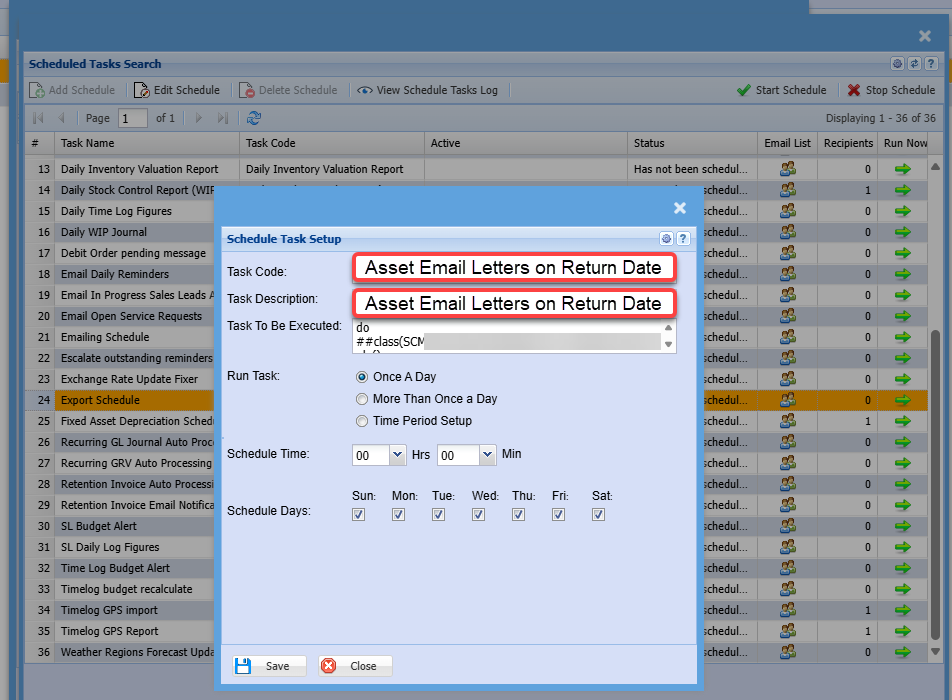
- Asset Return Date Scheduler
Email Notification Setup [WIP]
Setting up of multiple letters to action to customer contact.
Multiple template letters
Link template letter to an action
Actions as follows:
- Multiple Asset actions added eg
- check out - Flag on to run Return date emails
- check in - Flag off to Not run Return date emails
- Other actions
- Multiple email out based on X number of days before and after check return Date
- Letter out X number of days after check out No 1
- Letter out X number of days after check out No 2
- Asset return date, letter out three days before return day
- Letter X number of days after Return Date
- Letter X number of days after Return Date No 2
- Letter X number of days after Return Date No 3
- Letter on day of Return Date
Ensure we have a flag active on asset for letters out
Ensure that there is a flag to log check out to run
Setup Schedule task to be run each day to check all schedules
Notes
- Add in an Asset Action that puts the flag on for email in or out
- Check that we are able to put in data replacement
- Contact first name and last name
- Company name
- Stock item code and description
- Add an additional tab to allow internal user to be copied in the email
Asset and Actions setup
Settings for the following areas need to be setup in order for the email to go out.
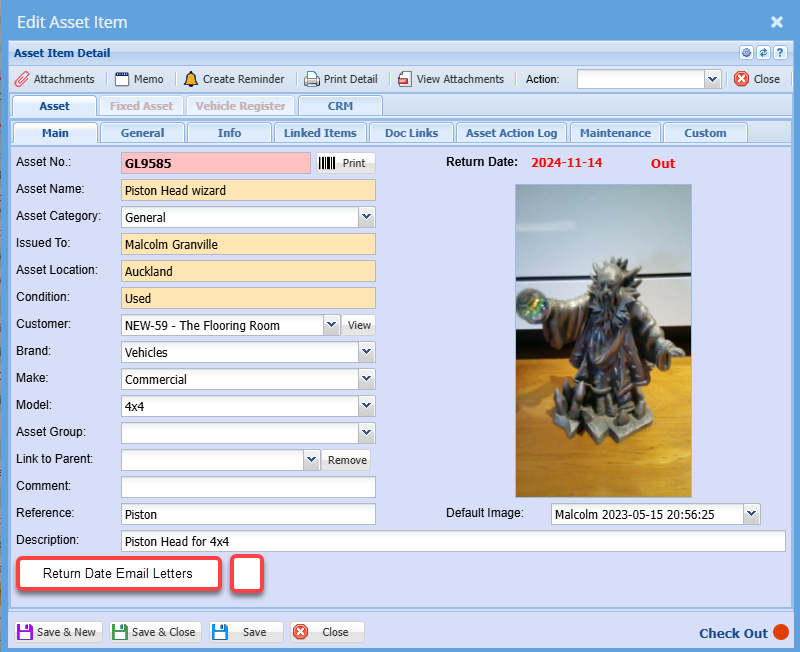
Asset Setup
| Return Date Email Letters | Enable this function for this asset to activate Return Date email letters |
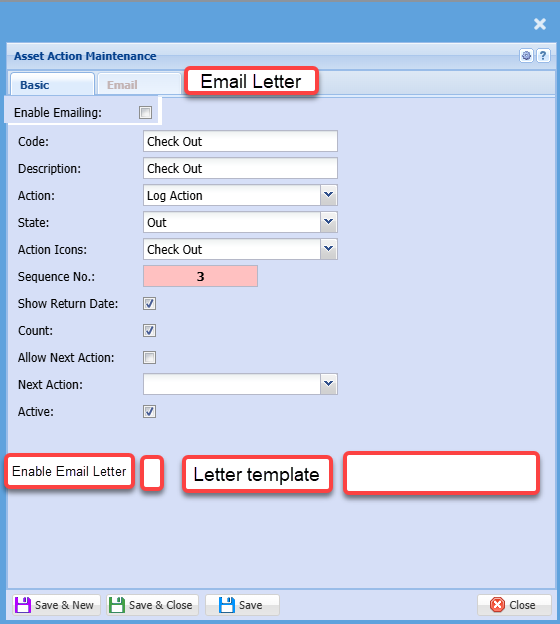
Action setup
When the Enable Email letter is active, then send out an email to the customer contact with the specific letter template.
If an internal user is set to also receive the email, then copy the internal user.
If the company does not have a contact or the contact does not have an email, then no email goes out to customer or internal user.
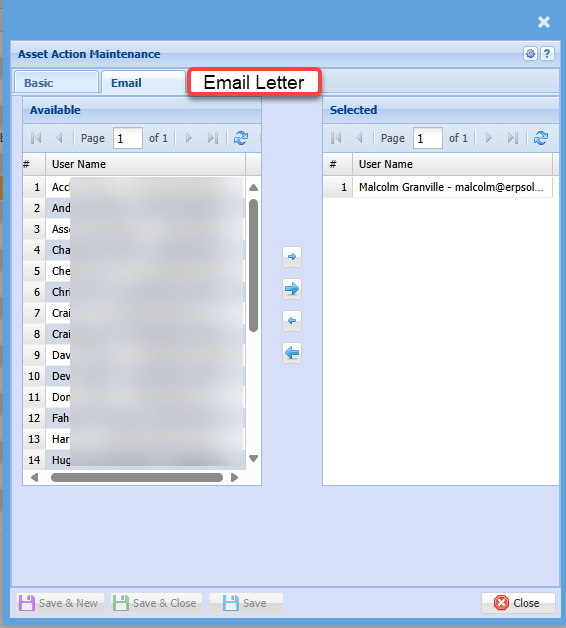
Email letter tab
Email letter tab becomes active if the Enable email letter is ticked / active.
This lists all internal users
Asset Email Letter Templates
Setup multiple letters to be sent out
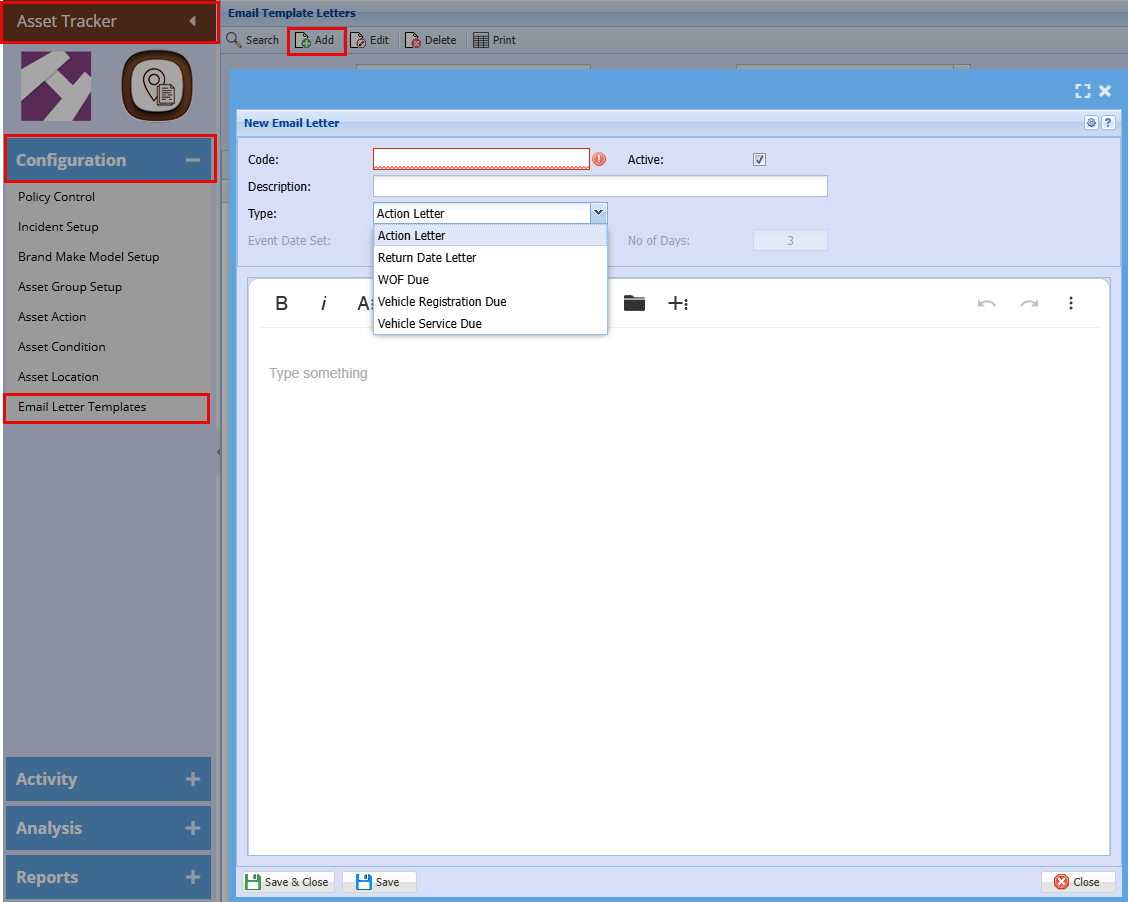
Asset Tracker > Configuration > Email Letter Template

Add / Edit Email Letter
The Email that is sent out must be embedded into the email with the Description of the Letter for the Header of the email.
Sencha latest version makes use of a text editor, see if we can use that to make up the letters.
This allows formatting and pictures to be embedded.
Placeholders
Placeholders can be added to the templates to be substituted with the values they reference when the email is sent.
For a piece of text to be identified as a valid placeholder and substitued it needs to be:
- On the same line
- Enclosed in square brackets
- Not contain embedded square brackets
- Less than 100 characters, including spaces and punctuation and excluding the square brackets, in length
- Match one of the placeholders in the table below. Spaces, punctuation and letter case are ignored. For example
[CustomerContactFullName]or[CUSTOMER_CONTACT_FULL_NAME]will match theCustomer Contact (Full Name)placeholder. The spaces and punctuation are optional and for readability only.
| Placeholders |
Substitution |
Notes |
|
|
The first and last name of the Customer Contact separated by a space. |
1, 2 |
|
|
The first name of the Customer Contact. | 1, 2 |
|
|
The mobile number of the Customer Contact. | |
|
|
The telephone number of the Customer Contact. | |
|
|
The email address of the Customer Contact. | |
|
|
The description of the Action completed for the Action. For example "Check Out" | |
|
|
The code of the Action completed for the Action. May match the description. For example "Check Out" | |
|
|
A list of Assets for which the action is completed for. Each item in the list is the Asset Number, followed by a dash and then the Asset Name. |
|
|
|
A list of the names of the Assets for which the action is completed for. | |
|
|
The number of assets for which the action is completed for. | |
|
|
The total count of all the assets for which the action is completed for. | |
|
|
The company name of the customer | 1 |
|
|
The Return or Due Date of the asset in YYYY-MM-DD format. If there is more than one asset in the email then the first is selected. |
|
|
|
The Return or Due Date of the Asset in D/M/YYY or D/MM/YYYY format (New Zealand) If there is more than one asset in the email then the first is selected. |
|
|
|
The number of days before or after the return or due date If there is more than one asset in the email then the first is selected. |
|
|
|
The warrant of fitness date if the email template type is selected as "WOF Due". This should be the same as "Asset Due Date". If there is more than one vehicle in the email then the first is selected. |
3 |
|
|
The vehicle registration date if the email template is selected as "Vehicle Registration Due". This should be the same as "Asset Due Date". If there is more than one vehicle in the email then the first is selected. |
3 |
|
|
If the asset is a vehicle then the Vehicle registration number as set in the Vehicle Register form for the asset. |
3 |
|
|
If the asset is a vehicle the Description as set in the Vehicle Register form for the asset. If there is more than one vehicle in the email then then each subsequent item is preceded by a comma or "and" for the last item. |
3 |
|
|
The number of vehicle assets in the email | 3 |
Notes
- Used in CRM Email Templates also [WIP]
- For CRM Email Template this placeholder can be substituted by value for the Company Branch contact person depending on the mailing list set up. [TBD]
- Requires the asset to be marked as a vehicle.
Activate Asset mail out
Return Date
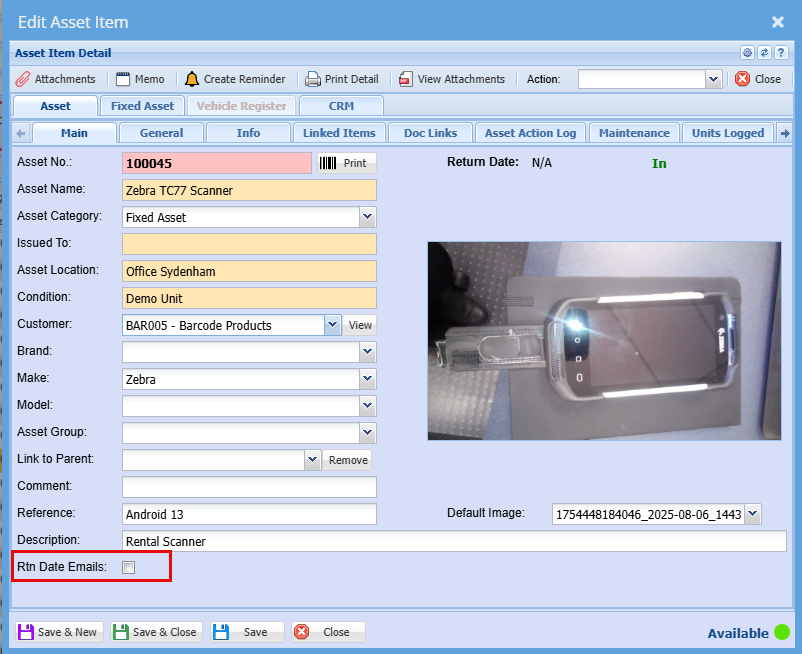
Asset Module > Action > "Main" Tab
- To activate the Mail out for each item the “Return Date Email” checkbox needs to be ticked at bottom of the Asset Main page, tick the “Return Date Email” checkbox to activate this mail‑out.
Asset Return Date Scheduler
Setup a new schedule to run checks on due letters that are active on assets that are in an out status and have a return date.